- Capabilities
- Getting started
- Architecture center
- Platform updates
Manage code scanning rules
Every code scan applies a set of rules to your code. Each rule describes one pattern to look for, the message to show when that pattern is found, and how severe the finding is.
As an enrollment administrator, you can review the rules that apply to your enrollment, turn individual rules off, and add rules of your own. Rules are managed per enrollment, so a change applies to every repository that code scanning covers.
Rule types
| Type | Description | Available actions |
|---|---|---|
| Built-in | The default rule set that Palantir maintains and updates. | Enable, disable, duplicate, download |
| Custom | Rules that you add for your enrollment. | Enable, disable, duplicate, download, edit, delete |
Built-in rules cannot be edited or deleted. To change what a built-in rule reports, duplicate it and edit the copy, then disable the original.
Find the rule list
- Navigate to Control Panel for your enrollment.
- From the left sidebar, choose All Settings.
- Scroll to Security & Governance > Code scanning.
- Select the Rules tab.
The Built-in and Custom tabs list the rules of each type. To narrow the list, enter a term in the search field or choose All, Enabled, or Disabled from the status filter. Select any rule to view its definition.
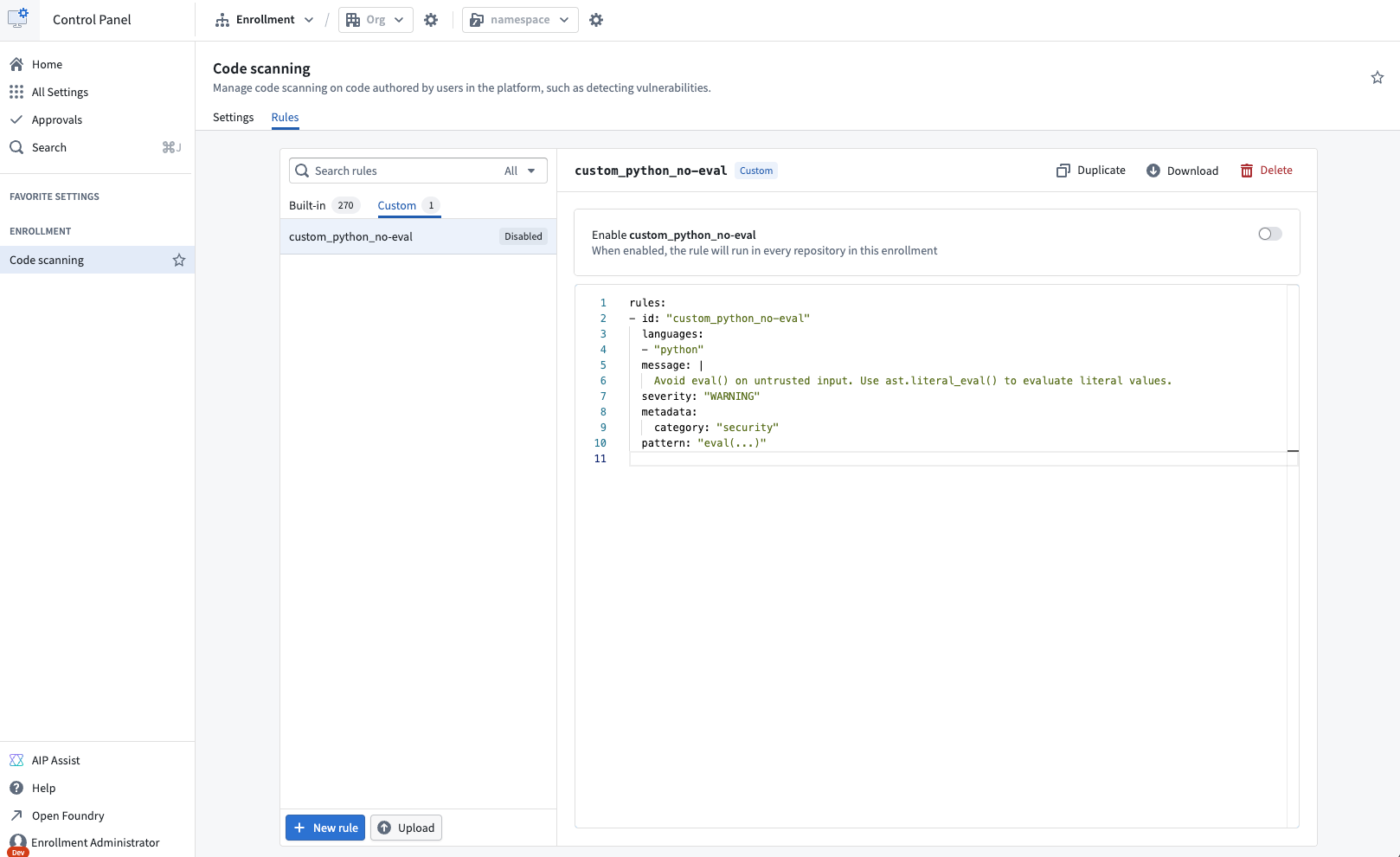
Enable or disable a rule
Every rule carries an Enabled or Disabled label. Use the toggle in the rule view to change its state. You can toggle both built-in and custom rules.
Disabling a rule stops it from running in every repository in the enrollment, so you are asked to confirm before the change is applied. Enabling a rule takes effect immediately.
Disabling a rule does not remove earlier findings from completed scans. The rule is skipped from the next scan onward.
Add a custom rule
- From the Custom tab, select New rule.
- Replace the template in the editor with your rule definition.
- Select Save.
A new custom rule is enabled as soon as it is saved, and applies from the next scan in every repository that code scanning covers. Disable the rule if you want to add it without running it yet.
Foundry validates the definition when you save and only accepts valid rules.
Rule file requirements
Custom rules use the same format as the built-in rules, which follow the Semgrep rule syntax ↗. Each definition must be a valid Semgrep rule and meet the following additional requirements:
- Contain exactly one rule.
- Specify an
id, which becomes the name shown in the rule list. Use only letters, numbers, periods, underscores, and hyphens. - Use an
idthat no other custom rule in the enrollment uses. A custom rule may reuse the name of a built-in rule.
The following example flags calls to eval in Python files:
Copied!1 2 3 4 5 6 7 8 9 10rules: - id: custom_python_no-eval languages: - python message: | Avoid eval() on untrusted input. Use ast.literal_eval() to evaluate literal values. severity: WARNING metadata: category: security pattern: eval(...)
Duplicate a rule
Select Duplicate in the rule view to create an editable copy. The copy is always a custom rule, even when the original is built-in, and it is not linked to the rule you copied. Give the copy a new id before you save it.
Edit a custom rule
- Select the rule in the Custom tab.
- Change the definition in the editor. The rule is marked Unsaved as soon as you make a change.
- Select Save to apply the change, or Cancel to discard it.
To rename a rule, change its id. The name in the rule list is taken from the definition, so both stay consistent.
Upload and download rule definitions
Select Download in the rule view to save a rule definition as a .yml file. Both built-in and custom rules can be downloaded.
To add a rule from a file, select Upload above the rule list and choose a .yml or .yaml file. The contents open in the editor as a new custom rule. Review the definition, then select Save.
Delete a custom rule
Select Delete in the rule view, then confirm. Deletion is permanent, and the rule stops running on every repository in the enrollment. To stop a rule temporarily without losing it, disable it instead.
Rules and scanning settings
Rules determine what a scan reports. They do not determine which repositories are scanned, which is controlled by the settings described in Enable code scanning. A rule only produces findings in repositories that code scanning covers.
If every rule is disabled, scans still run and complete with no findings.