- Capabilities
- Getting started
- Architecture center
- Platform updates
Envelope security [Beta]
Envelope security in Notepad is in the beta phase of development and is only available on enrollments that use Classification-based Access Controls (CBAC). The set of supported widgets and document features will expand in future releases. Contact Palantir Support to request access to envelope security if it is not available on your CBAC-enabled enrollment.
Envelope security restricts the data Foundry can load inside a Notepad document to a security boundary defined by the document's own CBAC classification and markings. When you enable envelope security on a document, the document's file markings restrict the data that can be added and viewed in the file instead of using each individual user's marking membership to determine what they can view. A Notepad document with envelope security can be safely exported with a banner that accurately reflects the classification of its contents.
When to use envelope security
Apply envelope security to a document when the security of its content must be enforced and communicated independently of the scoped session a user is working in. Additionally, you can use envelope security in Notepad when you need to:
- Author a document whose content must remain at or below a specific classification, regardless of the access level of the user editing the document.
- Export a document with a banner that reflects the document's own classification, rather than the user's session-high banner.
- Share a document where the contents must be the same for every authorized viewer.
If you do not need these guarantees, use a regular Notepad document which supports the full set of widgets while filtering dynamically loaded content for each viewer based on their marking membership.
Create an envelope-secured document
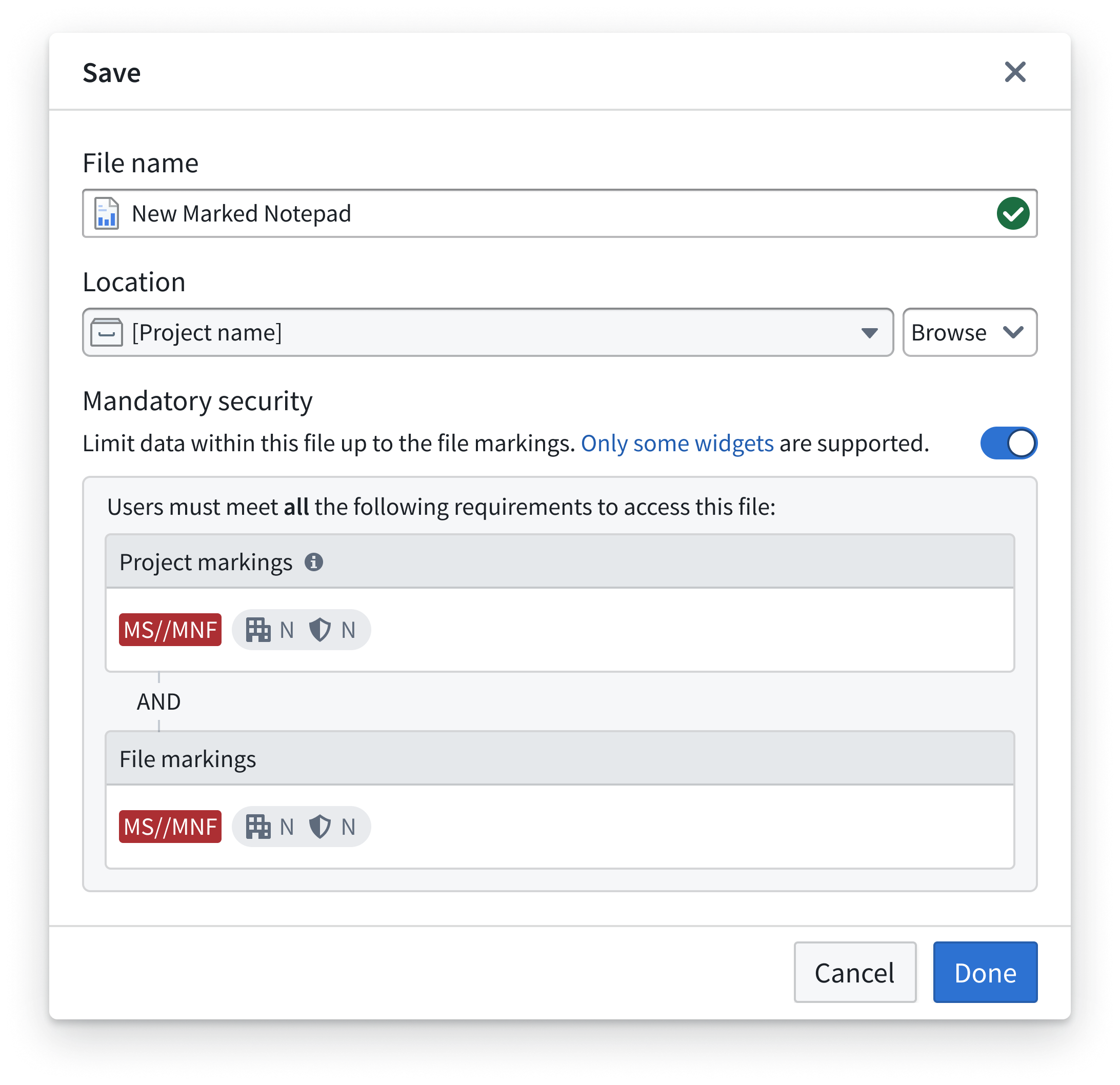
When you enable envelope security, the Notepad creation dialog displays file access presets under File markings if presets are configured for your Organization. If no presets are configured, the dialog displays Custom security.
Follow the instructions below to create a document with envelope security from the standard Notepad creation dialog.
- Select + New > Notepad document to create a new Notepad document from a project.
- Choose the project and, if applicable, the folder where you want to save the document.
- Under Security, toggle on Enable envelope security. The document inherits container markings from the selected project and parent folder.
- Under File markings, choose an available file access preset or configure custom security.
- Select Save to create the document.
You cannot enable or disable envelope security after you create a document. If you need a different envelope security setting, create a new document with the desired setting.
The security selected for an envelope-secured document must satisfy the containing project's and parent folder's classification and mandatory marking constraints. The project classification and parent folder's classification set the minimum classification requirements. If set, the project maximum classification limits the highest classification you can select. File markings must also satisfy the mandatory marking constraints of both the project and parent folder. If you change the save location, review the available presets and file markings again, as each project and folder can have different constraints.
You can view the outline, version history, referenced data panel, and page settings for an envelope-secured Notepad, just like a regular document.
Banner display
Envelope-secured documents display a banner derived from the document's file markings.
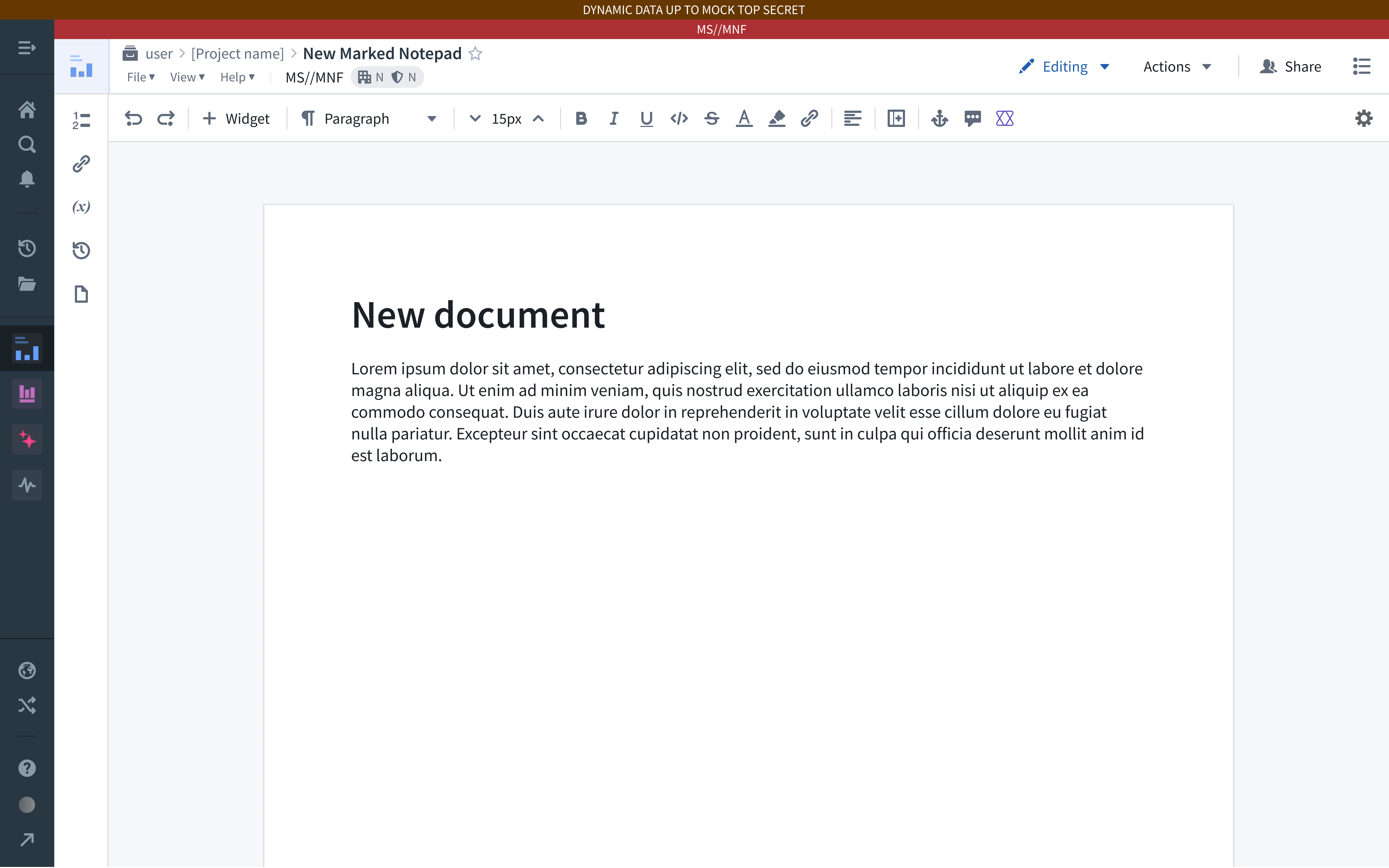
- When viewing the document in Notepad: Notepad renders a banner at the top of the document that is visible whenever the document is open.
- After exporting the document to PDF or Word: The exported document uses the file markings banner. The custom export banner picker is disabled for envelope-secured documents.
- When viewing the embedded document in Workshop: Workshop renders the file markings banner around the embedded document in addition to the Workshop session banner.
Supported widgets
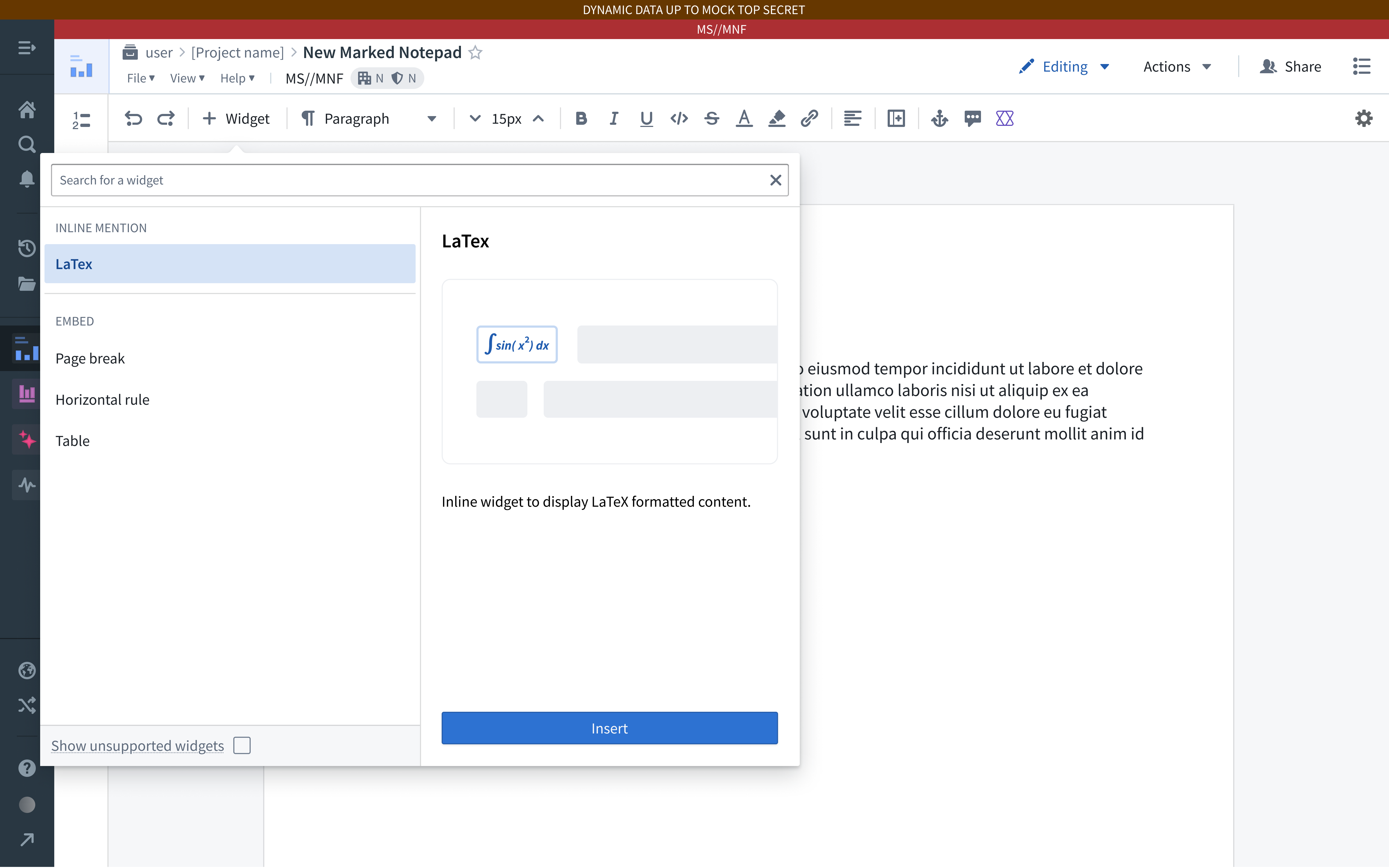
Envelope-secured documents support the following widgets:
- Anchor link
- Current date
- Horizontal rule
- Image
- LaTeX
- Object card
- Object media preview
- Object property
- Object property Markdown editor
- Page break
- Table
- User mention
Notepad filters the + Widget menu in envelope-secured documents to display only the supported widgets listed above, including the menu used in headers and footers.
Unsupported functionality
The following Notepad features are not available in envelope-secured documents:
- Templates: You cannot create envelope-secured documents from a template, and you cannot save an envelope-secured document as a template.
- Marketplace packaging: You cannot package envelope-secured documents into a Marketplace product.
- Edit with AIP and Edit with functions: AIP-based editing is disabled, as marked content cannot be passed to arbitrary functions.
- App Pairing: App Pairing is not supported, since it is used in conjunction with the unsupported Command widget.
- Add to AIP Assist: Adding envelope-secured documents to AIP Assist is not supported.
- Add automation: You cannot configure an Automate integration on envelope-secured documents.
Edit an envelope-secured document
Edit an envelope-secured document following the same workflow you use to edit a regular Notepad document, with the following differences:
- Pasting content that contains unsupported widgets, such as copying content from a regular Notepad document, removes those widgets from the pasted content.
- Notepad rejects updates that would insert unsupported widgets into the document. If a paste or other edit fails validation, the change will not be applied and the page will automatically refresh.
Duplicate and move envelope-secured documents
When you duplicate an envelope-secured Notepad document, the duplicate retains the same classification and markings as the original document, regardless of the destination project's classification.
When you move an envelope-secured document into a different project, the document's classification and markings remain unchanged. The document's classification must fall within the destination project's allowed classification range, between its project classification and project maximum classification, to ensure it remains accessible.