- Capabilities
- Getting started
- Architecture center
- Platform updates
Export
Notepad documents are designed for printing and exporting as a PDF or DOCX with support for modifying page orientation, defining page headers and footers, and print-specific settings for widgets.
Export a document
Export a document by using the File menu on the top right, Export, then Export as PDF or Export as DOCX. Notepad will save your document in the selected file format once the document has been rendered.
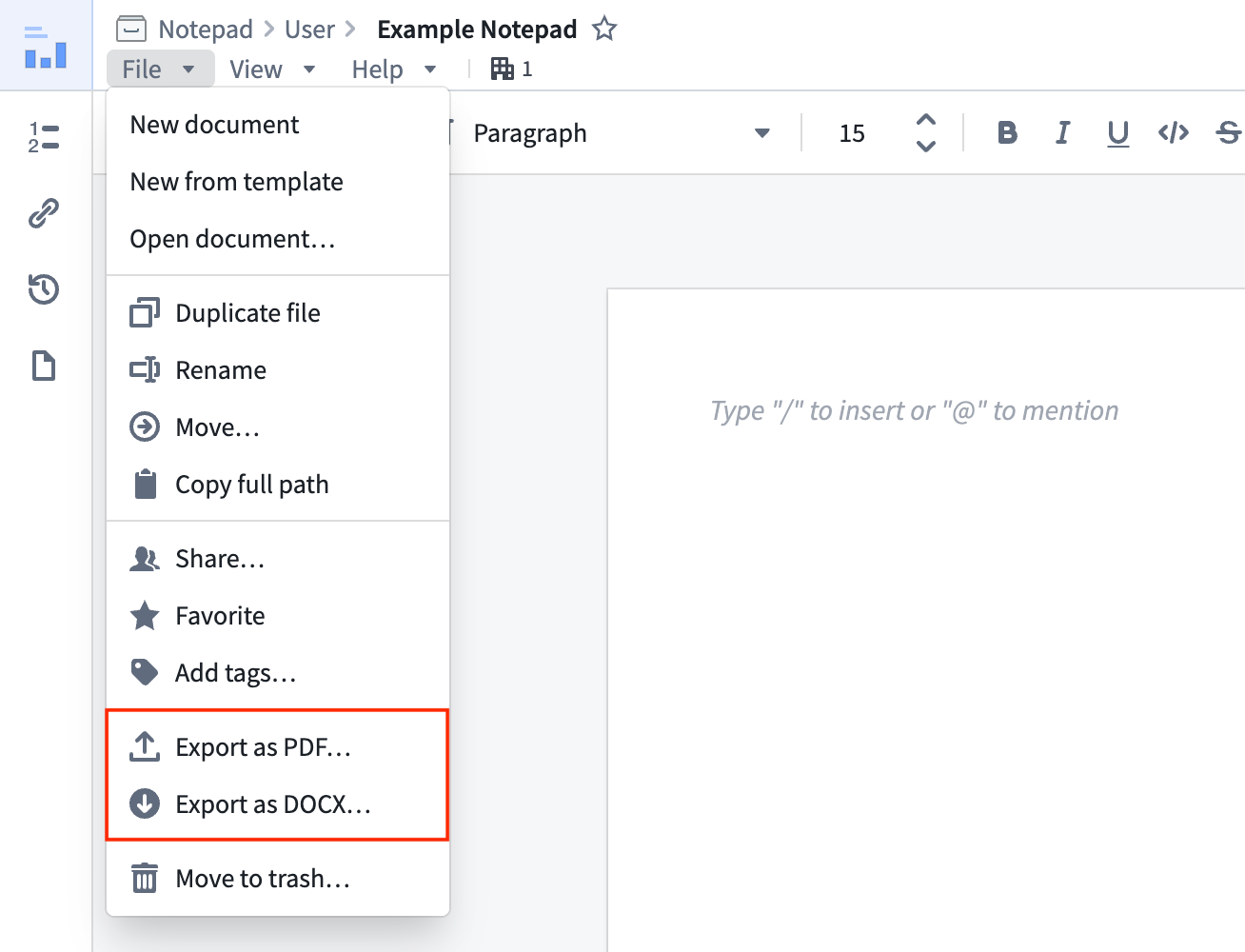
The background rendering time is capped when exporting. Should the document contain many charts that require long computations, the limit may be reached and prevent your chart from fully loading. In these cases, use the Open in print mode option discussed below.
Specific page settings
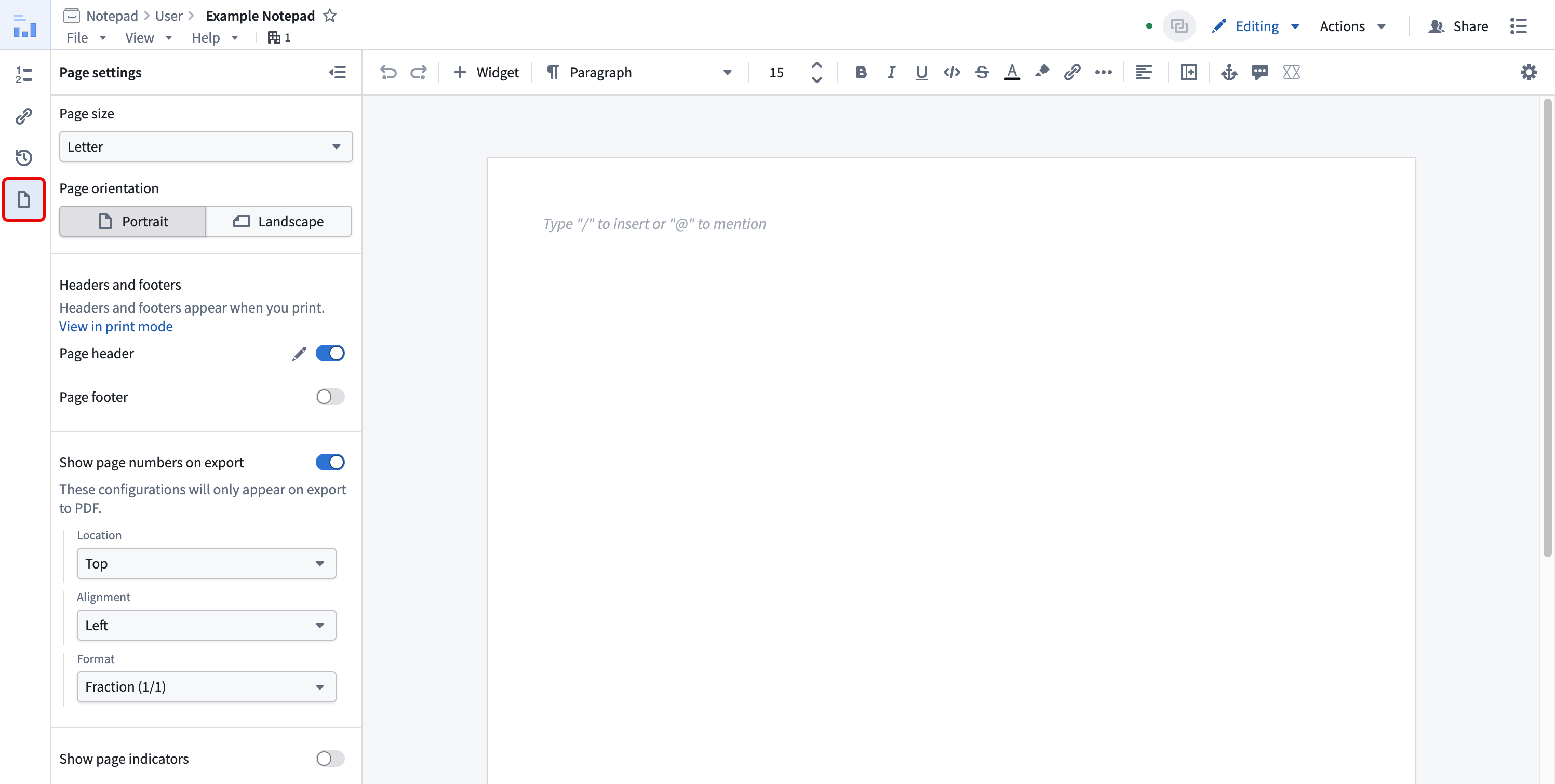
Notepad provides additional page settings for fine-tuning your document before exporting it. To configure page settings, select Page settings in the Notepad left panel.
Page size
The default page size for Notepad documents is Letter (8.5 x 11 inches). Use the Page size dropdown menu to select a different size.
The available page size options are:
- Letter
- Legal
- Tabloid
- A3
- A4
- A5
Page orientation
By default, documents are displayed in portrait mode. To change a document to landscape mode, select Portrait or Landscape under Page orientation.
Page headers and footers
Page headers and footers are only visible for document print or export. To enable page headers or footers, enable the Page header or Page footer option.
Page break widget
Use the page break widget to insert custom page breaks. Page breaks will only be shown when printing.
Widget printing configuration
Some widgets support print-specific configuration options. When available, access these by selecting a widget, opening the Widget Properties panel, and selecting Print Configuration.
Options include zoom, print on new page, and expanding scrollbars.
Zoom
Exporting the document may limit the horizontal space available (even in landscape mode), which is not well-suited for some visualizations. For example, wide tables which can be scrolled horizontally on screen will need to be adjusted to fit. The Zoom Level config allows you to do this by scaling down the content shown.

Print on new page
By default, widgets print on a new page if space is limited. This may not be the preferred behavior for widgets that display tables or span more than a page. In these cases, you can disable printing on a new page.
Expanding scrollbars
Use Auto-expand Table height on print to fully expand scrollbars on print to ensure vertically scrolled sections are fully expanded. This feature is currently only supported for Contour tables and Quiver object and pivot tables.

Export as PDF
You can open the document in a print-friendly view with the Open in print mode button. Once the page and all your charts have fully loaded, you can either use the Ctrl+P (Windows)/Cmd + P (macOS) keyboard shortcut or the print button on the upper right to save as PDF or print the page.
Be sure to set the print layout to Portrait or Landscape based on the page orientation of your document. Make sure that the page size matches your selected Notepad page size. Select the default margin options to ensure content is aligned.
Export as DOCX
DOCX export in Notepad is in the beta phase of development. Functionality may change during active development.
Notepad currently supports the following widgets for DOCX export:
- Clip
- Code Workbook Chart
- Contour Chart
- File Reference (Compass)
- Image
- Object Card
- Object Media Preview
- Object Property
- Page break
- Quiver Analysis Chart
- Quiver Dashboard Chart
- Solution Designer Diagram
- Table
- Vertex Graph
- Map
DOCX export is not guaranteed to preserve all styling and layout from your Notepad document. The sections below describe the adjustments and limitations you are most likely to encounter, but other differences may occur.
Automatic adjustments
The following adjustments are applied automatically when you export to DOCX:
- Content is scaled to match its layout in Notepad. Images, tables, columns, and text are resized so the document fills the Word page the same way it does in Notepad. Widths and font sizes use different scaling factors, so text and the images next to it may be scaled by different amounts.
- Images are sized to fit the page. Any image wider than the usable page width is shrunk to fit while keeping its original proportions. The image's height always follows its original aspect ratio.
- Highlight colors are approximated. Microsoft Word supports only 16 highlight colors, so Notepad selects the closest available color to your highlight.
Unsupported content
The following content is not included when exporting to DOCX:
- Tables nested inside other tables are not exported.
- Columns inside a table cell are arranged vertically instead of appearing side-by-side.
- Checklists are exported as ordinary bulleted lists, without checkboxes.
- Deeply nested lists are limited to nine levels of indentation.
- Widgets are exported as static PNG images. Widgets do not retain any of their interactive features when exported. Only the widget types listed under Export as DOCX are supported; other widgets are not exported.
- Placeholders are not exported.