- Capabilities
- Getting started
- Architecture center
- Platform updates
Branching Model Studio
The Model Studio integration with Global Branching is in the beta phase of development and may not be available on your enrollment. Functionality may change during active development.
Model Studio integrates with Global Branching, allowing you to change a training configuration and test it on a branch before merging the changes into main. You can experiment with input datasets, trainer parameters, and compute resources without changing the training configuration on main.
For general information about branches and proposals, see Global Branching core concepts.
Create or select a branch
Before you begin, set up your model studio on main and launch a training run to save its initial configuration.
To work on a global branch:
- Open the model studio.
- Open the branch selector in the application header.
- Select Create new branch, or select an existing branch.
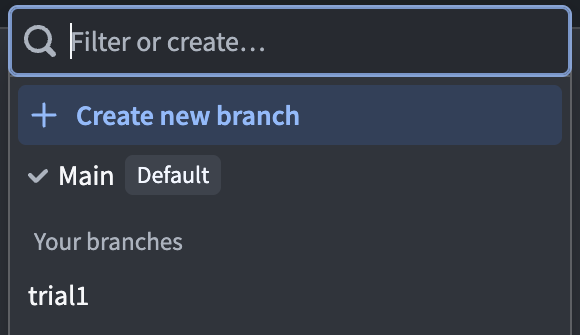
The selected branch determines which configuration and training runs you see. Training runs use the latest configuration on that branch and produce model versions on that branch.
If the branch does not yet have a configuration version, select Start training run to copy the latest configuration from main and start a baseline run. This reuses the existing output model and writes a model version on the selected branch.
Edit and test the configuration
To change the configuration on your branch:
- On the Overview tab, confirm that the branch selector shows the branch you want to modify.
- Select Edit configuration to open the configuration wizard.
- Update the inputs, trainer parameters, or compute resources.
- Review the configuration, provide a version name and optional changelog, and select Save changes and run.
- Review the run in Recent training runs. Select the run to open its details, then open the output model or select View experiment to inspect its results.
Saving creates a configuration version on the selected branch and starts a training run with that configuration. To run the same configuration again, select Start training run. Results may differ if the input data has changed.
Review changes
Select the Changes tab to compare the configuration on main with the configuration on your selected branch. The comparison shows changes to Inputs, Parameters, and Resources side by side.
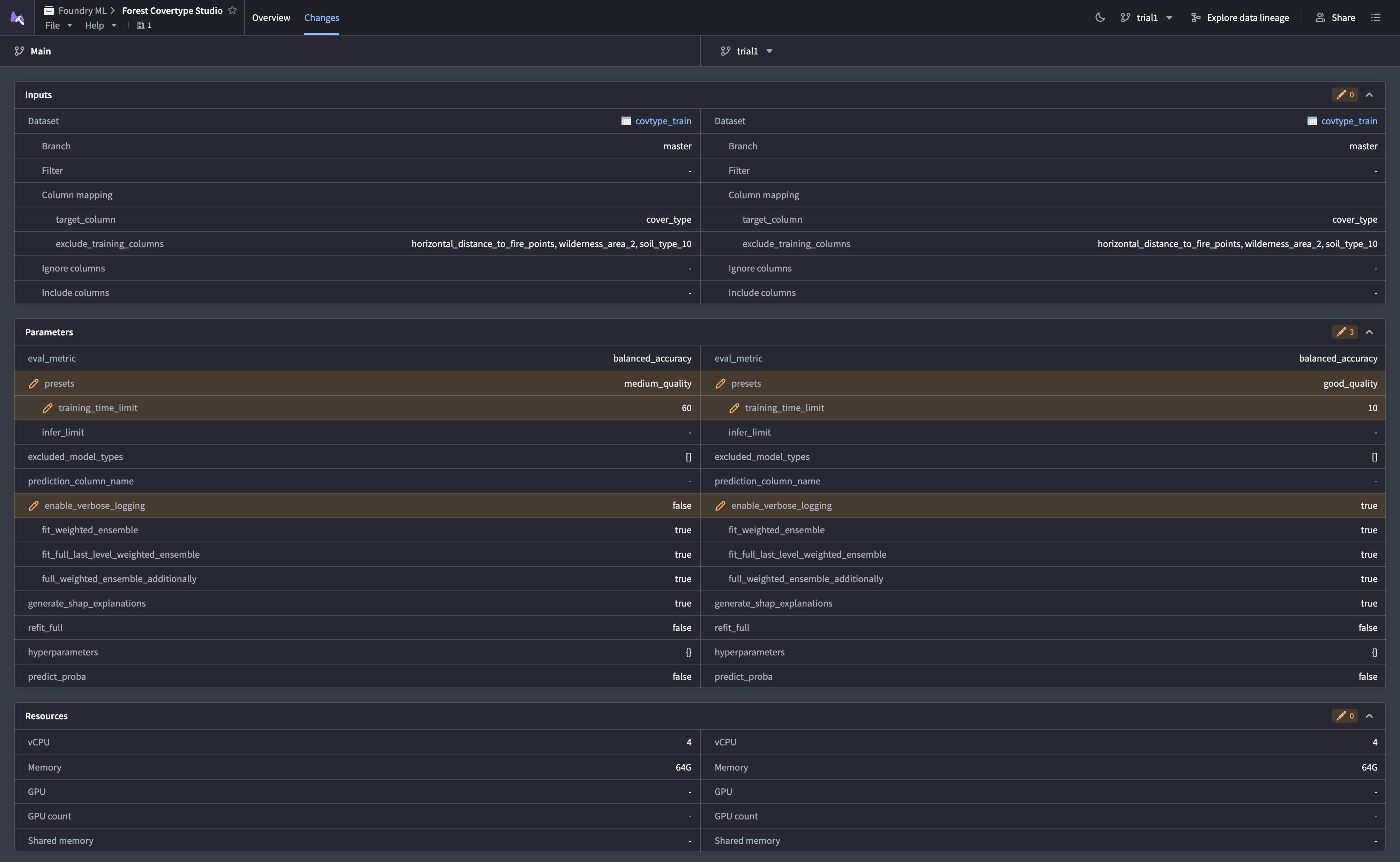
When your changes are ready for review, select Create proposal in the branch taskbar or the Global Branching application. The proposal also includes a comparison of the Model Studio configuration.
Before merging, check that:
- The configuration is up to date with
main. - The latest training run for the current configuration version on your branch has produced a model.
- All other checks and required approvals on the proposal are satisfied.
A run of an earlier configuration version does not satisfy the model output requirement for a newer version. If the latest run has no model output, resolve the issue and start another training run.
Rebase the configuration
If the configuration on main changes, Model Studio displays a rebase message on the Overview and Changes tabs.
To rebase the configuration:
-
Select Start rebase in the message to open rebase mode on the Changes tab.
-
Review the comparison between
mainand your branch. -
Select one of the following options to complete the rebase:
- Use Main branch changes: Replace your branch configuration with the latest configuration from
main. - Keep current branch changes: Keep your branch configuration and mark it as up to date with
main.
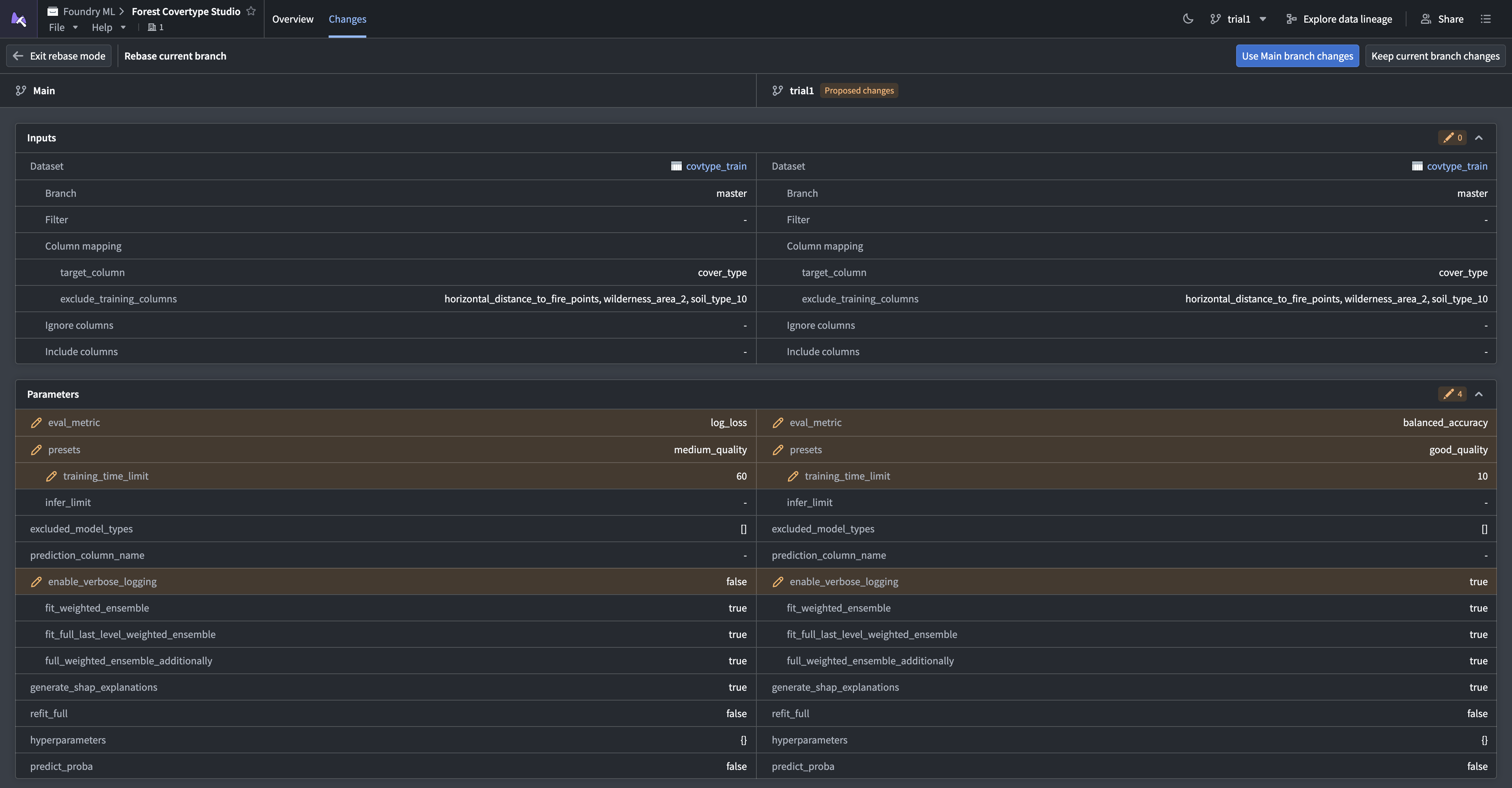
- Use Main branch changes: Replace your branch configuration with the latest configuration from
-
Return to Overview and select Start training run to test the rebased configuration.
Rebasing does not combine individual changes. It keeps one complete configuration, either from main or from your branch. To combine changes from both branches, choose a configuration to keep, then use Edit configuration to apply the additional changes.
Either rebase option creates a new configuration version, even if you keep your current configuration. The latest run of that version must produce a model before the proposal can merge.
Merge changes into main
After all proposal checks pass, select Merge proposal in the branch taskbar or the Global Branching application. Merging saves your branch configuration as a new configuration version on main. Subsequent training runs on main use this configuration.
To train a model on main with the merged configuration, use the build options when merging a proposal. You can also return to Model Studio and select Main in the branch selector. Then select Start training run.