- Capabilities
- Getting started
- Architecture center
- Platform updates
Global Branching in VS Code workspaces
Global Branching in VS Code workspaces supports Python Transforms repositories and TypeScript v1, TypeScript v2, and Python function repositories. It also supports Ontology SDK (OSDK) React application repositories configured for Global Branching. For the full list of resource types that support Global Branching, review the integrations documentation.
When working in VS Code, you can create and access global branches and use the development workflows described below for supported repositories. These workflows are available both in VS Code workspaces deployed on Palantir infrastructure and in local VS Code through the Palantir extension for Visual Studio Code.
Global branches and Code Repositories branches
A repository in VS Code has two kinds of branches:
- A Code Repositories branch is the underlying git branch of your repository.
- A global branch can contain changes across multiple Palantir applications, allowing you to develop and test an end-to-end workflow on a single branch. Global branches must be based on the default branch of the repository.
In the Palantir extension, the tabbed branch selector lets you create and check out both Code Repositories branches and global branches from one place.
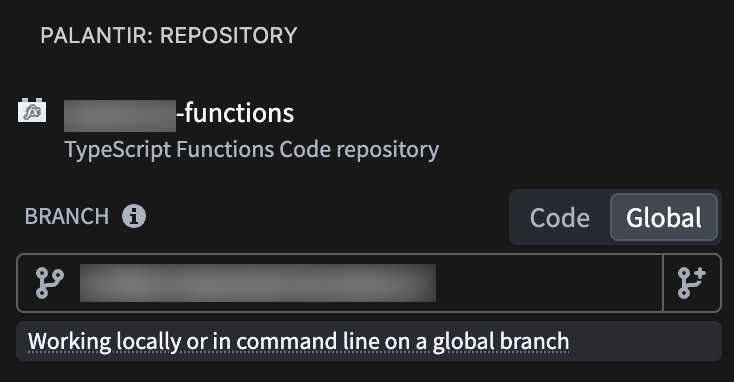
Learn more about branch options in Code Repositories..
Branch taskbar
When you open a supported repository in a VS Code workspace, the branch taskbar appears as a blue bar at the bottom of the editor on the Code page. The taskbar displays your active branch and keeps it in sync with VS Code. The branch reflected in the terminal, the Command Palette, and the editor always matches the branch shown in the taskbar.
The taskbar is available in VS Code workspaces only. In local VS Code, use the Palantir extension to view and switch your branch.
Create a global branch
You can create a global branch from any of the following entry points:
- Branch taskbar (VS Code workspaces only): Open the branch selector in the taskbar and create a new branch.
- Palantir extension (VS Code workspaces and local VS Code): Open the tabbed branch selector in the Palantir panel of the sidebar, select the Global branch tab, and create a new branch.
- Command Palette (VS Code workspaces and local VS Code): Press
Cmd+Shift+P(macOS) orCtrl+Shift+P(Windows/Linux), then run Palantir: Create Global Branch. - Branches page in Code Workspace: Create a global branch from the repository's Branches page.
From any of these entry points, the create branch dialog opens.
Check out a global branch
You can check out an existing global branch from any of the following entry points:
- Branch taskbar (VS Code workspaces only): Open the branch selector in the taskbar and choose a branch.
- Palantir extension (VS Code workspaces and local VS Code): Open the tabbed branch selector in the Palantir panel of the sidebar and choose a branch from the Global branch tab.
- Command Palette (VS Code workspaces and local VS Code): Press
Cmd+Shift+P(macOS) orCtrl+Shift+P(Windows/Linux), then run Palantir: Checkout Global Branch.
Aside from the branch taskbar, each entry point opens the same branch picker, which groups branches into sections to help you find the relevant branch quickly:
mainbranch- Your branches containing this repository
- Your branches
- All other branches
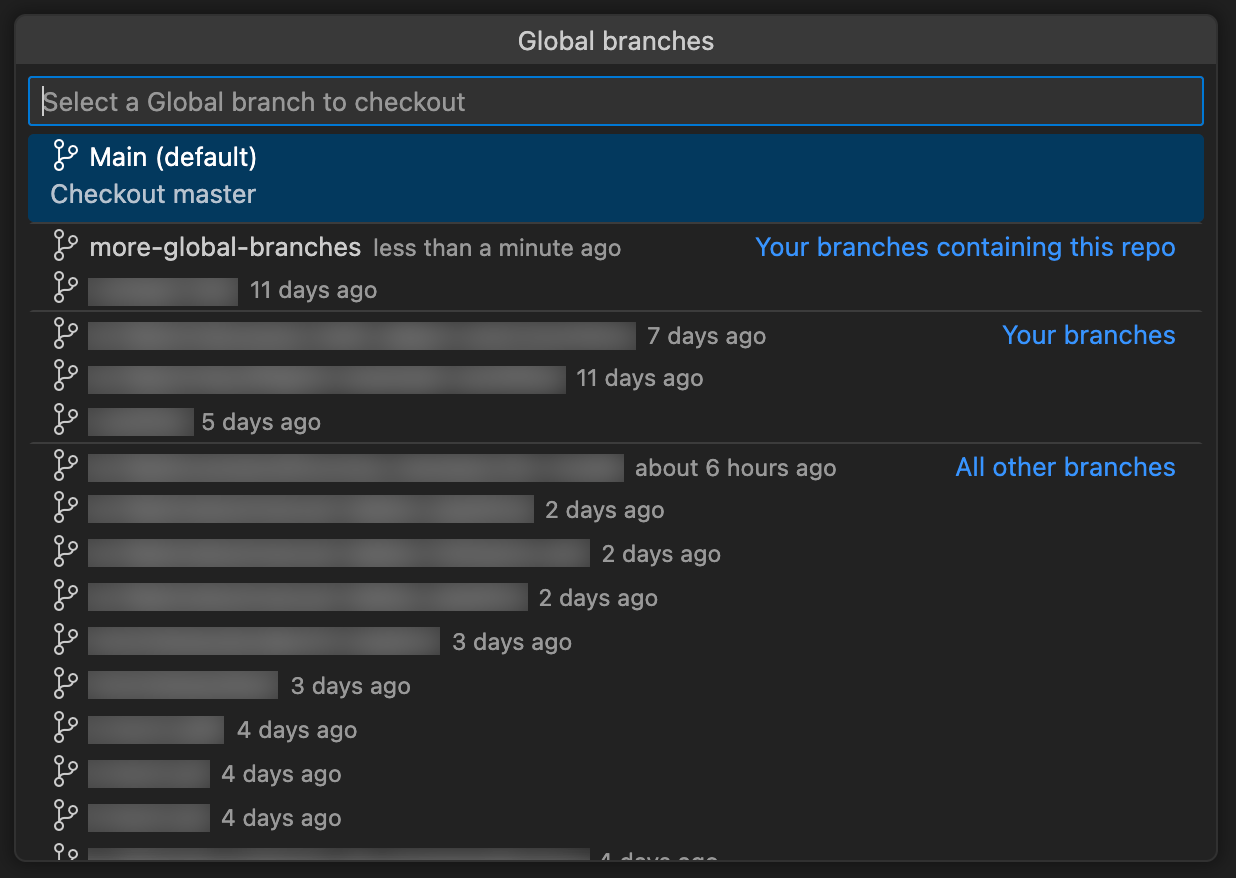
The following behaviors apply when checking out a branch:
- Adding a repository to a branch: If the repository is not yet on the branch you select, you are prompted to add it before the checkout completes.
- Uncommitted changes: If you have uncommitted changes, a dialog prompts you to resolve them before the checkout or add-to-branch operation proceeds. This prevents your editor from getting out of sync with your active branch.
Develop transforms on a branch
You can develop Python transforms on a global branch. The preview and build panels run against the branch you currently have checked out.
Learn more about developing Python transforms.
Develop functions on a branch
For TypeScript v1, TypeScript v2, and Python function repositories, these panels also operate in the context of your active global branch:
- Live preview: Preview your functions against the resources on the branch.
- Published preview: Preview the function versions you have published on the branch.
- Resource imports: Import and modify the Ontology resources available to your functions.
You can publish function versions on a global branch by tagging them. Tag a version from the Tags page in your VS Code workspace or with the Tag Version action in the Palantir extension. While you are on a global branch, the tag is created against that branch.
Learn more about developing, publishing, consuming, rebasing, and merging functions on a branch..
Develop OSDK applications on a branch
For a supported OSDK React application repository, complete the Global Branching repository setup on the default branch before adding the repository to a global branch. You can then develop the application alongside branched Ontology resources and test it in the development server or a pull request preview.
Follow the Developer Console branching workflow to generate an SDK, synchronize dependencies, and preview the application on your branch.