Terminal profiles
Terminal profiles let you customize the container image used for debug Terminal sessions. Instead of the default Apollo shell, you can bring your own image with the tools you need for your debugging workflow. Examples include the AWS CLI, database clients, or in-house diagnostic binaries.
Profiles are created at the Hub level and are available across all Environments on that Hub. Each profile pulls its image from one Artifact Registry, which can be either Apollo's built-in Container Registry or an external OCI registry linked to the Hub.
Create a profile
To create a Terminal profile, navigate to Hub Settings > Terminal Profiles and select Create new profile.
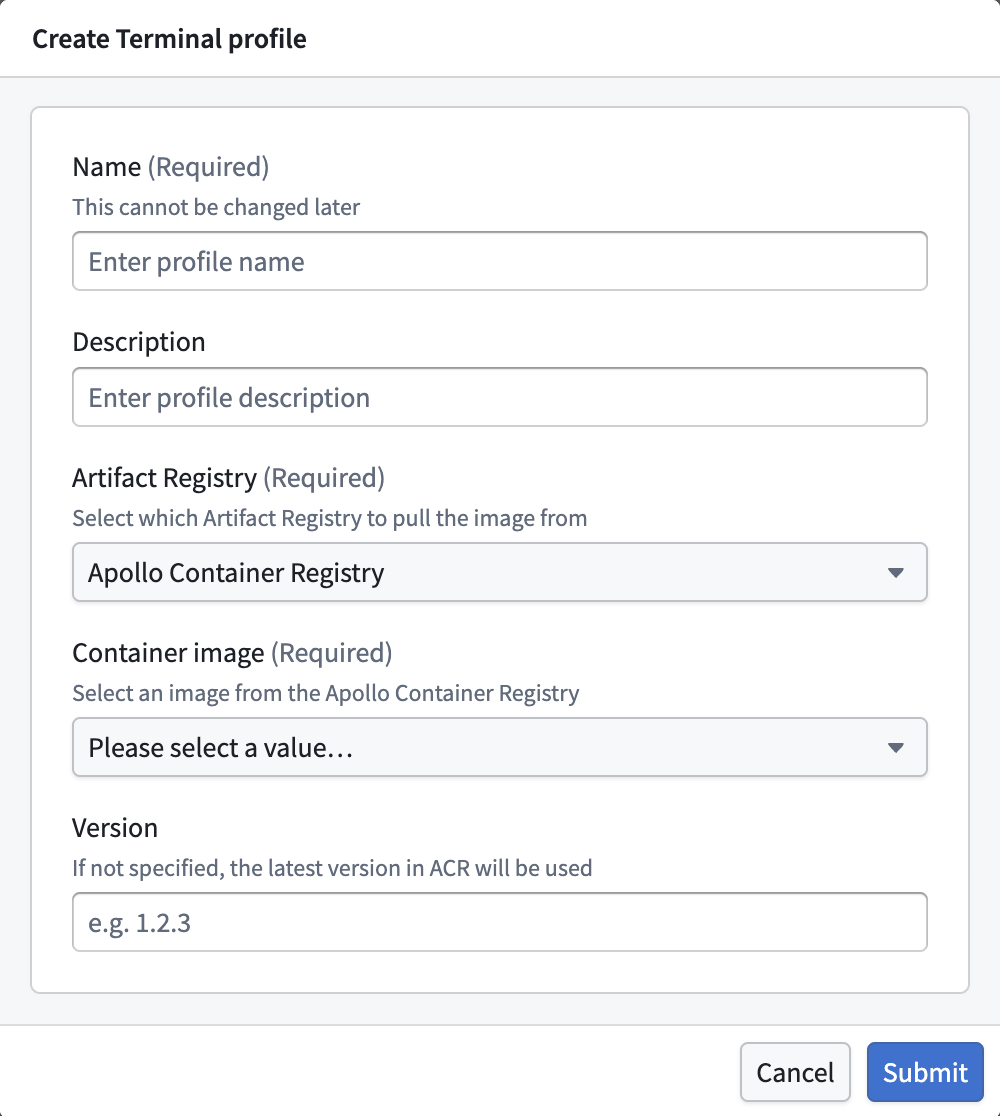
Fill in the following fields:
- Name (required): A name for the profile. This cannot be changed later.
- Description: The purpose of the profile.
- Artifact Registry (required): Which Artifact Registry to pull the image from. You can select Apollo's built-in Container Registry, or an external registry linked to the Hub. You cannot select registries that are not installed on the Hub.
- Container image (required): The image to use. For Apollo's Container Registry, select from the dropdown. For external registries, enter the full image path, for example,
docker.io/myorg/my-debug-image. - Version: The image tag to use, for example,
1.2.3. If left empty when using Apollo's Container Registry, the latest version is used.
Use a profile
When creating a new Terminal session on an Environment, select the profile from the Terminal Profile dropdown. If no profile is selected, the default Apollo shell is used.
A profile pulls its image from one specific Artifact Registry, so it is only available on Environments where that registry is installed; otherwise the profile appears disabled in the dropdown.
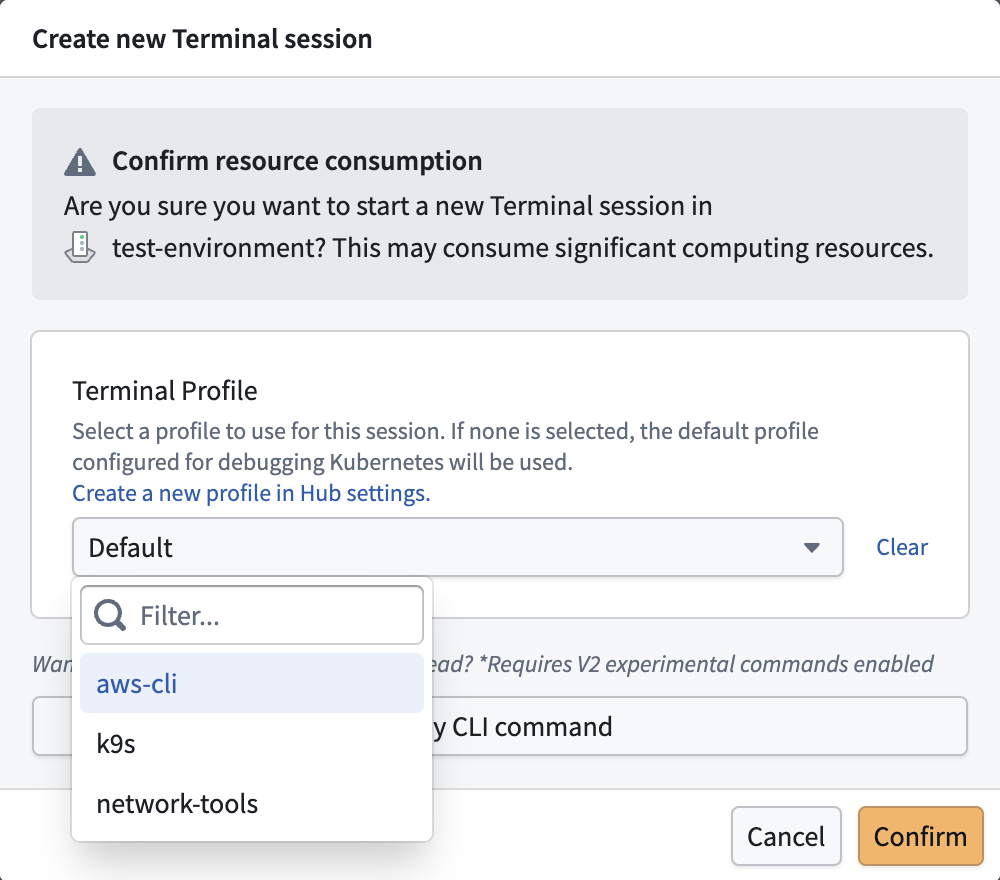
Image requirements
Custom images must meet the following requirements, otherwise the Terminal session will fail to start:
- The image must contain
/bin/bash, which Apollo uses as the entrypoint for the interactive session. Minimal images such as Alpine do not include it by default. - The image must run as a non-root user with a numeric UID, for example,
USER 5001in yourDockerfile. Cluster policy rejects Pods that run as root. - The image must use a specific version tag, for example,
0.2.0. Thelatesttag is not allowed because Apollo needs an immutable reference to guarantee every Terminal session in the Environment runs the same image. - The image must match the target cluster architecture, otherwise the container cannot execute on the node. Most Environments run
linux/amd64. When building on Apple Silicon, pass--platform linux/amd64todocker build.
Example Dockerfile
Copied!1 2 3FROM ubuntu:24.04 RUN useradd -m -u 5001 testuser USER 5001
Build the image for the correct platform:
Copied!1docker build --platform linux/amd64 -t myregistry/my-debug-image:0.1.0 .
Once built, push the image to whichever registry the profile will reference: an external registry or Apollo's Container Registry on your Hub.
Push to an external registry
Push the image to your external registry of choice:
Copied!1docker push myregistry/my-debug-image:0.1.0
Push to your Hub's Artifact Registry
Find the registry URL under Hub Settings > Artifact Registries. This URL was configured when the registry was created. For Apollo's Container Registry, this is typically containers-<Hub>.palantircloud.com, but the exact hostname depends on your Hub.
Log in with your full email as the username and an Apollo Bearer Token as the password:
Copied!1docker login <registry-url>
Tag the image with the registry hostname and push:
Copied!1 2docker tag myregistry/my-debug-image:0.1.0 <registry-url>/myorg/my-debug-image:0.1.0 docker push <registry-url>/myorg/my-debug-image:0.1.0
Pushing requires the Creator role under Artifacts on the Hub. If you do not have it, ask your Hub administrator to grant it under Hub Settings > Permissions > Artifacts.
If you push a new image with an existing tag (for example, overwriting 0.1.0), nodes that already pulled the old image will continue using the cached version. Use a new tag (for example, 0.2.0) to ensure the updated image is pulled.