- Capabilities
- Getting started
- Architecture center
- Platform updates
View audit log details
The log detail panel shows a single audit log: who performed the action, which service handled it, what they requested, and what the result was. Where it can, Audit Explorer shows readable names instead of raw identifiers and summarizes common events, so you can review a log without reading nested JSON.
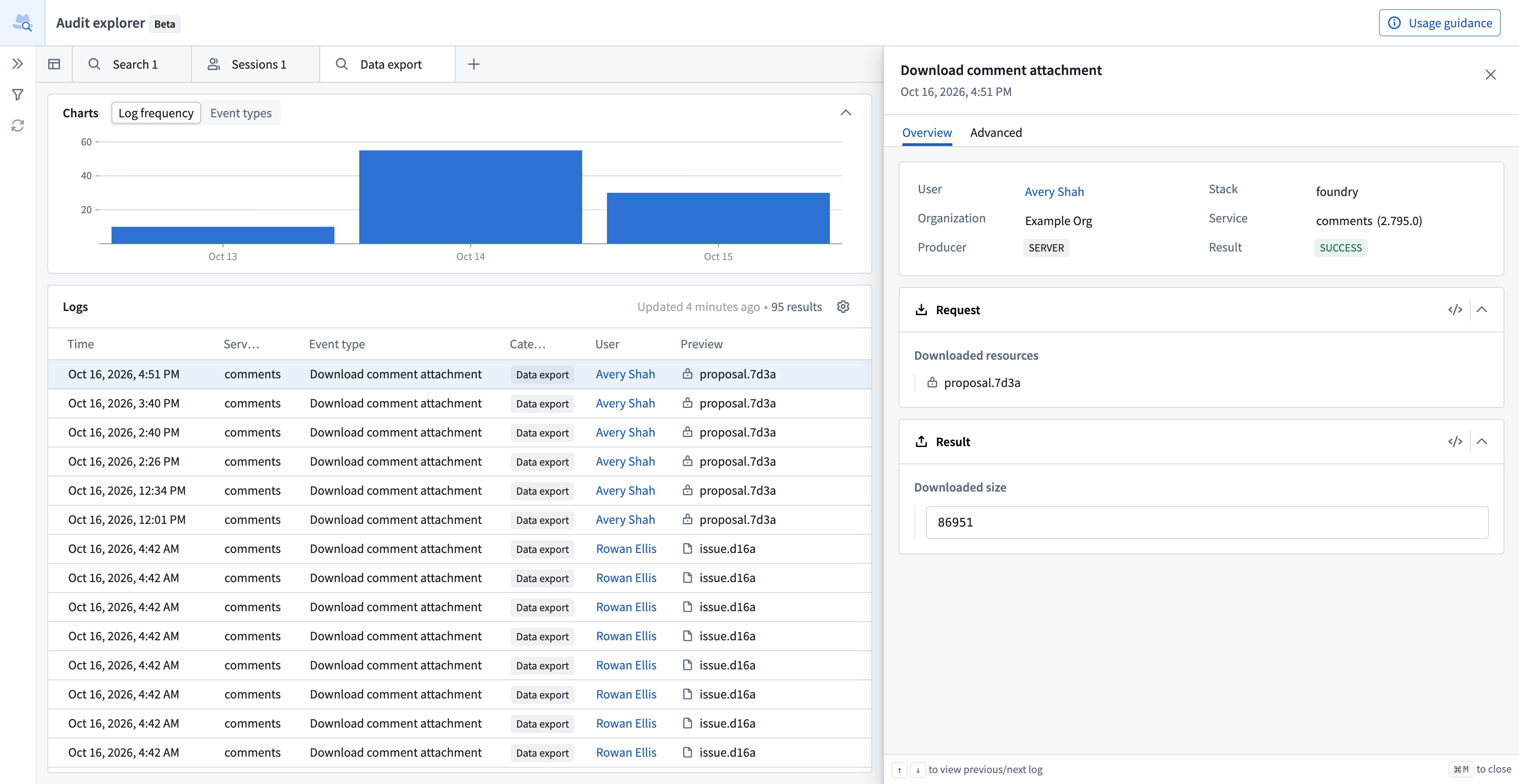
All screenshots use notional data.
Open log details
Select a row in the Logs table of a search tab to open the log in a panel on the right. Selecting a link, button, or menu in a row does not open the panel. Learn more about the Logs table.
Press Up Arrow or Down Arrow to move between loaded logs. To close the panel, select the X icon in the panel header or press Cmd+M (macOS) or Ctrl+M (Windows). When the panel is closed, the same shortcut opens the first log visible in the table.
The panel header shows the event type, as in the Event type column, and the time. Right-click the event name to filter on it or pivot to a new search. Right-click the time to zoom the search time range to a window around it or to copy it.
Overview tab
The Overview tab shows a summary card, the Request and Result cards, and any remaining columns.
Summary card
The summary card shows who performed the action, where it ran, and how it ended. A field appears only if the audit table includes the matching column.
- User: The user's full name, with a link to their profile.
- Organization: The display name of the user's organization.
- Producer:
SERVERif server-side code produced the log, orCLIENTif client-side code produced it. stackfield: The environment that generated the log, as recorded in theaudit.3schema.- Service: The service that produced the log, followed by the product version when the log includes one.
- Result: The outcome of the event, such as
SUCCESS,ERROR, orUNAUTHORIZED.
Hover over a name to see its stored value, such as a user ID, and select Copy to clipboard to copy it. Right-click a User, Organization, Service, or stack value to filter on it, pivot to a new search, or copy the name as shown. Learn more about cell actions.
Request and result cards
The Request card shows the log's requestFields, the parameters known when the event started. The Result card shows its resultFields, the information the event produced. Their contents depend on the event's audit log categories. For field definitions, review the audit.3 schema reference.
Each card shows a parsed view with readable labels and resource names. To see the original JSON, select Show raw JSON (the code icon) in the card header. Values in the Request and Result cards do not have right-click filter options. For common kinds of events, the cards show an event summary instead of the matching raw fields.
Remaining columns
Below the Result card, the Overview tab lists any columns in your audit table that are not part of the standard audit.3 schema. A standard audit.3 export has no extra columns, so this list appears only if your audit table has additional columns. An extra column's value appears only if the column is visible in the Logs table.
The panel does not show the Categories, Entities, Users, Origins, Environment, Product, or Sequence ID columns, or the productId and date fields. To review these values, add the columns to the Logs table.
Advanced tab
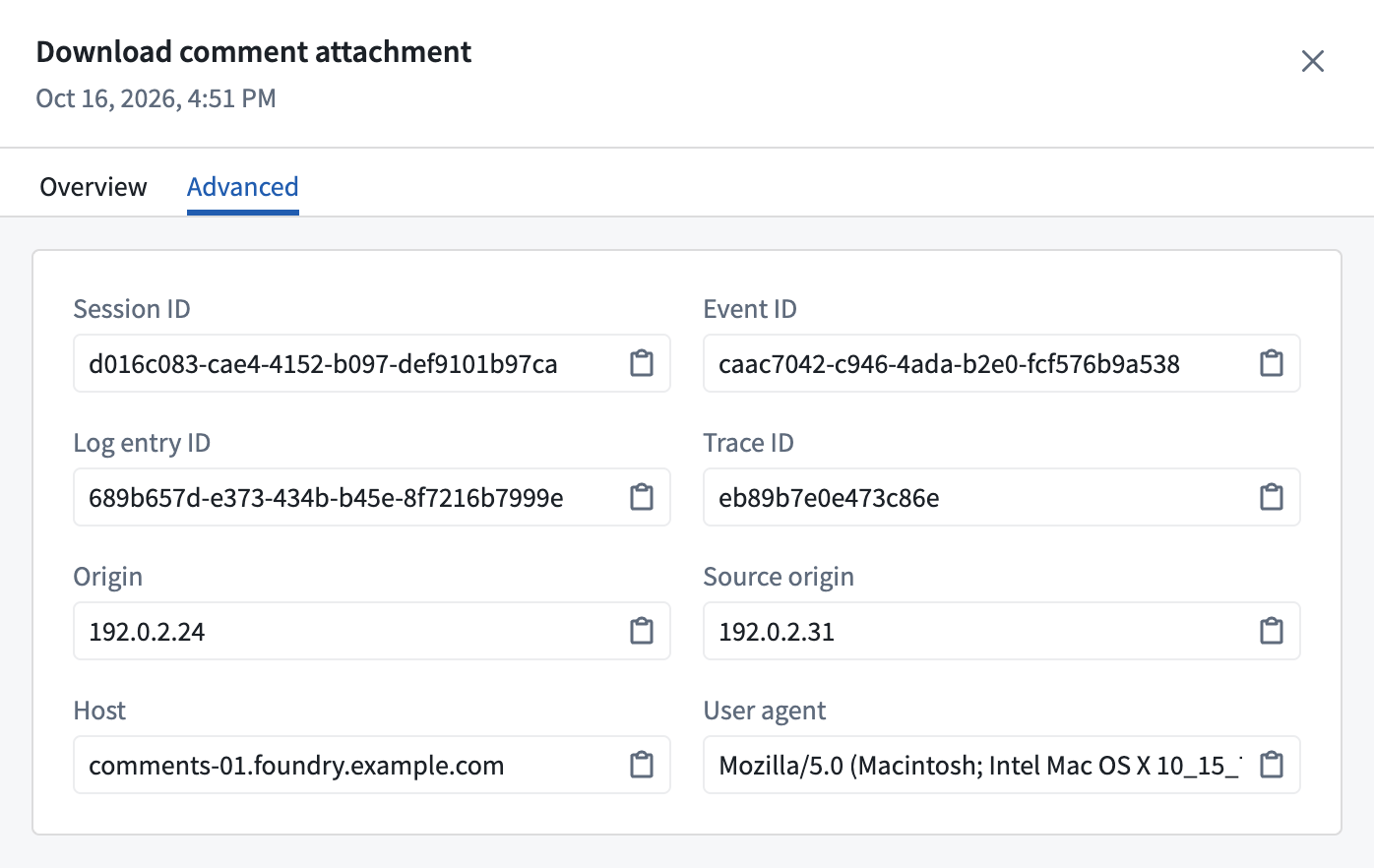
The Advanced tab shows identifiers that help you find related logs and investigate an event in detail:
- Session ID: The ID of the session, if the log has one.
- Token ID: The ID of the API token, if the log has one.
- Event ID: The identifier of the auditable event. One event can produce several logs that share an event ID.
- Log entry ID: The unique identifier of this log.
- Trace ID: The trace ID of the request, for finding related logs from other services.
- Origin: A best-effort identifier of the originating machine, such as an IP address.
- Source origin: The origin of the network request, as determined by the network connection.
- Host: The server that produced the log.
- User agent: The browser or client software that sent the request.
A client can spoof the Origin value so that it shows a machine other than the one that sent the request. Do not treat Origin as proof of where a request came from. Origin and Source origin can contain IP addresses, which are personally identifiable information (PII).
Select Copy to clipboard to copy a value, or right-click a value to filter on it. To review all logs that share a session ID, use a session explorer tab.
Session tab
If the audit table has a checkpoint_interaction_rid column, which the standard audit.3 schema does not include, a Session tab appears next to the Advanced tab. The tab shows the Checkpoints interaction that the event references, including the checkpointed items and the justifications the user gave. To open the interaction in Checkpoints, select View in Checkpoints app. If the tab shows a message instead, review checkpoint justifications.
Event summaries
For some kinds of events, the Request and Result cards show a readable summary instead of the fields it covers. A summary can leave out some details. To see every field exactly as recorded, select Show raw JSON. To expand a shortened list in a summary, select Show all N.
Action log
When a log records an applied Ontology action and the action type writes to an action log, an Action log card appears above the Request card and shows the following:
- The action type, linked to Ontology Manager
- The action log's summary text, if it has one
- A Parameters group with the recorded values
- An Edited group with the edited objects, linked to Object Explorer
To open the action log object in Object Explorer, select the share icon. The card does not appear if you cannot view the action type or its action log object, or if the action log object has no recorded values.
Ontology search and load
For Ontology object searches and loads, the cards show the following:
- Searched object types, linked to Ontology Manager
- Search queries, with the query text, match type, and properties searched
- Property filters, with the property, operator, and values of each filter
- Requested objects, Loaded objects, and Returned objects, grouped by object type and linked to Object Explorer
- Loaded properties
Function execution
For function executions, the cards show the Executed function and its version, the Parameters passed to it, and its Return value. If the resolved version differs from the requested version, both versions appear.
Audit log searches
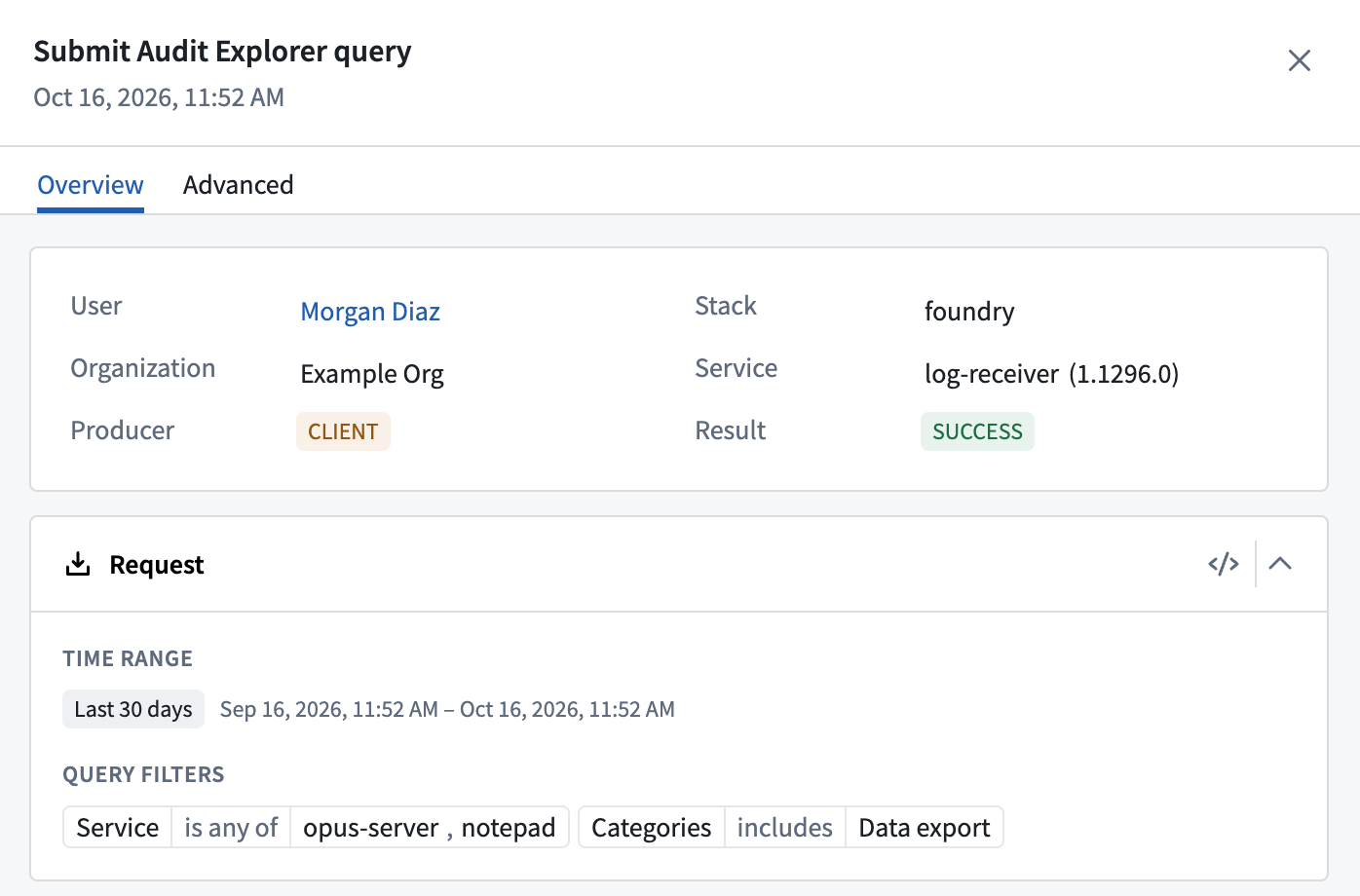
Audit Explorer logs each search a user runs. To find these logs, select Submit Audit Explorer query in the Select event types dialog, or filter on the event name AUDIT_EXPLORER.QUERY_SUBMIT. These logs appear as Submit Audit Explorer query in the Event type column. The Request card shows what the user searched for:
- Time range: The time range of the search. For a relative range such as Last 24 hours, the summary also shows the window it covered.
- Query filters: The search's filters, shown as read-only filter pills.
The Result card shows the audit table that the user searched.
As a privacy best practice, periodically review searches of audit data. Audit logs can contain PII, so the people who access them should remain accountable. Review privacy and civil liberties in practice for guidance on accountable oversight.
If a search is too long to record in full, the summary notes that some filters or values are missing. Search logs appear only after the audit export adds them to your audit table. Review how to check data freshness.
Group membership change
For group membership changes, the cards show the Group that changed, followed by Added N members and Removed N members lists.
Name resolution and raw values
Throughout the panel, Audit Explorer replaces identifiers with readable names, based on what your own permissions allow you to view. Objects, object types, action types, and functions that you cannot view appear as raw identifiers. Other resources that you cannot view, or that no longer exist, appear with a lock icon and the tooltip No permissions to view type.
The summary card and remaining columns follow the column formatting in the Logs table. If you select Show raw values in a column header menu, the matching panel field shows the raw value too. The Request and Result cards use their own Show raw JSON option. Learn more about column options.