- Capabilities
- Getting started
- Architecture center
- Platform updates
Explore user sessions
A session explorer tab in Audit Explorer lists sessions instead of individual audit logs. A session is the set of audit logs that share the same session ID, recorded in the sid field of the audit.3 schema. Use a session explorer tab to see when each session started and ended, how many audit logs it includes, and which user it belongs to. You can then open a session's audit logs in a search tab.
All screenshots use notional data.
Open a session explorer tab
- Select an audit table in Audit Explorer.
- In the tab bar, select New tab (the + icon).
- Select Session explorer.
The new tab shows sessions from the Last 7 days and keeps its own filters. You can rename, duplicate, or archive it as you would a search tab. Archiving a session explorer tab saves its time range and user filter to Recent searches as a regular search, so you cannot restore it as a session explorer tab. Archiving does not save the Only sessions with a checkpoint setting.
Filter sessions
A session appears in the list if any of its audit logs match the following filters:
- Time range: Works like the time range control in search tabs.
- Filter by user: Select one or more users. Only the selected users' audit logs count toward each session's Started, Ended, and Events values. This filter appears only when the audit table has a
uidcolumn that can be filtered. - Only sessions with a checkpoint: Show only sessions linked to a checkpoint interaction. This filter requires checkpoint interaction data.
Audit Explorer logs each change to the time range or user filter, and each time you select Refresh sessions, the same way it logs searches. The log does not show that the search came from a session explorer tab, and Audit Explorer does not log changes to Only sessions with a checkpoint.
Review the sessions table
The Sessions panel lists up to 1,000 sessions, most recent first. When the table reaches this limit, the header shows 1,000 most recent sessions. To review older sessions, narrow the time range or filter by user.
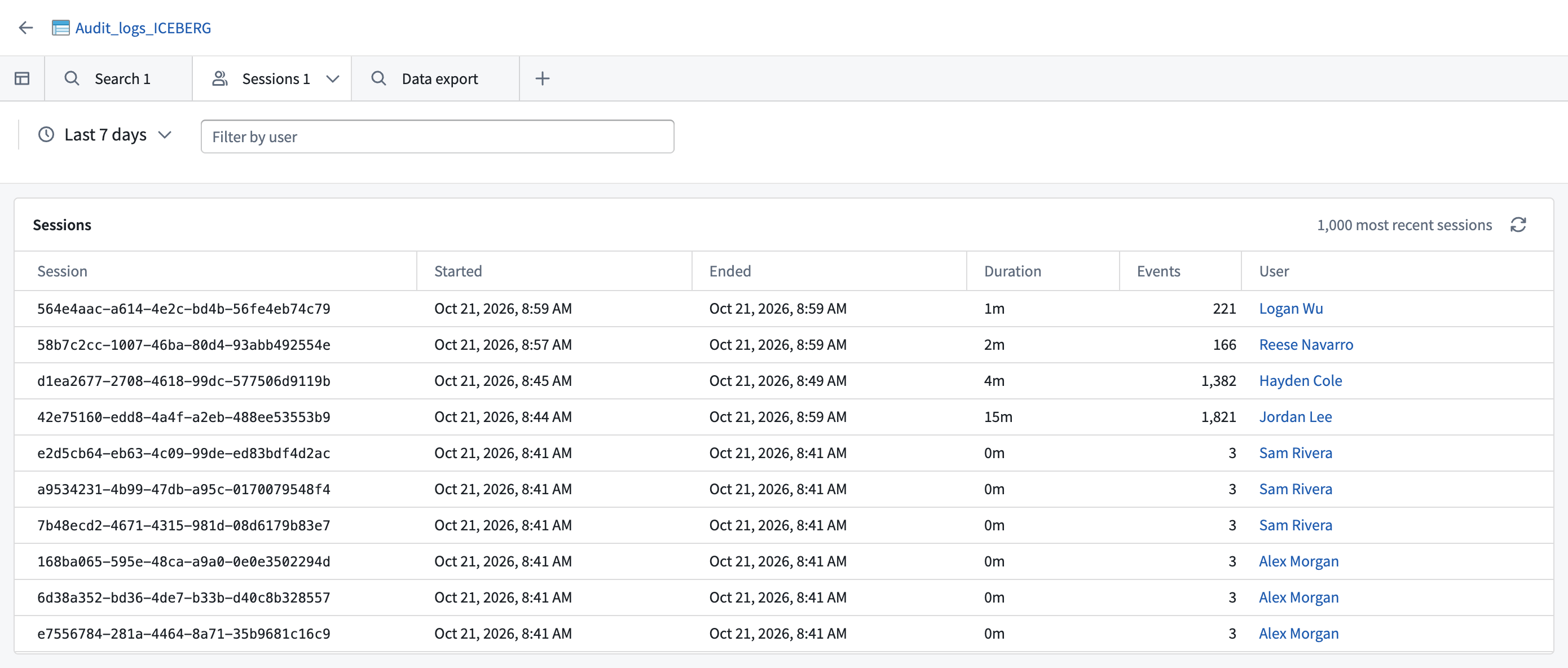
The table includes the following columns:
- Session: The session ID.
- Started and Ended: The times of the first and last matching audit logs in the session, in your local time zone.
- Duration: The time between Started and Ended, rounded to the nearest minute.
- Events: The number of audit logs in the session that match the time range and user filter. Counts can include duplicate rows.
- User: The user associated with the session. Select the name to open the user's profile.
- Checkpoint interaction: The checkpoint interaction linked to the session, or
None. If the Checkpoints application is available, select the ID to open the interaction.
When you read the table, consider the following:
- If a session crosses the edge of the time range, the table includes only the part inside the range, so the session appears shorter and has fewer events.
- Each row shows only one user and one checkpoint interaction, even if the session includes more. To review all of them, open the session's logs.
- Audit logs without a session ID do not appear in session explorer tabs. Use a search tab to review them.
To run the query again, select Refresh sessions (the refresh icon) in the panel header. To stop a running query, select Cancel. Instead of sessions, the table can show one of the following messages:
No sessions found: None of the matching audit logs have a session ID.Loading stopped: You selected Cancel before any sessions loaded. Select Refresh sessions to try again.Sessions are unavailable for this table: The audit table is missing asidcolumn of typestring, atimecolumn, or both.
If the query fails, the table shows an error message.
View session details
- In the sessions table, select a session row to open the Session panel. Select anywhere in the row except the user name or checkpoint interaction ID.
- Review the summary fields and any checkpoint justifications.
- To review the individual audit logs, select View this session's logs.
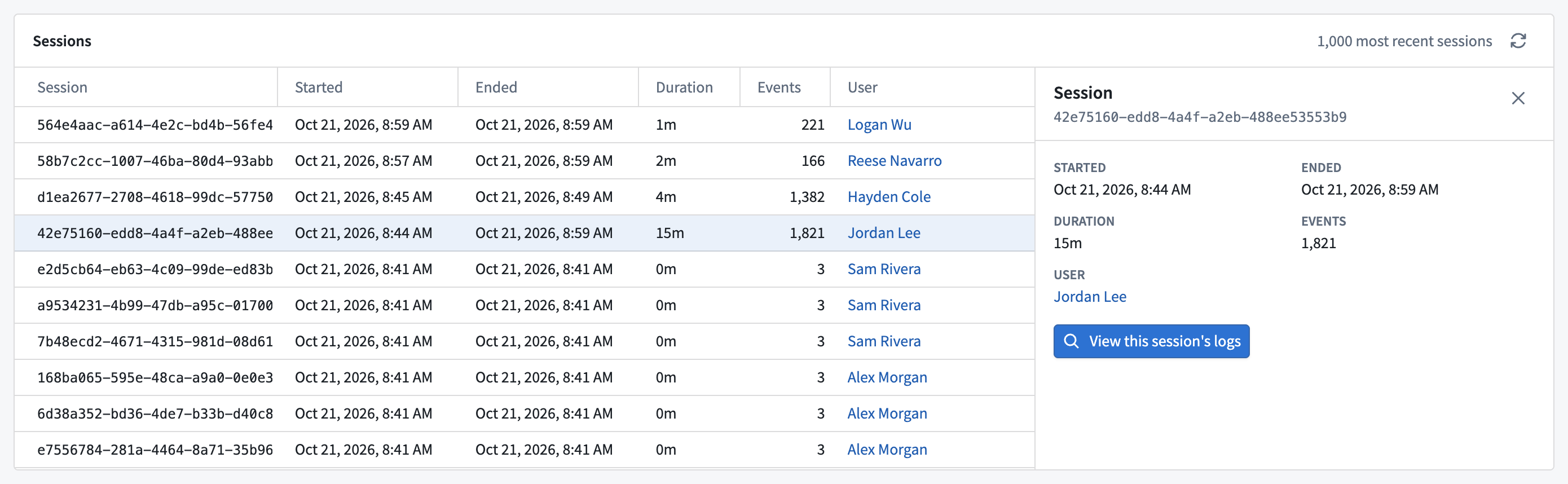
Audit Explorer opens a new search tab named Session followed by the session ID. Its sidebar has a Session ID filter, and its time range is set to the session's Started and Ended times. If you filtered by user, the tab can include other users' audit logs in the same session, and its count can differ from Events. The time range covers only the matching part of the session, so widen it to review the full session.
Review checkpoint justifications
If your organization uses Checkpoints, Audit Explorer can show the justifications that users gave when they submitted a checkpoint. This requires a checkpoint_interaction_rid column that links audit logs to checkpoint interactions. The audit.3 schema does not define this column, so you must add it to the table with a custom transform. When the column is present, Audit Explorer adds the following:
- The Only sessions with a checkpoint filter
- The Checkpoint interaction column in the sessions table
- A Checkpoint justifications section in the Session panel
- A Session tab in the log detail panel of search tabs
The first three require the column to be a string. The Session tab appears whenever the column exists.
The Checkpoint justifications section and the Session tab show the following:
- The checkpoint type, the user who submitted it, and the date and time. If the checkpoint record names a delegate user, that user appears after Justified by. If the Checkpoints application is available, select View in Checkpoints app to open the interaction.
- The items the checkpoint applied to, such as resources, markings, users, groups, or scoped sessions. A scoped session item refers to an access setting, not to an audit log session. Markings you cannot view appear only as a count, for example
+2 unknown markings. - Each checkpoint prompt, followed by the user's answer under User response, User selection, or User confirmation. Audit Explorer lists prompts alphabetically, not in the order the user answered them.
If Audit Explorer cannot show justifications, it displays one of the following messages:
No checkpoint justifications for this event: The session or audit log is not linked to a checkpoint interaction.Checkpoints is not available: The Checkpoints application is not available on your enrollment.Justifications could not be loaded: You might not have permission to view the checkpoint record. Review the permissions to view checkpoint records.No justifications found: Audit Explorer did not find any checkpoint records for the checkpoint interaction.