- Capabilities
- Getting started
- Architecture center
- Platform updates
Review audit log results
Your search results appear to the right of the sidebar. The Charts card summarizes matching logs, and the Logs table lists them. To build or change a search, review search and filter audit logs. Session explorer tabs list sessions instead and do not show these results.
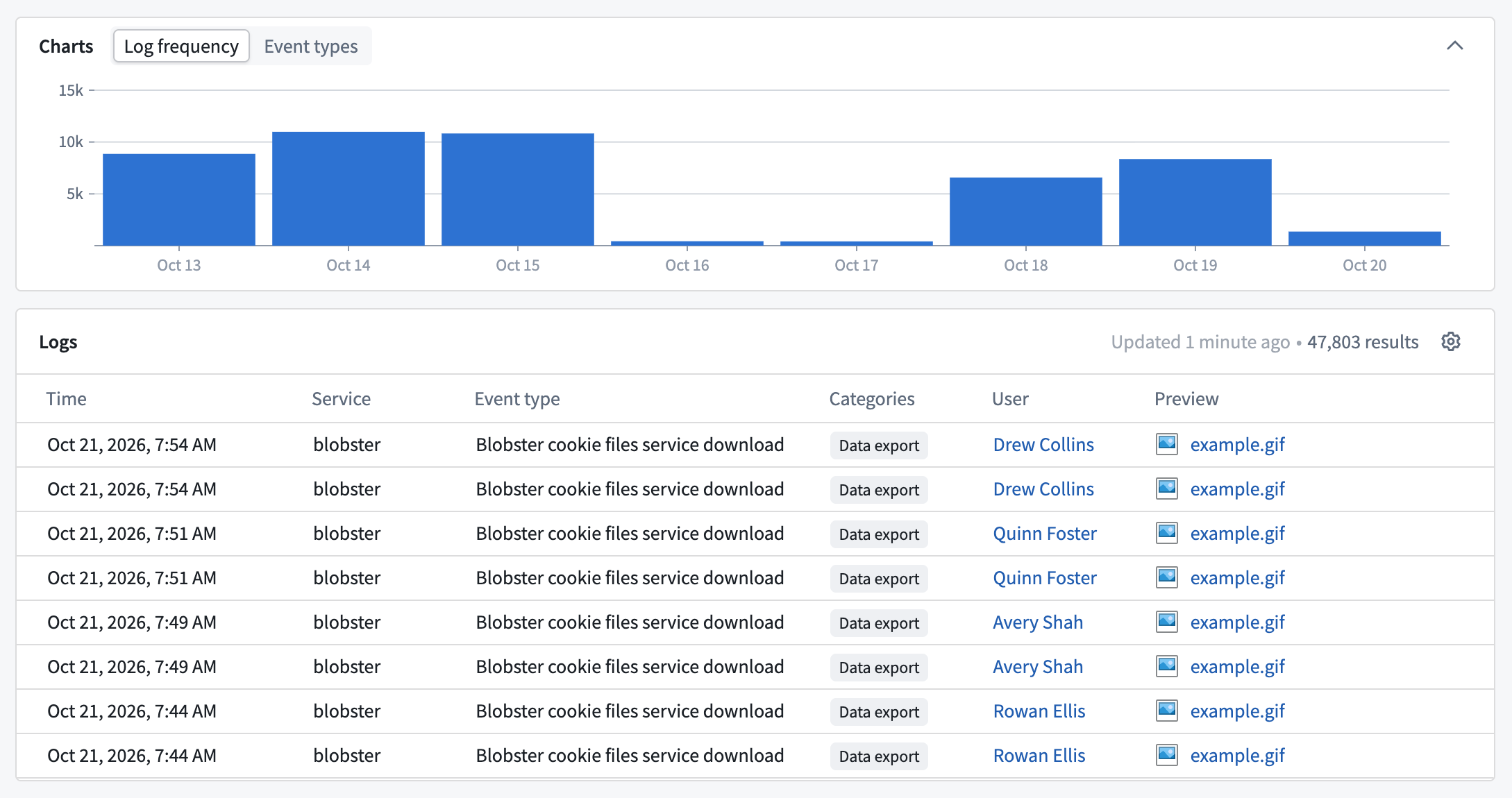
All screenshots use notional data.
Charts
The Charts card has two views, Log frequency and Event types. Select a view name in the Charts header to switch views, or select the chevron to collapse or expand the card. If a chart cannot load, it shows an error message instead.
Log frequency
Log frequency shows how many logs match your search in each period of the time range. The chart skips periods with no matching logs, so two neighboring bars can be far apart in time. Hover over a bar to see its start time and number of Events.
To narrow your search to one bar, right-click the bar and select Zoom into this time range. The time range then runs from the start of that bar to the start of the next bar, including any empty periods in between. This option is not available on the rightmost bar.
Each bar covers a minute, hour, day, week, or month, depending on the length of the time range. Bars start on Coordinated Universal Time (UTC) boundaries. As a result, the first bar can start before your time range, and zooming into it moves the start of the range earlier. Learn more about time zones.
The chart shows bars only when the time range has a start time. With All time, the chart shows No log activity in this range, even if logs exist.
Event types
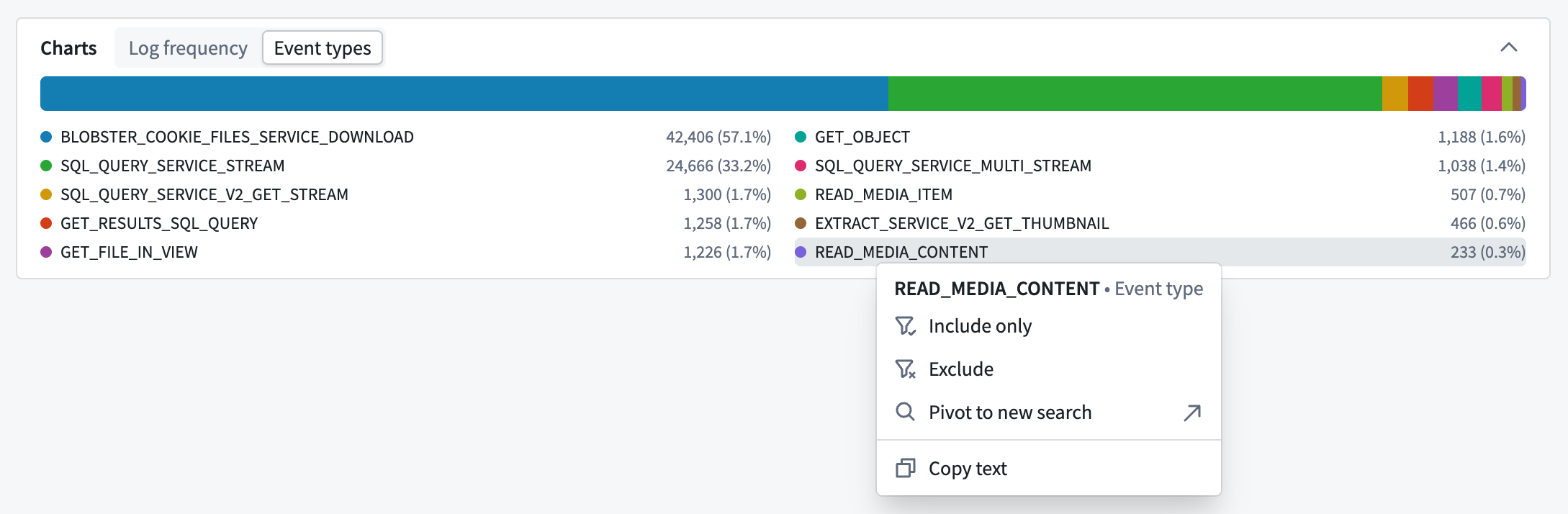
Event types shows the 10 most frequent event names among matching logs as a stacked bar. The legend lists each name with its count and percentage. Each percentage is a share of the 10 names shown, not of all matching logs.
The chart shows event names as stored in the name field, such as DATA_PROXY_SERVICE_GENERATED_GET_DATASET_AS_CSV2. The Event type column shows a readable label instead: the recommended event type name, such as Preview dataset, if one exists, or the event name in sentence case. Right-click a bar segment or legend entry to use the same value actions as table cells. Unlike Log frequency, this chart shows data when the time range is All time.
Logs table
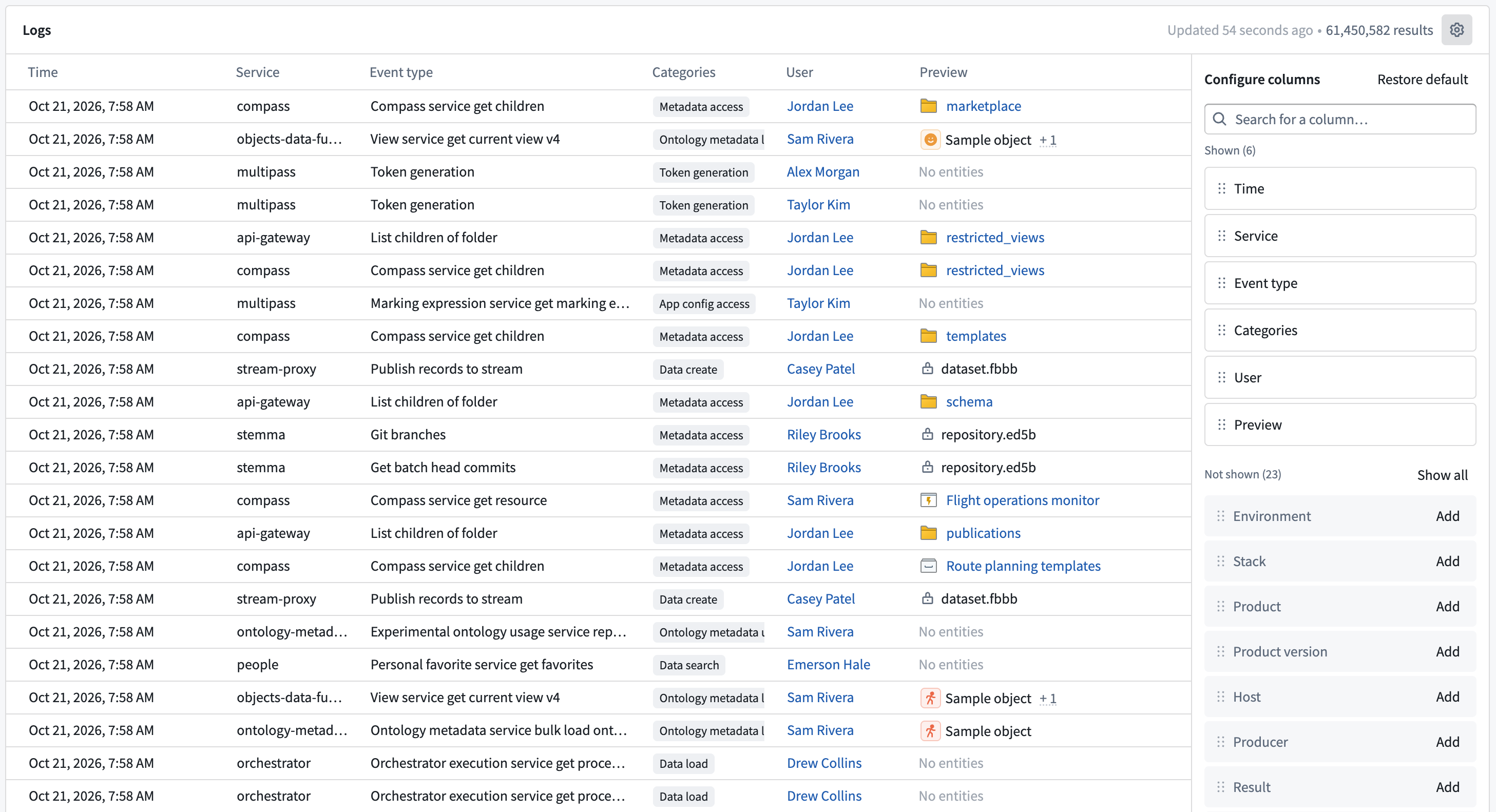
The Logs table lists matching logs, newest first. The default columns are Time, Service, Event type, Categories, User, and Preview. User shows the uid field, and Time shows times in your browser's local time zone, as described in time zones. To add other columns, use the Configure columns panel. Hover over a column header to read its description, if it has one, or review the audit.3 schema reference.
The table loads 100 rows at a time as you scroll. If more rows fail to load, select Retry. To include new logs, select Refresh at the top of the sidebar. To learn when Refresh is available, review set the time range. To stop loading the table, select Cancel in the Logs header. Canceling does not stop the charts from loading.
The Logs header shows the number of matching logs, such as 1,234 results. If the Log frequency chart has not loaded yet or cannot load, or if the time range is All time, the count shows only the rows loaded so far. A +, as in 100+ results, means more rows load as you scroll. Counts and charts include duplicate rows created when audit logs are delivered to Foundry.
If the table has no rows, it shows one of the following:
No logs found: No logs match your search. Try different filters or a wider time range.Search stopped: You selected Cancel before any rows loaded.Query failed: The search returned an error. Searches that run longer than 5 minutes fail. If your search timed out, narrow the time range and search again. To view and copy the error text, select Show details. If the table shows an Error instance ID, you can share it with Palantir Support.
Preview column
The Preview column summarizes what each log is about, based on the type of event:
- For applied actions, Preview shows the action type.
- For Ontology object loads, it shows the object types that were requested or returned.
- For members added to a group, it shows the groups that changed.
- For all other logs, or when those details are missing, it shows the first resource in the Entities column and a count of any others. Select the count to view them.
If Audit Explorer cannot load a resource, the resource appears with a lock icon and a shortened identifier. For example, this happens when you do not have permission to view the resource or when it was deleted. Ontology resources that cannot be loaded show their full identifier instead. Names depend on your own permissions, so other reviewers can see different names for the same log. Learn more about name resolution and raw values.
Configure columns panel
To set which columns appear in the Logs table and their order, select Configure columns (the gear icon) in the Logs header. In the panel, you can do the following:
- Enter text in Search for a column… to filter the column lists.
- Select Add next to a column under Not shown, or select Show all to add every column that matches your column search.
- To hide a column, select the hide icon next to it under Shown.
- To reorder columns, clear the column search, then drag a column under Shown.
- Select Restore default to return to the default columns, order, and value formatting.
Column options
Select a column header to open its menu. Depending on the column, the menu includes the following options:
- Sort ascending and Sort descending: Sort the table by this column. These options are available on single-value columns, such as text, number, and time columns. You cannot sort the Preview column.
- Clear sort: Return to the default newest-first order.
- Hide column: Remove the column from the table.
- Show raw values and Show formatted values: Switch between the stored value and the readable value. For example, the User column shows user names when formatted and user IDs when raw.
Any sort other than Time descending reads every matching row in the time range for each page of results. Set a narrow time range before you sort to keep searches fast and reduce compute usage. Review keep searches narrow for more ways to reduce compute.
Each search tab keeps its own sort. Column settings, including raw or formatted values, apply to every search tab on the table.
Cell actions
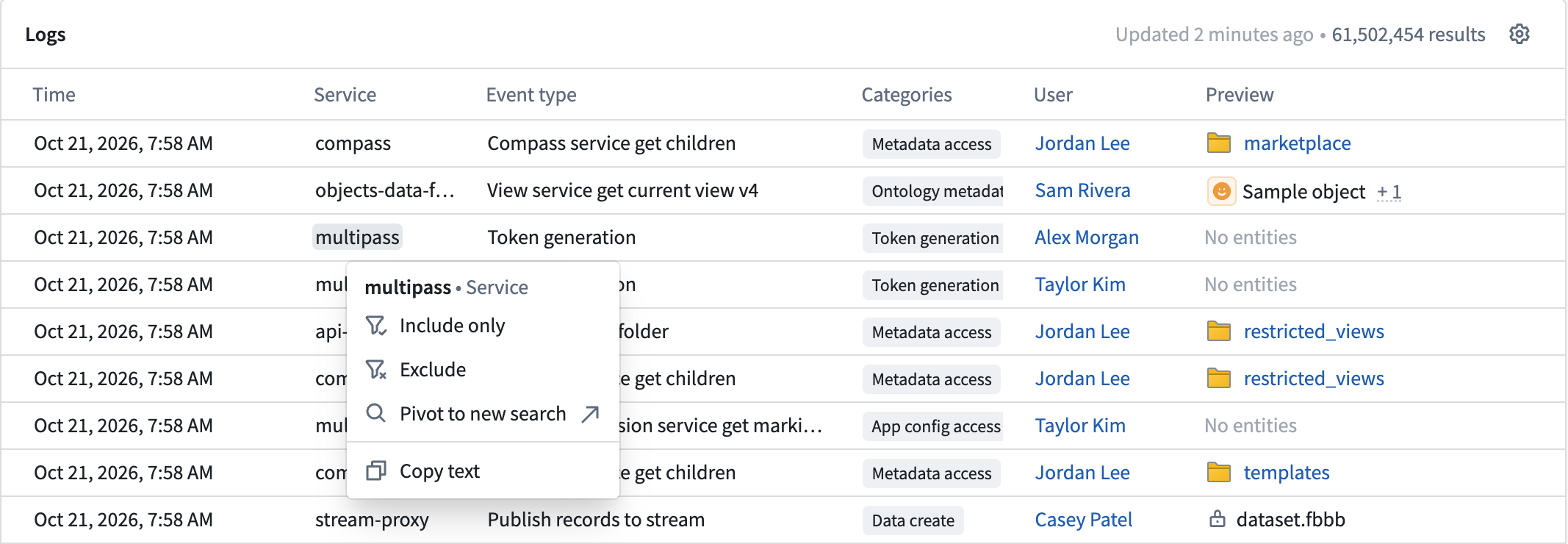
Right-click a value in the Logs table to open a menu of actions for that value.
Value actions
Values in columns you can filter on, such as Service and User, offer the following actions:
- Include only: Filter the search to logs with this value, replacing any existing filters on the same column. For list columns, such as Categories, the filter matches logs whose list includes the value.
- Exclude: Add a filter that removes logs with this value.
- Pivot to new search: Open a new search tab, named after the value, with only this filter and the current time range. Your current search tab does not change.
- Copy text: Copy the value as it appears in the cell. For Ontology resources in Entities, this copies a shortened identifier instead of the resource name.
Include only and Exclude add or update a card in the sidebar, where you can edit or remove the filter.
To copy the stored value of a single-value column, such as a user ID, first select Show raw values in the column header menu. Raw values in list columns, such as Categories and Entities, have no actions. In formatted mode, Result and Producer values have no actions; select Show raw values on those columns to use them.
When the Preview column shows resources from the Entities column, those resources offer the same actions. Include only and Exclude always filter on the stored value, even when the column shows formatted values. Cell actions are not available on the Users column (the users field, which is separate from the User column). On columns with nested values, such as Request fields and Result fields, only Copy text has an effect.
Time actions
Right-click a value in the Time column to use the following actions:
- Zoom to: Set the time range to ± 10 seconds, ± 1 minute, ± 5 minutes, or ± 1 hour around this log. The new range is fixed, so it replaces a relative range such as Last 7 days.
- Copy timestamp: Copy the exact time of the log in UTC, in ISO 8601 format, such as
2026-10-12T14:03:00.000Z.
Log details
Select a row in the Logs table to open its details in the log detail panel. Review open log details to learn how to move between logs.