- Capabilities
- Getting started
- Architecture center
- Platform updates
Search and filter audit logs
In Audit Explorer, you build a search in the sidebar to the left of the results, under Filters. A search combines a time range with filters, and each filter appears as a card in the sidebar. After you run a search, you can review audit log results.
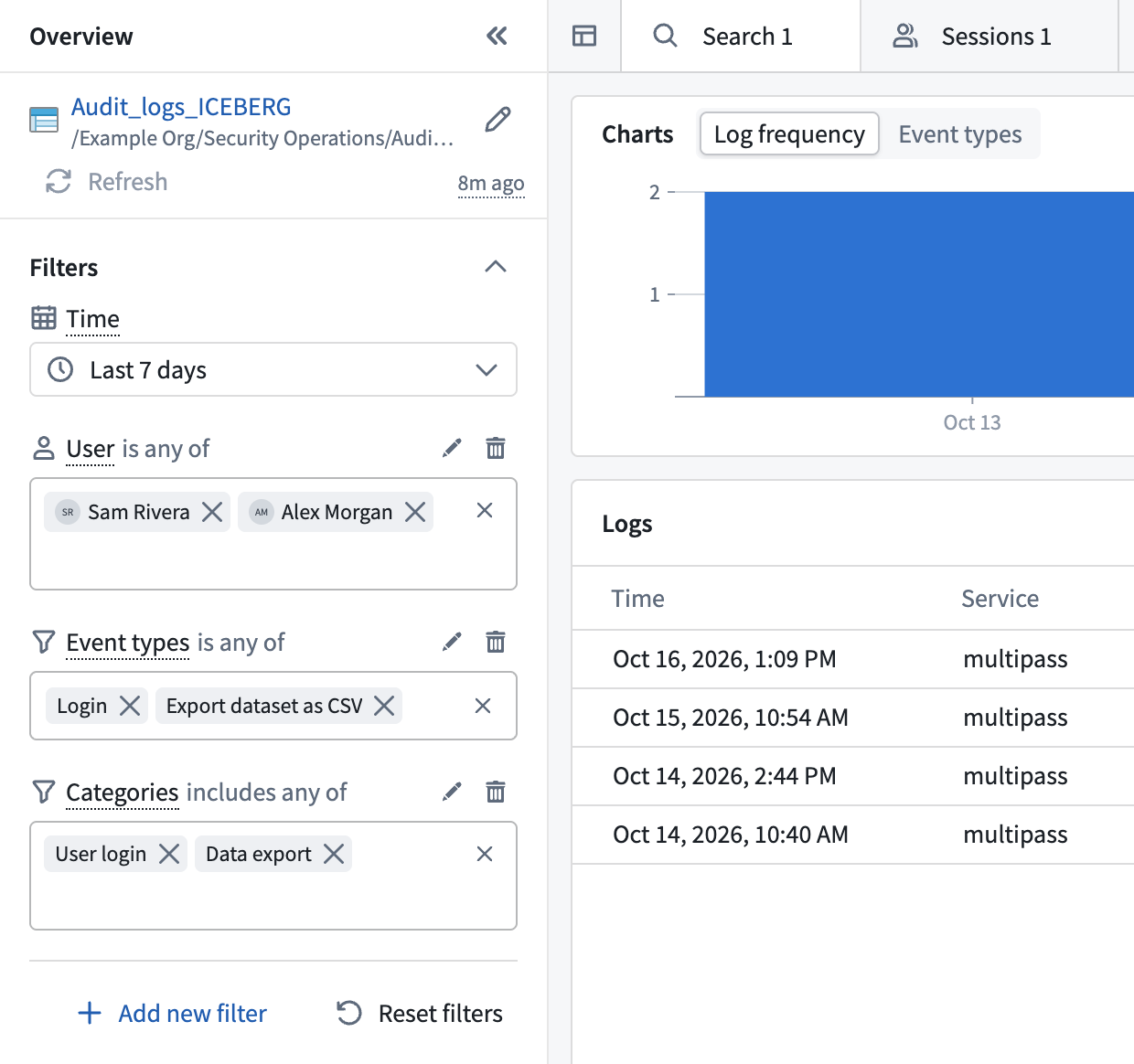
All screenshots use notional data.
The sidebar
Each search tab has its own sidebar, which contains the following from top to bottom:
- A card with the selected audit table, Refresh, and the age of the newest log in the table. Learn more about how to check data freshness.
- The Time card. Use it to set the time range.
- Your filter cards. A new search tab starts with empty User and Event types cards.
- Add new filter and Reset filters. Reset filters removes all filters, sets the time range back to Last 7 days, and restores the empty User and Event types cards.
To make more room for the results, select Collapse overview at the top of the sidebar. The collapsed sidebar shows buttons to expand it, show the filters, and refresh the search.
Audit Explorer records every search you run as an audit log in the dataSearch category. Learn more about how searches are logged.
Add a filter
A filter has a field, an operator, and, for most operators, one or more values. To add a filter, follow the steps below:
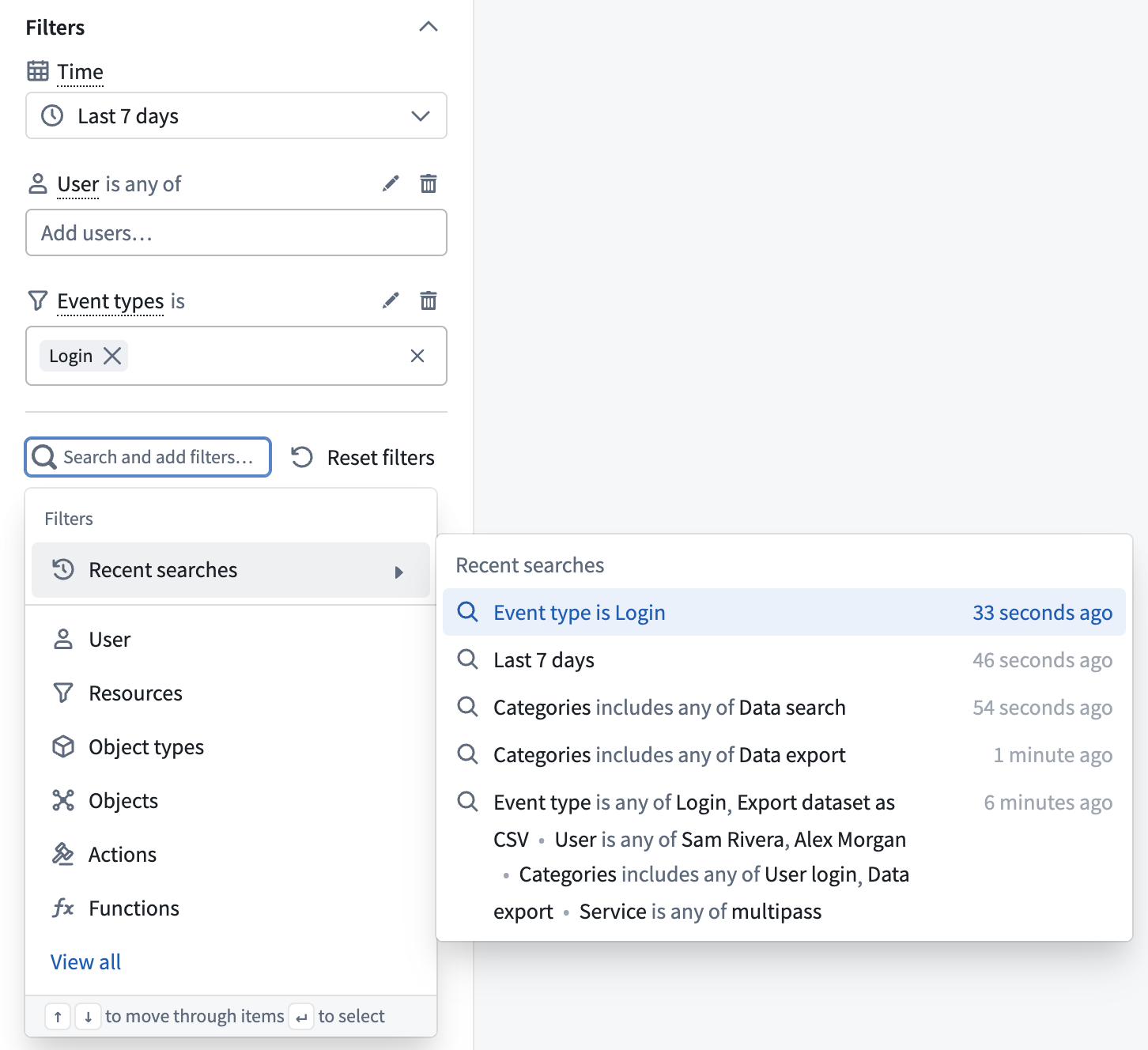
- In the sidebar, select Add new filter, or press
Cmd+K(macOS) orCtrl+K(Windows) while the sidebar and its Filters section are expanded. A menu lists the available fields under Filters. - Choose a field. To find a field that is not listed, type part of its name or select View all. A new card appears below your other cards, ready to edit. If the field already has a card, such as User or Event types on a new tab, that card opens for editing instead.
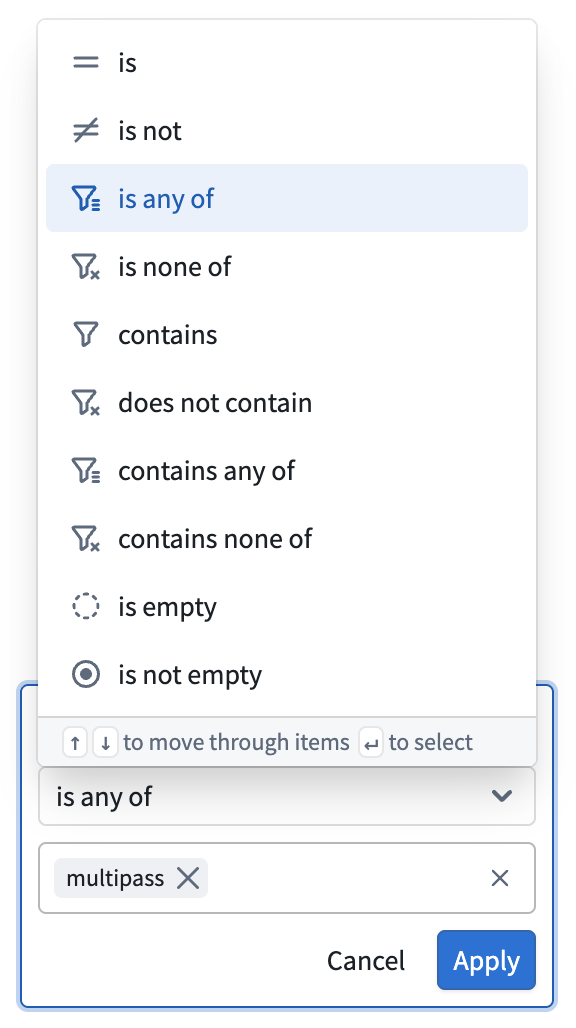
- Optionally, choose a different operator. New cards start with is any of, or includes any of for list fields such as Categories and Resources. Boolean fields start with is, and map,
struct, and binary fields start with is empty. - Add one or more values from the suggestions. For text fields, you can also type any value and choose it at the end of the suggestions list.
- Select Apply.
Operators by field type
| Field type | Operators |
|---|---|
| Text | is, is not, is any of, is none of, contains, does not contain, contains any of, contains none of |
| Number, date, or timestamp | is, is not, is any of, is none of |
| Boolean | is, is not |
| List, such as Categories and Resources | includes, does not include, includes any of, includes all of, includes none of |
Map, struct, or binary | is empty, is not empty, only if the column can have empty values |
The is empty and is not empty operators are also available for any field that can have empty values.
Within a card, operators with any of match a log if any value matches, and operators with none of match only if no value matches. The includes all of operator matches a log whose list contains every value. In edit mode, with a one-value operator such as is, choosing another value replaces the current one. On a card you are not editing, a single value sets the operator to is or includes. Choosing another value adds it and changes the operator to its multi-value form, such as is any of.
The contains operators match text anywhere in the value and are case-sensitive. They do not support wildcards, so characters such as % and _ match literally.
Value suggestions
Suggestions depend on the field:
- User: Type part of a name to search the user directory. Up to 20 matches appear, so type more of the name if the person is not listed. To filter by a user you cannot find by name, right-click the user in the User column of the Logs table and select Include only.
- Organization: Suggestions and filter values show organization IDs, not names.
- Resources: Type a name to search Foundry resources, or paste a full resource identifier (RID). Up to 20 matches appear.
- Categories: Search by display label, such as Data export, or by category name, such as
dataExport. Review audit log categories. - All other fields: Choose from up to 1,000 of the most frequent values in the selected time range. Other filters do not narrow this list, and typing does not find values outside it. If a value is missing, narrow the time range.
Avoid All time when choosing values on large tables, because Audit Explorer then reads every log in the table to build suggestions. Learn more about how to keep searches narrow.
Edit or remove filters
You can change a card in two ways:
- Quick changes: On a card you are not editing, choosing a value, removing a value, or clearing all values with the × icon applies the change right away.
- Edit mode: To change the operator or make several changes at once, select the pencil icon on the card. Your changes take effect only when you select Apply. Select Cancel, or press
Escin the card's value field, to discard them.
To remove a filter, select the trash icon on its card. To reorder cards, open a card in edit mode and drag it by its handle. Audit Explorer discards changes that you have not applied when you switch tabs, collapse the sidebar or its Filters section, or select Reset filters.
If Audit Explorer cannot apply a filter, the card shows the reason in red, such as This filter needs a value. The search returns no results until you fix or remove the filter. A filter on a column that no longer exists, such as one from a saved tab or recent search, appears as a card that you can only remove.
Combine filters
A log must match every filter and the time range. To match alternative values of one field, such as several users, add them to the same filter card. You cannot combine filters on different fields with OR. For example, you cannot search for logs where User is a specific person or Categories includes dataExport. To review alternatives across fields, use a separate search tab for each.
Filter by event type
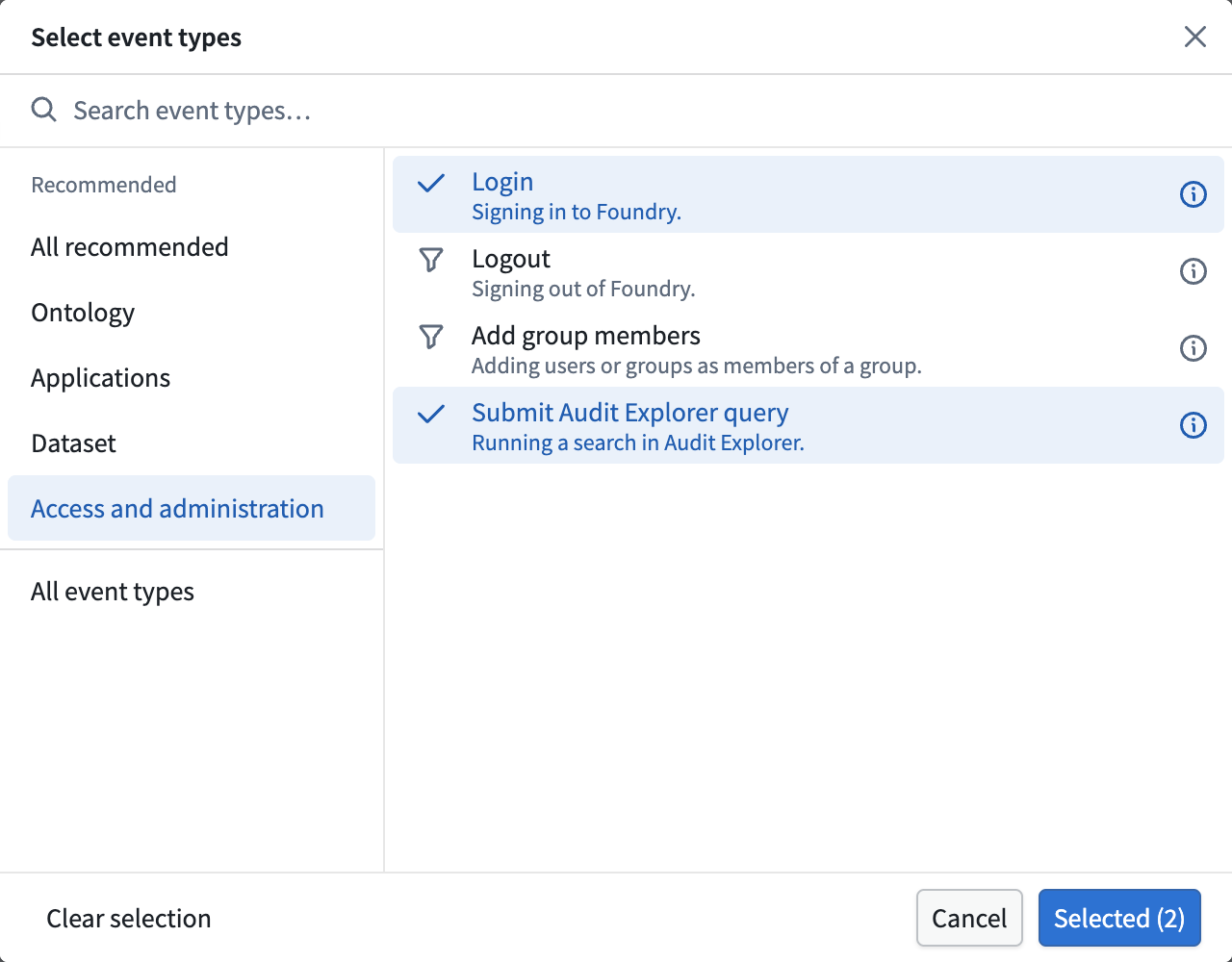
The Event types card filters on the event name of each log. Select Add event types… on the card to open the Select event types dialog, which lists event types in two ways:
- Recommended: Curated event types for common oversight questions, such as Login, Export dataset as CSV, and Apply action. The dialog groups them under Ontology, Applications, Dataset, and Access and administration. Select All recommended to see them all. Some recommended event types cover more than one event name.
- All event types: Up to 1,000 of the most frequent event names in the selected time range.
Each event type shows a description where one is available. Hover over the information icon to see the event names it covers. Search the list by title, description, or event name. Audit Explorer keeps your selections as you switch groups or search. To confirm them, select Selected (N), where N is the number of event names selected. If the card is in edit mode, also select Apply on the card. To start over, select Clear selection.
Filter by Ontology resources
If the audit table has an Entities column, you can filter by the Ontology resources that audit logs reference. To filter by Ontology resources, follow the steps below:
- Select Add new filter, then choose Object types, Objects, Actions, or Functions.
- On the new card, select Add object types…, Add objects…, Add actions…, or Add functions…. A dialog opens.
- Select resources, then select Apply (N) or Confirm selection. In the Select objects dialog, you must choose an Object type before you can select objects. If you change the Object type, Audit Explorer keeps your earlier selections.
- Select Apply on the card.
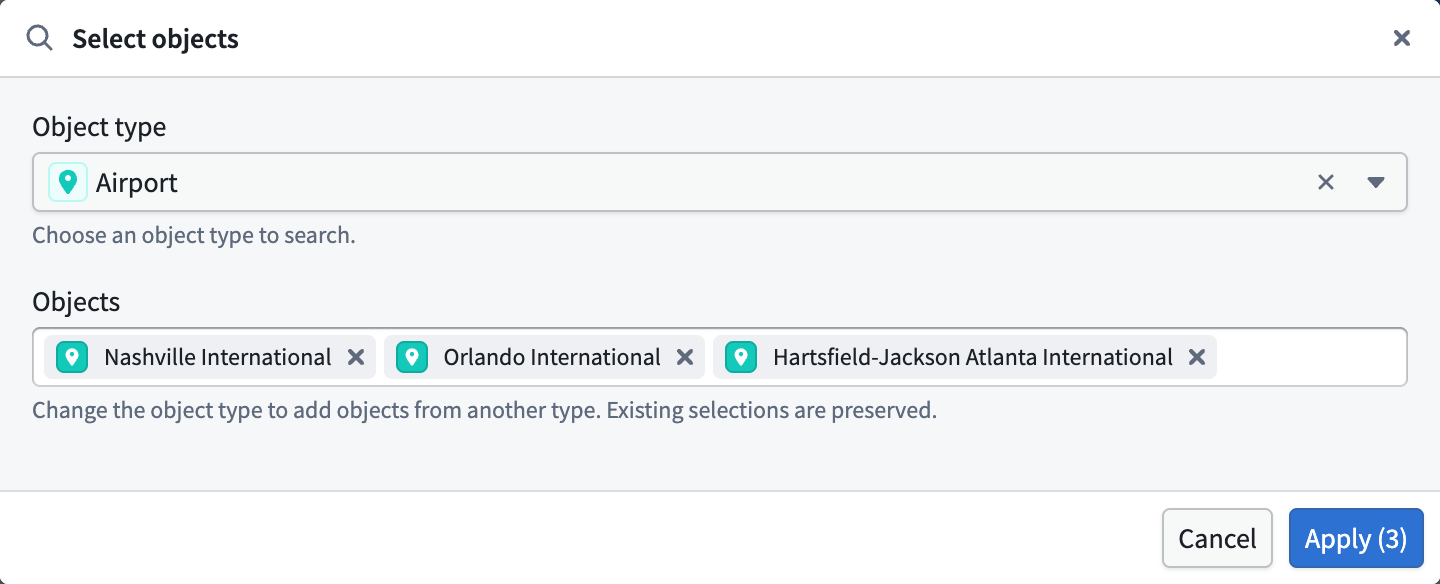
Each kind of resource gets its own card. Separate cards must all match, so an Object types card and an Actions card return only logs that reference both. Several selections in one card match logs that reference any of them. A Functions filter matches every version of each selected function.
To filter by another resource, such as a dataset or folder, add a Resources filter and type the resource name or paste its RID.
Search with free text
Free-text search matches only the stored event name of each log. It is case-sensitive and matches text anywhere in the name. The Event type column shows a readable label, but stored names are uppercase with underscores, such as ACTIONS_SERVICE_APPLY_ACTION_V2. Searching for apply action does not match this event, but APPLY_ACTION does. To find stored names, select Show raw values in the Event type column header menu, or use the Event types filter instead.
To search with free text, follow the steps below:
- Select Add new filter, type your text, and select Free text search: “your text”. If the tab has no Free text search card, Audit Explorer adds one and runs the search right away. Otherwise, Audit Explorer adds your text to the existing card in edit mode.
- Optionally, add more terms. Type each term in the card and press
Enter. - If the card is in edit mode, select Apply or press
Cmd+Enter(macOS) orCtrl+Enter(Windows).
The card's operator determines how terms combine: includes any of, includes all of, or includes none of.
If your text exactly matches a filter name, such as service, the menu offers that filter instead of free-text search. In that case, type the text into an existing Free text search card.
Set the time range
The Time card, first under Filters in the sidebar, sets the time range of the search. New search tabs start with Last 7 days. Tabs that you create with Pivot to new search or Duplicate tab start with the current tab's time range. Tabs that you open from a session explorer tab start with the session's time range. To change the time range, select the time range button on the Time card, then do one of the following:
- Choose a range under Quick ranges. The range applies immediately.
- Enter a start and end under Time range, then select Apply time range.
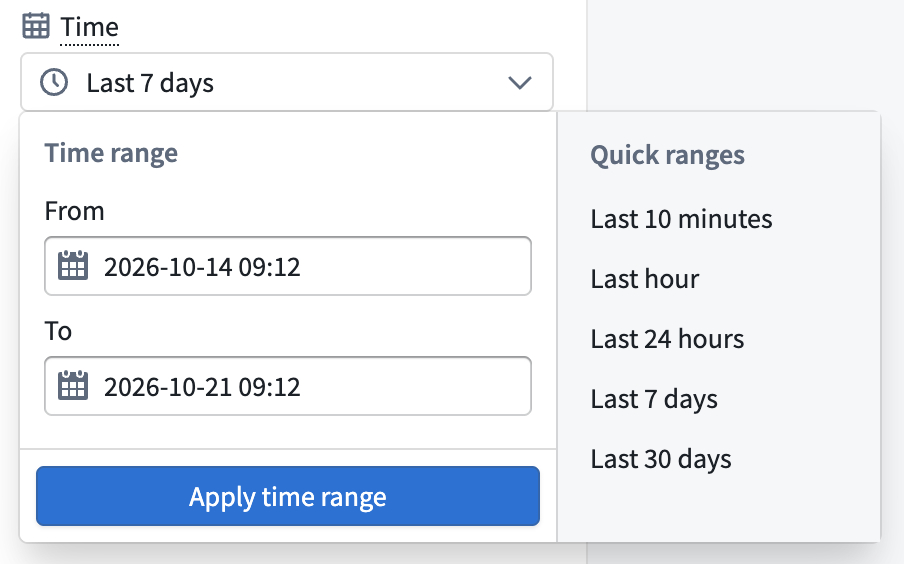
Custom ranges use your browser's local time zone. Clear the start field to search all logs until the end time, or clear the end field to search all logs since the start time. Clearing both fields searches All time, which reads the whole table and can be slow.
To run the search again, select Refresh at the top of the sidebar. Audit Explorer logs each refresh like any other search. With a quick range, Refresh is unavailable until newer logs arrive in the table, and then it turns blue. Refreshing also moves a quick range forward to the current time.
Refine a search from results
Right-click a value in a filterable column of the Logs table, in the log detail panel, or in the Event types chart, then choose an option:
- Include only: Replace any filters on that field with a filter for this value. For Entities, this also replaces any Resources and Ontology resource filters.
- Exclude: Add a filter that excludes this value, or add the value to an existing exclusion on that field.
- Pivot to new search: Open a new search tab with only this filter and the current time range.
Include only and Exclude apply right away and add or update a card in the sidebar. Pivot to new search leaves the current tab unchanged. To narrow the time range, right-click a value in the Time column and choose an option under Zoom to. In the Log frequency chart, right-click a bar and choose Zoom into this time range. Learn more about cell actions.
Use search tabs
Use search tabs to keep several independent searches open on the same audit table. Each tab has its own filters, time range, and sort.
- Open a new tab: Select New tab (the + icon) next to the tabs, then choose New search. You can also choose Session explorer to open a session explorer tab.
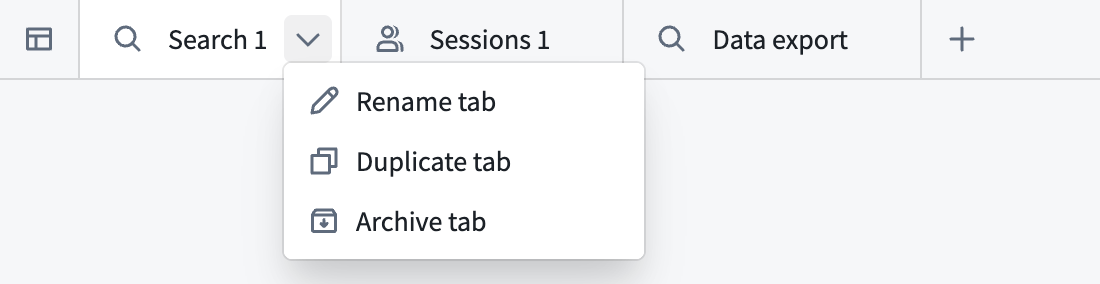
- Rename, duplicate, or archive a tab: Select the chevron on the tab to open Tab options. Duplicate tab opens a new tab with the same filters, time range, sort, and custom name. Archive tab closes the tab without confirmation and adds its filters and time range to your recent searches.
Reuse recent searches
Audit Explorer saves a recent search each time you apply a change to the filters or time range, and when you archive a tab. It keeps your eight most recent searches for each audit table. To reuse one, select Add new filter, then open Recent searches and select an entry. Audit Explorer replaces the current tab's filters and time range with those of the recent search. The tab keeps its name and sort.