- Capabilities
- Getting started
- Architecture center
- Platform updates
Announcements
REMINDER: Sign up for the Foundry Newsletter to receive a summary of new products, features, and improvements across the platform directly to your inbox. For more information on how to subscribe, see the Foundry Newsletter and Product Feedback channels announcement.
Share your thoughts about these announcements in our Developer Community Forum ↗.
Google Vertex now available for IL5 enrollments
Date published: 2026-06-30
Models from the Google Gemini model family are now accessible from AIP applications in IL5 enrollments through Google Vertex.
Frontier models
You can access the following frontier models via Google Vertex after your enrollment administrator enables the Vertex model family:
Legacy models
You can also access the following legacy models via Google Vertex after your enrollment administrator enables the Vertex model family:
Getting started
To use these models:
- Confirm that your enrollment administrator has enabled the relevant model family.
- Review token costs and pricing.
- See the complete list of models available in AIP.
Your feedback matters
We want to hear about your experiences using language models in the Palantir platform and welcome your feedback. Share your thoughts with Palantir Support channels or on our Developer Community ↗ using the language-model-service tag ↗.
Palantir MCP now supports tool search to cut startup token usage
Date published: 2026-06-30
Palantir MCP now supports tool search, which reduces token usage by exposing a single tool — search_tools — at startup instead of the full catalog. Your agent activates additional tools only as it searches for them, so fewer tool definitions load into your context.
What tool search does
When tool search is enabled, Palantir MCP starts up exposing only one tool — search_tools — instead of the full tool catalog. From there:
- When you prompt the agent, the agent calls
search_toolswith a short description of your task. search_toolsranks the catalog locally on tool name, category, and curated keywords, activates the best-matching tools, and returns their descriptions. This means no extra model call or network round-trip.- The agent calls the activated tool directly.
This keeps your context small: instead of loading dozens of tool definitions up front, the agent loads only the handful relevant to the task.
Activated tools remain in your tool list and your context for the rest of the session. Reconnecting to the server resets your tool list to only search_tools.
Client requirement: Tool search relies on your MCP client refreshing its tool list when new tools are activated, using the tools/list_changed notification. Clients that do not refresh dynamically will not see newly activated tools. For this reason, Continue does not use tool search.
How to enable it
Tool search is opt-in. By default, all tools load at startup exactly as they do today. To enable tool search, either:
- Pass the
--tool-searchargument to the server, or - Set the environment variable
PALANTIR_MCP_TOOL_SEARCH=true
The two options are equivalent; use whatever fits your setup.
Claude Code (claude mcp add)
Use the flag:
claude mcp add palantir-mcp \
    --scope project \
    -e FOUNDRY_TOKEN=<token> \
    -- npx "-y" "palantir-mcp" "--tool-search" "--foundry-api-url" "https://<enrollment>.palantirfoundry.com"
Note the new --tool-search argument must go after the --, as an argument to palantir-mcp (not to claude mcp add).
Or, equivalently, use the environment variable:
claude mcp add palantir-mcp \
  --scope project \
    -e FOUNDRY_TOKEN=<token> \
    -e PALANTIR_MCP_TOOL_SEARCH=true \
    -- npx "-y" "palantir-mcp" "--foundry-api-url" "https://<enrollment>.palantirfoundry.com"
Agent Flows (pro-code agent)
export const PALANTIR_MCP_CONFIGURATION: McpStdioServerConfig = {
  type: "stdio",
  command: "palantir-mcp",
  args: ["start", "--tool-search", "code-workspaces"],
  env: {
    FOUNDRY_PROXY_URL: `https://${process.env.FOUNDRY_PROXY_URL!}/`,
    FOUNDRY_SERVICE_DISCOVERY_V2: process.env.FOUNDRY_SERVICE_DISCOVERY_V2!,
    FOUNDRY_EXTERNAL_HOST: "https://<host>.palantirfoundry.com",
    FOUNDRY_PROXY_TOKEN: process.env.FOUNDRY_PROXY_TOKEN!,
    FOUNDRY_SCOPED_TOKEN: process.env.FOUNDRY_SCOPED_TOKEN!,
    MAESTRO_REPO_RID: process.env.MAESTRO_REPO_RID!,
    NODE_EXTRA_CA_CERTS: process.env.NODE_EXTRA_CA_CERTS!,
  },
};
Note the "--tool-search" argument. Alternatively, you may instead add PALANTIR_MCP_TOOL_SEARCH: "true" to the env block.
Your feedback matters
We want to hear about your experiences with Palantir MCP in the Palantir platform and welcome your feedback. Share your thoughts with Palantir Support channels or on our Developer Community ↗ using the foundry-mcp tag ↗.
Test object and property security policies in Ontology Manager
Date published: 2026-06-30
The ability to test object and property security policies you configure on object types in Ontology Manager is now generally available across Foundry enrollments. This feature enables you to test which users or groups can view individual objects and their specific properties, helping you understand, iterate on, and safely refine object security configurations so you can ensure all policies work as intended. To get started, select Test policies from the Security policies section to launch the Test security policies modal.
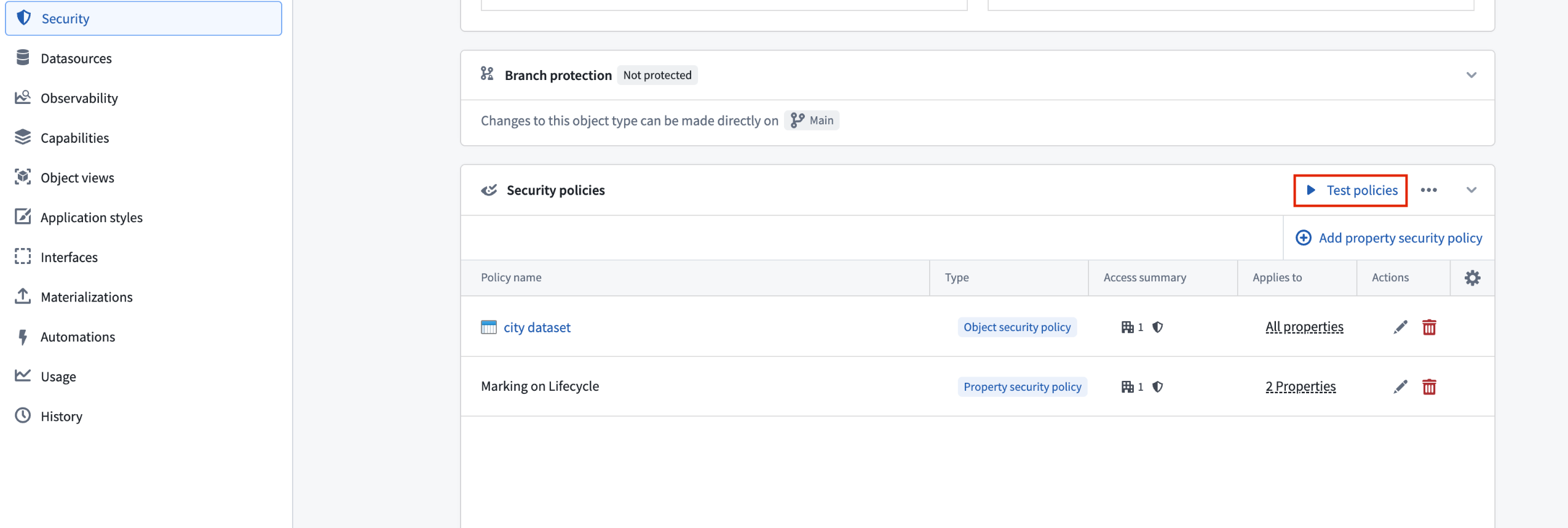
Use Ontology Manager's Security policies section to test your object and property security policies.
In the Test security policies modal, use the Configure test panel to select a User whose visibility access you wish to test on a given Object. The Results section indicates which properties on the object the user can view based on the current security policy configuration.
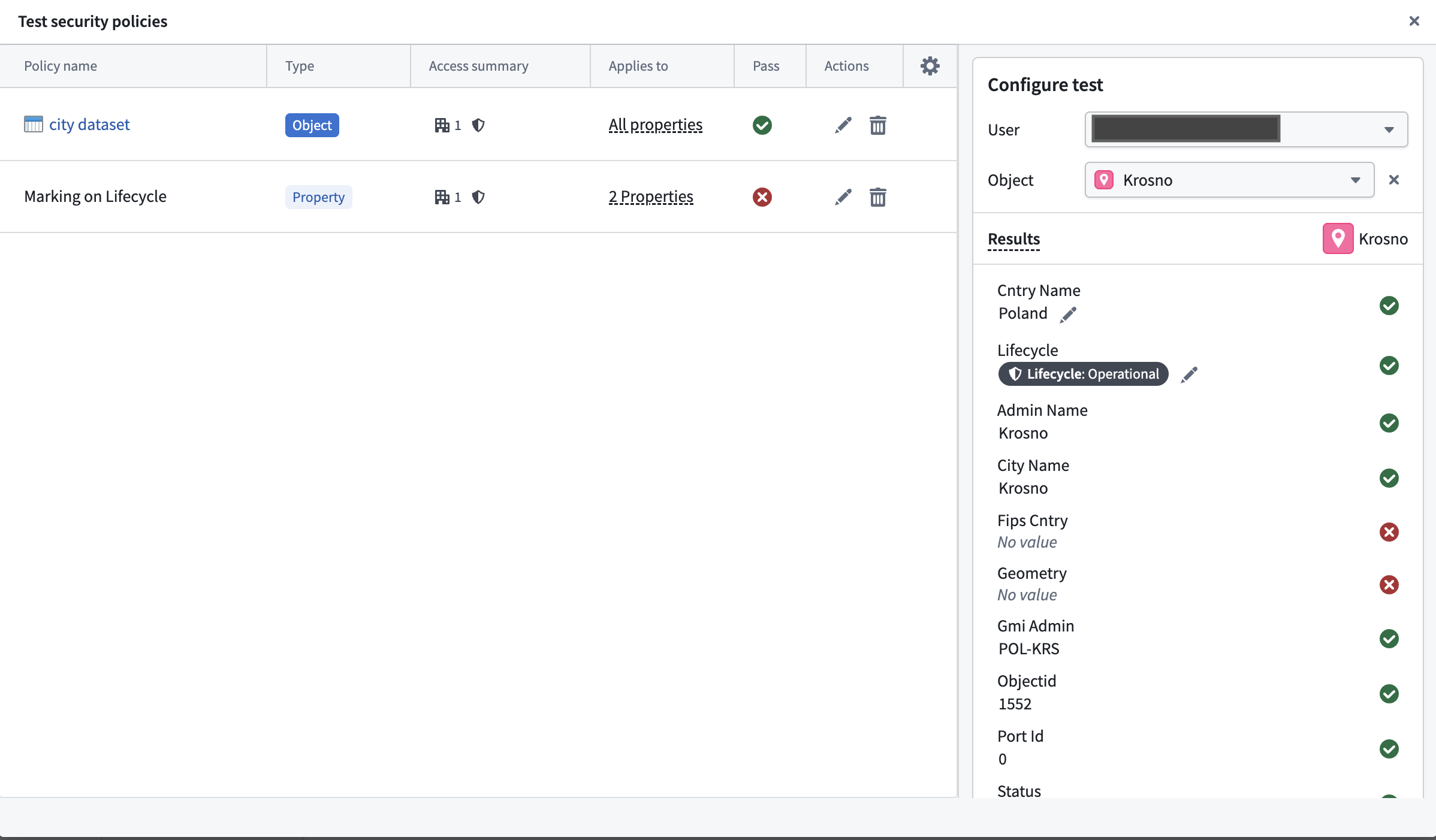
Use the Test security policies modal to configure and run your test cases.
Current object security policy testing limitations
- You cannot test derived property visibility, as this also relies on the user's visibility on the derived property's source object.
- If you are neither a member nor administrator of an organization that is referenced in the security policy, then guest memberships and secondary organizations will not be taken into account during testing. Foundry indicates this by displaying a warning callout that enumerates the organizations you do not have permissions on.
Learn more about how to configure and use object and property security policies in Ontology Manager.
Anthropic Claude models are now available through Azure in AIP
Date published: 2026-06-25
We are excited to announce that Anthropic Claude models served through Azure are now available in AIP. These models provide strong reasoning, coding, agentic workflow, and enterprise AI capabilities across a range of performance and efficiency tiers.
The following Claude models are now available through Azure:
- Claude Opus 4.8 ↗
- Claude Opus 4.7 ↗
- Claude Opus 4.6 ↗
- Claude Sonnet 4.6 ↗
- Claude Opus 4.5 ↗
- Claude Sonnet 4.5 ↗
- Claude Haiku 4.5 ↗
Enabling Claude models through Azure provides the following benefits:
- Capacity: Claude models in AIP will gain capacity when this family is enabled.
- Stability: Requests to Claude models can be routed through Azure when other providers experience outages.
Note that this model family is currently only available for commercial, non-georestricted enrollments.
Getting started
To use Anthropic Claude models through Azure:
- Confirm that your enrollment administrator has enabled the "Anthropic Claude" through "Microsoft Azure" Model Family.
- Review token costs and pricing.
- See the complete list of all models available in AIP.
Your feedback matters
We want to hear about your experiences using language models in the Palantir platform and welcome your feedback. Share your thoughts with Palantir Support channels or on our Developer Community ↗ using the language-model-service ↗ tag.
Palantir MCP is now generally available
Date published: 2026-06-25
Beginning the week of June 22, Palantir MCP will be available across all Foundry enrollments. Palantir MCP enables AI IDEs and AI agents to autonomously design, build, edit, and review end-to-end applications within the Palantir platform. An implementation of Model Context Protocol ↗, Palantir MCP supports everything from data integration to ontology configuration and application development, all performed within the platform.
Key capabilities of Palantir MCP
Vibe code production applications: Enables developers to use AI to produce production-grade applications on top of the ontology while following Palantir's security best practices.
Data integration: Powers Python transforms generation by enabling AI IDEs to get context from Compass, dataset schemas, and execute SQL commands entirely locally.
Ontology configuration: Allows developers to configure their ontology locally without leaving the IDE.
Application development: Integrates with your OSDK to enable the development of TypeScript applications on top of your ontology.
Start using Palantir MCP
The Palantir MCP documentation contains installation steps, a getting started guide, and example MCP workflows. We strongly encourage all local developers to install and regularly update the Palantir MCP to take advantage of the latest changes and tool releases.
Your feedback matters
Have thoughts on Palantir MCP? Let us know through Palantir Support channels and our Developer Community ↗ using the foundry-mcp tag ↗.
Ontology MCP is now generally available
Date published: 2026-06-25
Ontology MCP is now generally available. Beginning the week of June 16, Ontology MCP will be available across all Foundry enrollments.
AI agent frameworks are increasingly built around the Model Context Protocol (MCP) as a standard interface for connecting agents to external data and actions. Ontology MCP exposes your application's existing Ontology resources — object types, action types, and functions — as MCP tools, allowing any MCP-compatible agent or framework to query Foundry data and trigger workflows without additional integration code.
Getting started with Ontology MCP
You can enable or disable Ontology MCP on the MCP page in Developer Console. From the MCP tab, you can browse all enabled Ontology MCP servers.
Ontology MCP authentication uses Foundry's standard OAuth 2.0 flow, so every tool call runs under the authenticated user's existing Foundry permissions.
To get started, navigate to your application in Developer Console, open the MCP page, and enable the resources you want to expose. See the Ontology MCP documentation for a full overview, getting started guide, and agent configuration examples.
Your feedback matters
Have thoughts on Ontology MCP? Let us know through Palantir Support channels and our Developer Community ↗ using the foundry-mcp tag ↗.
Python transform editing in Code Repositories is now legacy
Date published: 2026-06-23
Editing Python transforms in Code Repositories is now in the legacy phase of development. VS Code workspaces are the recommended environment for editing Python transforms, offering AI-powered coding assistance, full dataset preview, an optimized language server, and an integrated terminal.
The Code Repositories editor will remain supported and available, with future feature development focused on VS Code workspaces. Code Repositories remains the recommended editor for other repository types, including Java and SQL transforms.
If VS Code workspaces are unavailable on your enrollment, Code Repositories remains the recommended way to author Python transforms.
Getting started
To get started with VS Code workspaces for Python transforms, we recommend reviewing the following documentation:
- VS Code workspaces: Overview
- Reference: VS Code workspaces vs. Code Repositories
- Benefits of VS Code workspaces
Develop on global branches in VS Code workspaces
Date published: 2026-06-23
You can now create, check out, and develop on global branches directly in VS Code workspaces and in local VS Code for Python transforms repositories and TypeScript v1 function repositories.
The tabbed branch selector in the Palantir extension for Visual Studio Code lets you create and check out both branch types from one place in the VS Code sidebar. You can also create or check out a branch from the Command Palette or the branch taskbar, which appears as a blue bar at the bottom of the editor in VS Code workspaces.
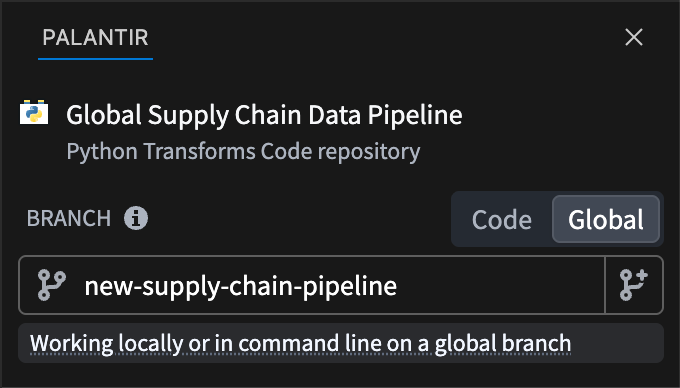
The tabbed branch selector in the Palantir panel of the VS Code sidebar, with the global branch tab selected.
Once you are on a global branch, your development tools run against it. For Python transforms, the preview and build panels run against the branch you have checked out. For TypeScript v1 functions, all development panels operate against the branch.
Learn more about Global Branching in VS Code workspaces, and view a complete list of resource types that support Global Branching.
Your feedback matters
We want to hear about your experiences with Foundry Branching in the Palantir platform and welcome your feedback. Share your thoughts with Palantir Support channels or on our Developer Community ↗ using the global-branching ↗ and vscode ↗ tags.
Introducing new lifecycle features for Global Branches
Date published: 2026-06-23
Global branches can now be in one of four states: active, inactive, merged, and archived (previously named "closed").
- Active: an open branch you are actively working on.
- Inactive: an open branch with no recent activity.
- Merged: a branch whose changes have been integrated into a target branch.
- Archived: a branch you have manually taken out of use. Replaces the former "closed" state.
Two branching behaviors changed with this feature release. Branches are no longer closed automatically; a branch with no recent activity now becomes inactive instead. You can also restore branches that were archived after this release, returning them to an active state.
Inactive branches
A branch becomes inactive automatically after a period with no activity. In this state, the platform de-indexes ontology resources and deletes data after a set period. Builds of resources on an inactive branch fail immediately. When a branch becomes inactive, you receive an email notification and an in-platform notification. You can reactivate the branch to continue working.
Archived branches
You archive branches manually; archiving is always manual. When you archive a branch, you receive an email notification and an in-platform notification. De-indexing, build failure, and data deletion work the same way as on inactive branches. The platform retains metadata, such as previously modified resources, so you can restore archived branches. Archived branches don't appear in the branch selector. You can open and restore them in the Global Branching application.
Retention policy
The time periods for data deletion and branch inactivity can be modified in Control Panel, under Global Branch retention policy.
- Branch inactivity: the period an open branch can go without activity before it's marked inactive. Default: 35 days.
- Branch data deletion: the period data that exists only on inactive or archived branches is kept before it's deleted. Default: 7 days.
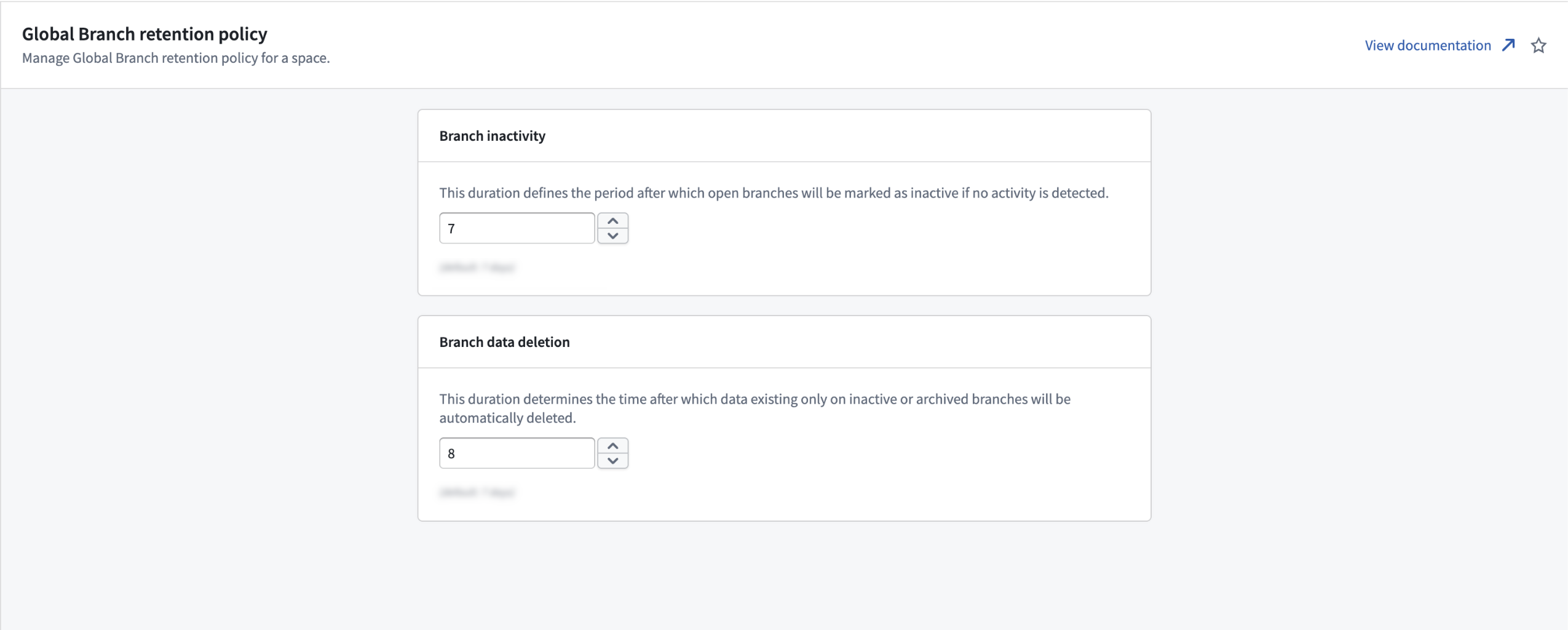
The Global Branch retention policy page in Control Panel, where you set two periods (in days): how long an open branch stays without activity before it is marked inactive, and how long data that exists only on inactive or archived branches is kept before it is deleted.
Your feedback matters
We want to hear about your experiences with Global Branching in the Palantir platform and welcome your feedback. Share your thoughts with Palantir Support channels or on our Developer Community ↗ using the global-branching tag ↗.
Grok Build 0.1 from xAI is now available in AIP
Date published: 2026-06-16
Grok Build 0.1 is now available for enrollments with xAI enabled in the US and other supported regions.
Model overview
Grok Build 0.1 is xAI's coding model trained for agentic coding tasks, including web development and debugging, with MCP support. xAI positions the model as a fast, low-cost option for general-purpose agentic and tool-calling use cases.
For more information, review xAI's model documentation ↗.
Getting started
To use this model:
- Confirm your enrollment administrator has enabled the xAI model family.
- Review token costs and pricing.
- See the complete list of models available in AIP.
Your feedback matters
We want to hear about your experience using language models in the Palantir platform. Share your thoughts through Palantir Support channels or on our Developer Community ↗ using the language-model-service tag ↗.
SQL Studio, Foundry's dedicated SQL application, is now generally available
Date published: 2026-06-16
SQL Studio, Foundry's dedicated application for writing and running SQL queries, is now generally available as of the week of June 15. SQL Studio brings interactive SQL analysis to Foundry across both tabular data and ontology object types, backed by purpose-built SQL engines and AI-assisted query writing.
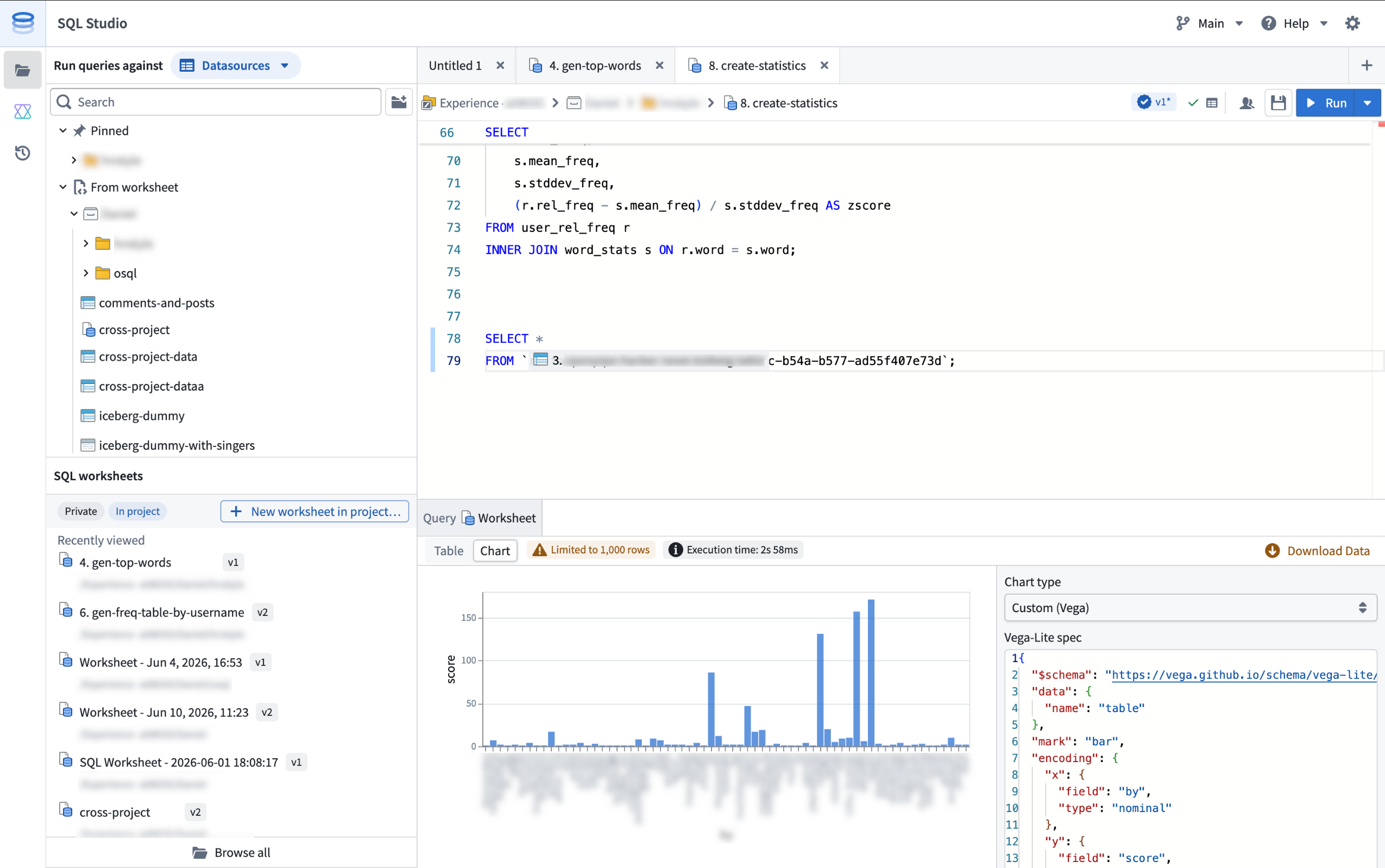
SQL Studio provides an interactive, AI-assisted interface for SQL analysis of tabular data and Ontology objects.
SQL Studio builds on the contextual SQL console embedded in applications such as Dataset Preview, Data Lineage, and Ontology Manager, now providing a dedicated application with read and write SQL support for tabular data, read support for ontology object types, and the ability to publish reusable Ontology SQL functions.
Powered by Ontology SQL and Furnace
SQL Studio is built on two Foundry SQL engines that share a common Spark SQL dialect: Ontology SQL for querying ontology object types, and Furnace for querying tabular data.
Ontology SQL is Foundry's SQL engine for querying ontology object types and many-to-many links. Queries execute directly against object storage using an in-memory compute path for fast response times on supported query shapes, with more complex queries automatically routed to Spark.
Furnace is Foundry's SQL engine for tabular data. It dynamically routes queries between Trino and Spark based on the workload, and supports both read and write operations.
Key features
SQL Studio brings together a complete SQL analysis experience in one place:
- Unified data and object querying: Query tabular data and ontology object types from a single application, switching between data mode and object mode, while using a common Spark SQL dialect.
- Low-latency, interactive analysis: SQL Studio is built for iterative development workflows. Queries are dynamically routed to the most appropriate compute engine, including faster non-Spark options for supported query shapes, and run on warm, fully managed compute.
- AI-assisted code generation: A conversational AIP side panel helps you write, explain, and debug queries. It understands Foundry's supported SQL dialect and has visibility into your editor, including the current code and the schemas of any referenced datasets, tables, and object types.
- Preview results as tables or charts: View query results as tabular output, visualize them with built-in chart types (line, bar, scatter, pie, and histogram), or create a custom chart powered by Vega. Result limits are configurable: queries return a 1,000-row preview by default, and users with the appropriate permissions can return up to 10,000 rows per query.
- Save and share SQL worksheets: Use a scratchpad for one-off analyses, or save your work as a SQL worksheet. Save worksheets privately for personal reuse or in a project to share with colleagues. Each save creates a new version that you can review and restore later, and unsaved changes are auto-staged so your in-progress work persists between sessions. SQL Studio supports multiple editor tabs, so you can work on several worksheets at the same time.
- Read and write support: In addition to
SELECTqueries, SQL Studio supportsCREATE TABLEoperations on datasets;CREATE,INSERT,UPDATE, andDELETEoperations on Iceberg tables; and theSHOW FUNCTIONSmeta-operation, which lists the supported SQL functions and their schemas. - Ontology SQL functions (beta): Define reusable, parameterized SQL queries over object types and publish them as SQL functions. Supported query shapes can execute with low latency on the same in-memory path as Ontology SQL queries. Use them across Foundry, including in Workshop, Actions, Automate, and the Ontology SDK. SQL functions are in beta and are not enabled on all Foundry environments; contact your Palantir representative to enroll.
Getting started
SQL Studio is available from the Applications menu.
For information about SQL Studio features, see the SQL Studio documentation. For syntax guidance, refer to the SQL dialect documentation. To learn more about the underlying engines, see the Furnace and Ontology SQL overviews.
If necessary, enrollment administrators can turn off SQL Studio for an enrollment from the Application access page of Control Panel.
What's coming next
SQL Studio is under active development, and several capabilities are on the near-term roadmap, including:
- Global Branching and Marketplace packaging support for SQL worksheets.
- Integration with Foundry's production pipeline tooling and Git-based CI/CD development workflows.
- Reusable SQL stored procedures that can be shared across queries and worksheets.
We want to hear from you
As we continue to develop SQL Studio, we welcome your feedback about both the SQL Studio application and the broader SQL experience in Foundry. Share your thoughts with Palantir Support channels or our Developer Community ↗.
Package multiple products simultaneously in Foundry DevOps
Date published: 2026-06-16
Foundry DevOps now supports packaging multiple products simultaneously within the same draft group. Previously, teams had to manually sequence each product to resolve cross-product dependencies. DevOps now handles this automatically, guaranteeing linked products are packaged in the correct dependency order.
To get started, navigate to the Products tab of your store. From the Drafts section, select Create new group and choose to add existing products to a draft group or create new products.
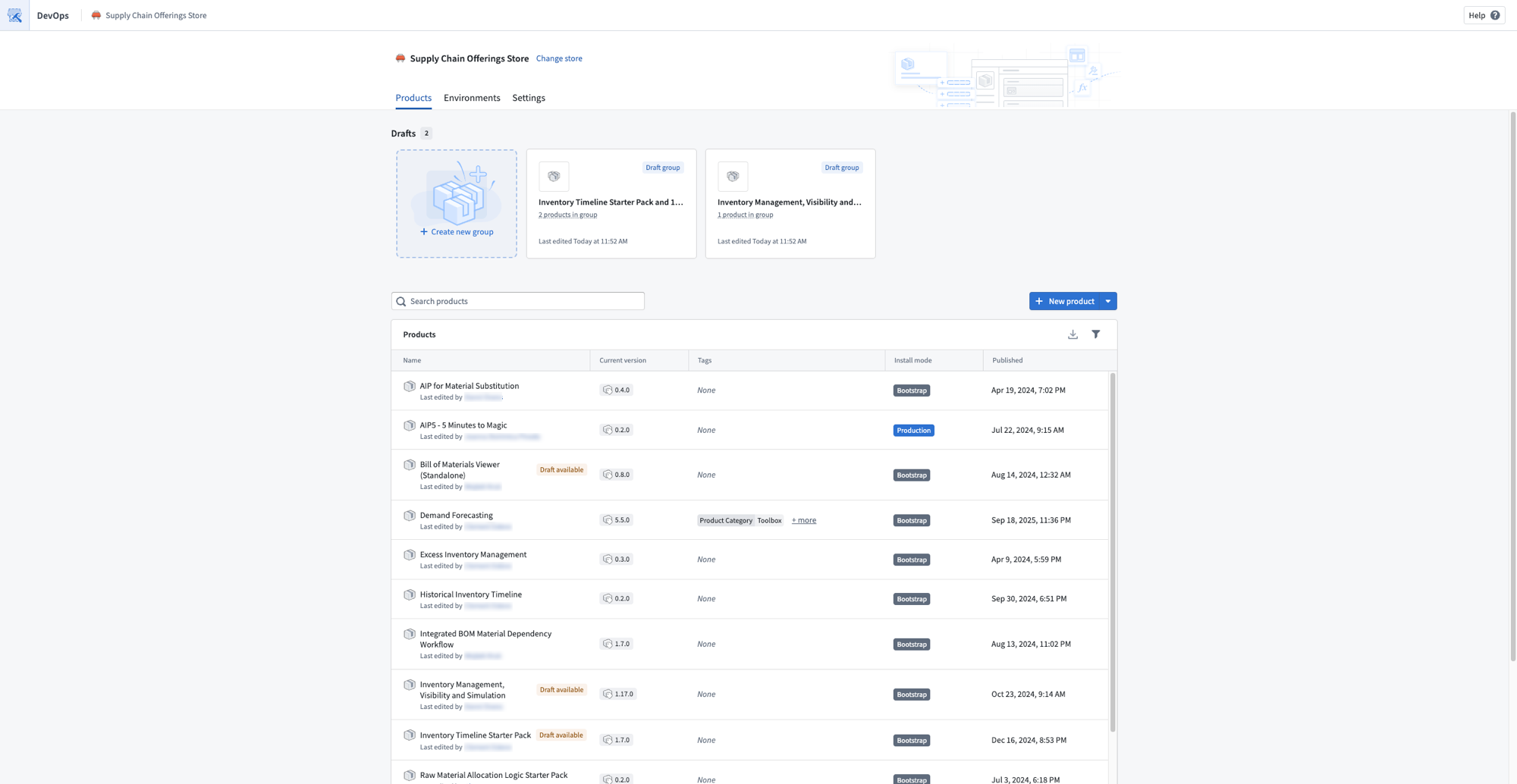
A store Products page showing draft groups that contain multiple products.
The linked products graph on the Overview page visualizes all products in your draft alongside their upstream and downstream dependencies. Select any product to add dependencies, remove it from the graph, or create a new draft. The graph also surfaces warnings for broken linked product relationships so you can resolve them before publishing.
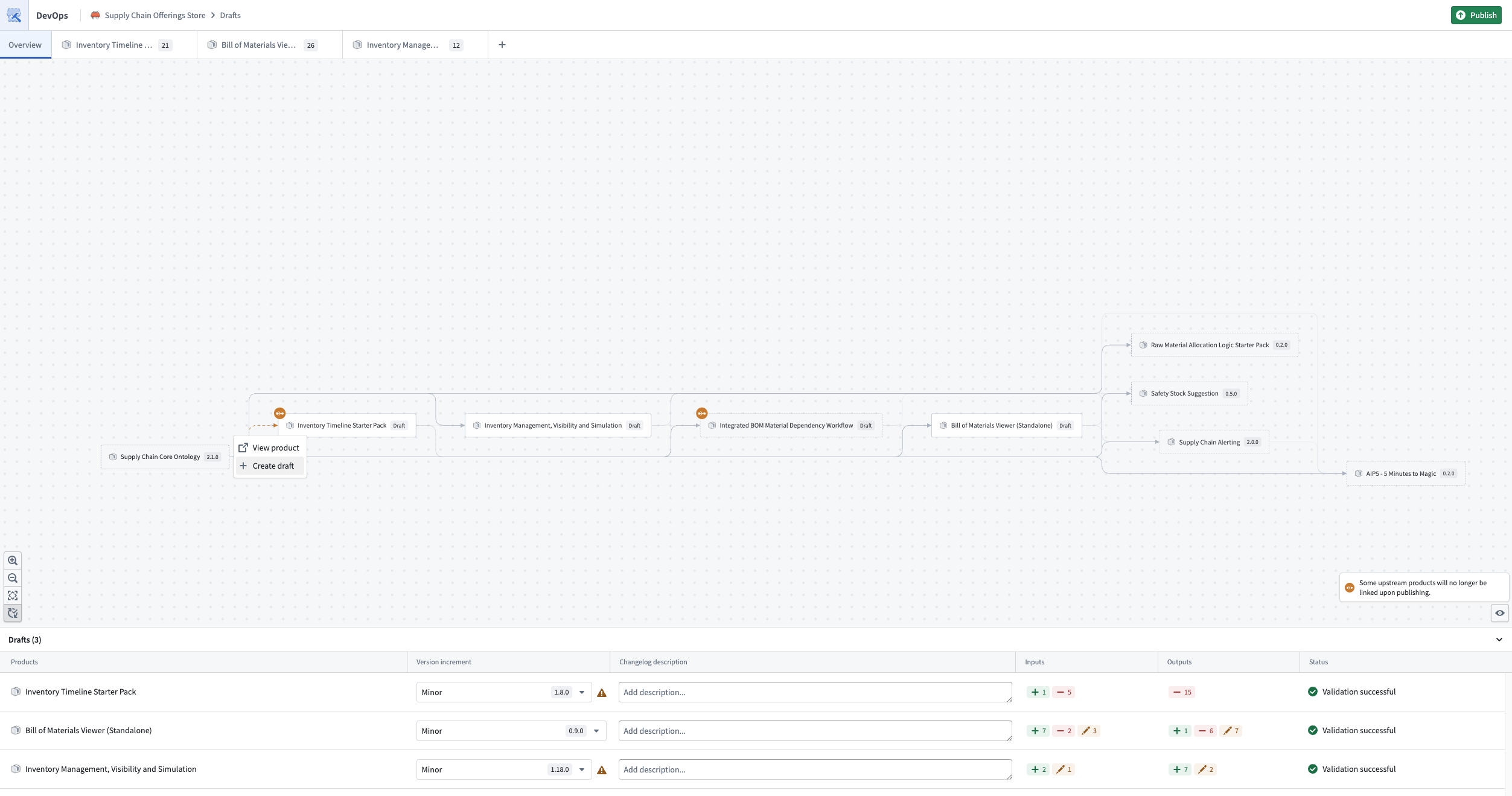
The linked products graph, visualizing all products in the draft and their dependencies.
Use the Add to other draft bulk action to move inputs between drafts within the same group, so one product's outputs can fulfill another product's inputs.
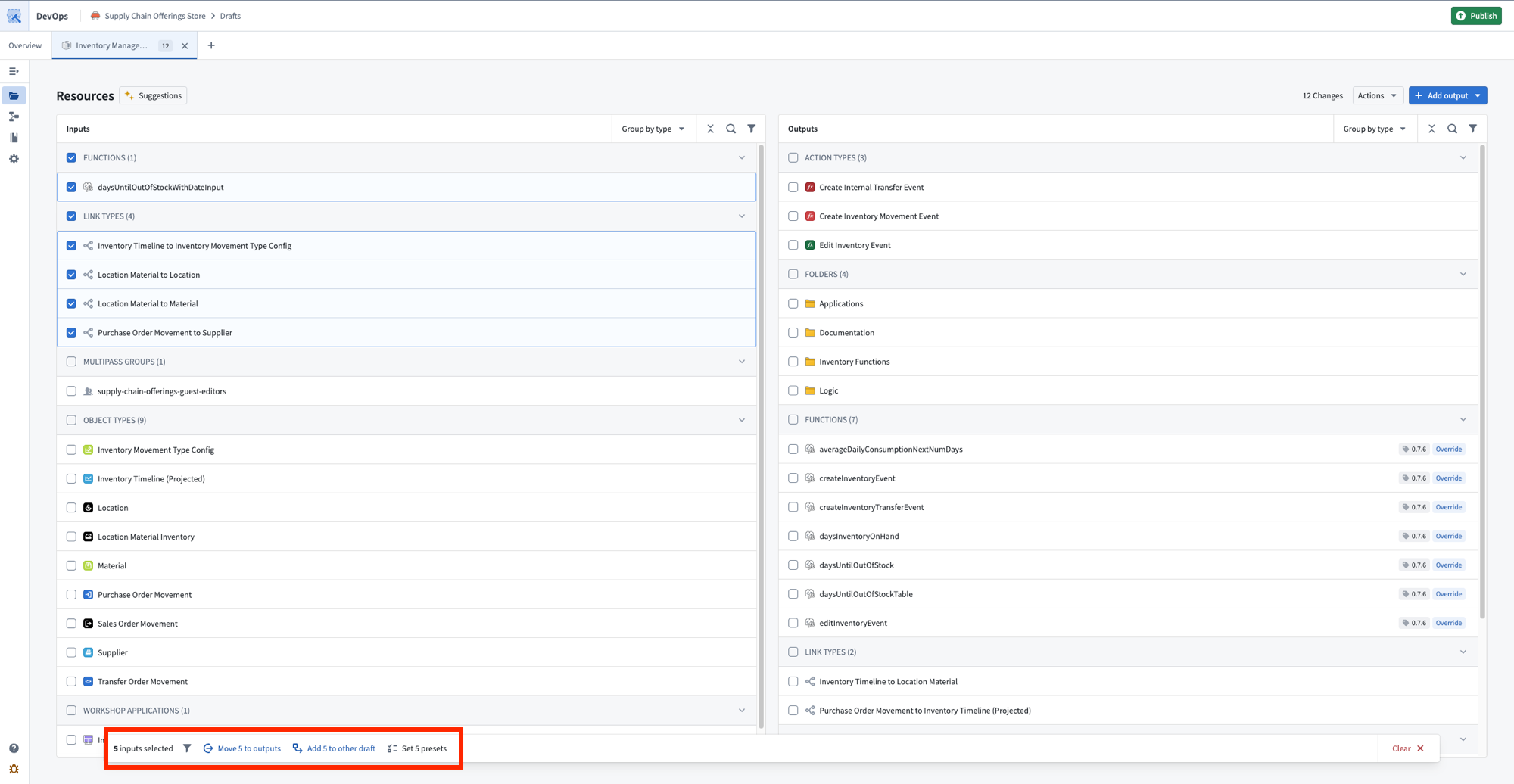
The bulk actions toolbar, with options to move inputs to outputs or add them to another draft.
Select Publish to release all products in dependency order, ensuring linked products are available before any that depend on them.
Share your feedback
We want to hear about your experiences with Foundry DevOps. Share your thoughts with Palantir Support channels or on our Developer Community ↗ using the devops ↗ tag.
Observability for your automation events in Autopilot
Date published: 2026-06-16
The new Automation events tab provides observability into all automation events across your workbench, replacing the previous Object executions tab. Monitor system performance, investigate failures from the automation down to the logic block, and understand how automations are processing objects over time.
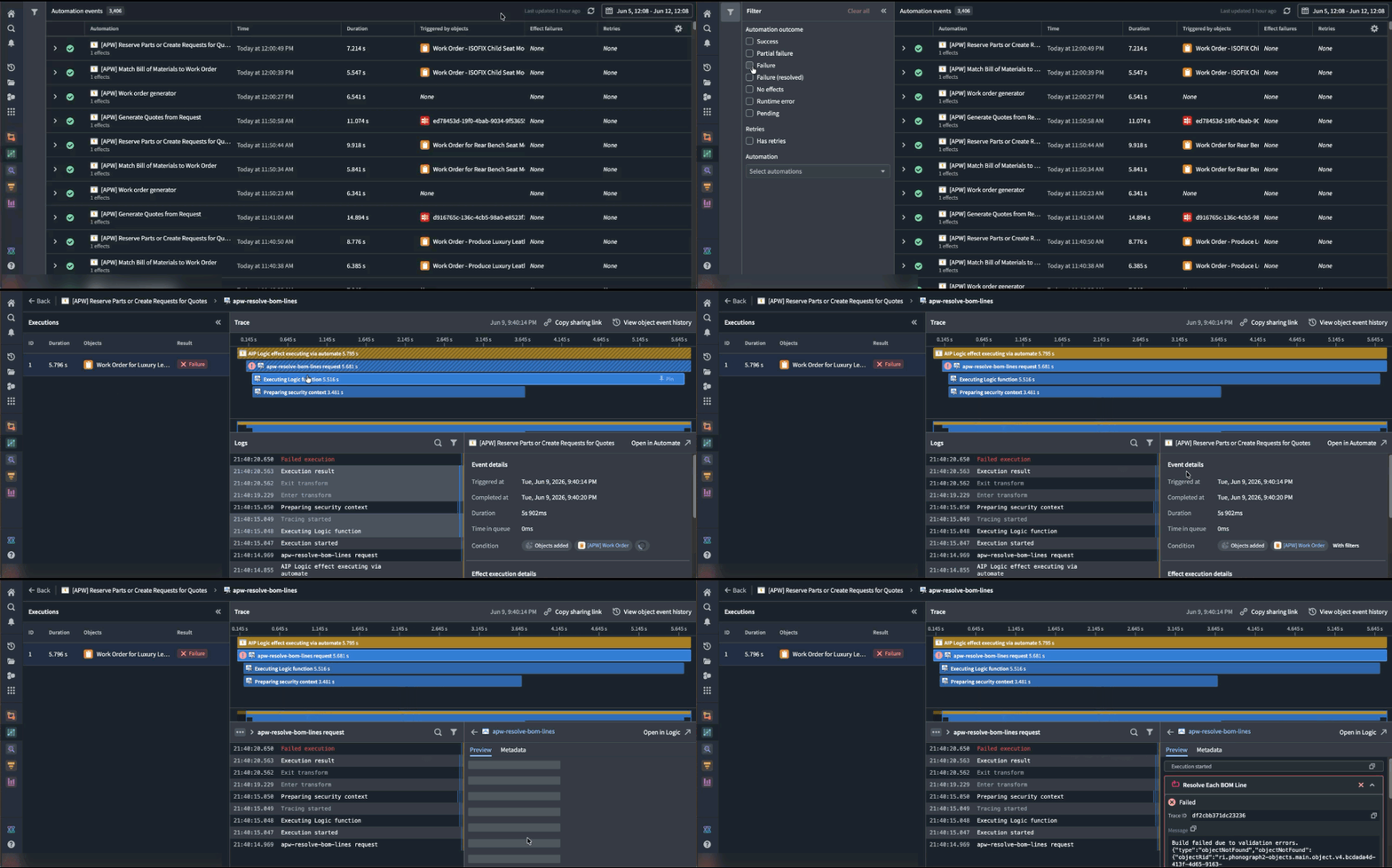
Use the Automation events tab to better understand observability into the automation events across your workbench.
What's in each event
Each event entry displays the automation name, effect and fallback action (if applicable), event details, outcome (success, failure, or fallback triggered), and triggering objects.
Executions are grouped by batches, aligned with the Automate history view, so you can see each execution alongside the individual objects within the run.
Select any event to view trace logs for each object execution, including step-by-step details, inline links to related resources, error messages and stack traces for failures, and timing information to spot performance bottlenecks.
How to troubleshoot failures
- Filter to failed events to find what broke in the automation path.
- Select a failed event to read the trace logs and error messages.
- Go to the affected object to view its full history across all automations.
- Compare failed and successful events of the same automation to spot patterns.
- Follow inline resource links to the automations, functions, and objects involved.
Share your feedback
As we continue to add features to Autopilot, we want to hear about your experiences and welcome your feedback. Share your thoughts with Palantir Support channels or our Developer Community ↗ using the aip-autopilot tag ↗.
Pipeline Builder: Media sets now supported in Faster pipelines
Date published: 2026-06-09
Faster pipelines now accept media sets as inputs. You can process PDFs, images, and audio files in a Faster pipeline and convert them into structured data for downstream extraction, classification, analysis, or review.
For more information, see the media sets documentation.
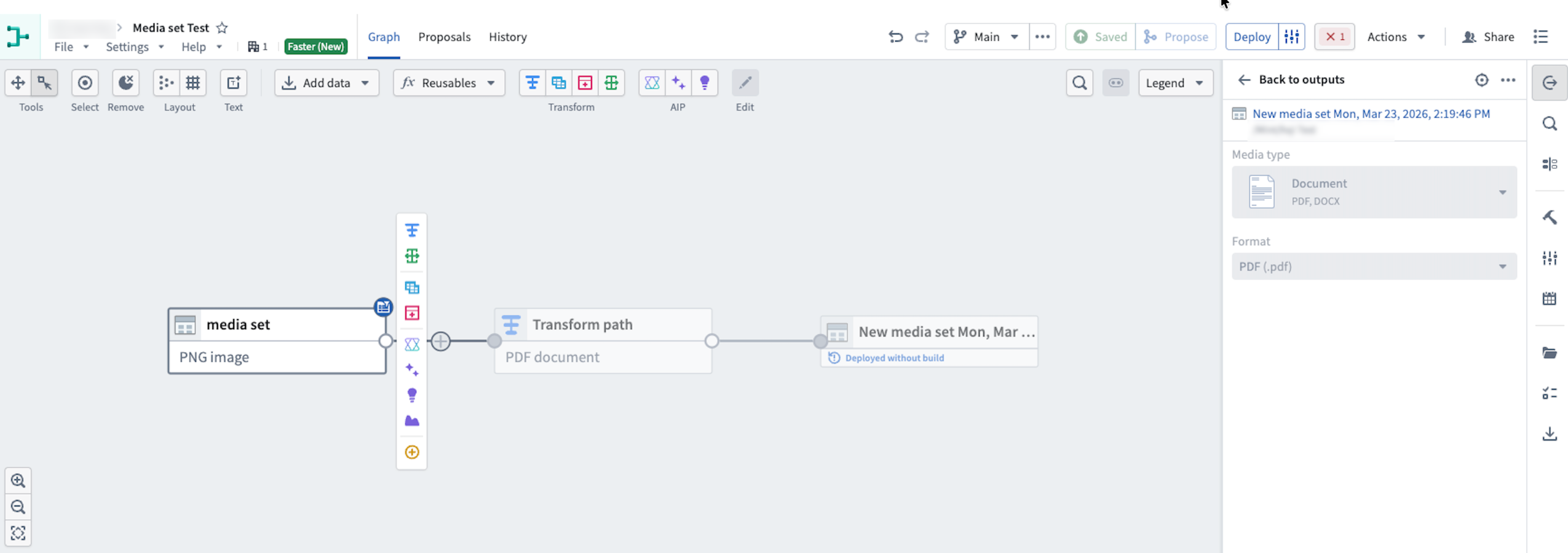
Use media sets in Faster pipelines to transform media file inputs.
Supported inputs
With media set support in Faster pipelines, you can now build pipeline workflows that take PDFs, images, and audio files as direct inputs. Supported use cases include:
- PDF and image OCR: Transform PDF and image files into structured data for further extraction or classification.
- PDF text extraction: Extract key text strings from PDFs to classify, summarize, or validate data.
- Audio transcription: Convert spoken conversations from audio files into structured text data.
Add a media set to a Faster pipeline
- Create a new pipeline and select Faster.
- Add media to your pipeline by selecting existing Foundry media, uploading new media to Foundry, or uploading new media directly to the Faster pipeline from your computer.
- Select the Write mode. You can choose between Transactionless (recommended) and Transactional.
Ensure your media files are uploaded to a new media set.
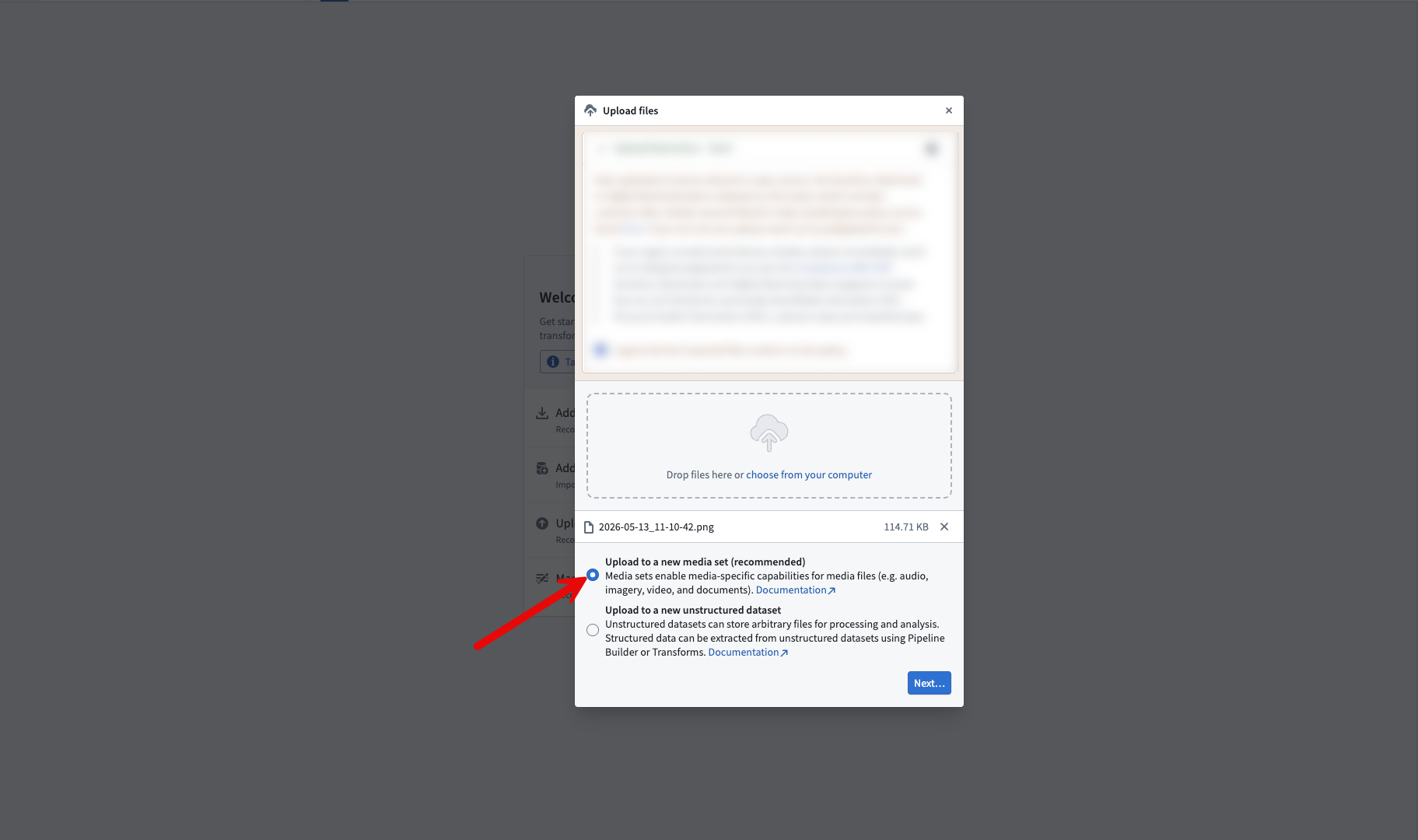
Select the upload to a new media set option when uploading media files
Share your feedback
As we continue to add features to Pipeline Builder, we want to hear about your experiences and welcome your feedback. Share your thoughts with Palantir Support channels or our Developer Community ↗ using the pipeline-builder tag ↗.
Python transform editing in Code Repositories will soon be legacy
Date published: 2026-06-04
Starting the week of June 22, editing Python transforms in Code Repositories will move to the legacy phase of development. VS Code workspaces are the recommended environment for editing Python transforms, offering AI-powered coding assistance, full dataset preview, an optimized language server, and an integrated terminal.
The Code Repositories editor will remain supported and available, with future feature development focused on VS Code workspaces. Code Repositories remains the recommended editor for other repository types, including Java and SQL transforms.
If VS Code workspaces are unavailable on your enrollment, Code Repositories remains the recommended way to author Python transforms.
Getting started
To get started with VS Code workspaces for Python transforms, we recommend reviewing the following documentation:
- VS Code workspaces: Overview
- Reference: VS Code workspaces vs. Code Repositories
- Benefits of VS Code workspaces
Pipeline Builder: GeoExpressions now supported in Faster pipelines
Date published: 2026-06-04
Faster pipelines in Pipeline Builder now support more than 25 built-in GeoExpressions for cleaning, transforming, and visualizing geospatial data without needing to leave the platform or write custom code. Supported operations include geometry intersections, GeoJSON parsing, GeoPoint conversions, and more.
To learn more, see GeoExpressions in Pipeline Builder.
The team is actively adding more GeoExpressions which will automatically become available for your Faster pipelines.
Use GeoExpressions in Faster pipeline
- Create a new Transform board in the graph view.
- In the Transform board menu, search for the expression or select Geospatial from the left panel.
- Select the GeoExpression to apply to your data.
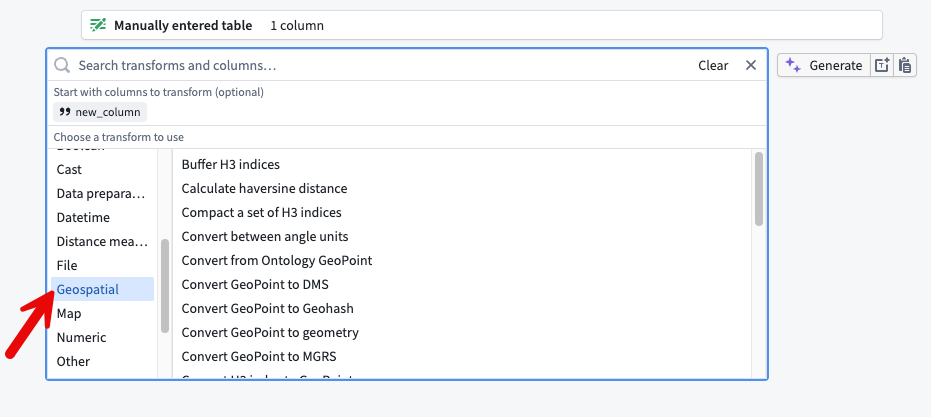
The Geospatial option from the Transform board menu.
Use Geo Preview in a Faster pipeline
- After transforming your data, open the preview pane.
- Select the cells you want to view on a map. The cells must be from columns with a supported geospatial logical type.
- Right-click the selected cells, then choose Open Geo Preview. The selected cells appear plotted on a map in a new tab.
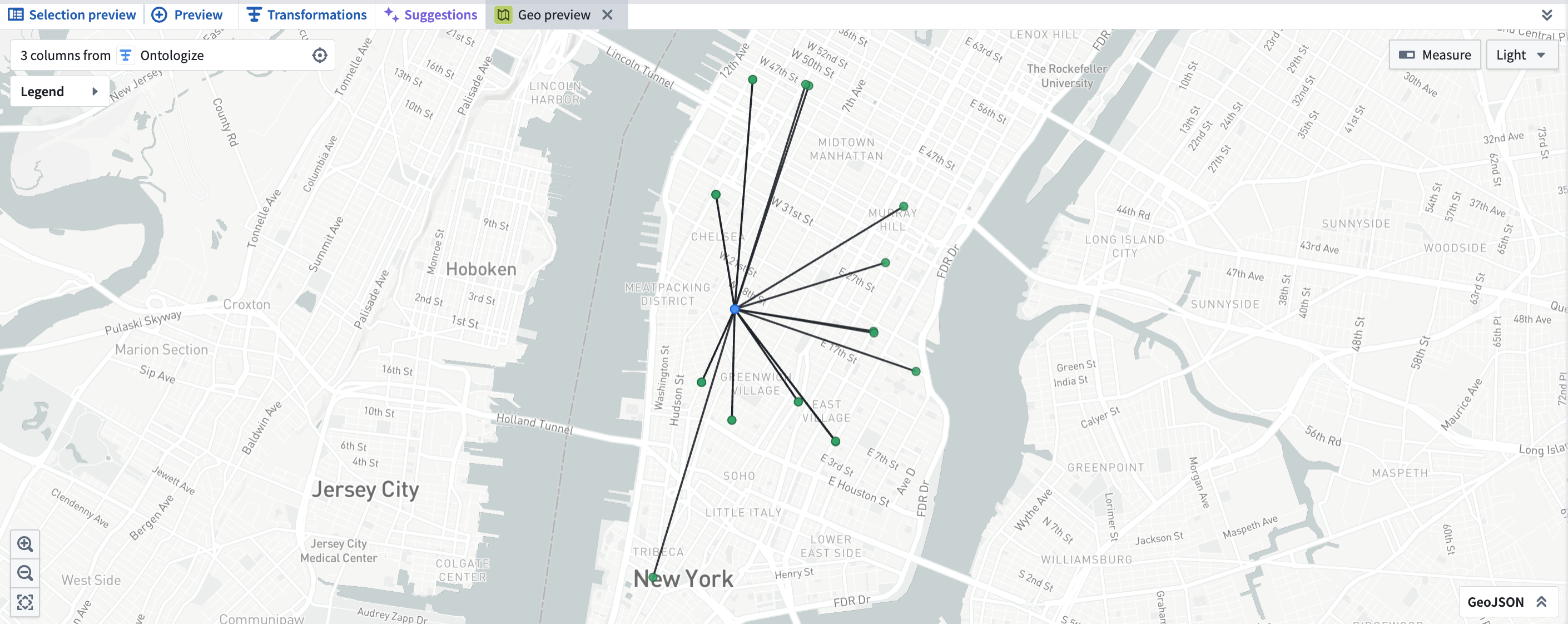
Geo Preview in Pipeline Builder.
Compatibility and downstream behavior
- Builder geometry column types in Faster pipelines are compatible with the Ontology
geoshapetype. To learn more, see using geospatial data with the Ontology. - Geospatial type data is persisted on output datasets from Faster Pipelines. Downstream Builder pipelines created from these datasets will preserve logical and geospatial types.
- GeoPoint and geometry columns can be mapped to a geotemporal series sync output to render points and geometries in downstream applications. To learn more, see using geospatial data with the Ontology.
Commonly used GeoExpressions include:
- Convert MGRS to GeoPoint
- Is valid GeoJSON
- Parse well known text as geometry
- Parse GeoJSON from a non-WGS 84 coordinate system
- Simplify geometry
- Geometries have intersection
- Geometry intersection
- Get the convex hull of a geometry
- Convert linestring to polygon
- Geometry array (unary) union
We want to hear from you
Send feedback through Palantir Support or the Developer Community using the pipeline-builder tag.
Claude Opus 4.8 now available from Anthropic, AWS Bedrock, and Google Vertex
Date published: 2026-06-02
Claude Opus 4.8 is now available on non-georestricted enrollments from Anthropic, AWS Bedrock, and Google Vertex. For US, EU, and non-georestricted enrollments, the model is available from AWS Bedrock and Google Vertex. For JP georestricted enrollments, the model is available from AWS Bedrock.
Model overview
Claude Opus 4.8 adds improvements in coding, long-running autonomous agents, and reasoning on complex enterprise problems. For more information, review Anthropic's model documentation ↗.
- Context window: 1,000,000 tokens
- Modalities: Text, image
- Capabilities: Extended thinking, function calling
Getting started
To use this model:
- Confirm that your enrollment administrator has enabled the relevant model family.
- Review token costs and pricing.
- See the complete list of all available models in AIP.
Your feedback matters
We want to hear about your experiences using language models in the Palantir platform and welcome your feedback. Share your thoughts with Palantir Support channels or on our Developer Community ↗ using the language-model-service tag ↗.
Visualize Workshop modules with the new variable lineage graph
Date published: 2026-06-01
The Variable lineage graph is now generally available in Workshop. The graph replaces the previous variable dependency graph with a redesigned visualization for tracing how variables and widgets in a module depend on one another. Use it to debug recompute behavior, find which widgets read or write a given variable, and better understand complex relationships between your application's components.
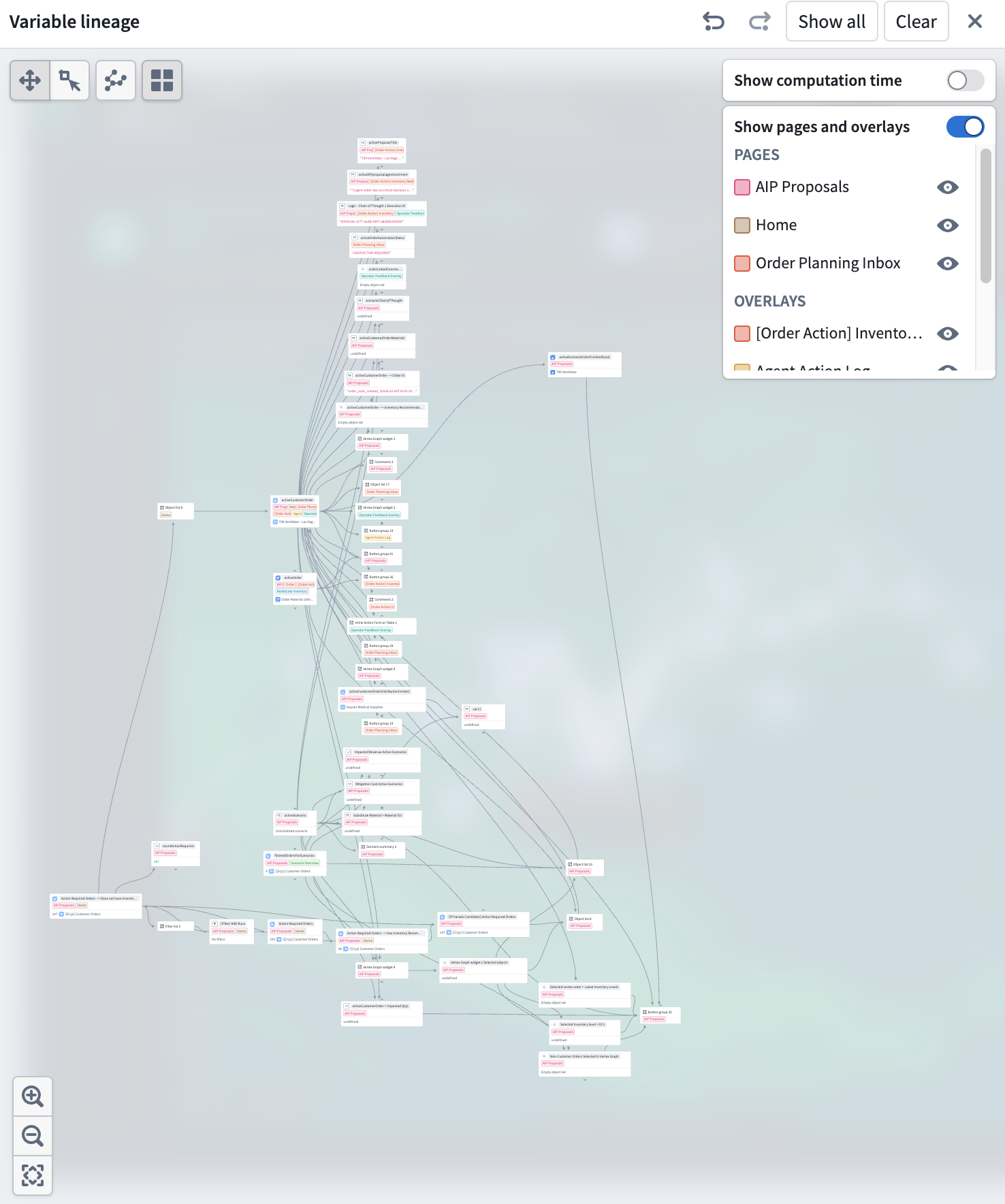
The Variable lineage graph mode shows variables, widgets, and their dependencies.
Expand the graph one node at a time
To open the new variable lineage panel, select the Graph button on the top right of the Variables panel in any Workshop module's edit mode.
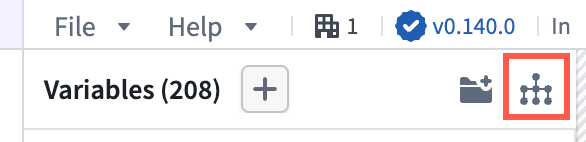
Use the Graph button, highlighted in red, to open the variable lineage panel.
Each node on the graph represents a variable or widget. Nodes with dependencies now have chevron arrows on its top and bottom edges. Selecting an arrow expands a node's parents or children to trace a chain of dependencies through a large module. Show all and Clear actions in the header let you expand to the full application graph or remove all nodes. Undo and redo buttons in the header step backward and forward through expand, collapse, and selection actions.
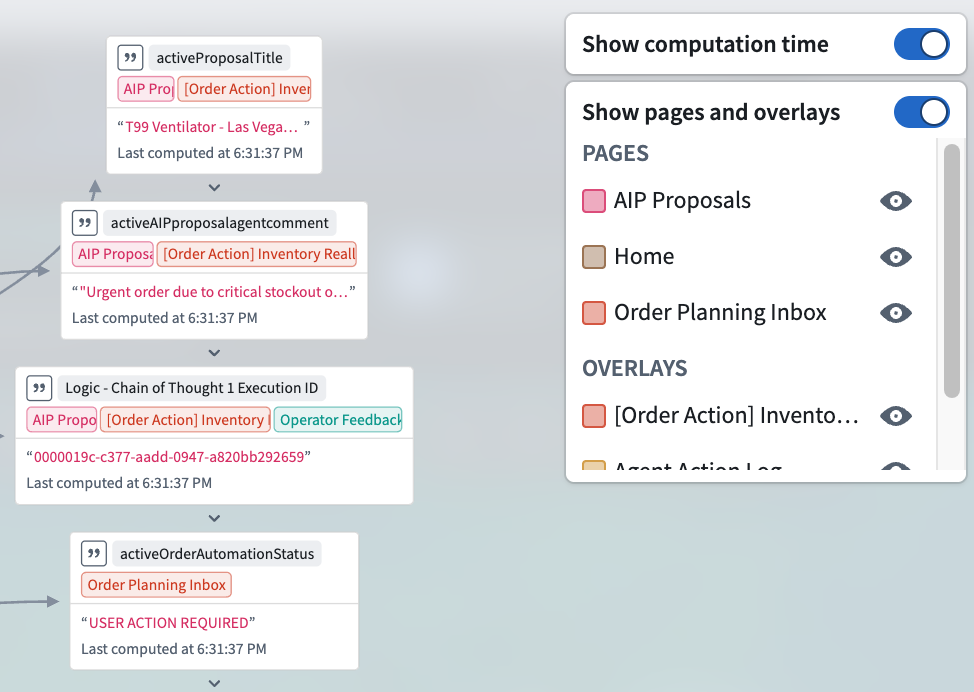
A detailed view of variable usage and computation time.
See where variables are referenced
Variable nodes are tagged with the pages and overlays where they are used. Toggle Show pages and overlays in the header to open a legend that lists each referenced page and overlay, alphabetized and split into separate sections. The legend only includes pages and overlays that appear on visible nodes so the list stays scoped to what you can actually see in the graph.
Identify expensive variables
Toggle Show computation time in the header to display per-variable timing information. Variables that take longer to recompute may be candidates for restructuring: for example, splitting a complex function-backed variable into smaller pieces or changing the recompute behavior on upstream variables to avoid unnecessary work.
To read more about the variable lineage graph, see Workshop's documentation on variables.
Share your feedback
We want to hear about your experiences using Workshop in the Palantir platform and welcome your feedback. Share your thoughts through Palantir Support channels or on our Developer Community ↗ using the workshop tag ↗.