- Capabilities
- Getting started
- Architecture center
- Platform updates
Enable AIP features
Palantir AIP (Artificial Intelligence Platform) is enabled by default in new enrollments. Enrollments that began prior to 2024 may need to manually turn on access to AIP features in Control Panel. Your AIP configuration can be managed in Control Panel > AIP settings if you are an enrollment administrator.
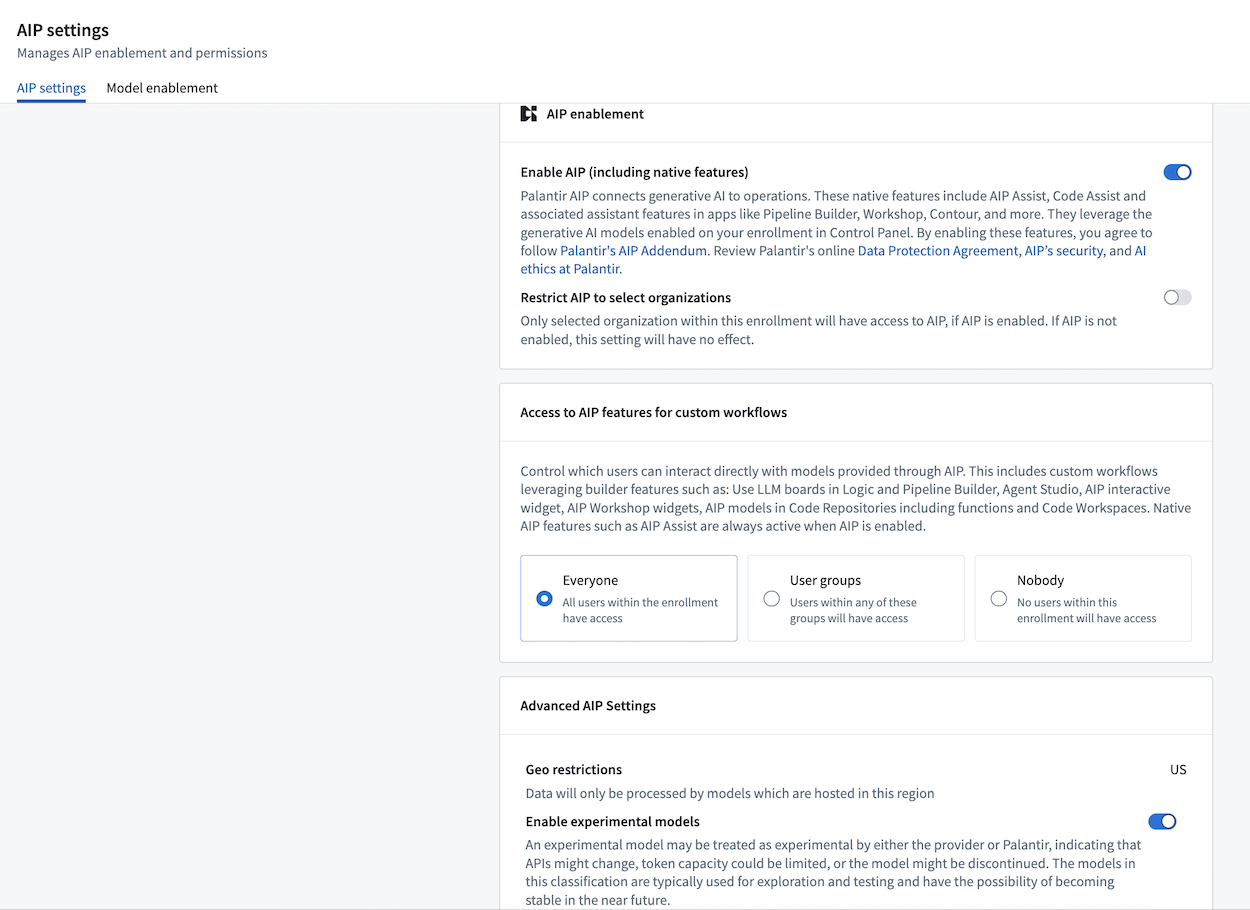
Enabling AIP may incur additional compute usage.
Review the list of supported models.
AIP and capabilities for custom workflows
AIP's AI functionality can be divided into three categories:
- AIP Assist: An LLM-powered support tool designed to help users navigate, understand, and generate value with the Palantir platform. Users can ask AIP Assist questions in natural language and receive real-time help with their queries.
- AIP assistant features in platform applications: Native LLM-backed features designed to help end users perform regular workflows in the Palantir platform. These are highly-specific features that leverage knowledge of the platform to accelerate a user's day-to-day operations.
- AIP capabilities for custom workflows: A set of capabilities that allow developers to build their own LLM-backed workflows or applications. These are open-ended functionalities built for developers or data scientists.
AIP permissions
AIP usage on the Palantir platform is governed by two levels of permissions:
-
AIP and core assistant features: Turns on AIP, AIP Assist, and associated assistant features in Code Repositories, Pipeline Builder, and Workshop.

-
AIP capabilities for custom workflows: With AIP enabled, platform administrators can enable an additional layer of capabilities to empower developers and application builders to create custom AIP workflows and grant users the necessary permissions to use these custom AIP workflows. The capabilities that are unlocked when permission is granted are as follows:
- Capabilities with LLM support in point-and-click interfaces
- AIP Logic: Use LLM Board
- Pipeline Builder: Use LLM node and Text-to-embeddings
- AIP Automate
- AIP Model Catalog
- AIP Chatbot Studio (formerly AIP Agent Studio)
- AIP Workshop widgets: AIP Chatbot, AIP Generated Content
- AIP Workshop translations
- Quiver
- AIP Threads
- Capabilities for development with code-based tools
- Capabilities with LLM support in point-and-click interfaces
Restrict AIP usage
Platform administrators can restrict AIP usage on two different levels; user groups and Organizations.
User groups
To restrict AIP usage on user groups, platform administrators can select Everyone, given User Groups, or restrict usage by selecting Nobody.

Certain applications, such as AIP Logic, may need to first be enabled in Control Panel > Application access before they can be used.
Organizations
To restrict AIP on Organizations, platform administrators can enable the Restrict AIP To Organizations option and select the desired Organizations from the dropdown. Keep in mind that this setting restricts AIP to the selected Organizations. As a result, AIP will be disabled for any Organizations that are not selected. Additionally, if AIP is not enabled for an enrollment, no Organizations will have access to AIP.
AIP is only considered enabled for a resource when AIP is enabled for all organization markings on the resource's project.

Enable LLMs
Enrollment administrators manage LLM usage under the Model enablement tab within the AIP settings extension of Control Panel. Enabling a model family includes accepting the applicable terms and conditions, including terms for the subprocessors that provide the models.

Enrollment administrators can also control LLM data access with mandatory Markings in Control Panel.
Understanding model states
Each model family in the Model enablement interface displays one of three states:
- Enabled: The model family is active and available for use by users and workflows. No further action is required.
- Disabled: The model family is available on your enrollment but has not been activated by administrators. To enable it, select Manage and accept the terms and conditions.
- Disallowed: The model family is restricted due to legal, geographical, or infrastructure constraints. Contact Palantir Support to discuss availability options.
Before initially enabling models from a subprocessor, an enrollment administrator must accept the applicable terms and conditions. Model families in a disabled state can be enabled directly through Control Panel, while disallowed models require manual configuration by Palantir Support before they can be used.
When a subprocessor is enabled, Palantir may enable additional model families that meet the eligibility requirements under the accepted terms and conditions. Enabling additional model families does not incur additional costs. A new subprocessor requires separate administrator acceptance. Enrollment administrators can review and disable model families in Control Panel.

Disabling a model family group will break workflows that rely on a model in that specific group.
View a list of all supported models.
Learn how to bring your own model to run on the Palantir platform.
Additionally, enrollment administrators can enable or disable model families at the organization level, allowing certain organizations within the same enrollment to access specific model families while restricting others.
In the example below, only the Test1 organization in this enrollment has access to Amazon Bedrock Claude models.

Experimental models
Usage of experimental models can be enabled and disabled by enrollment administrators. For an experimental model to be visible for use in workflows, the Enable experimental models toggle must be enabled as well as the model family to which the experimental model belongs.

Learn more
- Available LLMs
- LLM availability prerequisites
- LLM capacity management
- Georestriction of model availability
Note: AIP feature availability is subject to change and may differ between customers.
The "OpenAI" name and the “GPT” brands are property of OpenAI.
Jupyter®, JupyterLab®, and the Jupyter® logos are trademarks or registered trademarks of NumFOCUS.
All third-party trademarks (including logos and icons) referenced remain the property of their respective owners. No affiliation or endorsement is implied.