- Capabilities
- Getting started
- Architecture center
- Platform updates
Configure passkey profiles
This page provides passkey profile configuration instructions for users with the Enrollment administrator or Authentication administrator role on commercial enrollments that use Palantir's self-service user directory.
Passkey profiles control which authenticators you can register and use to sign in to your self-service user directory. An authenticator is a device or password manager that creates and uses a passkey. Profiles apply to both new registrations and existing credentials.
Profile management is available only on enrollments where it has been enabled. If your directory still displays an authenticator allowlist, that policy remains in effect until the directory is migrated to a profile. Contact Palantir Support if you need help identifying the policy available on your enrollment.
Choose a passkey profile
Foundry provides the following passkey profiles:
| Profile | Accepted authenticators |
|---|---|
| Permissive | Authenticators listed in the FIDO Metadata Service (MDS) ↗, plus a maintained set of software authenticators and password managers. |
| Standard | MDS-listed authenticators, plus a narrower maintained set of software authenticators from Google, Apple, and Microsoft. |
| Recommended | FIDO-certified, hardware-backed authenticators from MDS, excluding software and synced authenticators. |
| Government | A more restrictive subset of Recommended hardware authenticators. |
| Custom | A built-in base profile, with specific authenticator identifiers added or removed. |
The default profile for a new directory is set by your enrollment's configuration.
The identifier of an authenticator is its Authenticator Attestation GUID (AAGUID). Which authenticators a profile accepts can change as MDS reports new authenticators, certification changes, or security issues. A matching AAGUID alone does not establish that a particular credential was created by genuine hardware; instead, attestation supplies that evidence where required.
For example, a password manager accepted by Permissive may not be accepted by Standard. An MDS-listed authenticator without FIDO certification may be accepted by Standard but excluded by Recommended.
Government derives its accepted authenticators from MDS and is the most restrictive built-in profile.
Contact Palantir Support for help identifying authenticators accepted by your directory.
Change your directory policy
Follow the instructions below to change your directory policy when profile management is available:
You must have the Enrollment administrator or Authentication administrator role and permission to edit your directory's authentication settings. Learn about administrator access.
-
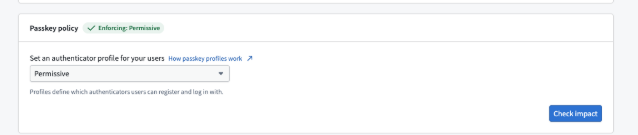
Open your user directory's settings in Control Panel and review the current Passkey policy.
-
Choose an available built-in profile or configure a Custom profile. The available choices reflect your enrollment's settings.
-
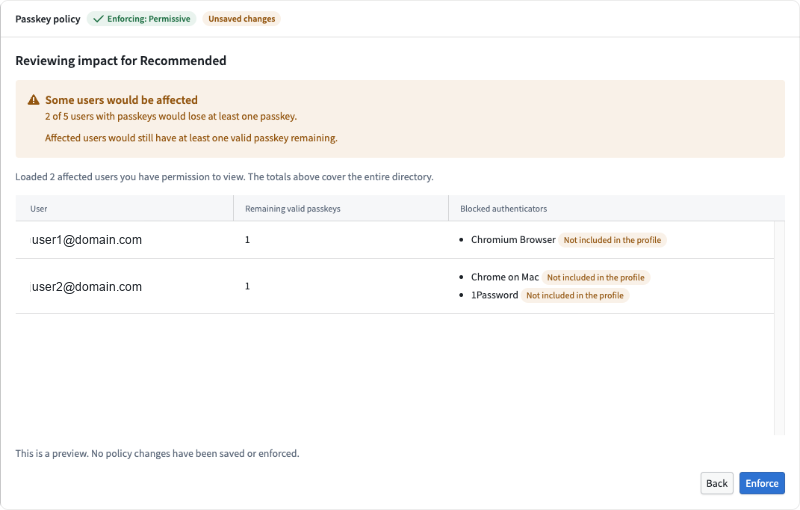
Select Check impact. Review users who would lose some accepted passkeys separately from users who would have no accepted passkeys remaining.
-
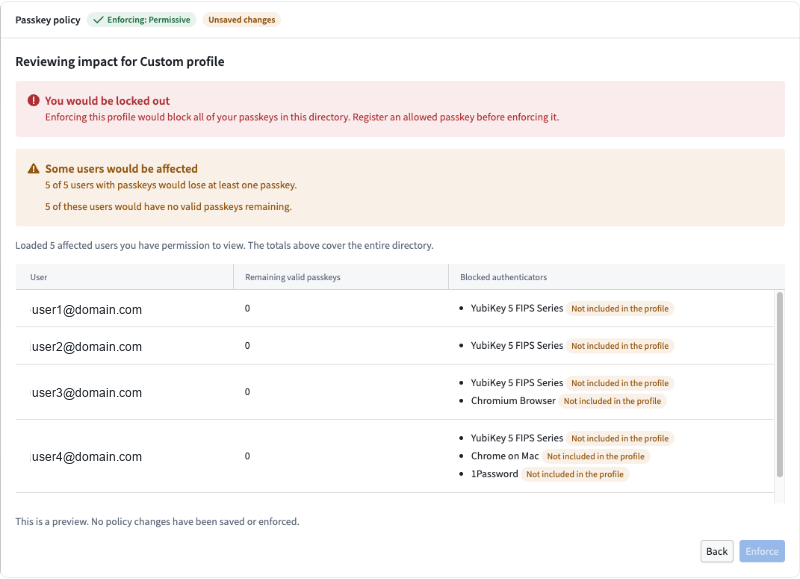
Arrange replacement credentials or recovery for affected users. Register and test an accepted passkey for your own administrator account before applying a policy that would exclude your current credentials. After registering replacements, select Check impact again.
-
Select Enforce to open the confirmation dialog.
-
Enter a Reason for change, which is required for every change. Review the impact, then confirm. If the preview shows that other users would have no accepted passkey remaining, select Enforce anyway to apply the change for those users. You cannot enforce a policy that would leave your own administrator account without an accepted passkey. This protection always applies, and Enforce anyway does not override it. The reason is recorded with the profile change audit event.
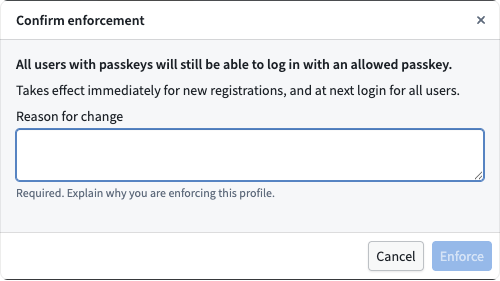
An impact preview does not save a policy or reserve its result. Credentials and authenticator metadata can change between preview and save, and Foundry checks the policy again when you save it. Additionally, Foundry rejects a save that would leave the acting administrator without an accepted passkey.
Preview counts cover users with registered passkeys, rather than every member of the directory. The sample of affected users is limited to users you are permitted to view, so its size may be smaller than the reported directory-wide count.
Configure a Custom profile
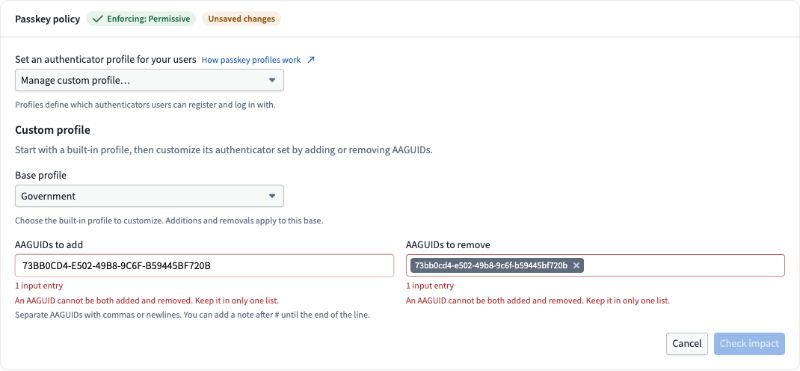
A directory can save one Custom profile. Choose a built-in base, add identifiers for additional authenticators, and remove identifiers you want to exclude. Changes to the maintained base also affect Custom.
Select Check impact then Enforce to apply your changes.
Understand attestation and existing credentials
All profiles reject globally blocked, revoked, or compromised authenticators. These exclusions also apply to credentials registered before a policy change.
If an authenticator was listed in MDS when a credential was registered, that credential must have a trusted attestation. A missing or unverified attestation is not proof of origin. Foundry can still accept supported software authenticators that are not listed in MDS by Permissive or Standard profiles through the maintained software set. However, their reported AAGUID does not prove that the credential came from genuine hardware or meets a compliance standard.
A credential registered before its authenticator appeared in MDS can still pass the attestation check if Palantir recorded at registration that the authenticator was not yet listed. Credentials registered after the authenticator was added to MDS must have a trusted attestation. This exception does not waive profile eligibility or security exclusions, and an older credential without that registration-time record may need to be replaced.
Legacy allowlist enforcement dates do not delay or exempt enforced-profile checks. If trusted metadata cannot be loaded, profile evaluation fails rather than treating known MDS authenticators as unlisted.
Troubleshoot policy changes
If a preview cannot be calculated, retry it before making a policy decision. A preview warning that your administrator account would be blocked is a valid impact result, so you should register an accepted replacement credential before saving.
If an authenticator is rejected, check the following:
- Whether the chosen profile accepts the authenticator's AAGUID.
- Whether the authenticator is blocked, revoked, or reported as compromised.
- Whether the credential has a trusted attestation.
If the profile does not accept the AAGUID, you can add it to a Custom profile. Adding the AAGUID does not fix a blocked authenticator or a missing trusted attestation; in those cases, the credential must be replaced. To arrange replacement credentials or account recovery, use the passkey management workflow.