- Capabilities
- Getting started
- Architecture center
- Platform updates
Configure security presets
To configure file access presets, your enrollment must use both Foundry and Gotham. Contact Palantir Support for more information about enabling file access preset configuration if its extension is not available in Control Panel.
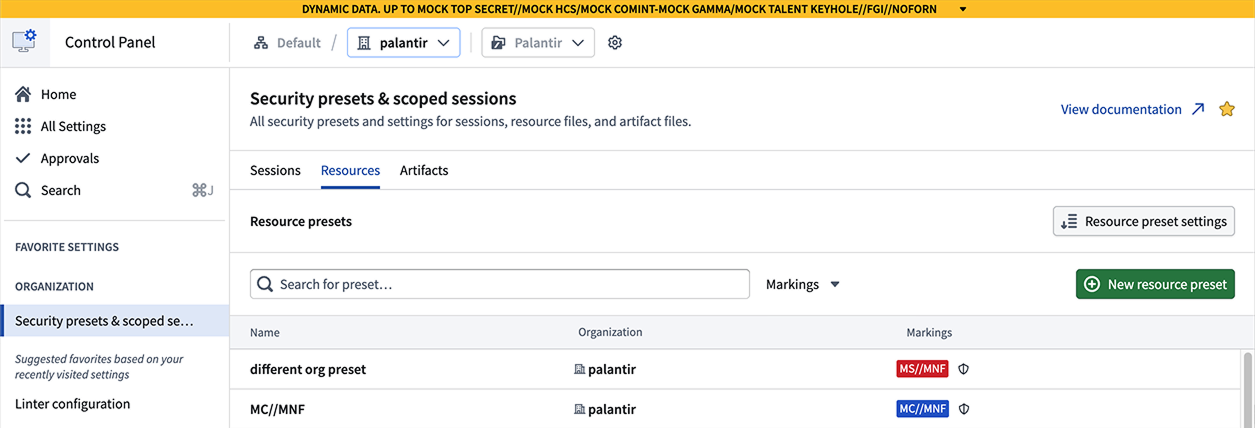
You can use the Security presets & scoped sessions extension to configure security presets for your Organization in Control Panel, granting users quick access to commonly used security settings when they start a scoped session or apply security settings to a Foundry resource or Gotham artifact. Each preset consists of a title and optional description and can apply both mandatory markings and Classification-based Access Controls (CBAC) markings. The extension organizes presets into three sections: Sessions, Resources, and Artifacts.
CBAC markings are not enabled by default on Foundry. Review the CBAC documentation to learn more about the availability and use of CBAC markings.
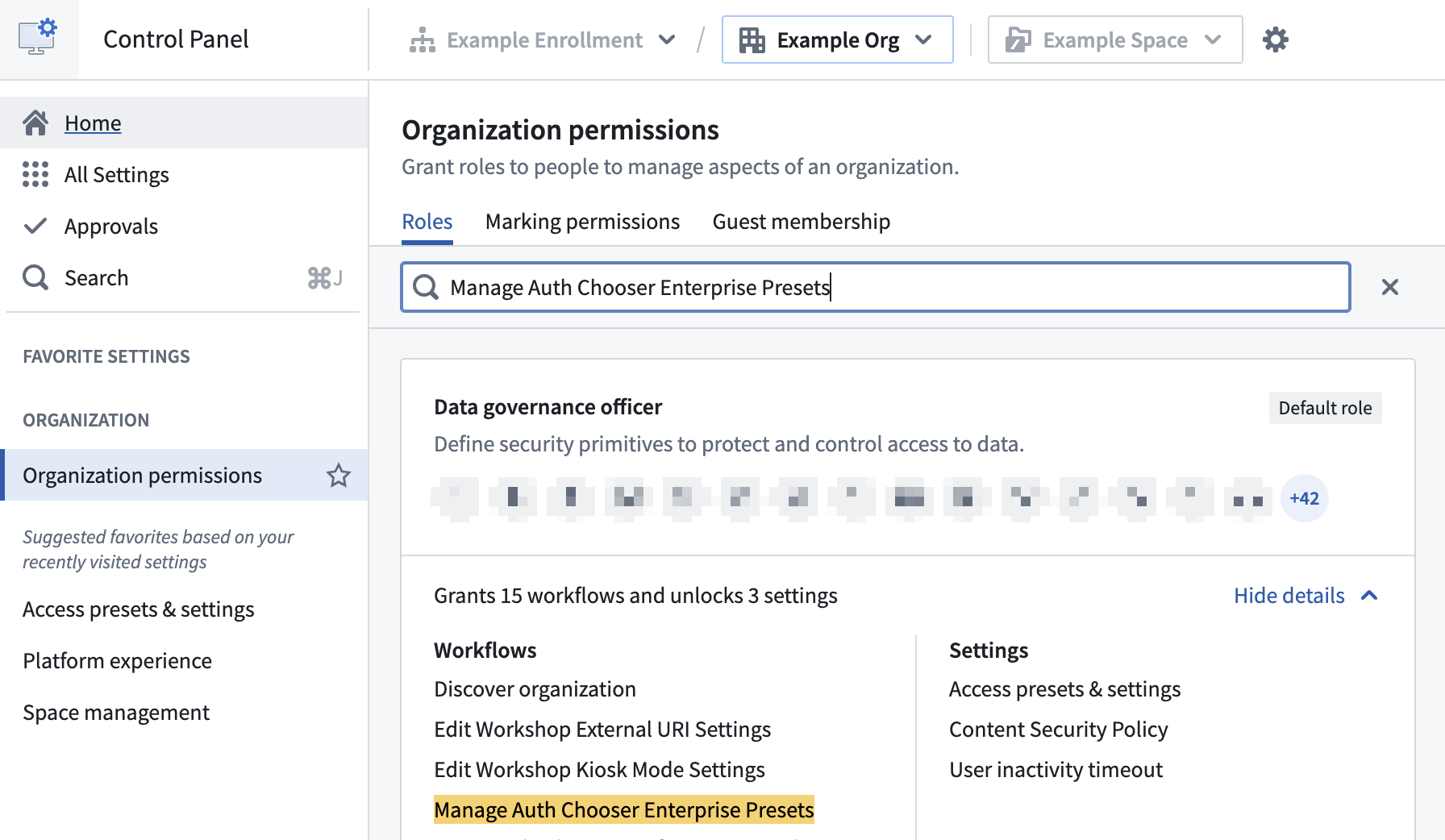
To configure access presets in the Security presets & scoped sessions extension, you must be able to execute the Manage Auth Chooser Enterprise Presets workflow as part of either the Data governance officer or Organization administrator role in Control Panel's Organization permissions extension. If you do not have access to a role with that workflow, then you will need to ask your Organization administrator to grant you access.
Create a session preset
To create a session preset, select the Sessions tab, then select New session preset. Provide the preset with a Name and optionally enter a description before you add the Markings that the preset applies. Select Create session preset.
For more information about configuring and enabling scoped sessions, review Configure scoped sessions.
Create a file access preset
Files consist of Foundry resources and Gotham artifacts. The Resource and Artifact tabs allow configuration for each. The process of creating and applying each file preset is similar. To create an artifact preset, select the Artifact tab, then select New artifact preset. Provide the preset with a Name and optionally enter a Description. Select the Organizations where the preset will be available to, then add the Markings that the preset applies. You can also use an existing preset as a template. Select Create resource preset.
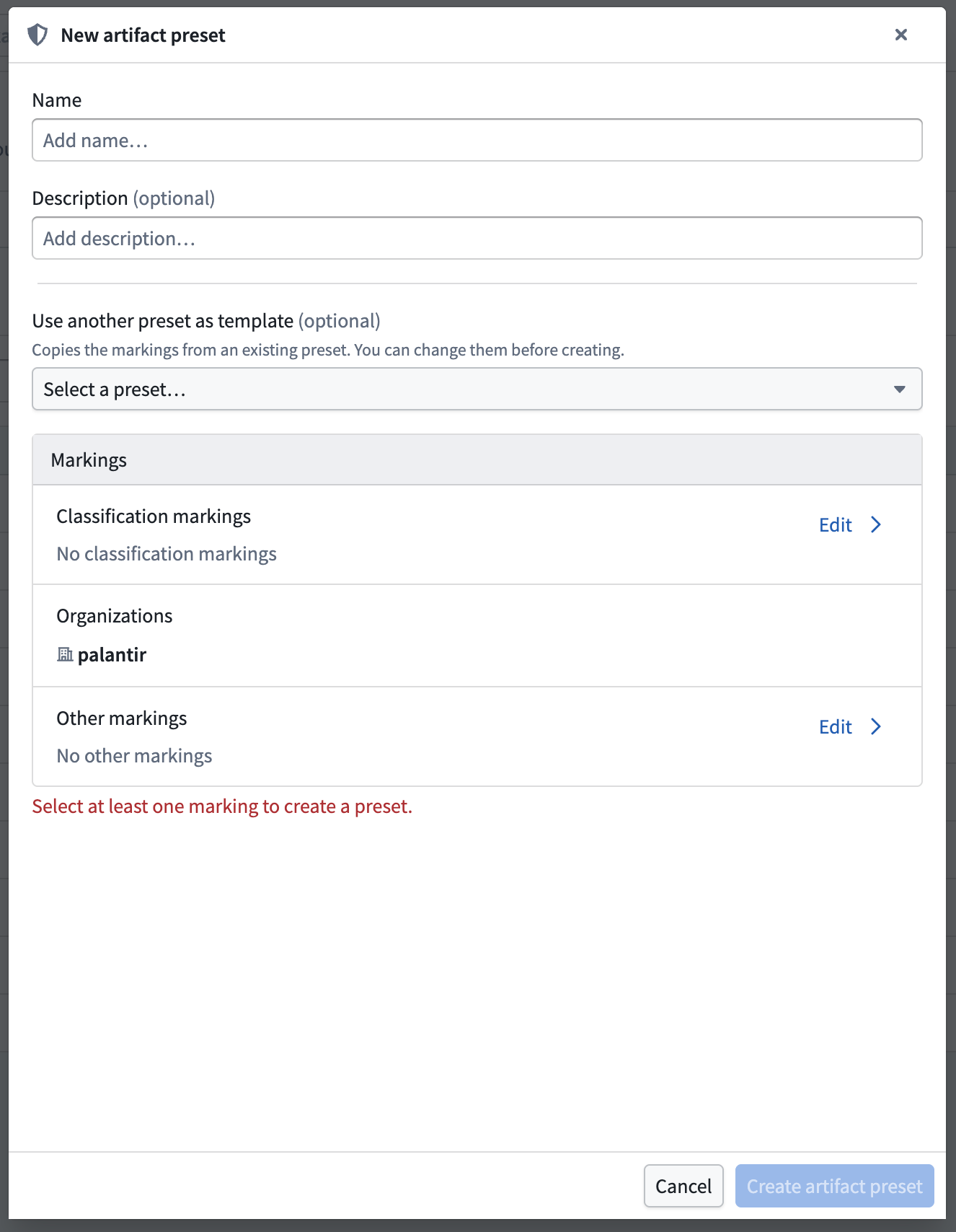
If your environment uses CBAC, the form will also enable you to add CBAC markings to your file preset.
Set a default preset selection ordering
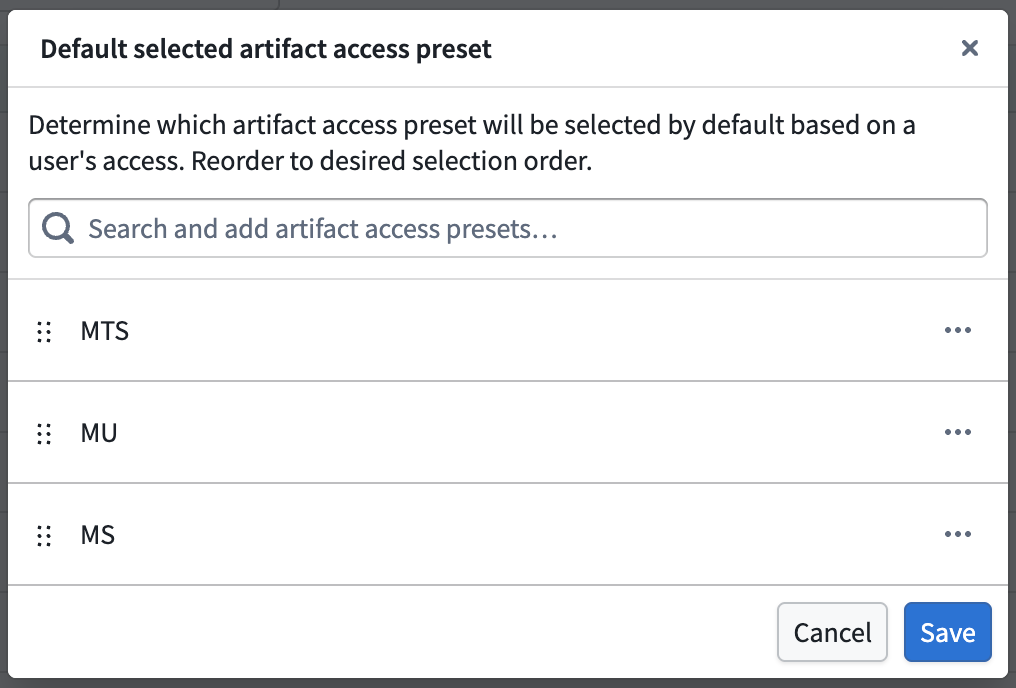
Select Resource preset settings or Artifact preset settings to configure the default selected preset ordering for users. The first preset that is visible to a user will be selected for them by default, but they can change the preset. Presets not visible to users due to a lack of relevant Marking permissions will be ignored in the ordering.
File preset visibility
All users in your Organization can view the artifact preset if they have the Apply marking permission on all the Markings configured as part of the preset.
Guest members of your organization cannot view or apply presets configured for your organization. They can view presets configured for their primary organization.
Apply a file preset
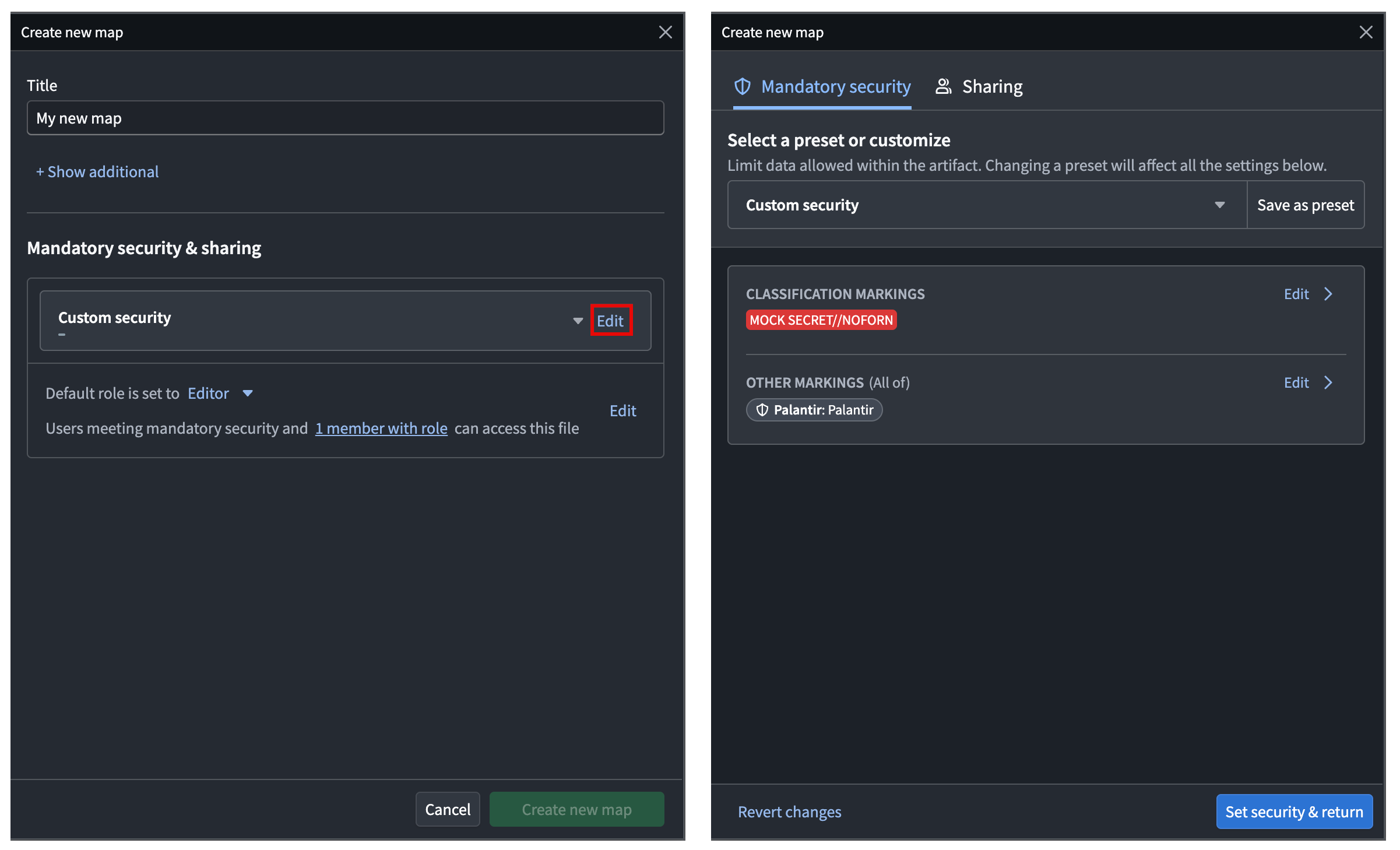
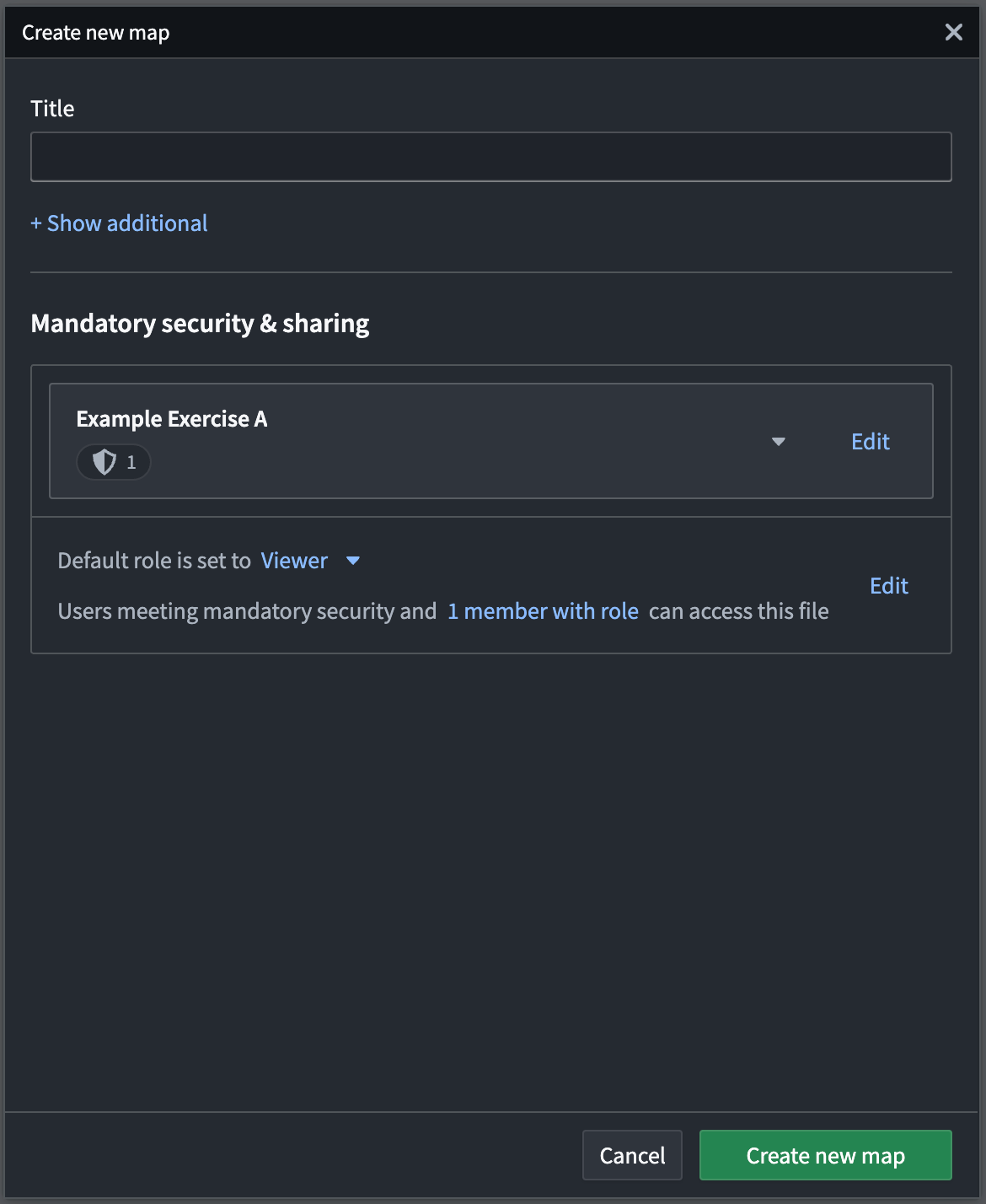
After you configure and save a file preset, users in your Organization can select it when setting the security of supported resources or artifacts. These include envelope-secured Notepad documents in Foundry and Gaia maps in Gotham.
Configure file security without a preset
If no presets are configured for your Organization, then the file creation dialog only displays Custom security. Select Edit to configure your file's Classification Markings and Other Markings before choosing Keep changes > Set security & return.