- Capabilities
- Getting started
- Architecture center
- Platform updates
Timeline geometries
To visualize time-based properties of all objects in a layer on the timeline, you can configure a timeline geometry to appear on the timeline.
![Timeline geometry example where a user can see the time properties of the '[Example] Airports' object on the timeline.](/docs/resources/foundry/map/styling-timeline-event.png)
Timeline geometries differ from event objects, as you can configure multiple timeline geometries per object layer and apply additional styling options, such as property-based color shading.
Once you add a timeline geometry, you can access its additional configuration actions from the geometry's entry in the timeline legend.
Styling
To make a new timeline event geometry layer appear on the timeline, add a Timeline geometry from the Layers panel.
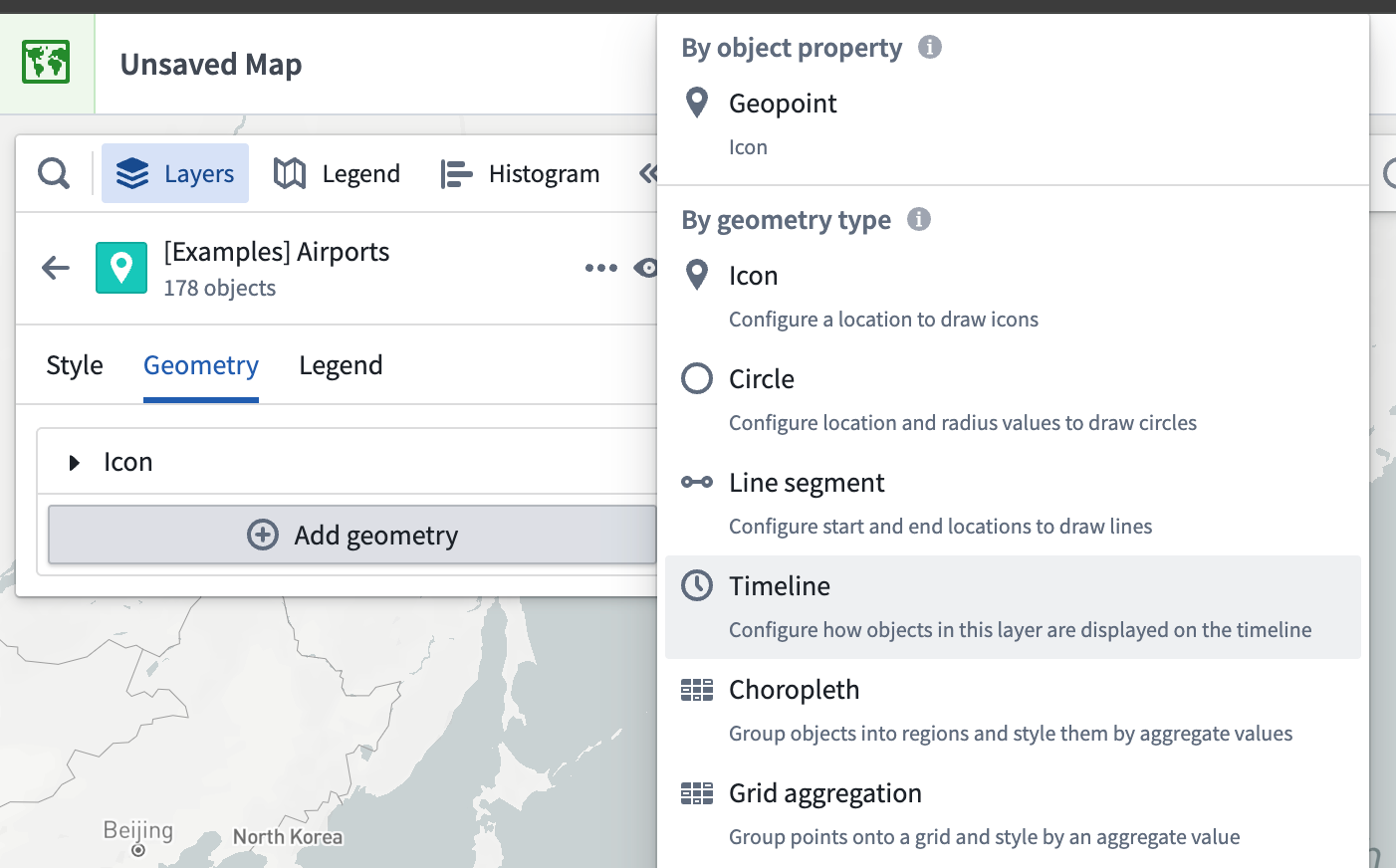
A Timeline section appears in the style menu once you add the timeline geometry, where you can change the properties used when drawing the selected shape on the timeline. Select the Start property and End property dropdown menus for shapes that use two time properties, or select Time property for shapes that use a single property.
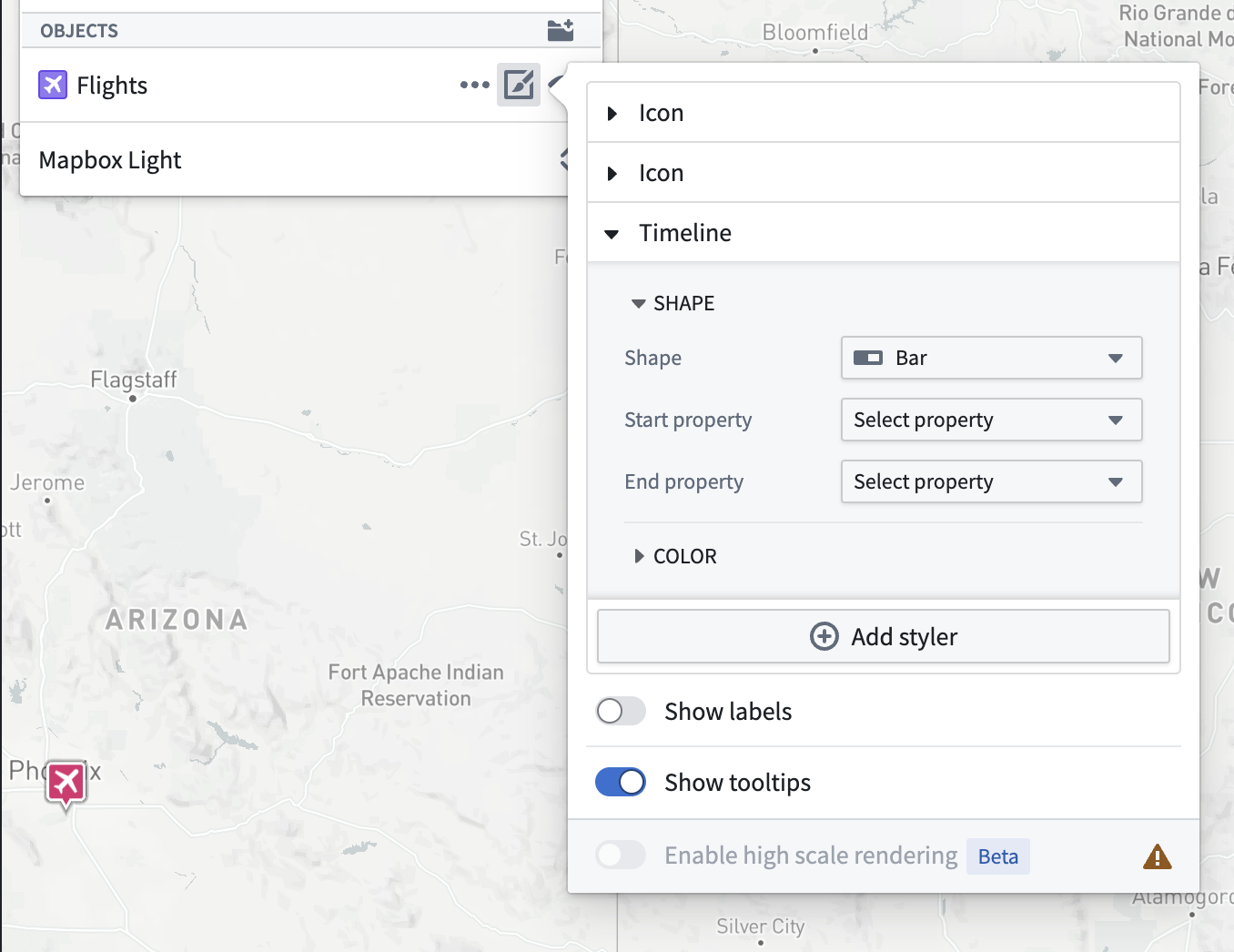
The timeline geometry will not appear in the timeline unless all its properties have been set.
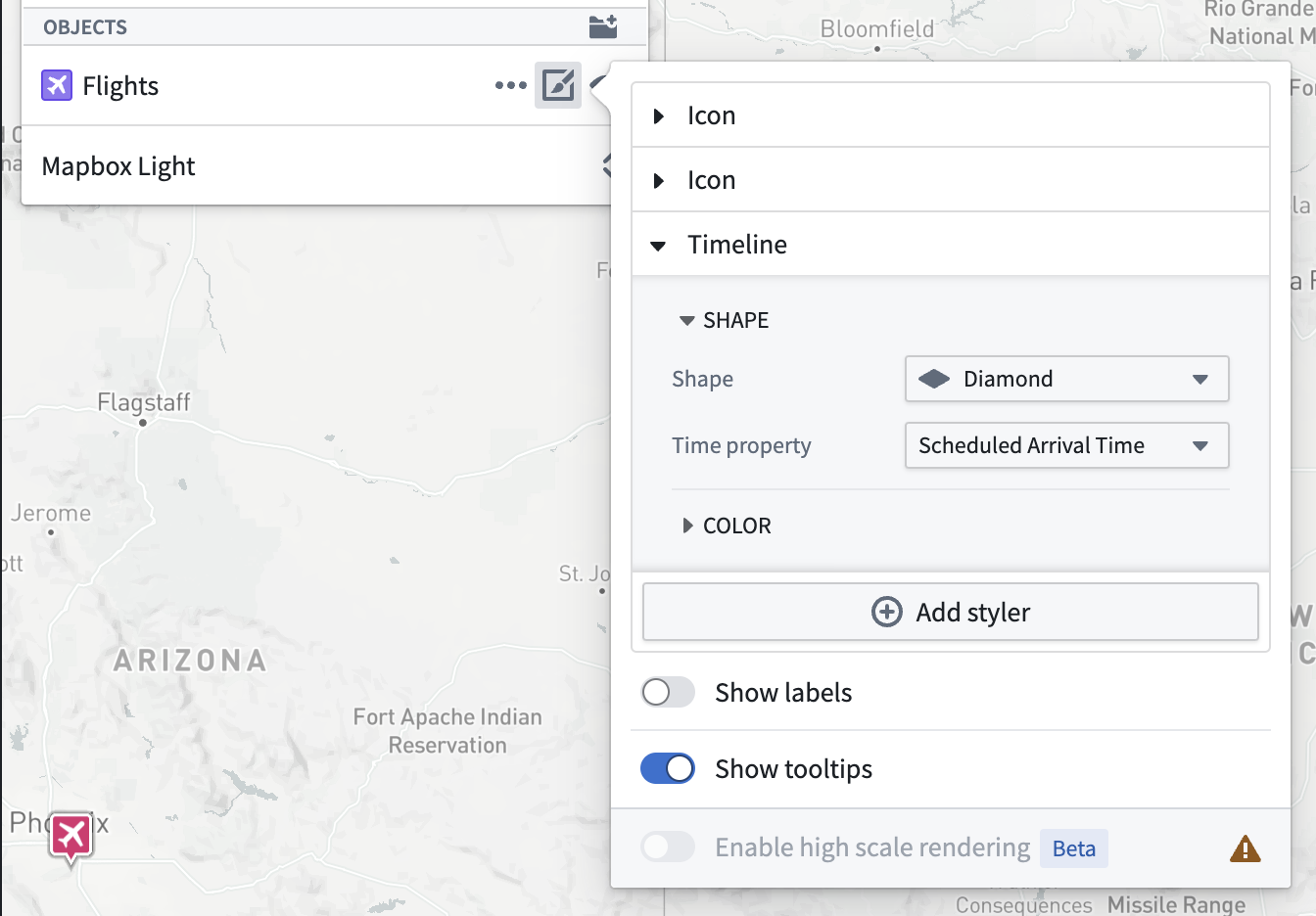
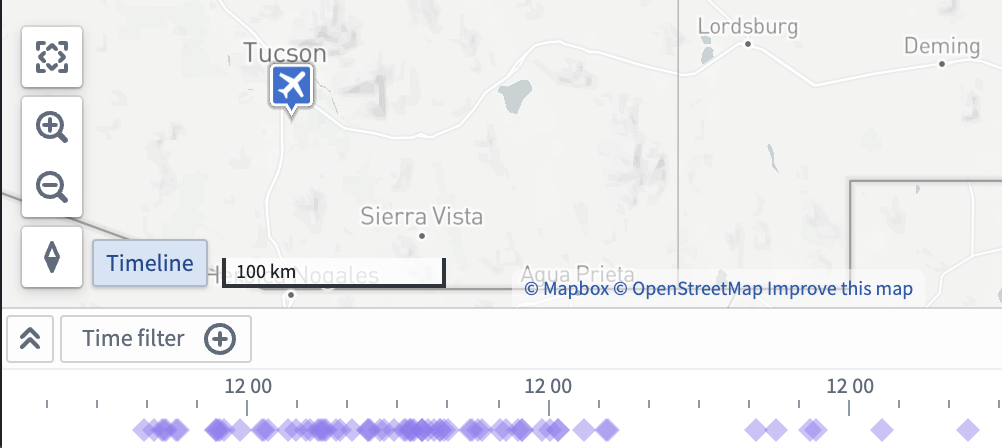
The Shape you choose in the Timeline style configuration section renders for every instance of the object type in the timeline. For example, the image below shows diamond shapes to represent the Flights object type on the timeline.
Select the Color menu in the Geometry section to configure how shape colors render on your map's timeline.
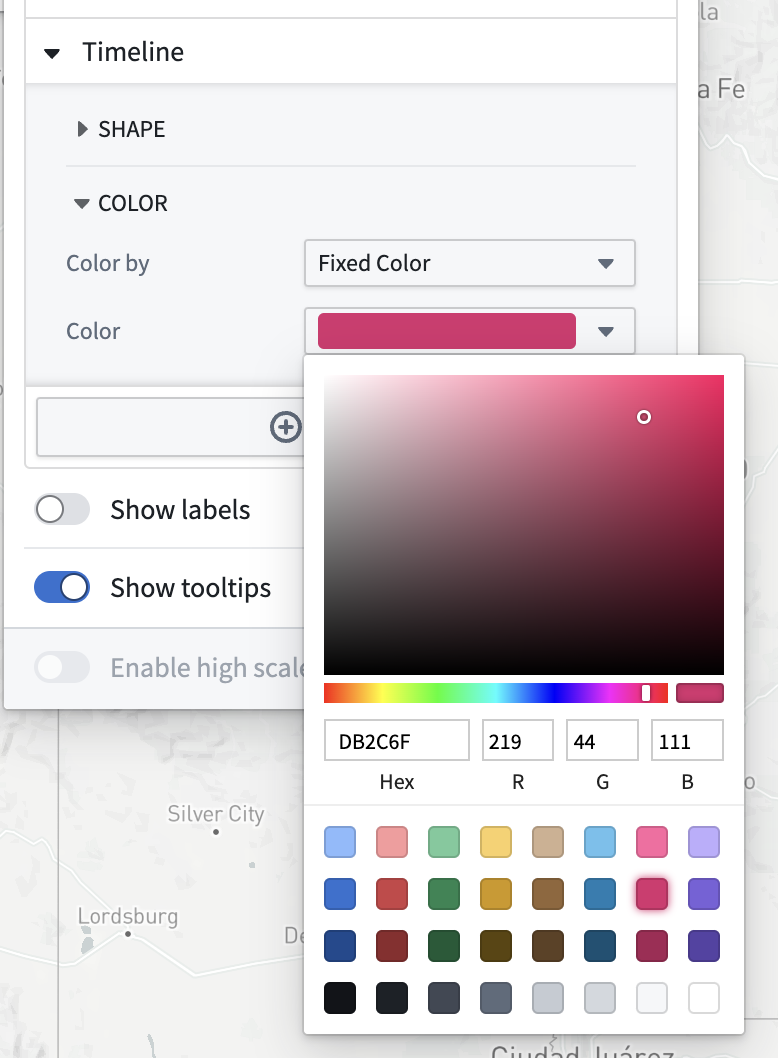
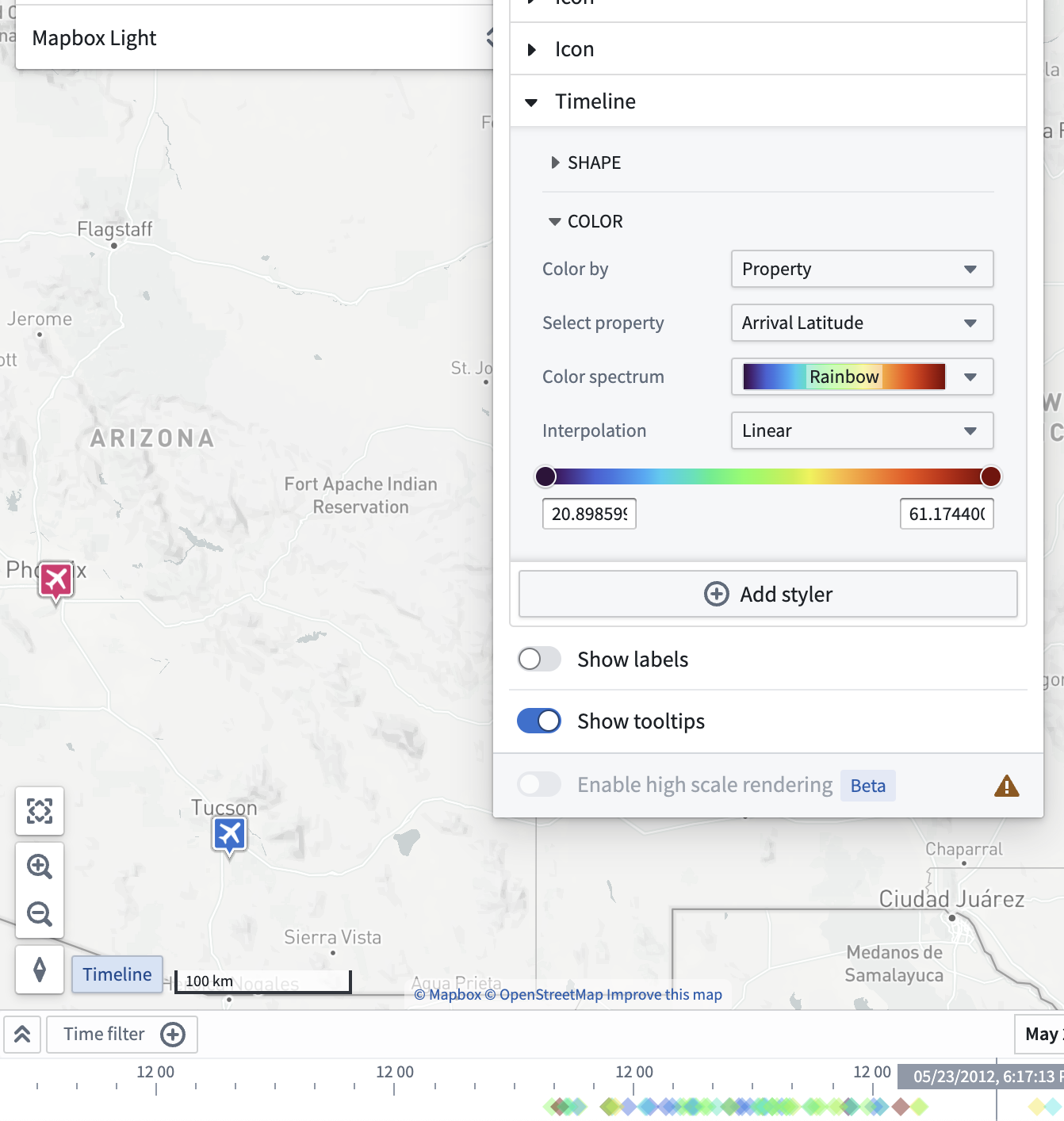
You can also use properties and measures to configure timeline color styling by changing the selected option in the Color by dropdown menu. For example, the image below shows a timeline geometry configured to color by the Arrival Latitude property with a rainbow color spectrum.