- Capabilities
- Getting started
- Architecture center
- Platform updates
Configure derived properties
Ontology-defined derived properties are in the beta phase of development and may not be available on your enrollment. Functionality may change during active development.
Derived properties are calculated at runtime based on values from linked objects. Instead of storing data directly, a derived property pulls information from objects connected through link types, optionally applying aggregations such as averaging, counting, or collecting values into lists.
This page describes how to configure an ontology-defined derived property on an object type in Ontology Manager. For an explanation of what derived properties are, how they inherit security, and performance considerations, review our derived properties overview documentation. For the full catalog of available aggregations, review the derived properties reference documentation.
Configure a derived property
To configure a derived property on an object type, follow the steps below.
1. Open the property configuration panel
From the Properties tab of your object type, select New property, or select an existing property to edit it. This opens the property configuration side panel.

2. Navigate to the Source tab
In the property configuration side panel, select the Source tab to configure where the property gets its values.
3. Select the Linked objects source type
In the Source type section, choose the Linked objects option. This enables derived property configuration.
4. Select a link type
In the Linked objects section, select a link type from the dropdown menu. This determines which objects the property derives values from.
- The dropdown menu shows all available link types from your current object type.
- After selecting a link type, you can optionally add further link types to traverse multiple levels of connections (up to three levels).
- Select Add linked object to traverse another level of linked objects.

5. Configure an aggregation
If any link in your chain can reach more than one object, you must select an Aggregation to combine the values:
- Count: Count the number of linked objects.
- Average: Calculate the average of numeric values.
- Sum: Calculate the sum of numeric values.
- Minimum: Select the minimum value.
- Maximum: Select the maximum value.
- Approximate cardinality: Estimate the number of unique values.
- Exact cardinality: Count the exact number of unique values.
- Collect list: Collect values into a list, preserving duplicates.
- Collect set: Collect unique values into a set.
If every link in your chain reaches at most one object, an aggregation is optional and you can select a property directly.
Learn more about the source property types accepted by aggregations.

6. Select the property to derive
After selecting a link type and an aggregation (if required), choose which property from the linked object type you want to derive.
- The dropdown menu shows all available properties from the final object type in your link chain.
- For the Count aggregation, you do not need to select a property; objects are counted automatically.
7. Configure a collection limit
If you selected Collect list or Collect set, you can optionally set a collection limit. The limit defaults to 10 and can be raised to a maximum of 100.
For Collect set, duplicates are removed before the limit is applied; the limit controls the number of distinct values returned rather than the total number of values considered.
The collection limit determines the number of property values returned, not the number of values evaluated. Filters and sorts over a collected property run against the complete set of values, so an object can match a filter on a value that is absent from the returned list. Learn more about collection limits before filtering on a collected property.
Collected values can be reduced to a single representative value. Review property reducers for details.
Multi-hop derived properties
Derived properties support traversing up to three levels of linked objects, allowing you to derive properties from objects that are indirectly connected to your starting object type.
For example, a Department object type could derive project names by traversing through Employee objects to their linked Project objects, giving a link chain of Department → Employee → Project.

To configure a multi-hop derived property:
- Select your first link type.
- Select Add linked object to add another level.
- Select the next link type from the newly connected object type.
- Repeat up to three levels in total.
Each additional traversal can reduce query performance. Use the fewest traversals that reach the data you need.
If you need to derive a value from another derived property, build a multi-hop derived property that traverses directly to the source data instead. A derived property cannot take its value from another derived property.
Identify a derived property
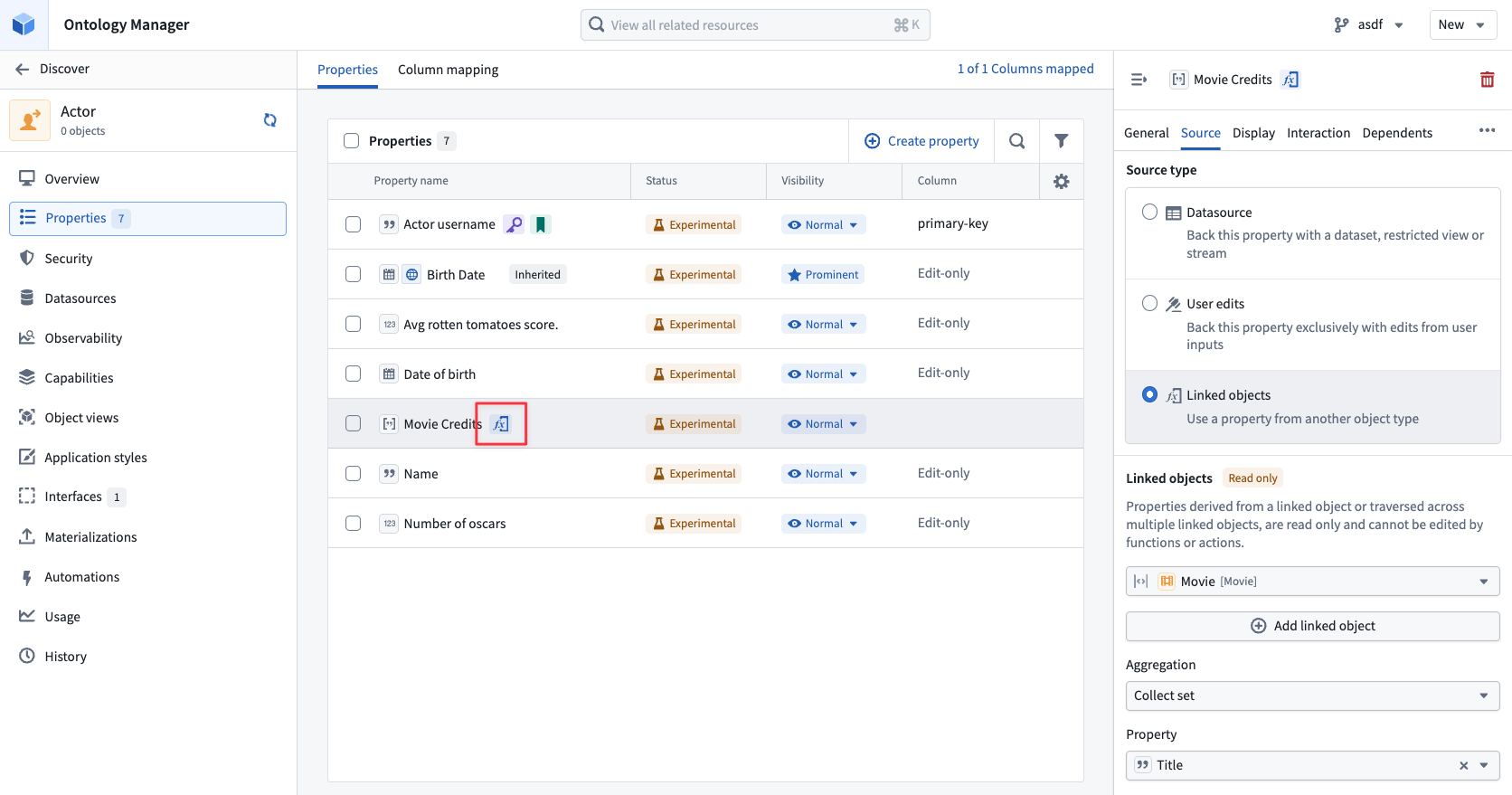
Derived properties appear alongside native properties in the Properties tab, marked with an indicator showing that their values are computed rather than stored.
Limitations
Derived properties have capability limitations that apply across the platform, including restrictions on primary keys, required properties, value types, display formatting, and object types indexed using OSv1. For the complete list, review derived properties limitations.