- Capabilities
- Getting started
- Architecture center
- Platform updates
Control Panel
Various organization-wide Map settings can be configured using the Control Panel. To modify Map settings, you will need the Map Admin role.

Some organization-level settings users will be able to override on a user or map level in the settings menu.
Map Defaults
- Default viewport defines the initial view, in terms of the center point (latitude and longitude) and zoom level, that a user will see when creating a new map.
- Default time selection defines the range of date options that will be shown to users when selecting the time range.
- Default unit system sets the different units system (metric, imperial, or nautical), for all users and/or specific user groups. Users can override this default in the map settings.
Data loading
- Time series polling interval: Define how frequently the map will check for updated time series data when in "View Latest" mode.
- Default polling interval: Set the default polling interval (in seconds) for new maps. Users can override this setting within the map.
- Minimum allowed polling interval: Set the minimum allowable polling interval override (in seconds). Users are prevented from setting a polling interval smaller than this value for individual maps.
- Time series points: Define how many points to load for each track.
- Default time series point count: The default number of points to load.
- Maximum number of points: The highest number of points a user can specify to load when overriding the default count on an individual map.
- Object search limits: Control the maximum number of objects a user can add to a map from the search dialog.
- Search around limits: Control the maximum number of objects a user can add to a map as the result of a single Search Around.
- Automatic object search: Controls whether object search results load automatically as you type or require manual triggering.
API Keys
Mapbox: Enable Find Locations on map
The Find Locations feature uses a proprietary geocoding service from Mapbox. To enable this feature for your organization, you will need to configure an organization-specific Mapbox API key that includes access to the Mapbox Geocoding API.
Bing Maps: Enable Bing Maps base layers
To use Bing Maps base layers, instead of the default Mapbox base layers, enter a Bing Maps API key.
Base maps
Enable Mapbox base maps
When Mapbox styles are disabled, map applications and widgets in the Foundry platform will use the first custom base map by default.
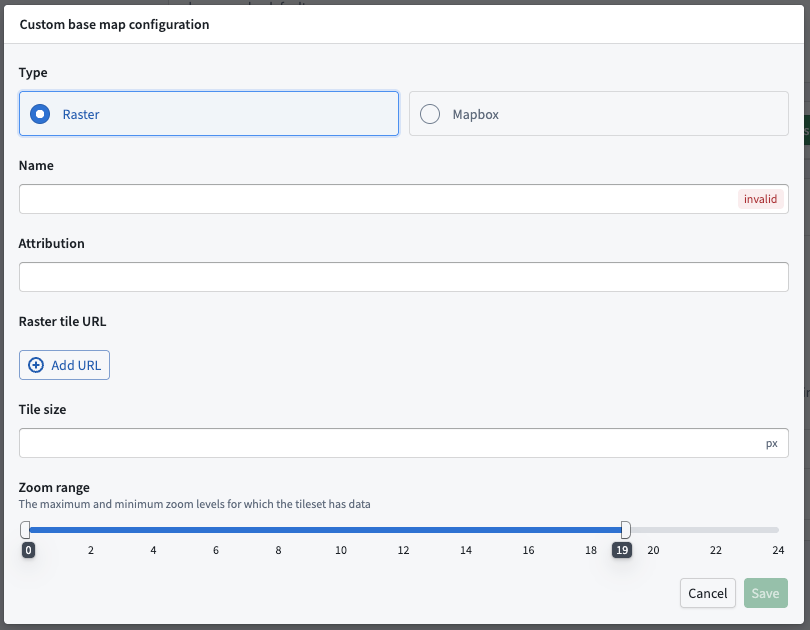
Custom base map
Add a custom base map using either Raster tiles or Mapbox JSON.
Watermark configurations
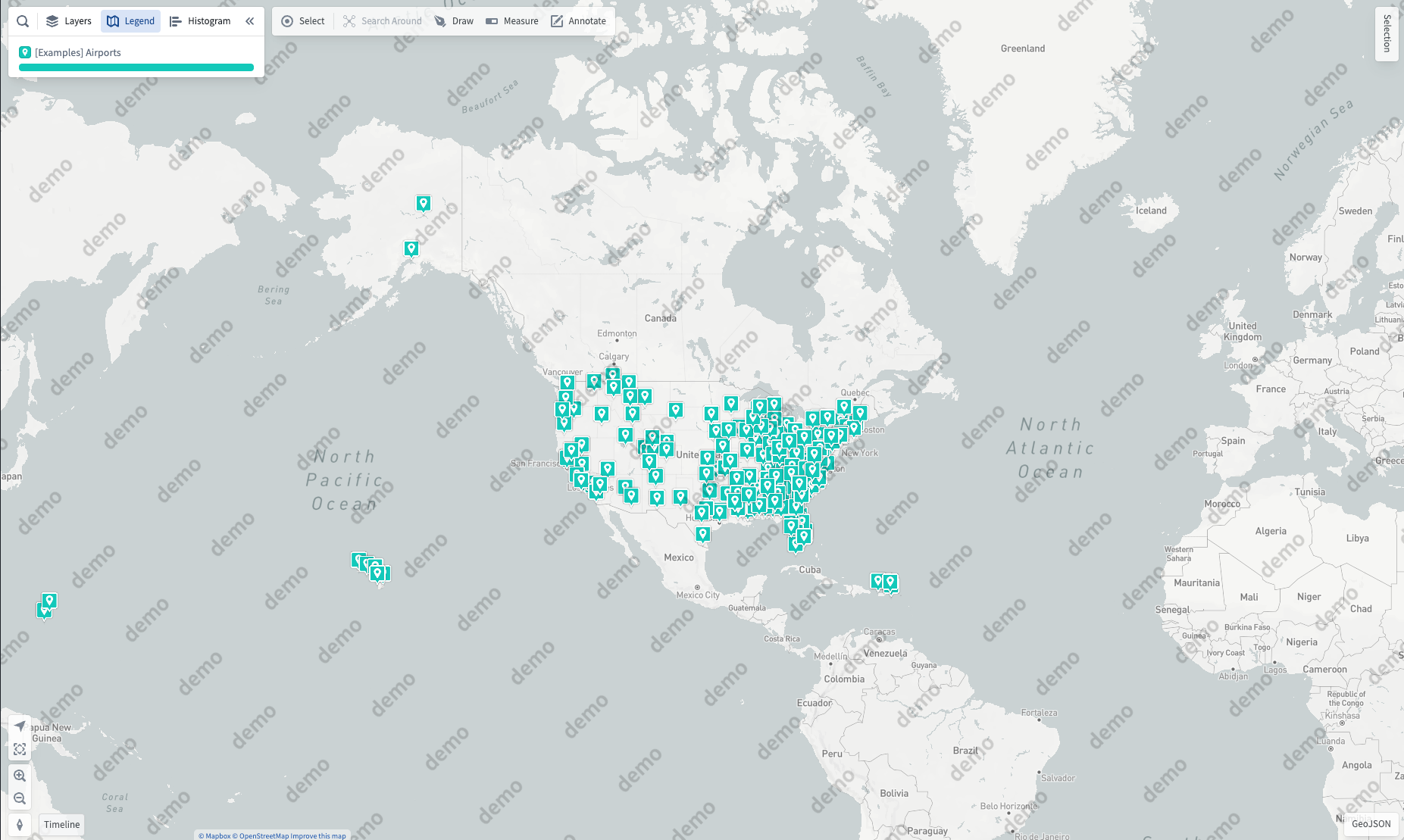
Watermarks can be configured as a default or per group. The watermark will overlay on the base map.