- Capabilities
- Getting started
- Architecture center
- Platform updates
Condition settings
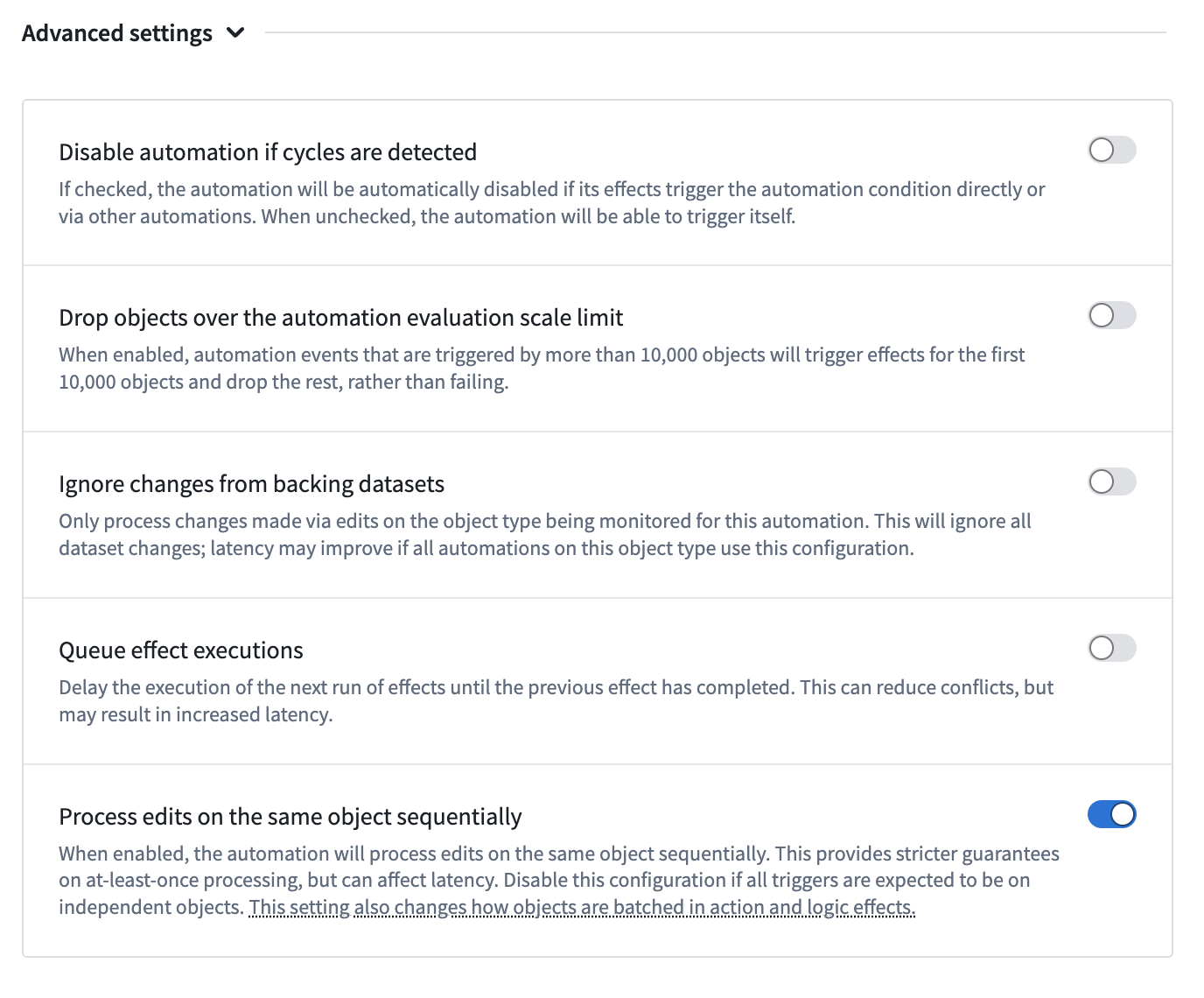
You can configure behavior for cycles, dropped objects, and execution queuing from the Advanced settings options found on the Condition page when setting up a new automation.
Cycles
Automation sequences can sometimes cause infinite loops (cycles) when automations trigger each other. Review the documentation on cycle detection for more information.
For certain automations, cycle detection may be undesirable. To allow up to 50 cycles, enable Allow cycles in the automation settings. Note that overriding cycle detection is only available for live monitoring.

Dropped objects
You can configure how Automate handles objects when the live automation scale limit is reached.
When Drop objects over the live automation scale limit is enabled, events triggered by more than 10,000 objects will process the first 10,000 objects and drop the remaining objects (instead of failing).
Note that this option is only available with live monitoring enabled.

Queue effect executions
You can enable Queue effect executions to process automation events sequentially in the order they triggered. When this setting is enabled, events execute one at a time, based on when they were triggered.
There are several reasons you might want to enable queue effect executions:
-
Ensure execution order: When you need events to happen in a specific sequence, such as sending a "Processing started" notification before a "Processing finished" notification.
-
Control concurrency: When you want events to run one at a time, which can be useful for:
- Managing capacity limits: Downstream actions, webhooks, or systems may have limited capacity. Using this option with low batch or parallelism limits places an upper bound on concurrency.
- Avoiding conflicts: Running effects concurrently can cause conflicts. For example, two actions cannot edit the same object simultaneously. When this happens, the first action will commit successfully while the second fails with a conflict error and requires a retry. Queue effect executions can reduce these conflicts at the cost of reduced throughput.
Queuing applies at the automation event level (individual runs in automation history). Concurrency settings (parallel vs. sequential effects) still apply within an individual event. The queuing only affects the order in which separate events are processed. For example, if three events trigger an automation in quick succession:
- Without queuing: All three events process simultaneously, potentially executing effects in parallel
- With queuing: "Event 1" completes all of its effects, then "Event 2" begins processing and completes before "Event 3" begins.