- Capabilities
- Getting started
- Architecture center
- Platform updates
Read and write to data systems
The Queries panel lets you query your data sources. The panel separates query template configuration from related events, schedules, and constraints. For JSON-based templates, the panel validates syntax and provides an integrated query preview for testing queries before deployment.
Depending on the type of data source, you can write different queries in the Queries panel. The below provides overviews and examples about how to write different types of queries, security considerations when using Handlebars in each type of query, and an introduction to query partials and conditional queries.
Filtering queries by data source
If your application has multiple data sources, a filter icon appears next to the search input. Select the icon, then select or clear the checkboxes to display queries from specific data sources. You can also select or clear all data sources. Combine the data source filter with search terms to further narrow the query list.
Query security overview
Foundry queries use the Foundry Synchronizer, which enforces read-only permissions on all synced tables; additionally, access to the individual tables respects the access granted at the dataset level in Foundry.
For datasources outside of Foundry, using Handlebars in queries raises security concerns because malicious users could perform injection attacks by replacing the contents of the template with harmful code. These queries therefore require additional security rules for Handlebars use - the rules are described in depth in the SQL queries and HTTP JSON queries sections below.
Additionally, any template that references user variables (e.g. {{user.firstName}}) gets its value from the server rather than accepting the value passed to the browser on login.
An example of a SQL security error:

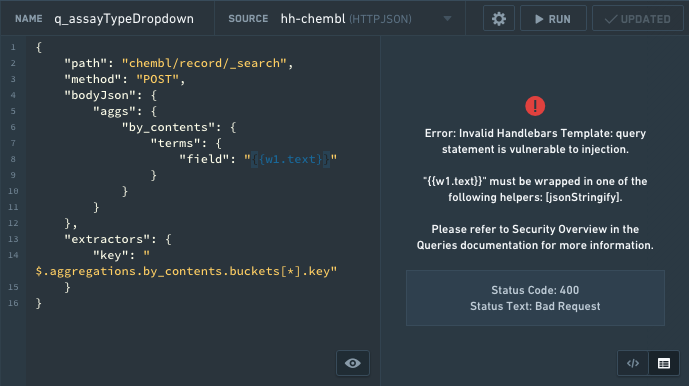
An example of a HTTP JSON security error:
API Gateway queries
The API Gateway data source can be used to interact with Foundry APIs. The documentation for each service and endpoint is displayed inline. Full documentation can be found in the API reference.
Specific examples for payload types can be found behind the Show description toggle next to the request input. These endpoints are secured differently than HTTP JSON datasource-type queries, so you do not need to jsonStringify handlebar inputs.
Discover available endpoints
The endpoints you can call are the subset of the Foundry API enabled for the data source, so the query editor lists only the services and endpoints available to you. To find an endpoint to call:
- Create a new query in the Queries panel and select a data source with the
API Gatewaytype from the Source dropdown. - Select a Service. Each service groups a set of related endpoints.
- Select a Method to choose an endpoint within that service.
- Select Show description to expand the inline documentation for the selected service, endpoint, or parameter. Descriptions are collapsed by default. The endpoint description states the HTTP method and path, and displays a warning when the endpoint is deprecated.
If an endpoint you expect is not listed, it is either not enabled for the data source or not available on your enrollment. Contact your Palantir representative to request access. For the complete catalog of endpoints, see the API reference.
For help resolving a query that fails, see Troubleshoot API Gateway queries.
Common data endpoints
The API Gateway data source is frequently used to retrieve operational metadata about Foundry resources, such as when a dataset was last updated or whether its health checks are passing. The following endpoints cover the most common cases. Select an endpoint to view its full request and response documentation.
| Data you want | Endpoint | Notes |
|---|---|---|
| Dataset metadata, such as the name and parent folder | Get Dataset | Takes the dataset RID. You can retrieve the RID from the platform widget or from the resource URL in Foundry. |
| Dataset last update time | Get Branch Transaction History | |
| All transactions for a dataset, across branches | List Transactions Of Dataset | |
| A single transaction | Get Transaction | |
| Which health checks are configured on a dataset | Get Dataset Health Checks | See health checks for background on how checks are defined. |
| Current data health status of a dataset | Get Dataset Health Check Reports | |
| Report history for one health check | Get Latest Check Reports | |
| Schedules that target a dataset | Get Dataset Schedules | |
| Dataset schema | Get Dataset Schema | |
| Ontology objects and metadata | Ontology metadata | For most Ontology read workflows, prefer the object set panel, object context panel, or the OSDK over direct API Gateway queries. |
Several of the endpoints above, including the transaction history and data health endpoints, are in public preview. A preview endpoint requires its preview parameter to be set to true. Without it, the request fails with an ApiFeaturePreviewUsageOnly error, which surfaces in Slate as a 400. Check the release stage on the endpoint's reference page before you rely on it in a production application.
Configure the request
Slate builds the request from your selections in the query editor, so you do not assemble the HTTP request by hand. After you select a service and an endpoint, the editor displays one input for each parameter that the endpoint accepts, including path parameters, query parameters, headers, and the request body. Select Show description next to a parameter to view its expected type.
Each parameter input accepts a static value or a Handlebars reference to a widget, variable, or function. Because API Gateway queries are secured differently than HTTP JSON queries, you can reference values directly without a security helper. For a request body, use the Text and JSON switch to control whether Slate sends the value as a string or as a JSON object.
To review the request that your selections produce, select Preview rendered query in the Queries panel. Slate displays the read-only request with Handlebars references resolved to their current values. Select View query template to return to the editor.
Extractors are only available for HTTP JSON queries. An API Gateway query returns the full response, so reference the fields you need from the query result.
Foundry queries
The recommended method for querying Foundry data in Slate is to use the Ontology. Ontology objects can be used in Slate with the OSDK, the object set panel, or the object context panel. Alternatively, API gateway queries can be used.
The legacy method for querying data in Slate uses SQL queries to retrieve data from datasets synced to a Postgres instance in Foundry. This method is only available when dataset syncs have been enabled for your enrollment. The feature is still supported, but no longer in development. We encourage querying data with the Ontology to benefit from new features and ensure future support.
You do not need to use any SQL security helpers.
To create a dataset sync:
- Add a dataset in the Dataset sync panel and go to the Sync to Postgres section.
- Enter a table name.
- Select Apply and sync.

When the sync has completed, the Sync to Postgres section in the Dataset sync tab will contain a sample SQL query that can be pasted into the Queries tab.

SQL queries
Security considerations
All handlebars templates in SQL queries (with the exception of those using Foundry datasources) must be enclosed by SQL security helpers or Handlebars Built-In Helpers ↗. You can find the full details for how and when to use each SQL security helper in SQL Helpers.
There are five helpers, which are schema, table, column, alias and param.
schema,table: Theschemaandtablehelpers work very similarly. Given a name and a list of allowed names, the helpers check to make sure the name exists in the list of allowed names and in the corresponding information schema table. For example, the table helper checks if the table name exists in the list of allowed names and ininformation_schema.tablesor the corresponding schema table in your database. Specifying the list of allowed names prevents the query from accessing any schema/table that it should not access. You cannot template the allowed names, because this would defeat the purpose of the validation.
Copied!1SELECT column1 FROM {{schema someSchemaName 'allowedSchemaName1' 'allowedSchemaName2'}}.{{table someTableName 'allowedTableName1'}};
column: Thecolumnhelper checks to make sure the name exists ininformation_schema.columnsor the corresponding schema table in your database.
Copied!1SELECT {{column someColumnName}} FROM table1;
alias: Thealiashelper is used when you want to template an aliased schema, table or column name. Because the aliased name is not in the information schema, you must register it with Slate using thealiashelper; otherwise, the name cannot be validated. You could only use thealiashelper with constant strings and not references, i.e.{{alias 'someConstantString'}}is allowed and{{alias someReference}}is not. Templating it defeats the purpose of validating it inschema,tableorcolumnbecause they could reference the same thing.
Copied!1 2 3 4 5 6SELECT column1 as {{alias 'aliasedColumnName'}} FROM table1 ORDER BY {{column someColumnName}} where someColumnName is 'aliasedColumnName' and 'aliasedColumnName' is not a valid column name in the database's schema.
param: Theparamhelper replaces the template with a ‘?’ such that the values can be set later using apreparedStatement. PreparedStatement is one of the safest ways to protect against SQL injections. Notice that all values coming from the front end are numbers or strings, so to use a value with a type other than number or string in the query, you must cast the value to that type.
Copied!1SELECT column1 FROM table1 WHERE column1 > {{param value1}} and dateColumn1 < {{param value2}}::date
When should I use which helper?
- When you want to template a schema/table/column name, you should use one of the corresponding
schema,tableorcolumnhelpers. - When you want to template an aliased table/column, you should register the alias with the
aliashelper. - When you want to template a parameter value, i.e. the value in a comparison in the where clause, you should use the
paramhelper.
Writing SQL queries
When querying a SQL data source, the editor accepts any SQL command. Typically, you run a SELECT statement. For example:
Copied!1SELECT name,diameter,period FROM allNamed;
Slate parses the resulting rows into JSON, a key for each column, so that they are accessible via handlebars.
Copied!1 2 3 4 5{ "name": ["Undina", "Hekate"], "diameter": [126.42, 88.66], "period": [5.68801089633658, 5.42957878301233] }
You can perform data transformations, such as basic string and math operations, by using SQL’s built-in functions ↗.
HTTP JSON queries
Security considerations
All HTTP JSON queries must conform to the following:
- All Handlebars templates must be wrapped in a jsonStringify helper. The
jsonStringifyhelper ensures that the value of the template could not escape its current scope. For example, it could not close the block and add extra properties to the request.
An example to use it to template a property:
Copied!1 2 3 4 5 6 7 8 9 10 11 12 13{ "path": "path/to/api", "method": "POST", "bodyJson": { "filter": {{jsonStringify w1.text}} }, "extractors": { "result": "$" }, "headers": { "Custom_Header": "my custom header value" } }
An example to use it to template as part of a property:
Copied!1 2 3 4 5 6 7 8 9 10 11 12 13{ "path": "path/to/api", "method": "POST", "bodyJson": { "filter": {{#jsonStringify}}some text plus {{w1.text}}{{/jsonStringify}} }, "extractors": { "result": "$" }, "headers": { "Custom_Header": "my custom header value" } }
..is not allowed in the path. This ensures that the query path does not index to any parent scope and does not access information that should not be accessed.
Writing HTTP JSON queries
The query for a HTTP JSON data source is an object that contains the following properties: path, method, bodyJson, extractors.
path: the URL path to the data sourcequeryParams: (optional) the map of key-value pairs to append to the URL when building the request (ie. “query”: “something” would append ?query=something to thepath). When this map is not empty, query params should not be specified in thepath.method: the HTTP method used to make the request. Supported methods are GET, POST, DELETE, and PUT.bodyJson: (optional) the JSON that is sent as data to the API endpoint (e.g., how to format and aggregate the data). This field is not required if your data source endpoint does not expect JSON.extractors: the results the query returns. Uses JSONPath ↗ to determine what to extract. For example, to see the whole result, use"result": "$". For help writing JSONPath, consult the following tester ↗. For more information on JSONPath, see JSONPath examples ↗.headers: (optional) A map of headers to set on the request. Authentication headers will be added on top of this list if present.
For example:
Copied!1 2 3 4 5 6 7 8 9 10 11 12 13 14 15 16 17 18 19 20{ "path": "astronomy/_comets", "queryParams": { "limit": 5, "text": "searchabc" }, "method": "GET", "bodyJson": { "fields": ["name", "type", "date"], "query": { "type": "dust" } }, "extractors": { "name": "$.results[*].fields.name" }, "headers": { "Custom_Header": "my custom header value" } }
Elasticsearch
The following is an example using Elasticsearch.
Copied!1 2 3 4 5 6 7 8 9 10 11 12 13 14 15 16 17 18 19 20 21 22 23{ "path": "geologist/_search", "method": "POST", "bodyJson": { "query": { "prefix": { "request": "/daily/api/permalinks/" } }, "aggs": { "views": { "terms": { "field": "auth", "size": 0 } } } }, "extractors": { "Users": "$.aggregations.views.buckets[*].key", "Views": "$.aggregations.views.buckets[*].doc_count" } }
For more information on Elasticsearch, see the Query DSL documentation ↗.
Query result size limit
SQL and Foundry query results are limited to 5,000,000 bytes (5 MB) by default. If you expect a larger amount of results, break them up into multiple queries. A query whose result exceeds the limit fails rather than returning partial data, so a query that previously succeeded can begin to fail as the underlying data grows.
Select Test in the Queries panel to see the error, which reports Size of query result exceeded specified maximum size of followed by the configured limit in bytes.
To reduce the size of a result, return only the columns the application uses, add a LIMIT clause or a filter, or aggregate in the query. If your workflow requires results larger than the configured limit, contact Palantir Support.
Query partials
Query partials allow you to write query code that can be reused in multiple queries in your document. To create a partial, click the + New Partial button in the Queries panel.
You can insert a partial into a query by writing {{>partialName}}. For example, say you have a partial named columnFilter with the contents WHERE column={{param w8.selectedValue}}. You can create another query with the code SELECT * from table {{>columnFilter}}. This renders to the query SELECT * from table WHERE column={{param w8.selectedValue}}.
You can also pass arguments to partials, with the syntax {{>partialName arg1=value1 arg2=value2 arg3=value3}}. The value of the arguments in the partial’s context will be replaced with the values you provide in a particular query. Values can be static values (such as strings or numbers), or Handlebars references (such as w8.selectedValue). In the example above, if you had two queries that were exactly the same, except were filtered by two different selected values, you could redefine columnFilter to be WHERE column={{param columnValue}}, and the query to be SELECT * from table {{>columnFilter columnValue=w8.selectedValue}}, which renders as SELECT * from table WHERE column={{param w8.selectedValue}}, as before.
You can also nest partials, allowing for code-reuse inside code-reuse.
To rename a partial, open the partial in the editor panel and update its name directly. When a partial is renamed, any Handlebars references to that partial in your queries are automatically updated to reflect the new name.
Partials are a Handlebars concept and the Slate implementation uses the Handlebars syntax. See the Handlebars partials documentation ↗ to learn more.
Conditional queries
The Triggers & interactions tab will allow you to control the circumstances under which your query runs. There are two options for running the query conditionally, you can choose All dependencies are not null, which means that every single handlebars reference in the query must not be null in order for it to run, or you can choose The handlebar input returns true which will allow you to specify a handlebars condition. This condition can be a reference to a function, widget property, or anything you would like to control the logic for when your query should be able to run. The query will only run if this handlebars reference evaluates to true – if not, the query will not be run.

Example 1: all dependencies are not null
The following query requires at least one value from w_visits_bar.selection.data to run.

If no values are present, the request to Postgres will fail with a syntax error.
Adding the condition to only run when all dependencies are not null will prevent known bad requests from being sent to Postgres, which otherwise consume connections and resources.

Example 2: only run when this returns true
The following query fetches data used to populate a widget in a tabbed container. Suppose that the widget is not visible on page load but has dependencies on a set of page level filters. In this particular case, you might consider adding a condition to the query to only run when the widget is visible. This can be done using the The handlebar input returns true option in the query settings.


Troubleshoot API Gateway queries
When an API Gateway query fails, the error shown in the preview panel is not always the true source of the problem. A generic message such as a bare 400, 500, or An error occurred often wraps a more specific error returned by the underlying service. Use the following steps to locate the actual cause.
Inspect the request
Select Preview rendered query to view the request that Slate sends. Confirm that each parameter holds the value you expect, and that no Handlebars reference resolved to an empty value. Select View query template to return to the editor.
Inspect the raw response
Select < / > in the preview panel to view the raw JSON response instead of the parsed result. Foundry API errors return a JSON body that names the specific problem, even when Slate shows only a status code:
Copied!1 2 3 4 5 6 7 8{ "errorCode": "NOT_FOUND", "errorName": "DatasetNotFound", "errorInstanceId": "00813215-0844-4716-be7b-a3fe0fce9e42", "parameters": { "datasetRid": "ri.foundry.main.dataset.example" } }
Read errorName first: it identifies the exact failure, and parameters names the resource that caused it. The API errors reference lists every errorName the platform returns, along with its meaning. Retain the errorInstanceId if you need to file a support ticket, as it lets Palantir support locate the exact request.
Failed queries are also consolidated in the health check dialog, which lets you jump directly to the query that raised the issue.
Common causes by error type
| Symptom | Likely cause | Resolution |
|---|---|---|
ApiFeaturePreviewUsageOnly, surfaced as a 400 | The endpoint is in public preview and the request did not opt in. | Set the preview parameter of the query to true. |
An invalid endpoint error naming the method and path | The endpoint is not enabled for the data source. | Select the endpoint from the Service and Method dropdowns rather than reusing a query written against another data source, and contact your Palantir representative if the endpoint you need is unavailable. |
PERMISSION_DENIED code with a 403, such as ApiUsageDenied or an endpoint-specific error like ReadTablePermissionDenied | The acting user does not have access to the resource or the operation. | Confirm the resource is shared with the user and that the user has the required role on it. NOT_FOUND errors are also returned when a resource exists but is not visible to the user. |
NOT_FOUND code with a 404, such as DatasetNotFound or BranchNotFound | The RID or branch does not exist, is not visible to the user, or a Handlebars reference resolved to an empty value when the query ran. | Check the parameters field of the response to see which value was rejected. Use a conditional query to prevent the query from running before its dependencies are set. |
INVALID_ARGUMENT code with a 400, such as Conjure:InvalidArgument or InvalidPageSize | A parameter or the request body is malformed, out of range, or missing. | Select Show description next to each parameter to review its expected type, and compare the request against the parameter list in the endpoint documentation. |
INTERNAL code with a 500, or a 503 | A transient service error. | Retry the request. If the problem persists, file a support ticket with the errorInstanceId. |
Isolate the failing input
If the cause is still unclear after inspecting the raw response, temporarily replace each Handlebars reference in the query with a static value and run it again. If the query then succeeds, the problem is in how a referenced widget, variable, or function resolves rather than in the endpoint or request itself. The debugger can help you trace the value each dependency produces at runtime.
Tutorial: Make data available for Slate
You should only load data using the Object Set panel in the Platform tab of Slate where possible. The Object Set panel allows you to easily query the Ontology and will return data in a tabular format similar to the example shown below. The Postgres workflow explained below is retained as a reference for legacy usage.
Before you begin this tutorial, you must make the last-mile-flights and airports datasets you uploaded to Foundry available for use in Slate. Open the Variables panel and select +Add to open the Foundry resource selector.

Navigate to the last-mile-flights dataset by selecting All Files > Getting started data, or use the search box in resource selector. Once you locate the dataset, choose the Select last-mile-flights option to begin import configuration.

To view configuration options, select the arrow next to Sync to Postgres.

The default table name in Postgres will include the file path and mixed-case dataset name. To handle the special character /, uppercase letters, and spaces, Postgres will treat the table name as a quoted identifier. This means that whenever the table is referenced in a query, you must include double quotes or Postgres will throw a syntax error. We recommend the inclusion of a Postgresql table name in the setup that is snake case, lower case letters and _ to avoid the need for double quote usage.
Since the data access patterns have not yet been defined and the last-mile-flights dataset is relatively small, we will not create any indexes on the table. You can always add these later. Select Apply and sync to start the sync. You can use the Check Status button to monitor the sync.

Once the sync is complete, you should see a sample query to use in Slate that looks similar to the following, though the number appended to your dataset name will be different:
Copied!1SELECT * FROM "foundry_sync"."Getting Started Data/last-mile-flights-master-9406" LIMIT 10
Copy the query for later use as you build the application. Now, sync the airports dataset to Slate.
Create a query
First, create an SQL query to pull the required data from our synced dataset.
Select Queries to open the panel.
You should see a Queries list, a Partials list, and an editor. The lists will be empty as no queries have been created yet. Select + New query. The editor should now display a toolbar, a text editor, and a preview panel for query results.
In the Name textbox, enter q_allFlights as the query name. Select the datasource that has the FOUNDRY type as the data source from the Source dropdown to point Slate to our database. This datasource may be called foundry-sync, foundry-postgate, foundry, or a similar name, but will always have the FOUNDRY type displayed to the right of the datasource name.
We recommend naming your queries to start with a query identifier like q_, to make them easily identifiable. This best practice can be especially useful when building out larger, complex applications.
For this query, we want to pull in a few rows of data from the last-mile-flights table in our database. To do this, we can use the sample query we copied earlier in the editor:
Copied!1SELECT * FROM "foundry_sync"."Getting Started Data/last-mile-flights-master-9406" LIMIT 10
We can test whether the query works by selecting Test, or by using Ctrl+Enter on Windows or Cmd+Enter on macOS. This populates the Preview panel with the results of the query.
You can view the results in the raw JSON response structure by selecting < / >.
If you get an error, make sure that you made last-mile-flights available in Slate and that you are using the correct path.
Select Update Query to save the query.

The queries we use as examples below will use "variable" as a stand-in for the specific table name. For example, rather than "foundry_sync"."Getting started data/last-mile-flights-master-9406", you will see "foundry_sync"."{{v_flightTable}}".
Since our dataset has a lot of columns, refine the query to only pull in a few columns of interest:
Copied!1 2 3 4 5 6 7 8 9 10 11 12SELECT flight_id, carrier_code, tail_num, origin, dest, dep_ts_utc, arr_ts_utc, distance, actual_elapsed_time FROM "foundry_sync"."{{v_flightTable}}" LIMIT 10