- Capabilities
- Getting started
- Architecture center
- Platform updates
Use Functions in Workshop
Within a Workshop module, functions can be used in a variety of ways. Function-backed actions enable modules to trigger complex sets of object edits and writeback. Widgets such as Metric Cards can display the output of functions in-module to help guide user decisions.
Function-backed actions in Workshop
When defining a new action type in the Ontology Manager, a function can be used as part of the rules logic of the action type. This is generally helpful to enable more complex writeback in an action type than the built-in options of Add Object, Delete Object, Modify Object, Add Link, or Delete Link. Learn more about how to define a function-backed action type.
Once a function-backed action type is defined, it can be used in Workshop like any other action type. Learn more about how to expose an action type in Workshop.
Function-backed variables in Workshop
Functions can also be used in Workshop to populate the value of a variable in your module. The following example walks you through how to create a numeric variable and populate it with the output of a function that calculates the number of flights an aircraft has to a given airport.
This example is illustrative and you may not be able to complete every step as written. Since your Foundry ontology is custom to your organization, you may not have access to the ontology objects required to complete the tutorial.
First, take a look at the function that we will be calling from within our Workshop module. As seen below, the function is called flightsForAircraftToDestination. It accepts an ExampleAircraft object and a string representing the destination airport’s three-letter airport code as inputs, and then returns the count of flights that aircraft has to the target airport.
The function example on this page is shown in TypeScript v1, TypeScript v2, and Python. Select the tab that matches how your function is written; the Workshop configuration steps that follow apply to all three, though a Python function exposes its inputs under their snake_case names. For a full comparison, review the TypeScript v1 versus TypeScript v2 comparison.
The three implementations differ in how they count. TypeScript v1 loads every linked flight with .all() and filters the resulting array in memory. TypeScript v2 and Python instead apply the filter to the linked object set and ask the Ontology for a count. The function therefore gets back a single number rather than every flight object. Because a function-backed variable recomputes whenever its inputs change, counting on the server keeps the variable responsive as the number of flights grows.
TypeScript v1 registers the function with the @Function() decorator on a class method, TypeScript v2 registers it as the default export of a file, and Python registers it with the @function decorator.
Copied!1 2 3 4 5 6 7 8 9 10 11import { Function, Integer } from "@foundry/functions-api"; import { ExampleAircraft } from "@foundry/ontology-api"; export class MyFunctions { @Function() public flightsForAircraftToDestination(aircraft: ExampleAircraft, destinationAirportCode: string): Integer { return aircraft.flights.all() .filter(flight => flight.destinationAirport === destinationAirportCode) .length } }
Copied!1 2 3 4 5 6 7 8 9 10 11 12 13import { Osdk } from "@osdk/client"; import { Integer } from "@osdk/functions"; import { ExampleAircraft } from "@ontology/sdk"; export default async function flightsForAircraftToDestination( aircraft: Osdk.Instance<ExampleAircraft>, destinationAirportCode: string ): Promise<Integer> { const result = await aircraft.$link.flights .where({ destinationAirport: { $eq: destinationAirportCode } }) .aggregate({ $select: { $count: "unordered" } }); return result.$count; }
Copied!1 2 3 4 5 6 7 8 9 10 11 12 13 14from functions.api import function, Float from ontology_sdk.ontology.objects import ExampleAircraft, ExampleFlight @function def flights_for_aircraft_to_destination( aircraft: ExampleAircraft, destination_airport_code: str, ) -> Float: return ( aircraft.flights() .where(ExampleFlight.object_type.destination_airport == destination_airport_code) .count() .compute() )
Next, begin the process of wiring up this function in your Workshop module. The aim is to pass in the function inputs from the module and then display the function output within a widget.
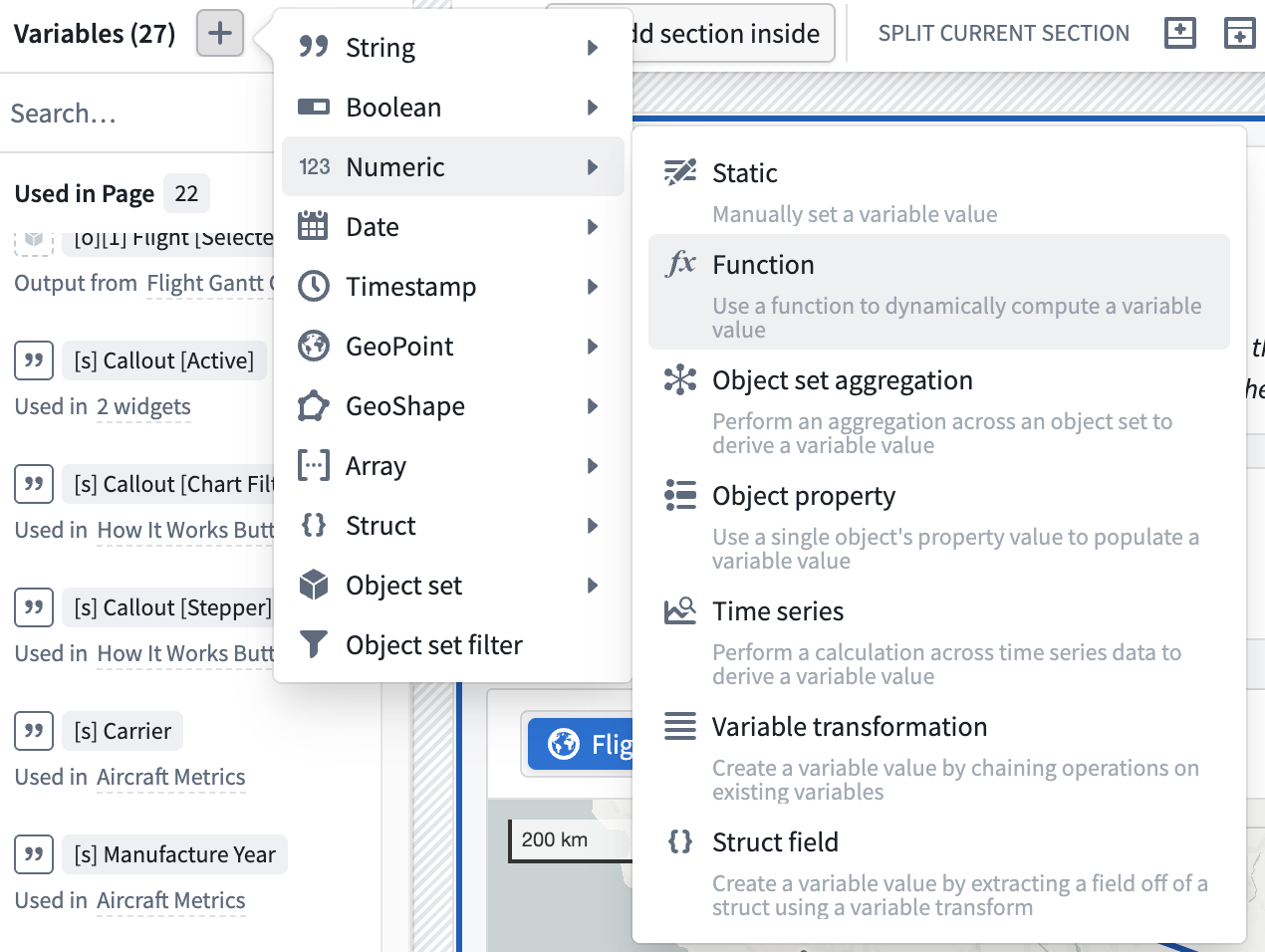
Start by creating a new numeric variable from the Variables menu at the top left of the screen. Use the + option next to the Variables title to create a new variable, select Numeric, and then select Function as seen below.
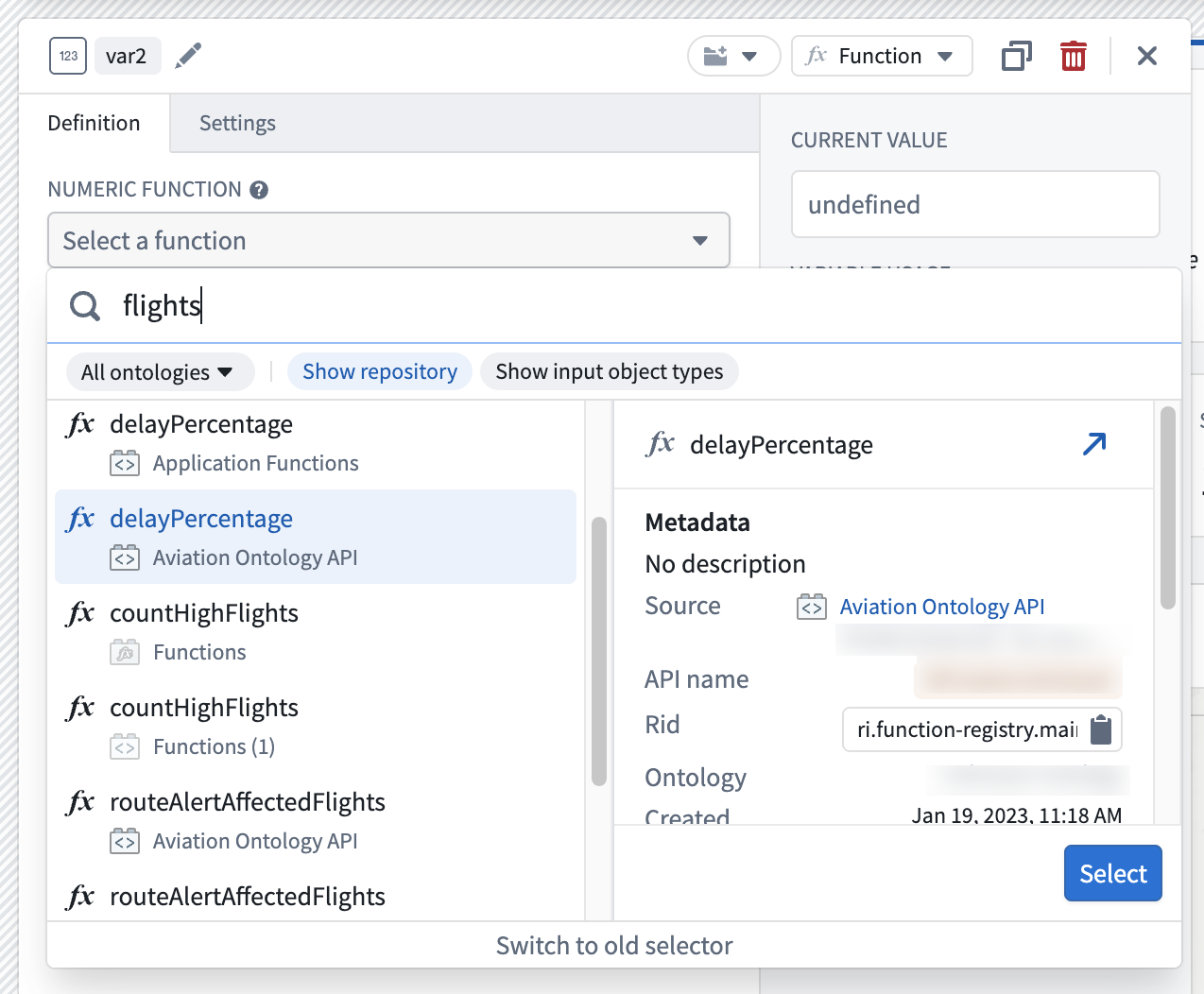
Next, find and select the function to use for this variable. Use the function picker to search for your function, which must be tagged with a release version to appear in this list. Learn more about function versioning.
After selecting your desired function, configure its inputs. In the example below, the aircraft input is populated by the currently selected aircraft object in the module, and the destinationAirportCode input is populated by a variable that captures the selected flight’s destination airport elsewhere in the application. Make sure to name your variable and place it in a variable folder for easier discovery.
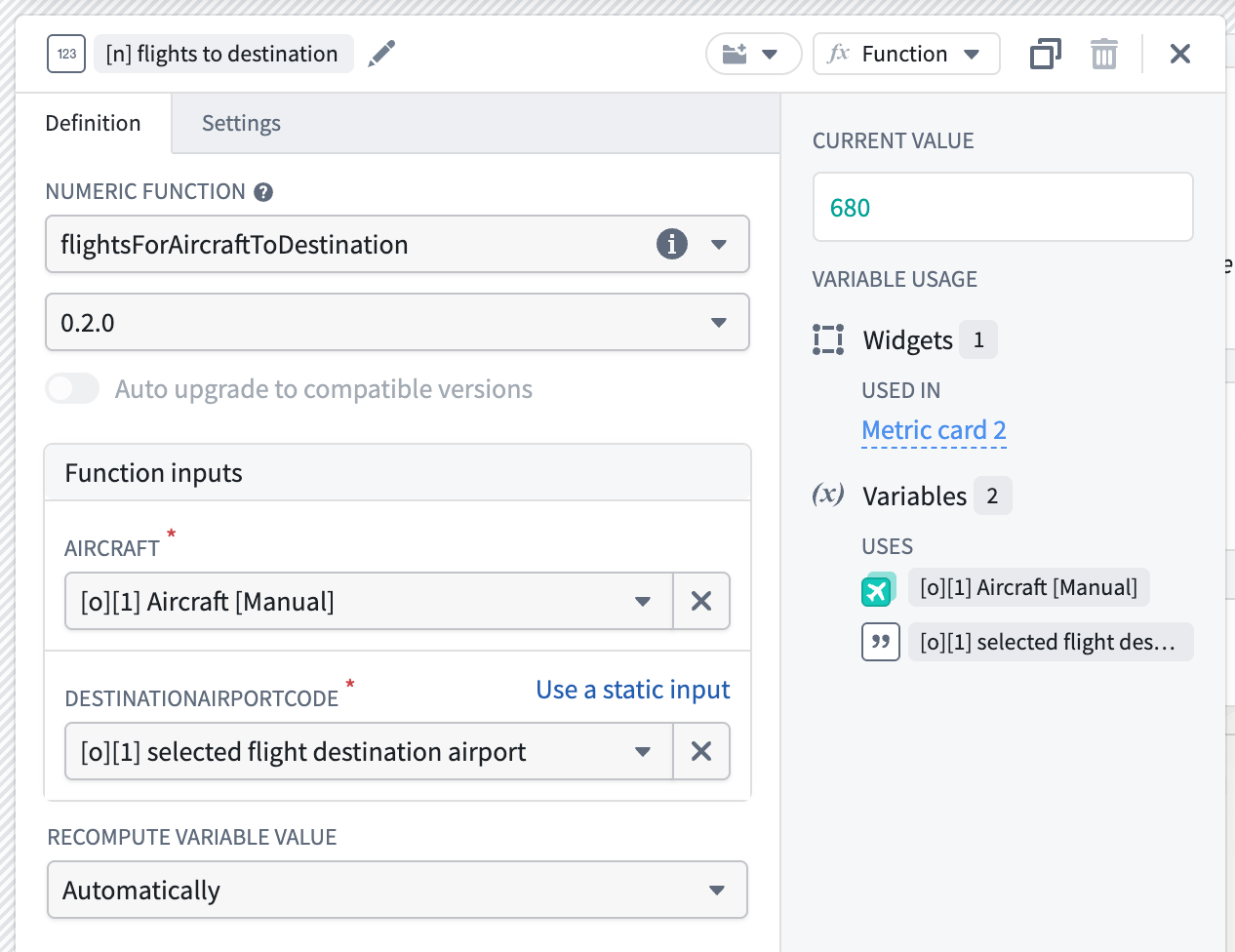
Function-backed variables cache their results. When the function receives the same inputs, Workshop returns the cached result rather than running a new computation. If you require the value to be recomputed, use a set variable value event, or configure the variable's recompute behavior to control when it recomputes.
Functions that call a source configured with an OAuth 2.0 outbound application cannot trigger the interactive authorization prompt when used directly in Workshop, including as function-backed variables or to populate widget content. If the user has not already authorized the outbound application, the function will fail. To use OAuth-backed sources from Workshop, wrap the function in a function-backed action instead, which can display the authorization prompt as part of action execution.
To display the output of this function to a user, use the Metric Card widget described below.
Metric Card with functions
The Metric Card widget gives builders a way to display key information in their module. It can be helpful for the statistic displayed here to be generated by a function. Within the Metric Card configuration, set a given metric to populate from the function-backed numeric variable that you defined in the steps above.
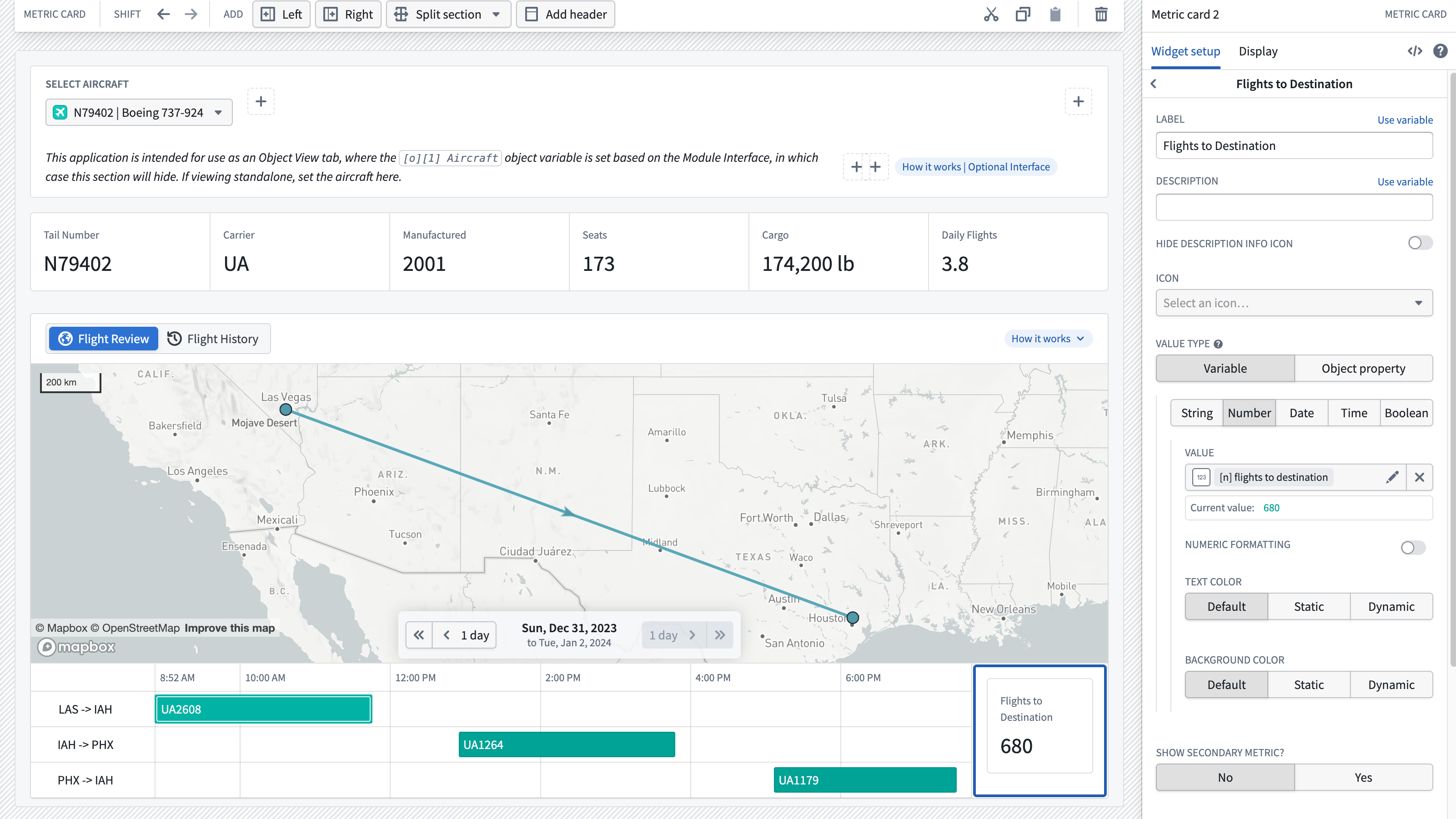
The screenshot below shows the resulting module with our function-backed Metric Card on the right. As a user changes their selection on the Gantt chart on the left to different flights, the Metric Card dynamically updates to display the total number of flights for the selected aircraft to the destination airport. In this case, there are 680 total flights for this aircraft to Houston (IAH).