- Capabilities
- Getting started
- Architecture center
- Platform updates
Perform refactors and understand your workflows
To start using Workflow Lineage, open any folder, project, or Foundry resource, then use the keyboard shortcut Cmd+i (macOS) or Ctrl+i (Windows) to view the relevant Workflow Lineage graph.
You can also open Workflow Lineage and add resources to the graph manually.
In file search, use the button next to a folder or project to add all supported resources from that location to the graph.
You can also use AI FDE to generate Workflow Lineage graphs. Press Cmd+I (macOS) or Ctrl+I (Windows) in AI FDE to graph all resources in the current chat context. You can also ask AI FDE to graph specific resources, downstream dependencies, or a slice of your workflow and annotate the graph with text nodes.
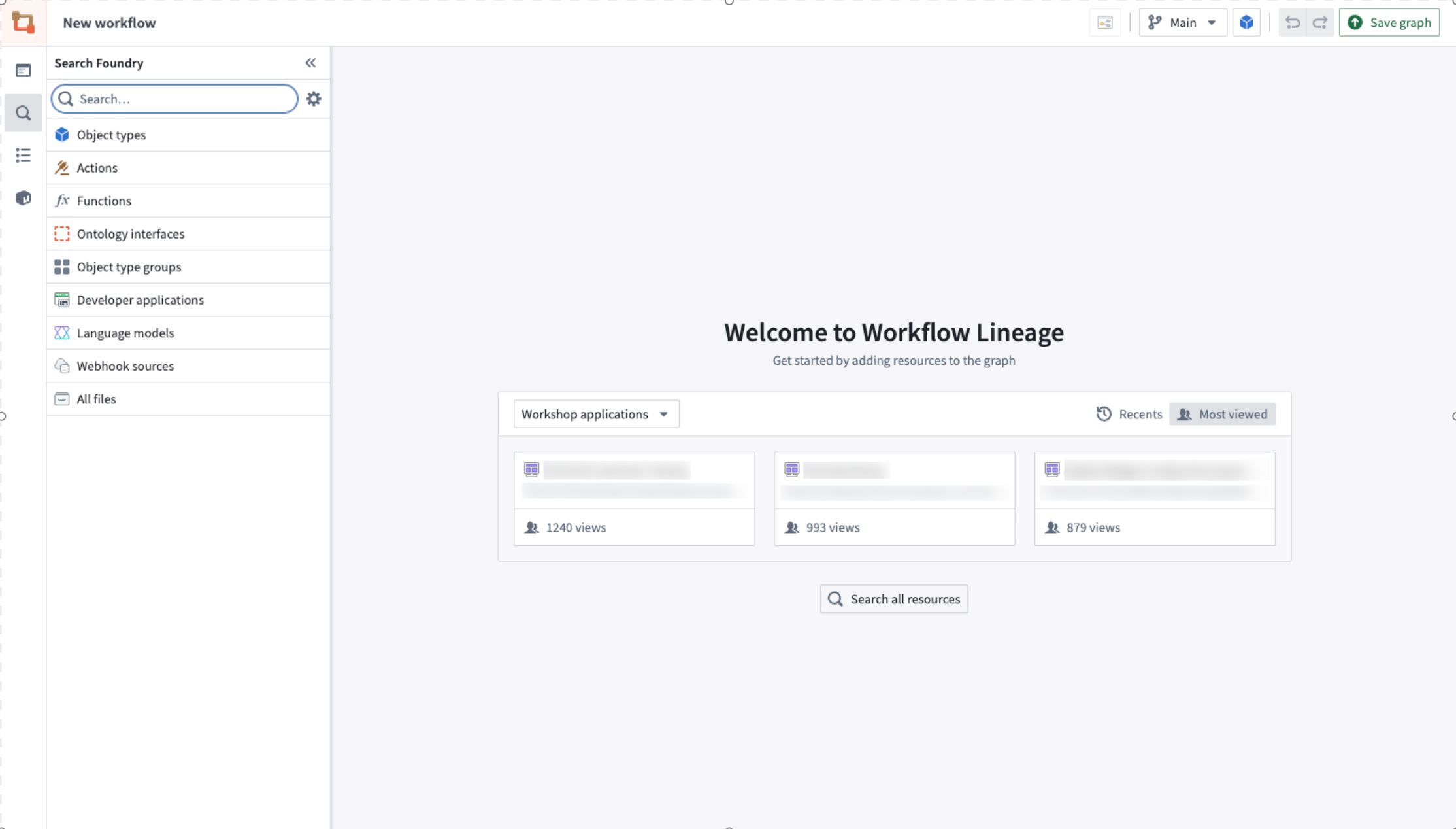
To help you understand and easily perform refactors in your workflow, Workflow Lineage provides a simple way for you to understand attached properties, update outdated variables and action-backed functions, or bulk edit submission criteria on actions.
Workflow Lineage supports Global Branching, allowing you to perform refactors and understand workflows on a branch before merging changes into main. For details on branch-aware entry points and capabilities, see Branching in Workflow Lineage.
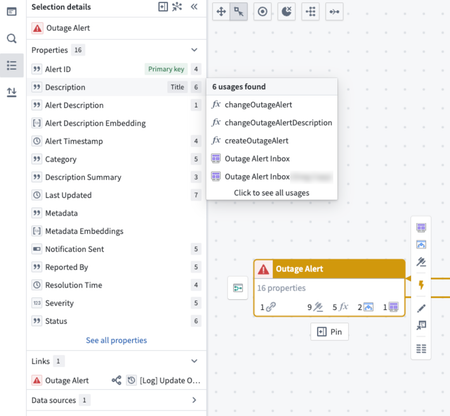
Property provenance
You can track the usage of each property within any object throughout your entire workflow. Select the object on the graph, and view the Selection details panel on the left to see where each property is being used.
The number shown next to each property refers to the amount of functions, actions, linkages, Workshop applications, and more depending on the context.
Filtering graph and selections
There are several methods for filtering items on the graph.
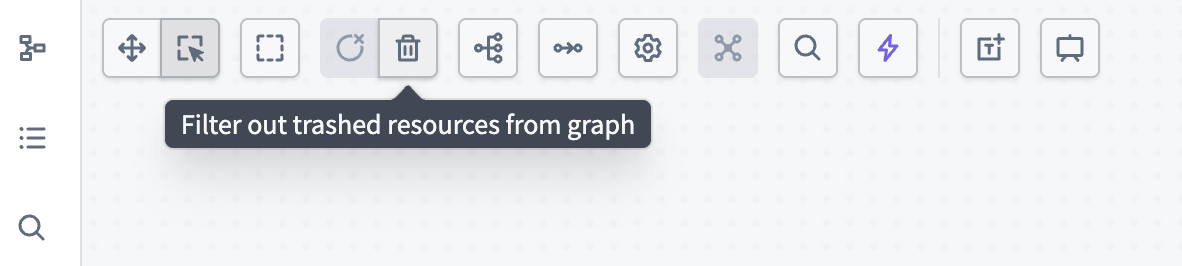
Filter trashed resources
Use the trash icon in the toolbar to remove trashed resources from the graph and exclude them from node connections. Select the trash icon again to restore the trashed resources.
Filter by selection details
When you select multiple nodes, you can use the Selection details panel to filter by various attributes including:
- Objects: Status, interfaces, object type groups
- Actions: Status, Action rule
- Function: Code repository, latest version, type
- Other resources: Created by, modified by, project
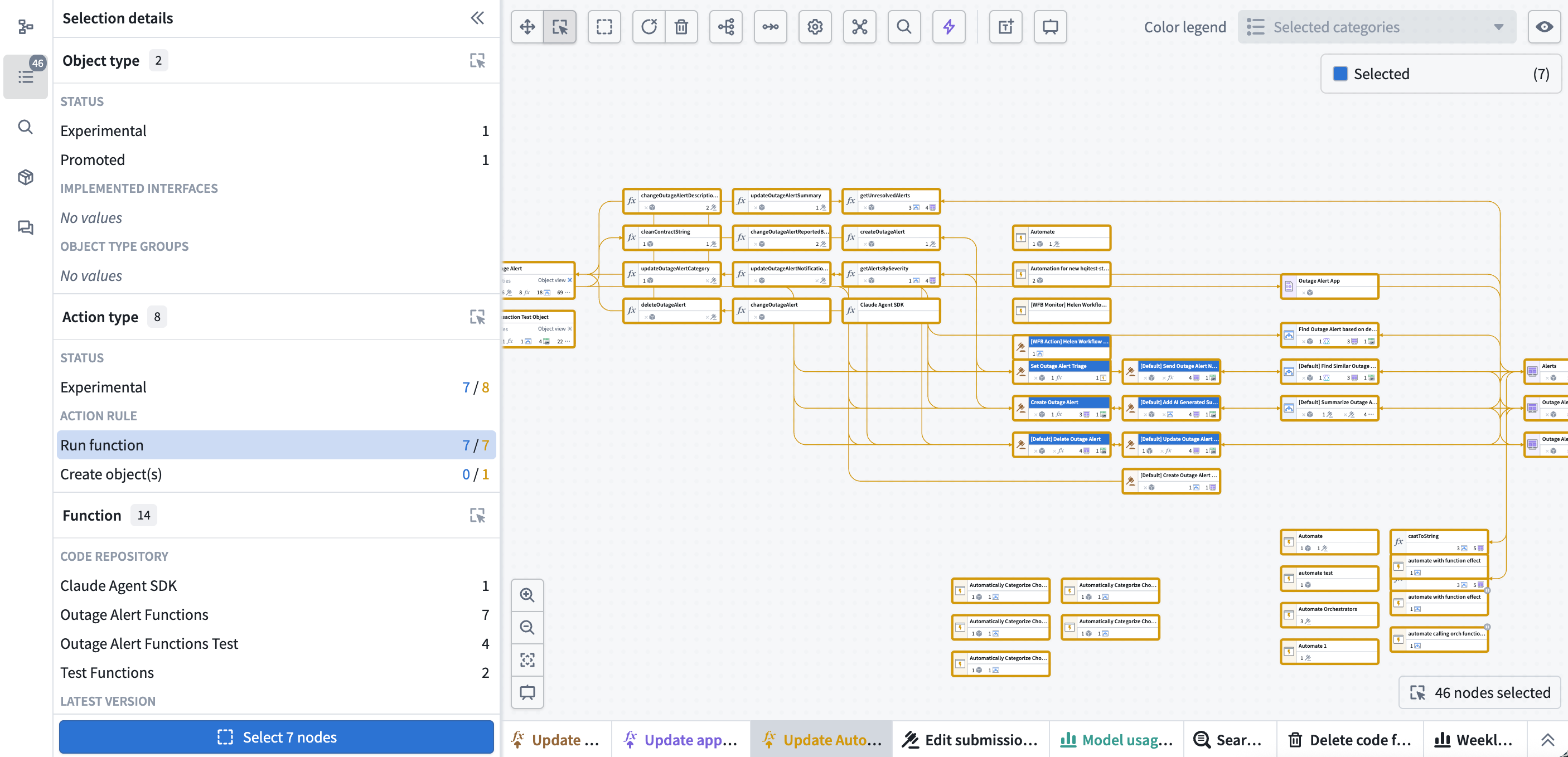
Choose the desired rows in the Selection details panel, and the graph will automatically select those nodes on the graph.
Bulk function-backed resource upgrades
To upgrade code functions or AIP Logic functions used in actions, automations, or Workshop applications, add these function-backed resources to the graph and find the relevant upgrade tab in the bottom panel.
Function upgrade, model usage, and submission criteria upgrade panels appear in the bottom bar even when no nodes are selected.
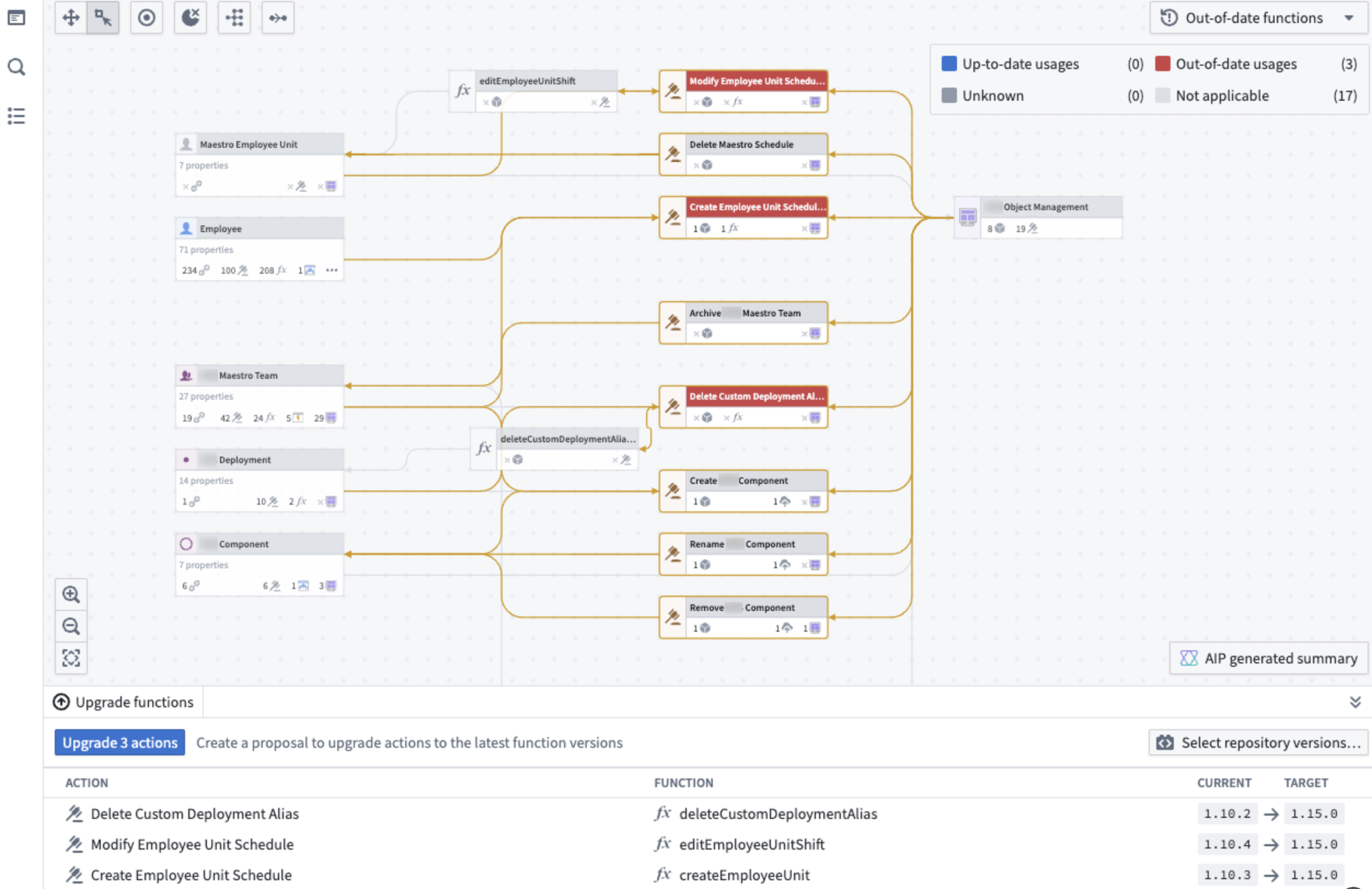
To identify outdated function-backed resources, navigate to the color legend. From there, select the Out-of-date functions option. This action will highlight all the outdated functions in red, giving you a clear visual indication. Next, choose the specific resources for which you want to upgrade the backing function. Upon selection, any outdated resources related to the function will appear in the panel located at the bottom of the screen for further action.
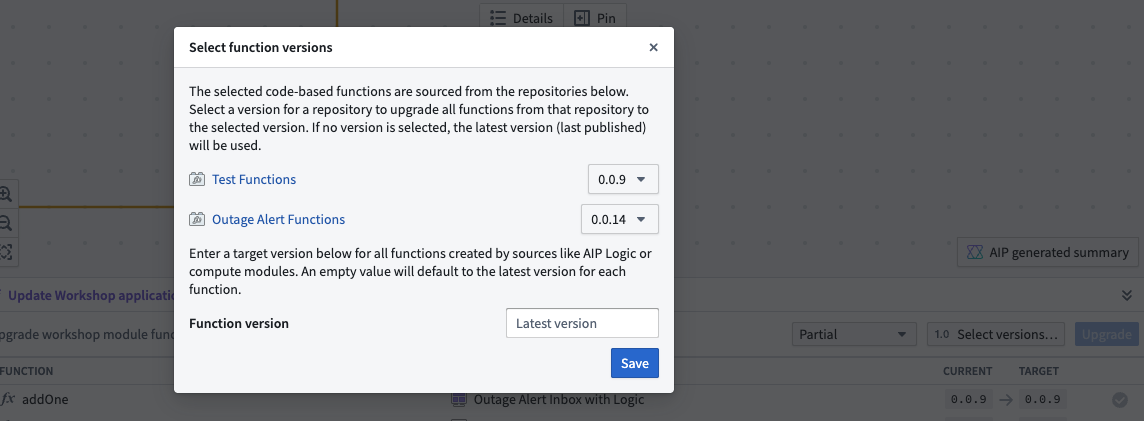
To select the desired version of the functions to be upgraded, choose Select versions... in the selected bottom panel tab. This will open a pop-up window where you can select the desired version for each function repository as well as the version for all functions created by AIP Logic or compute modules. If no version is specified, the repository's latest version will automatically be selected.
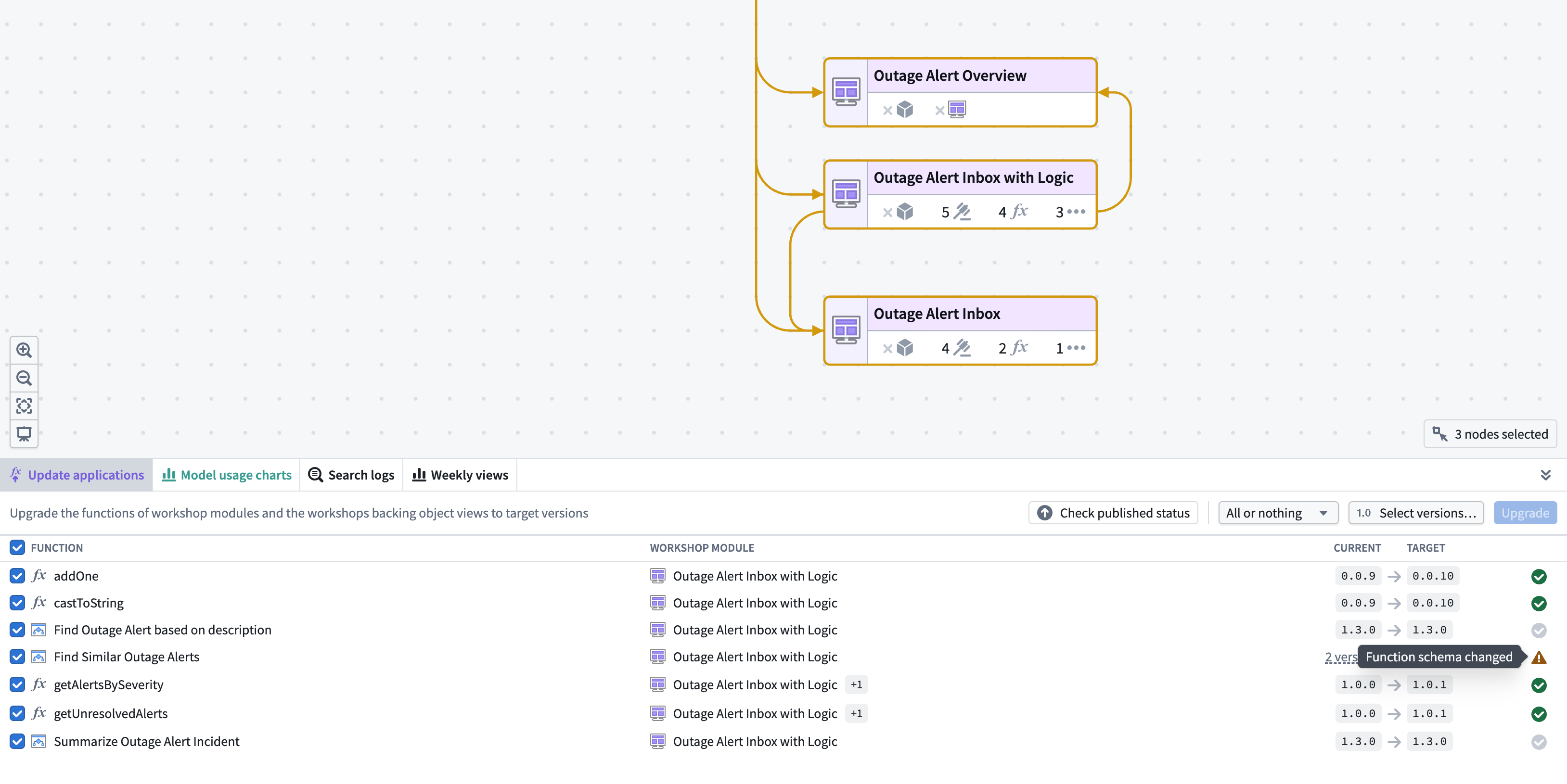
There are a few different status types you may see when upgrading functions:
- Green: Function can be successfully updated.
- Gray: Function is already up-to-date.
- Yellow: Function upgrade would cause a breaking change.
- Red: Function upgrade has errors, such as permission issues or functions not found.
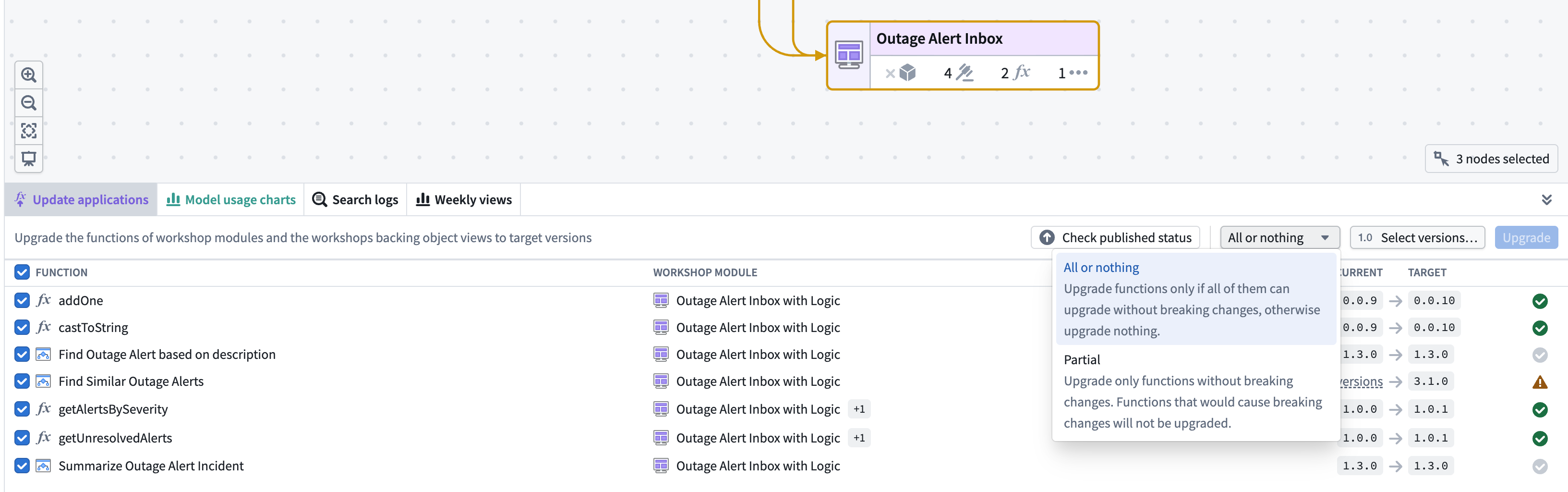
For function-backed automations and Workshop applications, there are two upgrade options:
- All or nothing: Upgrade the functions in the resource only if all can upgrade without breaking changes. If there are any breaking changes, nothing will be upgraded.
- Partial: Upgrade only the functions without breaking changes. Functions that would cause breaking changes will not be upgraded.
Function-backed action upgrades
To upgrade functions used in actions, open Update actions on the bottom panel.
If an action is configured with an action log and the new function version edits a new object type, that action cannot be updated in Workflow Lineage and must be upgraded in Ontology Manager.
When upgrading, you can choose how to apply your changes:
- Create a new branch: Create a new global branch to isolate your changes before merging to production.
- Upgrade directly on Main: Apply changes immediately to the main branch.
- Apply to an existing branch: Apply changes to a branch you have already selected in the top bar.
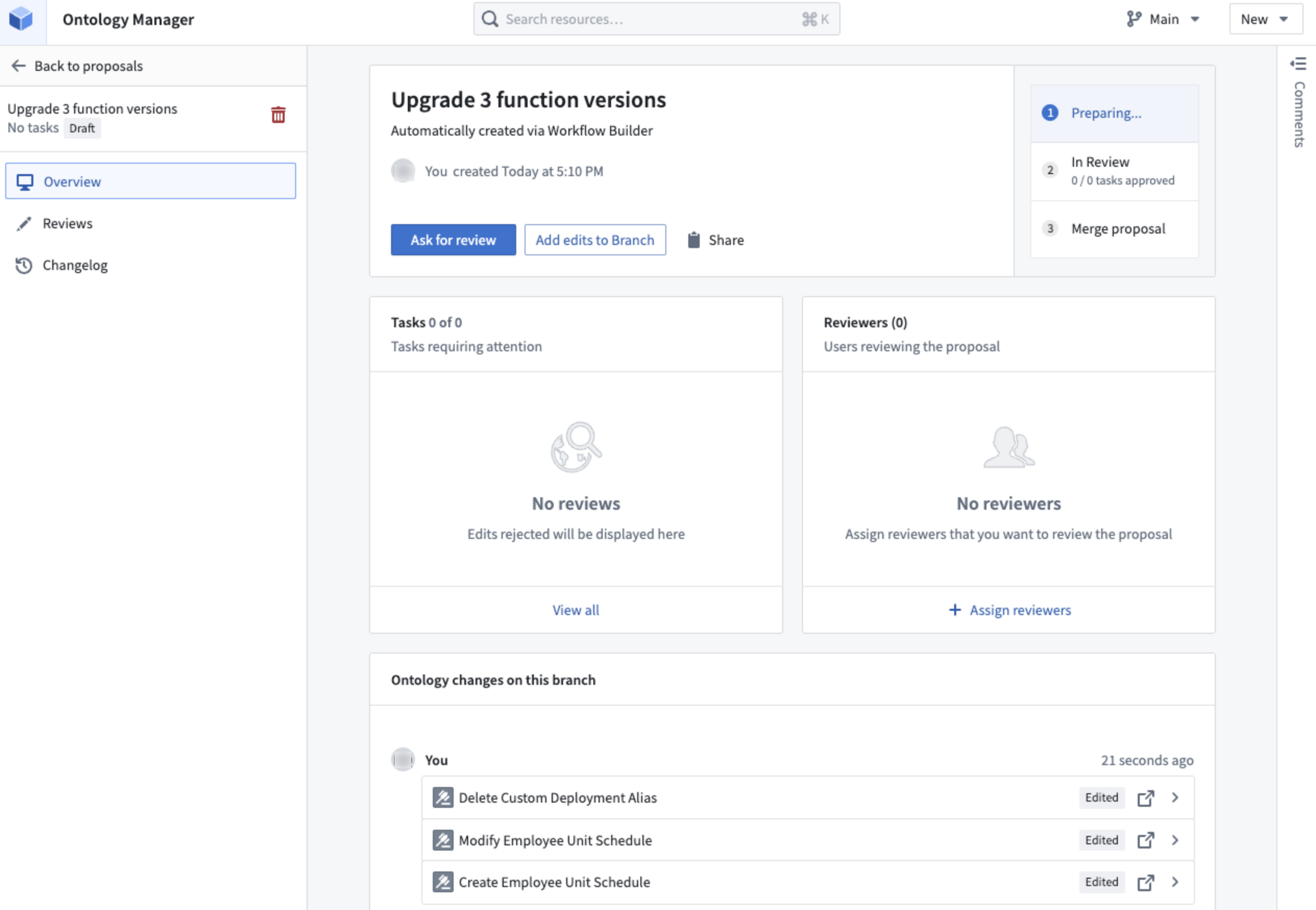
Function-backed automation upgrades
To upgrade functions used in automations, open Update Automations on the bottom panel.
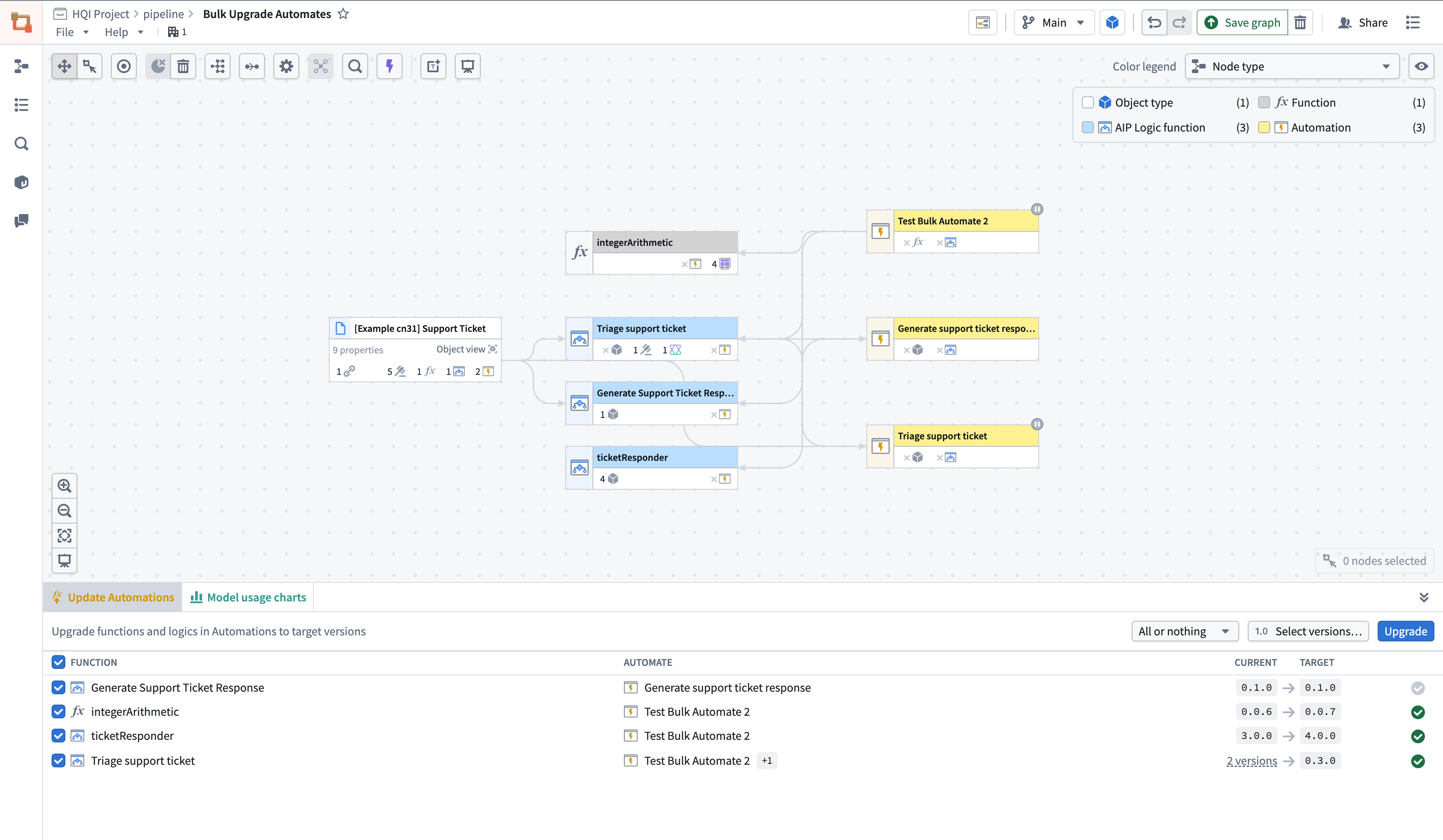
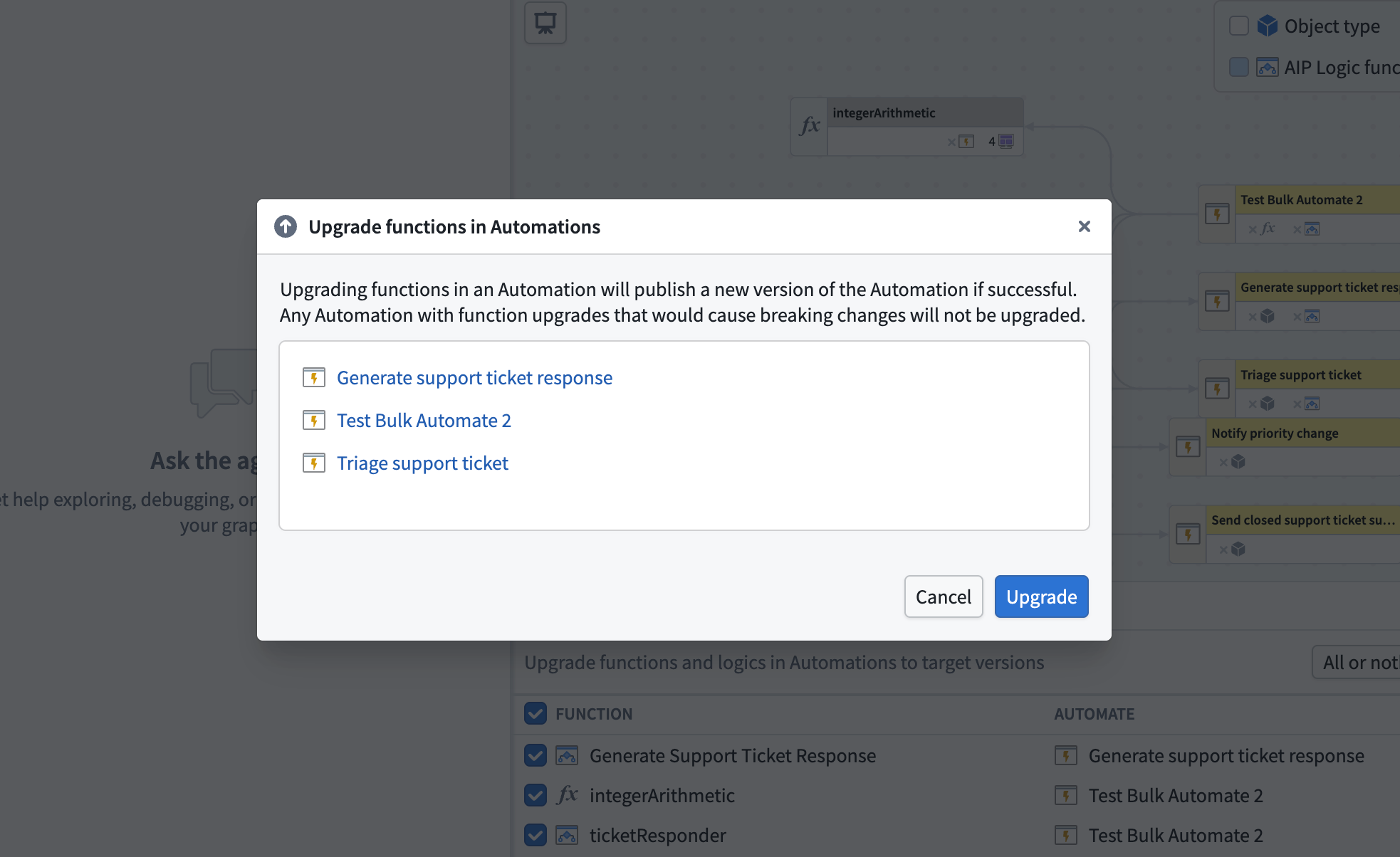
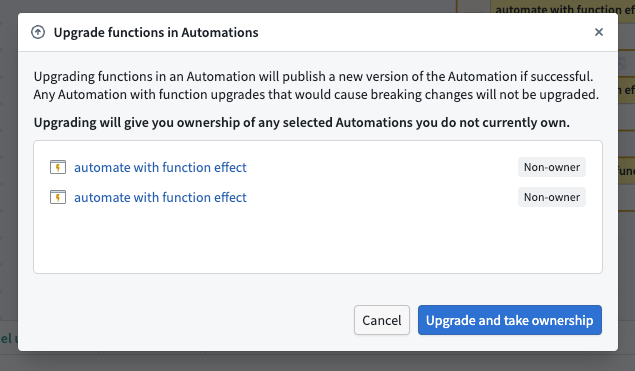
When you select the blue Upgrade option to upgrade your automation functions to the target versions, a pop-up will appear listing which automations will be upgraded.
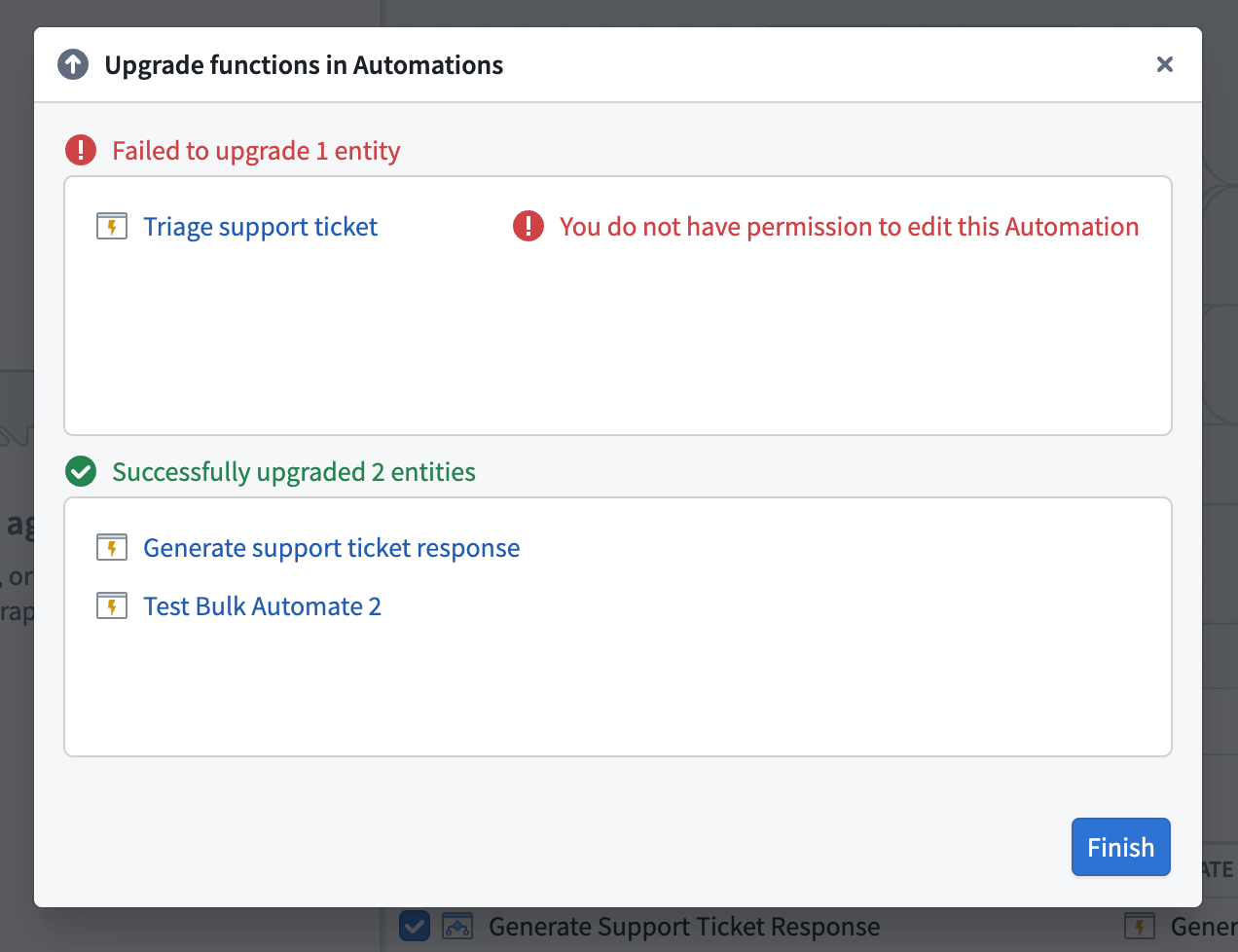
Select Upgrade for the changes to go into effect. A list of successfully upgraded automations and automations that failed to upgrade will appear on the pop-up.
If you are not the original owner of the automations, you have the option to take ownership of the selected automations upon upgrading.
Function-backed and custom widget upgrades in Workshop applications
To upgrade functions or custom widgets used in Workshop applications, open Update Workshop applications on the bottom panel.
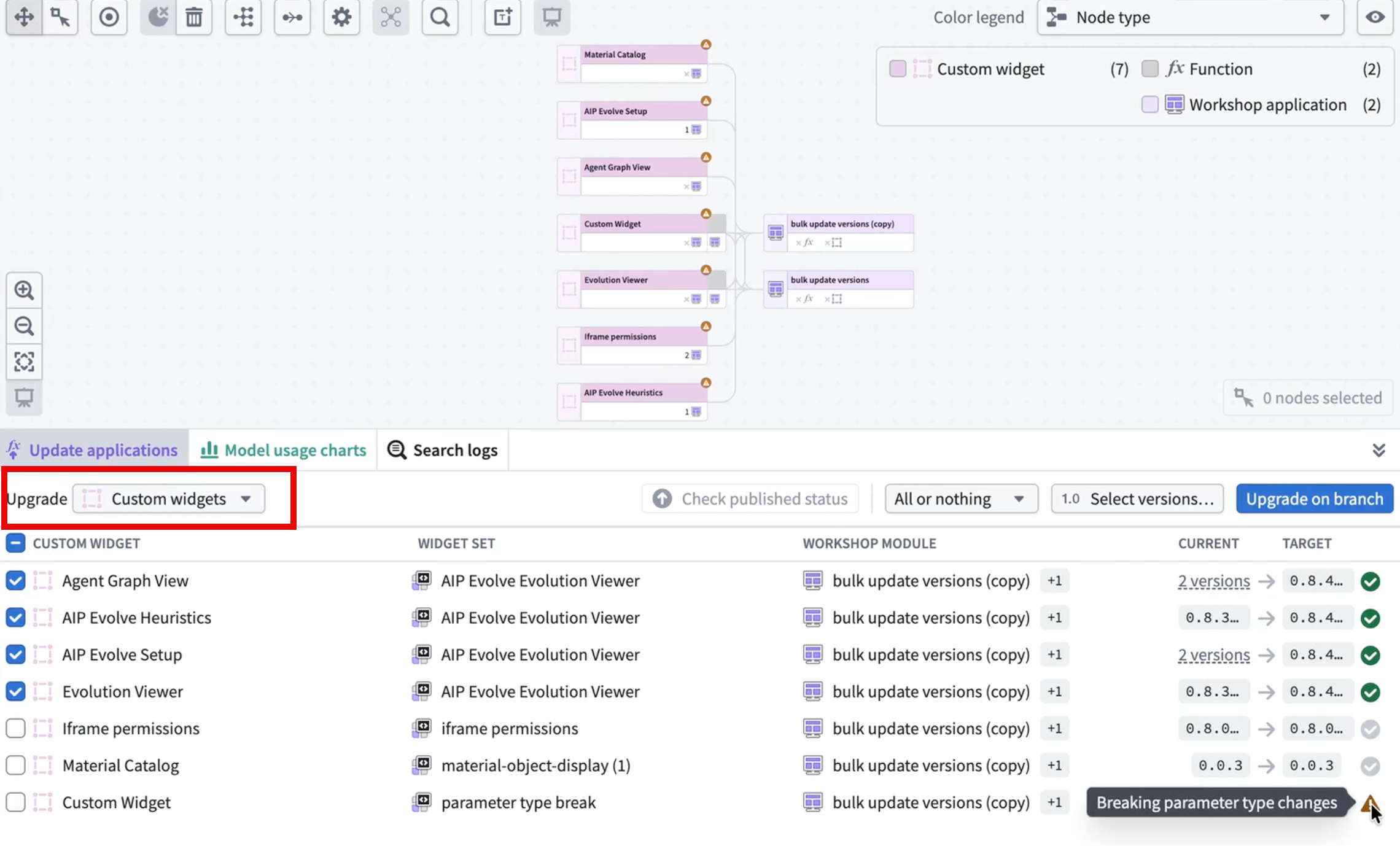
Next to Upgrade, choose which resource you want to upgrade in bulk across your Workshop applications.
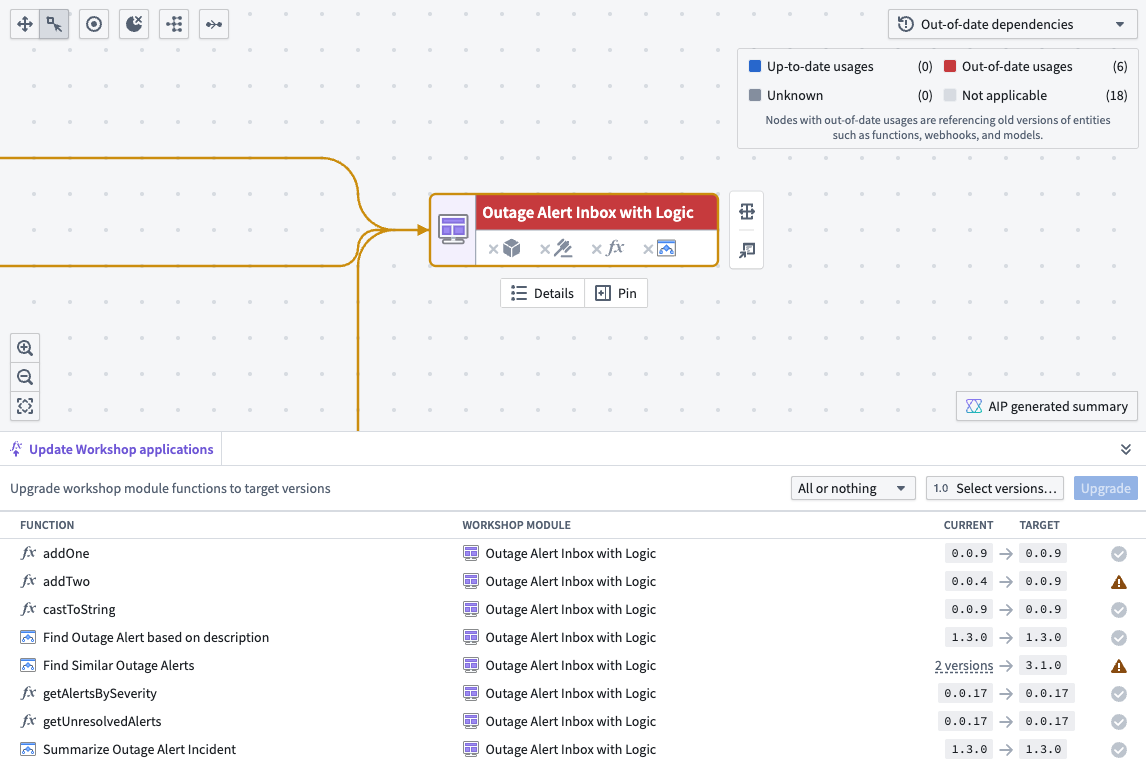
Select the blue Upgrade option to upgrade your Workshop module functions or custom widgets to the target versions. A pop-up will list which Workshop modules will be upgraded.
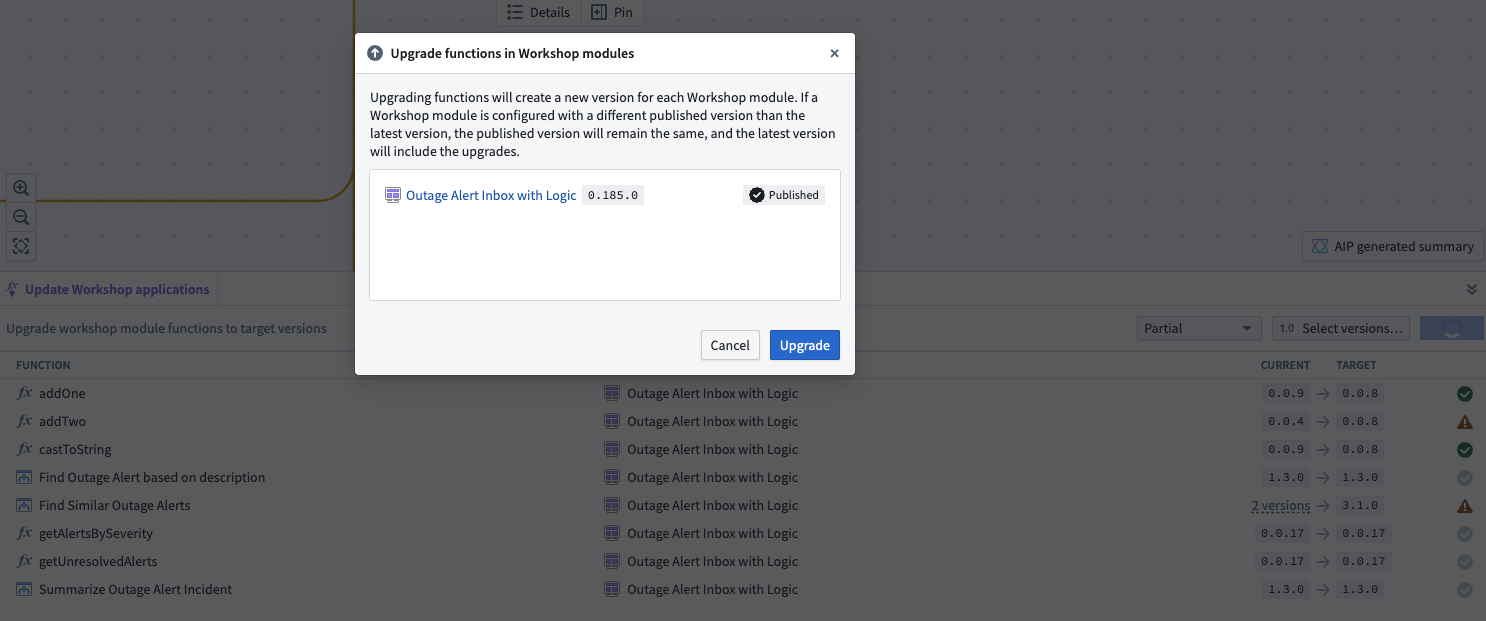
Select Upgrade for the changes to go into effect. The successfully upgraded Workshop application will appear on the pop-up.
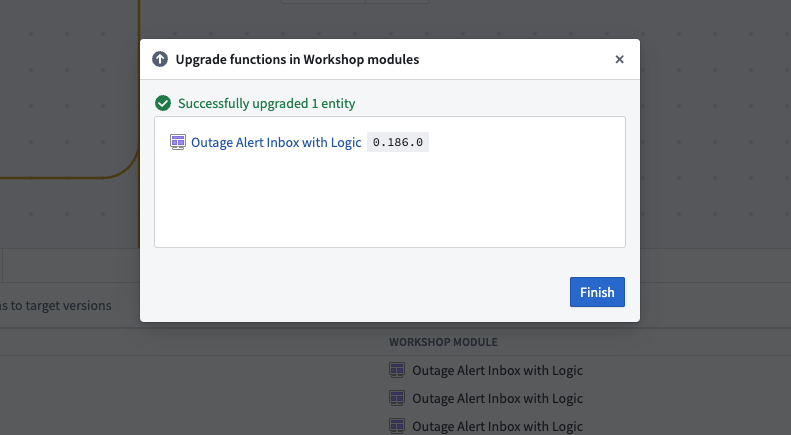
You also have the choice of bulk publishing the Workshop after the functions or custom widgets are updated. Learn how in the documentation on bulk-publishing Workshop applications.
Bulk upgrade custom widgets for Workshop applications
Similar to function-backed Workshop application upgrades, Workflow Lineage lets you bulk upgrade custom widgets in Workshop applications too.
Select the Workshop applications and in the Update application tab, select Custom widgets next to Upgrade.
Convert function nodes to AIP Logic nodes
When a function node is backed by AIP Logic, you can convert it to an AIP Logic node from the graph. After conversion, you can use features available only for AIP Logic nodes, such as bulk model replacement.
To convert a function node to an AIP Logic node:
- Select the function node on the graph that is backed by AIP Logic.
- Right-click to open the node action menu.
- Select the option to convert the node to an AIP Logic node.
After conversion, the node appears as an AIP Logic node on the graph and supports bulk model replacement.
Bulk publish Workshop applications
Workshop applications can be configured to always publish the latest version; Workshop applications that do not automatically publish the latest version can be "bulk published", which will update all selected applications at once. To bulk publish Workshop applications, select the Workshop nodes, then right-click and select Publish [number of] Workshop modules.
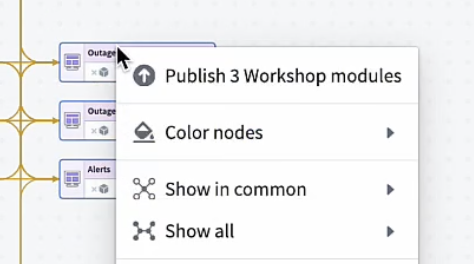
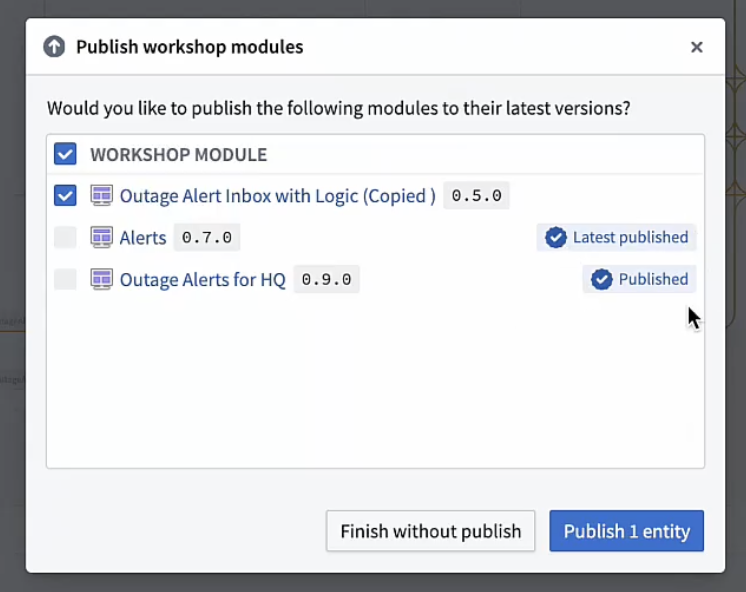
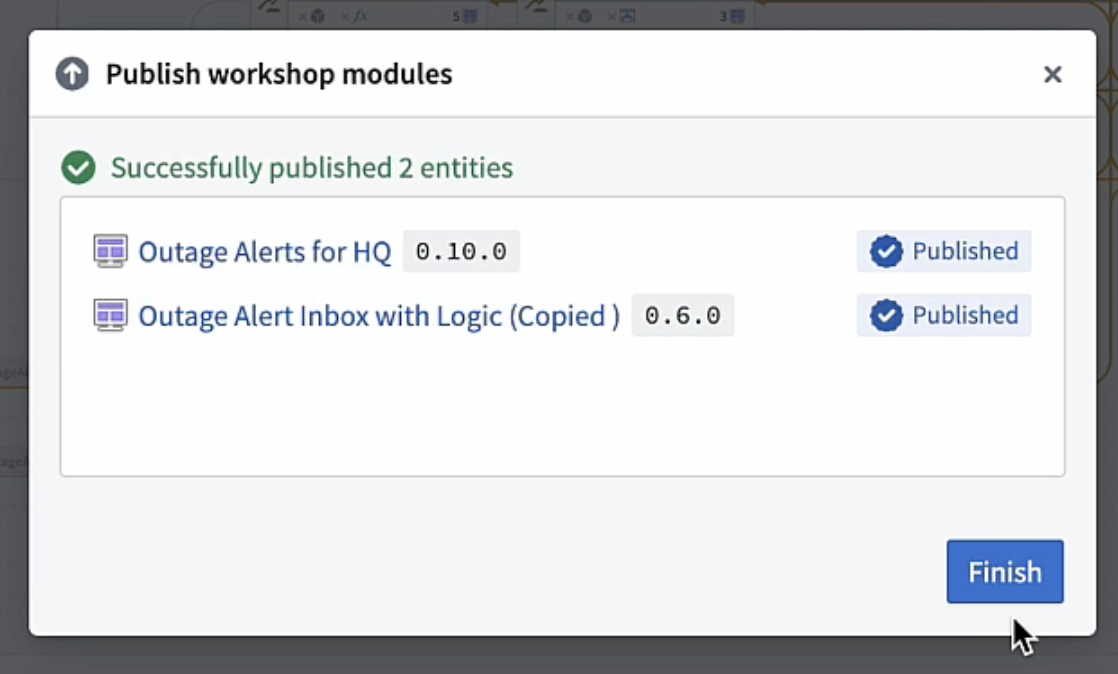
Publishing multiple Workshop modules at once will open a window displaying which of your Workshop applications are already on the latest version. If a Workshop application has a blue checkmark with either Latest published or Published next to it, the workshop is already on the latest version.
Specifically:
- Latest published means that Workshop always automatically publishes the latest version. This is a setting that can be toggled in the Workshop application.
- Published means that Workshop does not automatically publish the latest version, but the application currently has the latest version published.
For Workshop applications that are not Published or Latest published, you can select which applications you want to publish to the latest version and then select Publish [number of] entities.
You can also bulk publish Workshop modules after updating functions in Workflow Lineage. To do so, after updating the functions, select Continue to publish.
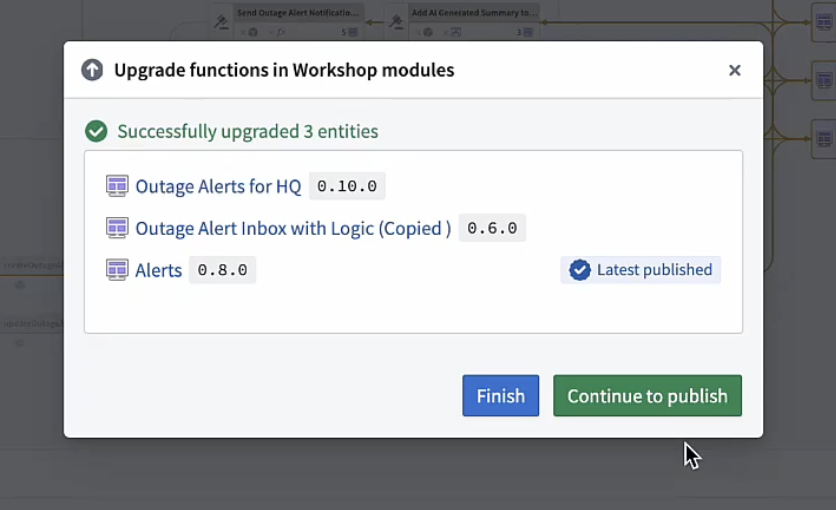
This will bring you to a page with all the Workshop modules that are not yet published to their latest version. Confirm that you want to publish the latest version for these modules and select Publish [number of] entities.
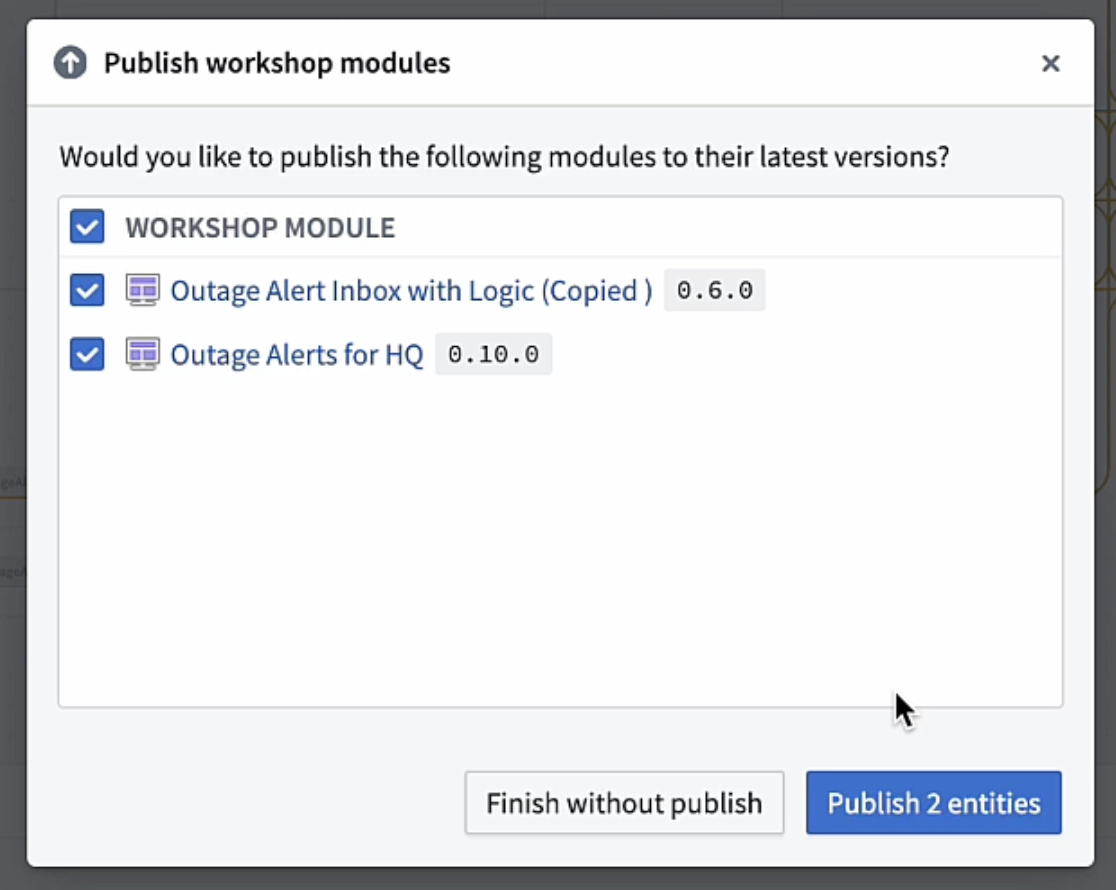
Once this has been done successfully, select Finish.
Bulk replace models
You can replace a model used by multiple AIP Logic functions in a single action from Workflow Lineage instead of opening each function and updating the model individually. This is useful when migrating off a deprecated model or evaluating a new model across a workflow.
Language model nodes include both Palantir-provided and registered models. Both types appear in the graph, search, dependency, details, usage, folder, and permission views with their name, icon, lifecycle state, and dependencies. In the model selector, you can search and paginate each type independently.
Bulk model replacement in Workflow Lineage supports AIP Logic nodes only. Model replacement is disabled when either the source or target model is a registered model.
To replace a model across multiple AIP Logic functions:
- Open your workflow in Workflow Lineage.
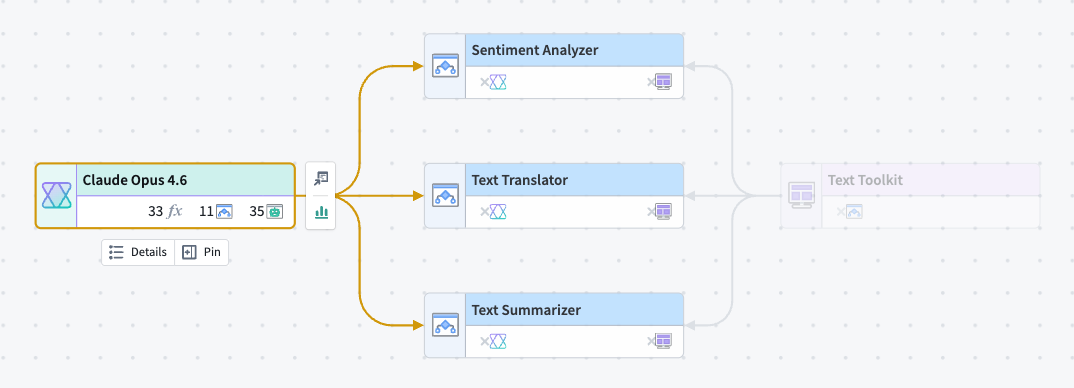
- Select the language model node you want to replace on the graph.
- Add the AIP Logic nodes you want to update to the graph if they are not already present. Select the AIP Logic icon on the model node to filter nodes that consume the selected model directly on the graph. AIP Logic nodes that are not on the graph will not appear in the Replace model tab.
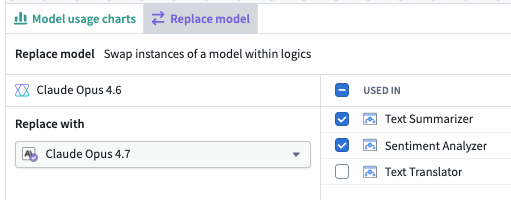
- Open the Replace model tab in the bottom panel. The source model appears on the left, and the AIP Logic functions that use it appear under Used in on the right.
- Select the replacement model under Replace with.
- Use the checkboxes in the Used in list to deselect any AIP Logic functions you want to exclude from the model replacement.
- Select Replace model.
Considerations when replacing models in bulk
- Workflow Lineage skips AIP Logic functions you are not able to edit.
- Workflow Lineage applies the changes directly to the affected AIP Logic functions. There is no proposal or review step.
- Graph connections may take a moment to refresh after a successful replacement.
- Replacement models must be Palantir-provided.
- Model replacement is disabled when either the source or target model is a registered model.
Bulk delete objects and actions
To bulk delete objects and actions, select the nodes on the graph, right click, and select Delete resources.
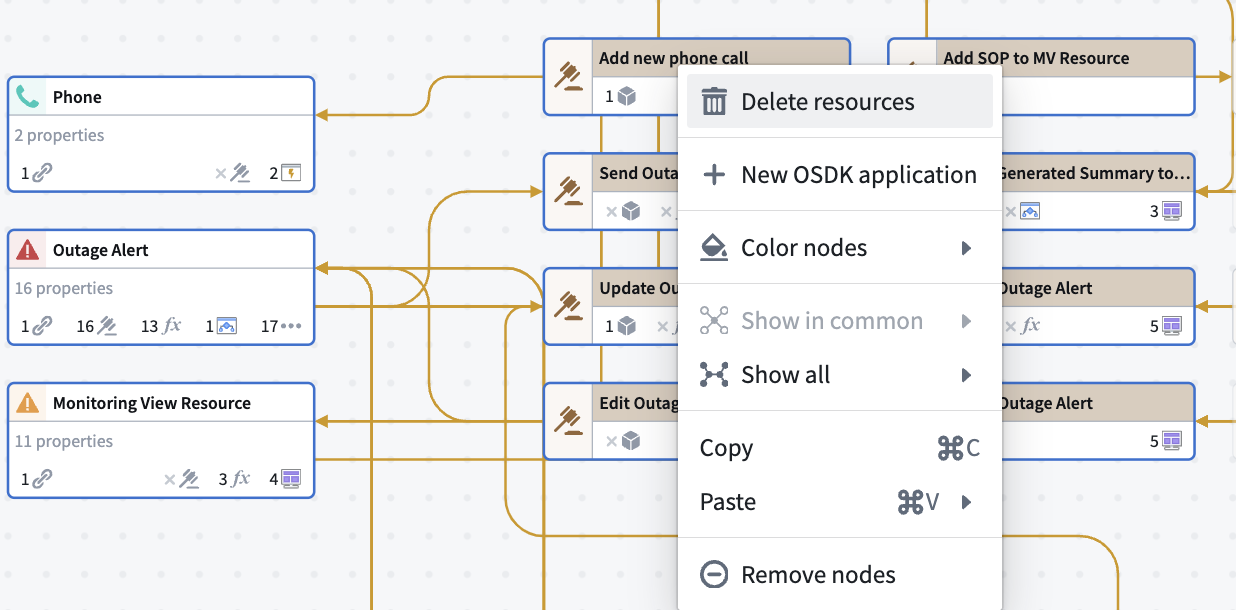
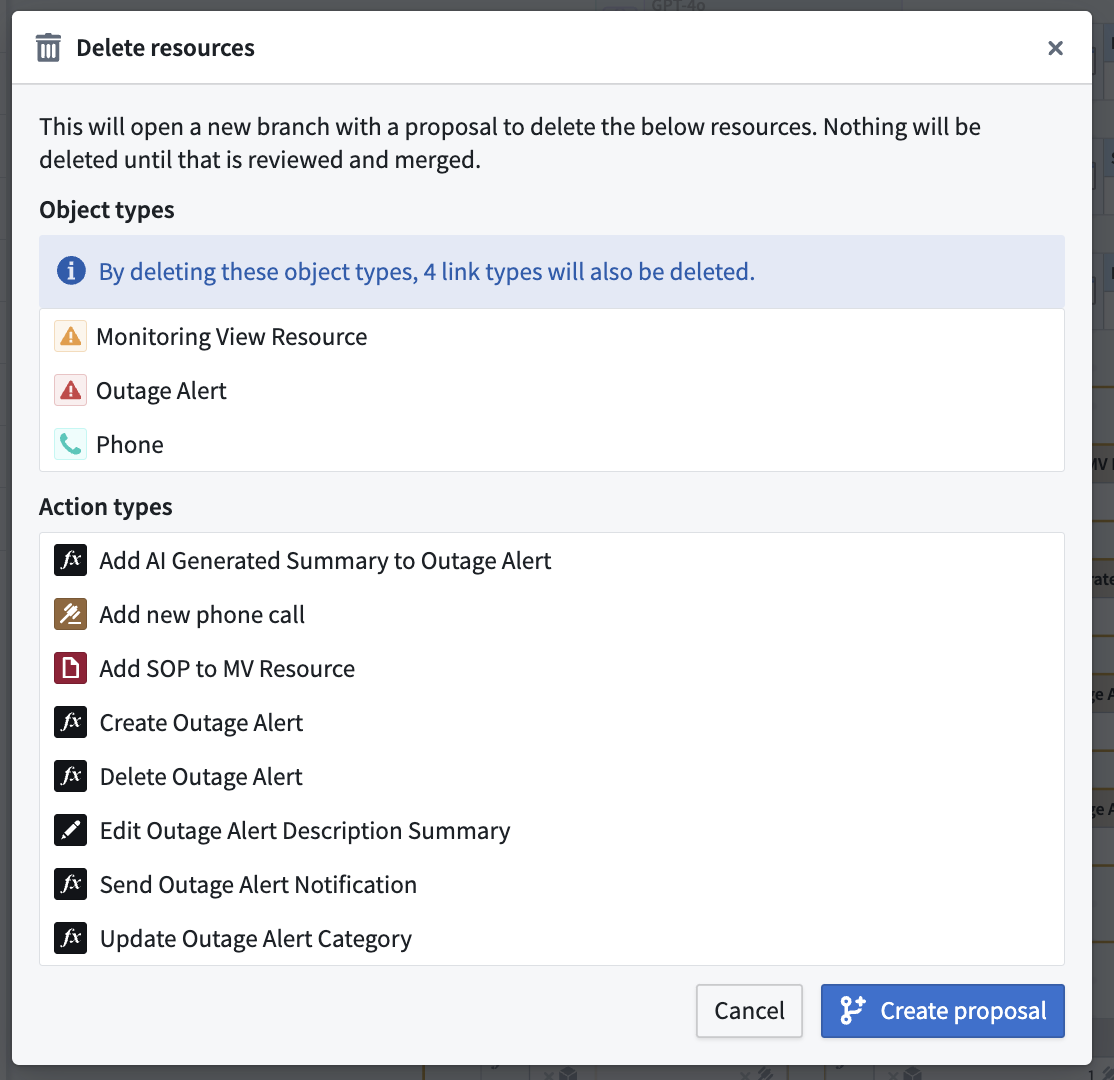
This will prompt you to create a proposal. You will also see the number of link types associated with the objects being deleted. These links will also be included in the deletion proposal.
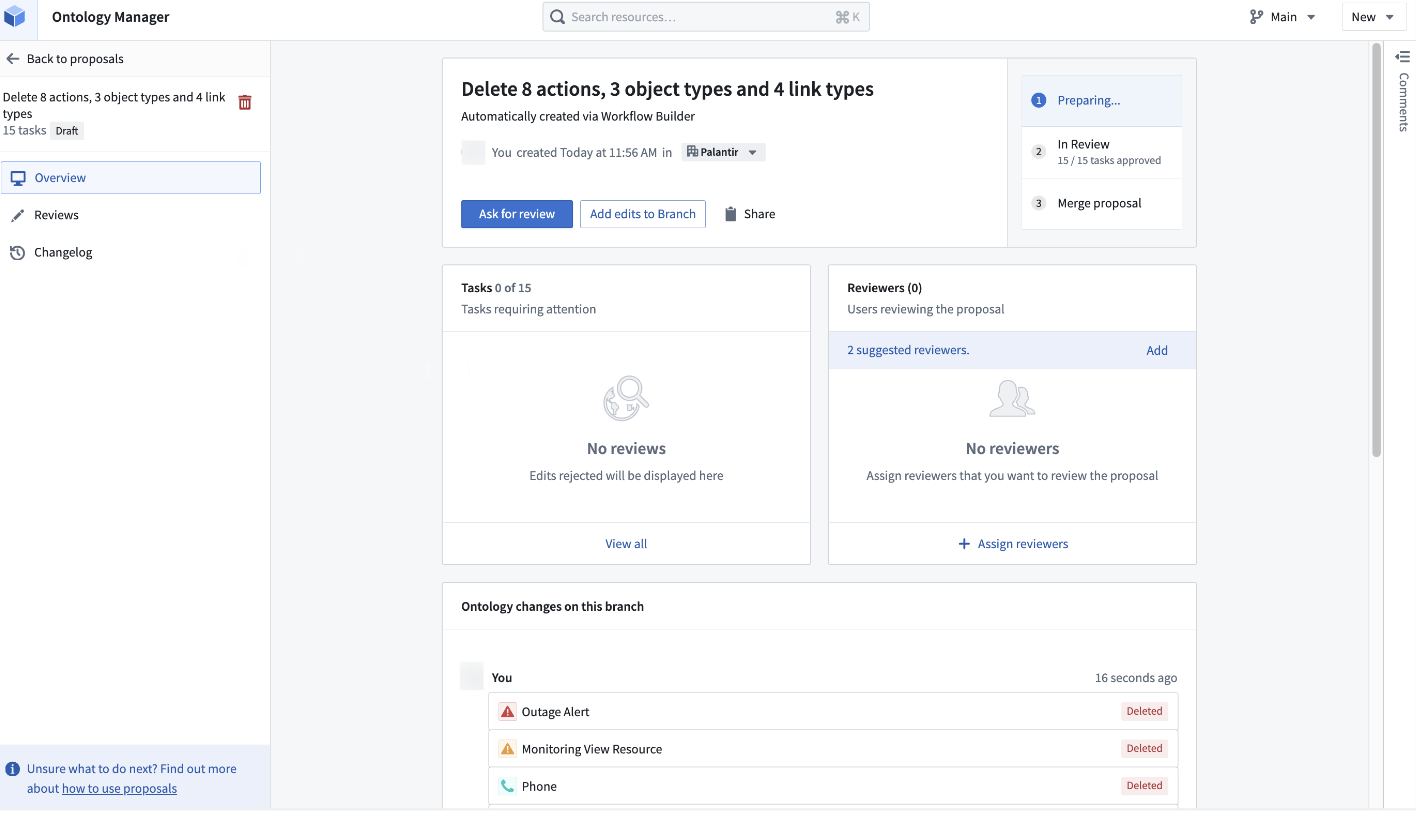
Follow the prompt in Ontology Manager to merge the proposal.
Bulk move resources
You can move multiple Compass resources to other projects or folders from Workflow Lineage.
To bulk move resources:
- Select the resources you want to move on the graph.
- Right-click and select Move resources.
- Review Resources to move and Skipped, including the reason each skipped resource cannot be moved.
- Select Next.
- Choose the destination project or folder to move the eligible resources.
Marketplace products
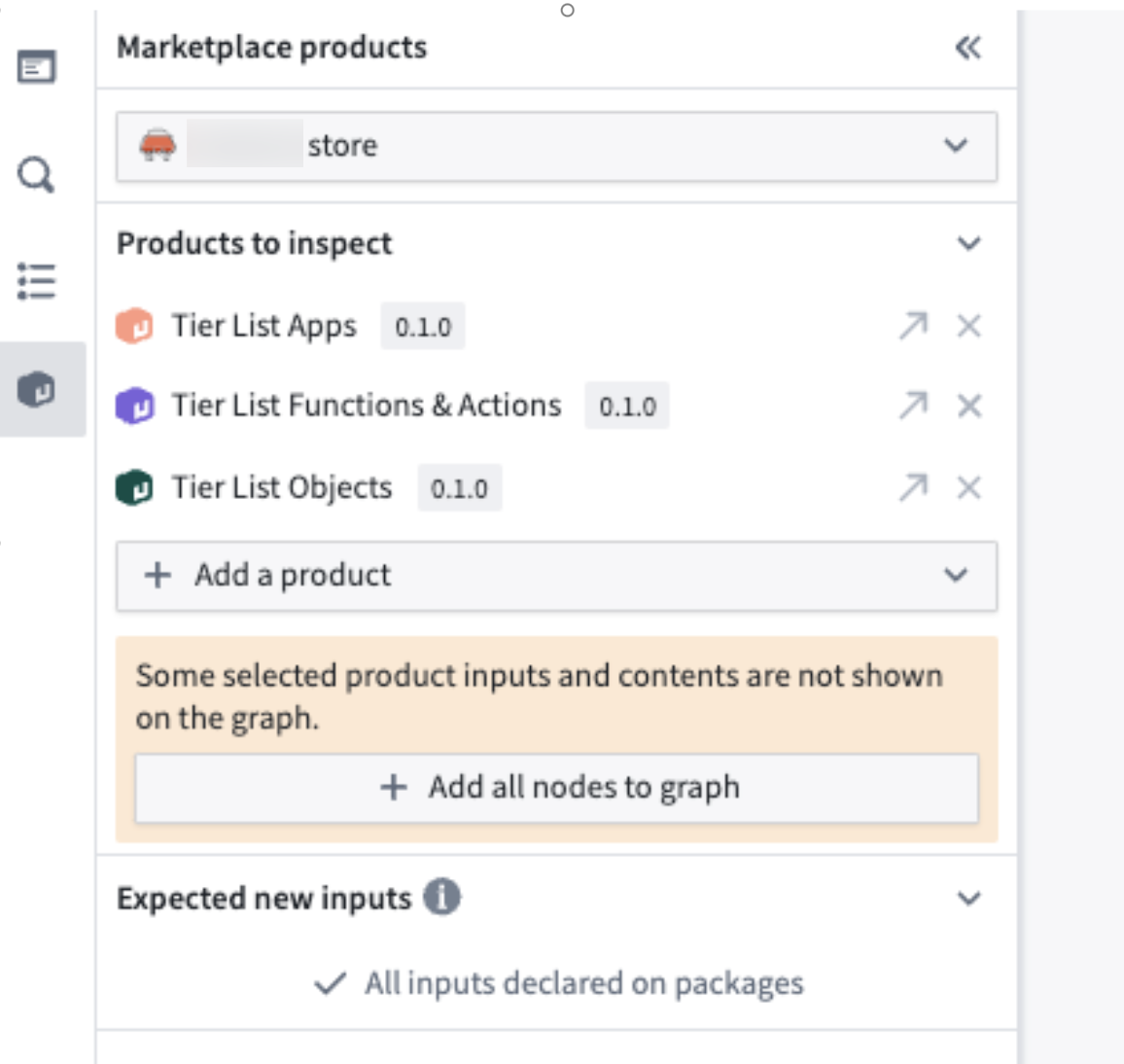
The Marketplace products sidebar helps you inspect and confirm that Marketplace products have the right inputs, no resources are missing, and all resources are in the expected packages. This feature is especially helpful for packages you created that are publishing elsewhere.
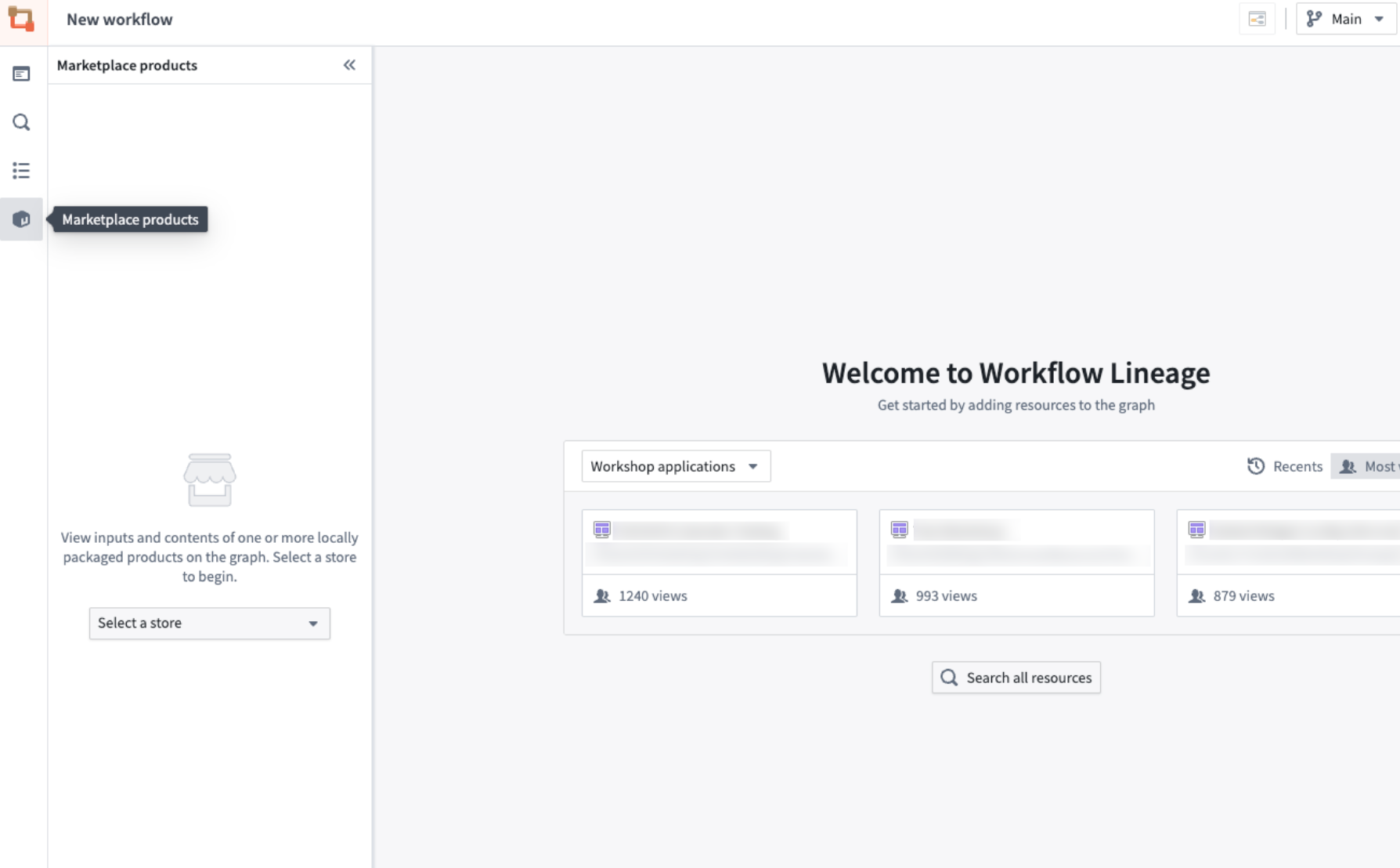
Navigate to the Marketplace products sidebar and choose your store in the dropdown menu. The sidebar will only search local stores and not remote stores.
Select Add a product to add the products you wish to inspect, and add all corresponding nodes on the graph by selecting Add all nodes to graph.
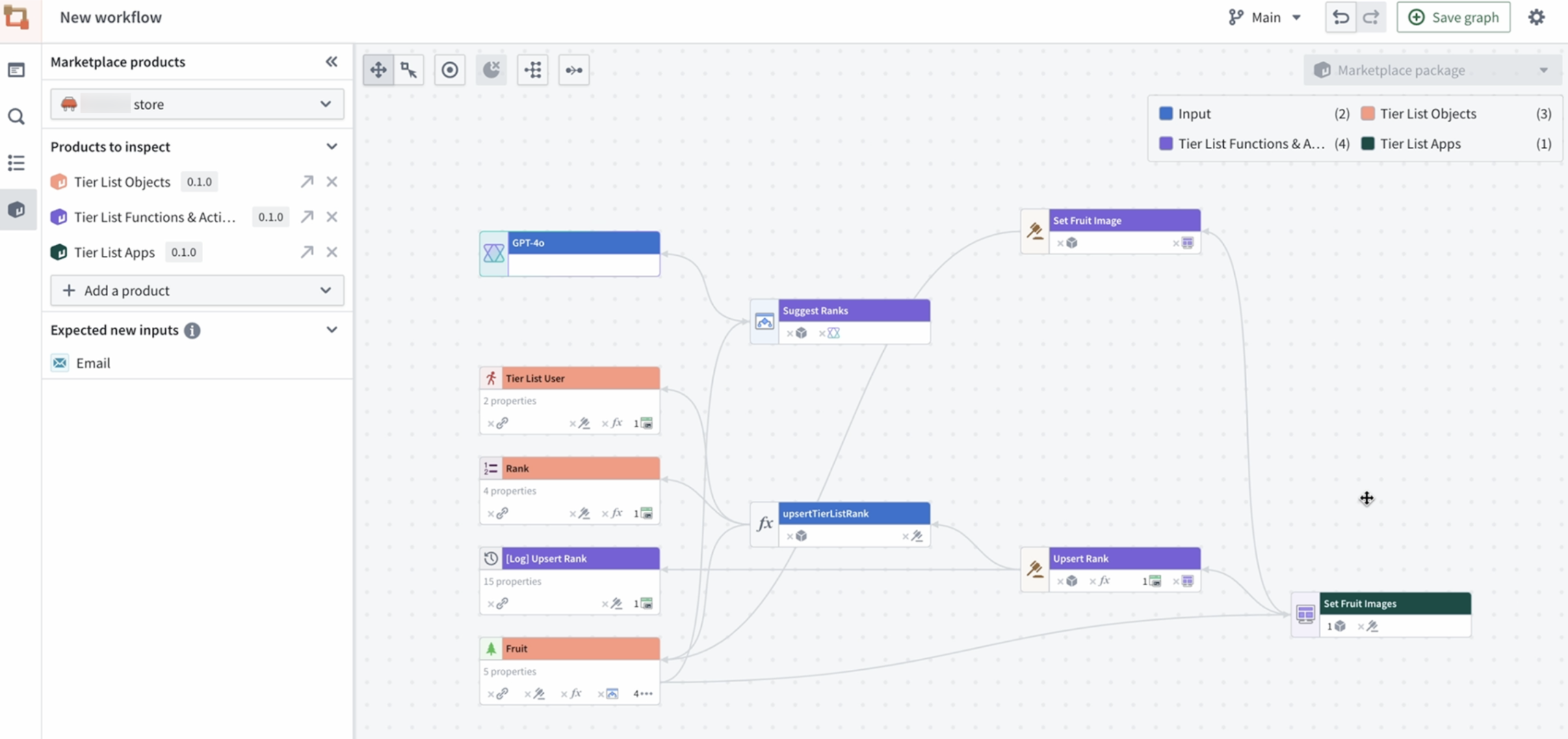
A Workflow Lineage graph will populate, colored by which package the resources are in and whether the resources are inputs to a specific package.
In the example below, the function upsertTierListRank is listed as an input; however, the function should be packaged because it is used in an action that is packaged. Additionally, the [Log] Upsert Rank object ended up in Tier List Functions & Actions instead of the Tier List Objects. A flag also shows that the model GPT-4o is required to use the logic function.
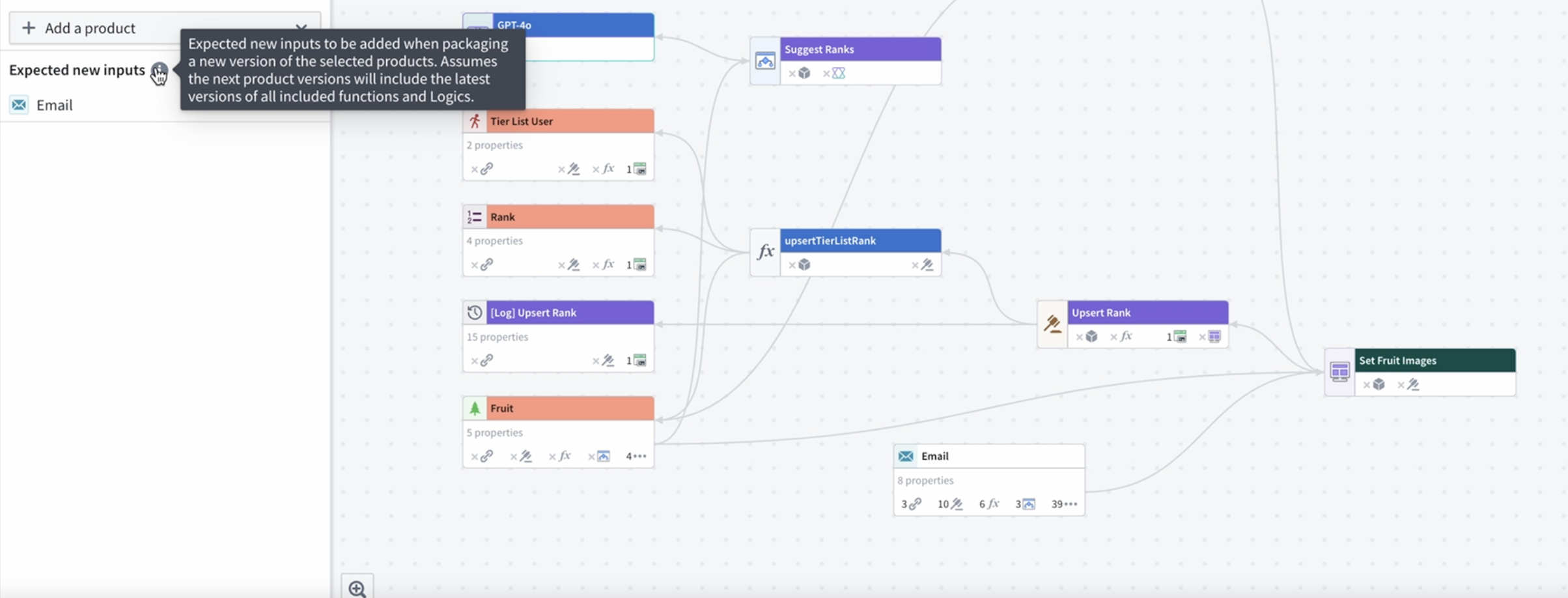
On the left panel, a list of expected new inputs to your package is displayed. In the example below, the Email object feeds into the Set Fruit Images Workshop module, so it should be included in future packages.
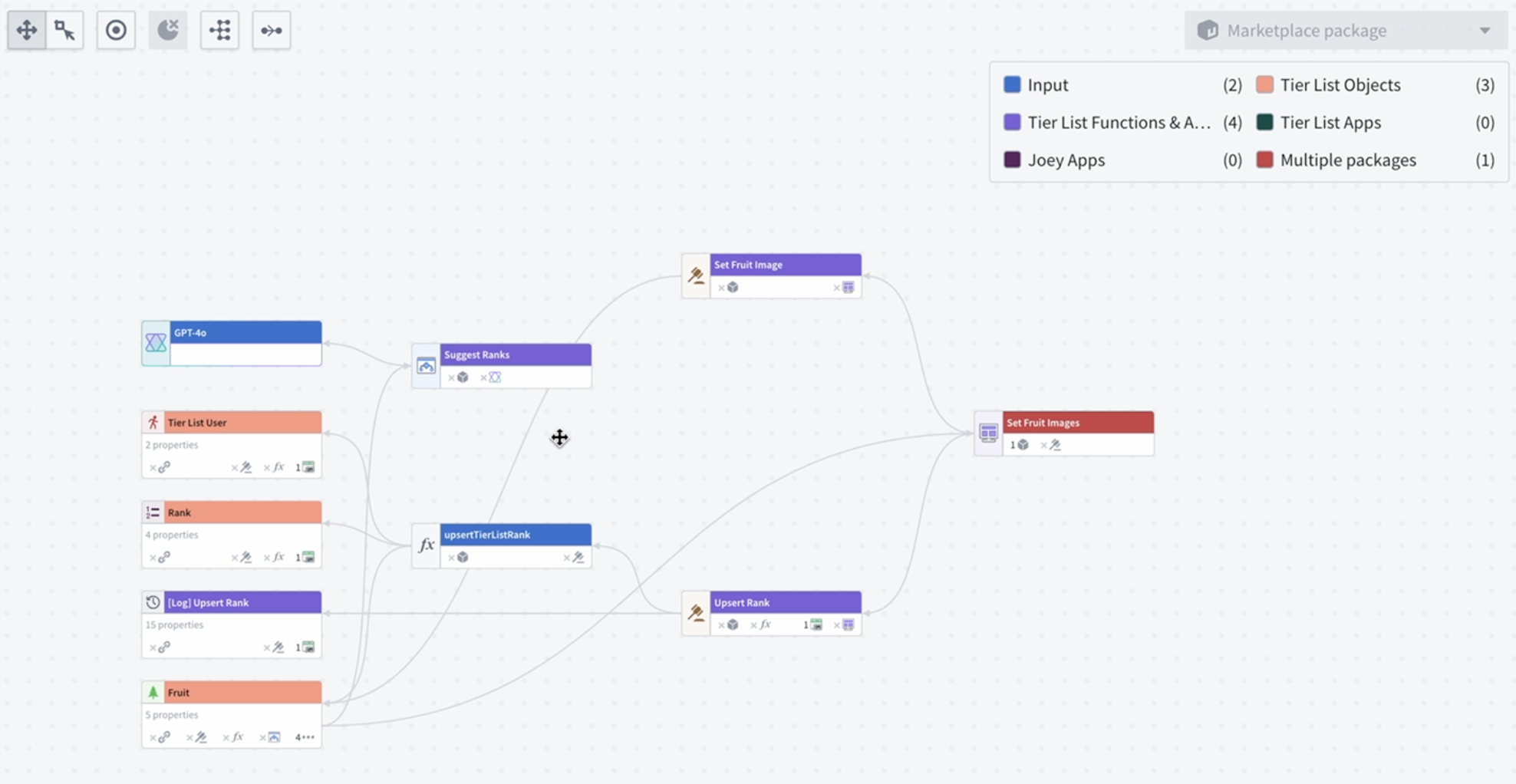
The color legend will also show package overlaps with the Multiple packages key.
Additional workflow updates
You can also update workflow security in Workflow Lineage. See how to bulk update Ontology roles on workflow resources and action submission criteria.