- Capabilities
- Getting started
- Architecture center
- Platform updates
Workflow Lineage
Workflow Lineage, previously known as Workflow Builder, provides an interactive workspace for understanding and managing applications and their underlying processes.
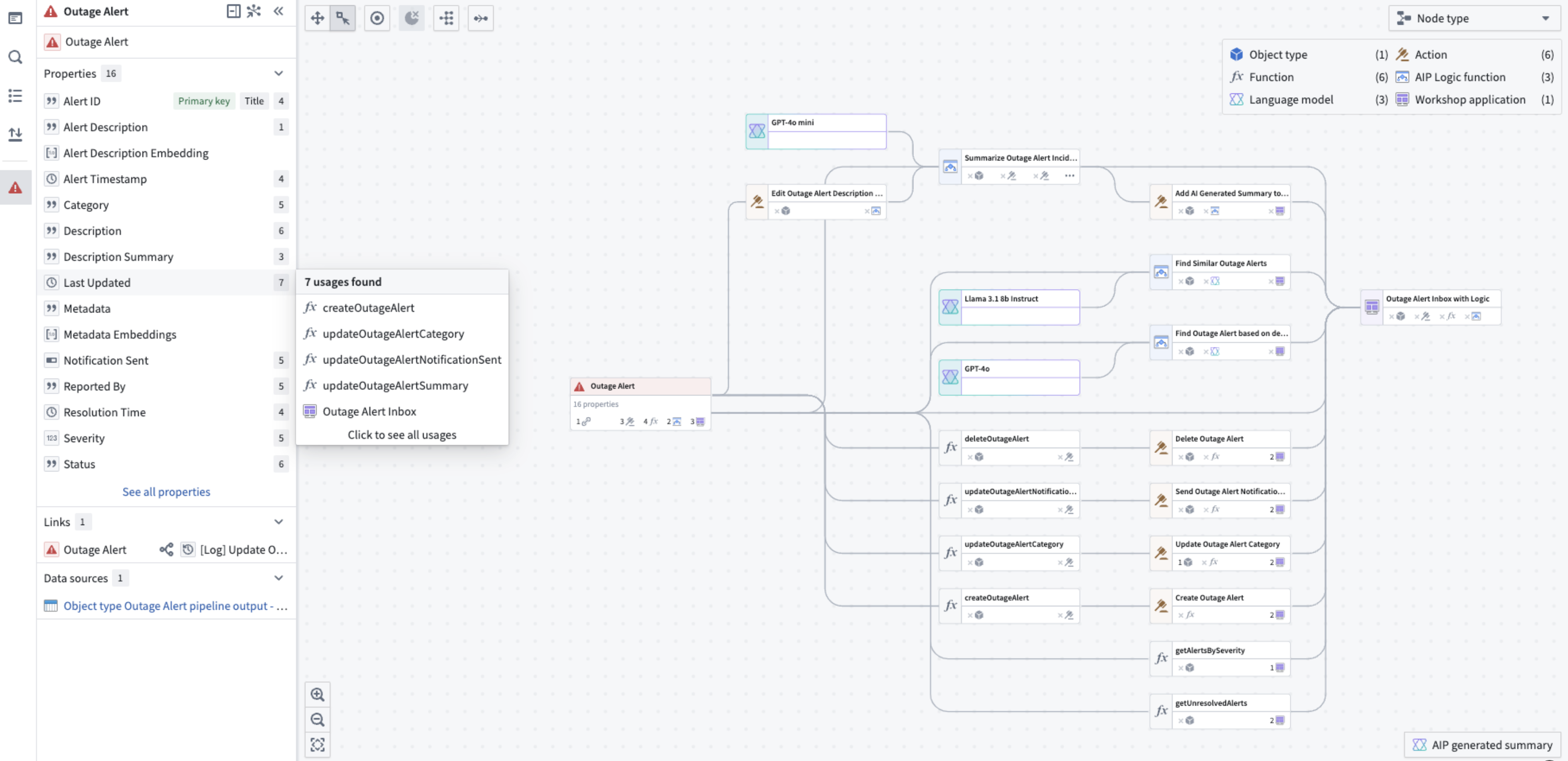
With Workflow Lineage, you can perform the following:
-
Explore workflows to see details about objects, actions, functions, interfaces, custom widgets, applications, trained models, Palantir-provided and registered language models, and resources such as Workbench boards and Gaia Maps, including:
- API names
- Inputs
- Ontology edits
- Submission criteria
- Code snippets
-
View model lifecycle stages, such as experimental, deprecated, or sunset, directly in search results.
-
For a specific column in an object, view all usages downstream including dependent actions and Workshop applications.
-
View weekly usage metrics for Workshop applications, including total and unique views.
-
Use the color legend to view metadata about your workflow organized by category, including node types, permissions, usage metrics such as application views and last reindexed status, and organizational structure.
-
Use presentation mode to create and organize visual snapshots of your workflow graph.
-
Bulk select actions to update the actions to a specific version simultaneously.
-
Bulk replace models across multiple AIP Logic functions to migrate off deprecated models or evaluate new models across a workflow.
-
Trace dependencies between functions and trained models, and inspect a trained model's API and live deployment from the graph.
-
Update submission criteria directly without creating a proposal.
-
Work on global branches to inspect, edit, and validate workflow resources before merging changes into
main. Learn more about Branching in Workflow Lineage. -
Search service logs produced by a resource to investigate recurring errors or intermittent issues.
-
Visualize cross-ontology relationships by displaying resources from multiple ontologies on a single graph.
Workflow Lineage is particularly suitable for the following users:
- Application builders that are creating, debugging or maintaining workflows. The graph of provenance, deeper property and workshop widget/variable provenance, and upgrade tooling are all helpful when making changes to or extending a workflow.
- New builders that want to learn from existing workflows to answer the question “What parts of the Ontology are used in this workflow, and how?"
- Users that are presenting existing workflows: The graph provides a high-level overview of the Ontological resources used which can be a helpful presentation and teaching tool when sharing workflows with others.
When to use Workflow Lineage
The intent of Workflow Lineage is to help understand, manage, and debug workflows. Workflows typically span a spread of ontology resources and often flow into an application. As such, Workflow Lineage is complementary to Pipeline Builder and Data Lineage:
- Pipeline Builder: Integrating data from raw sources into the Ontology.
- Workflow Lineage: Management of workflows built on top of the Ontology.
- Data Lineage: An end-to-end view of data flowing from source, to Ontology, through to workflow.
For example, to review the schedules for data flowing into an object type, right-click the object type in Workflow Lineage and open it in Data Lineage. You can also open Pipeline Builder object types in Workflow Lineage from Pipeline Builder.
Learn how to get started with Workflow Lineage.
Access control
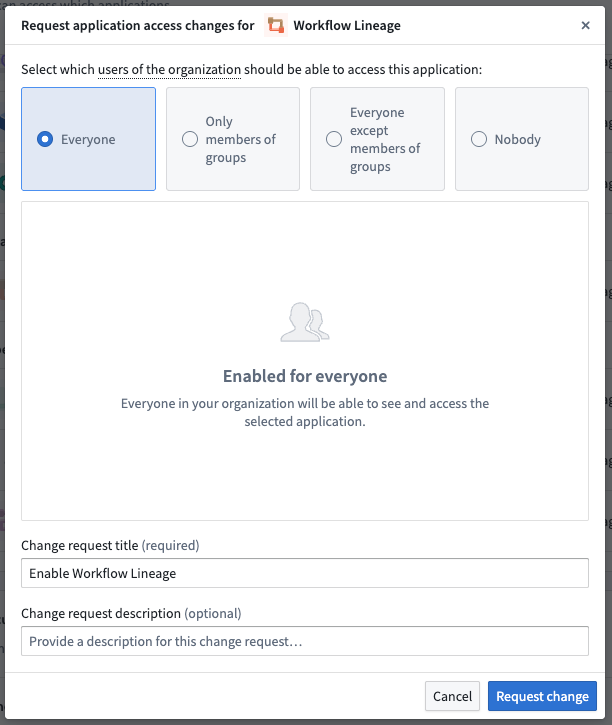
You can control which users in your organization have access to Workflow Lineage in Control Panel. If Workflow Lineage is not yet enabled for your enrollment, contact your platform administrator to modify application access.
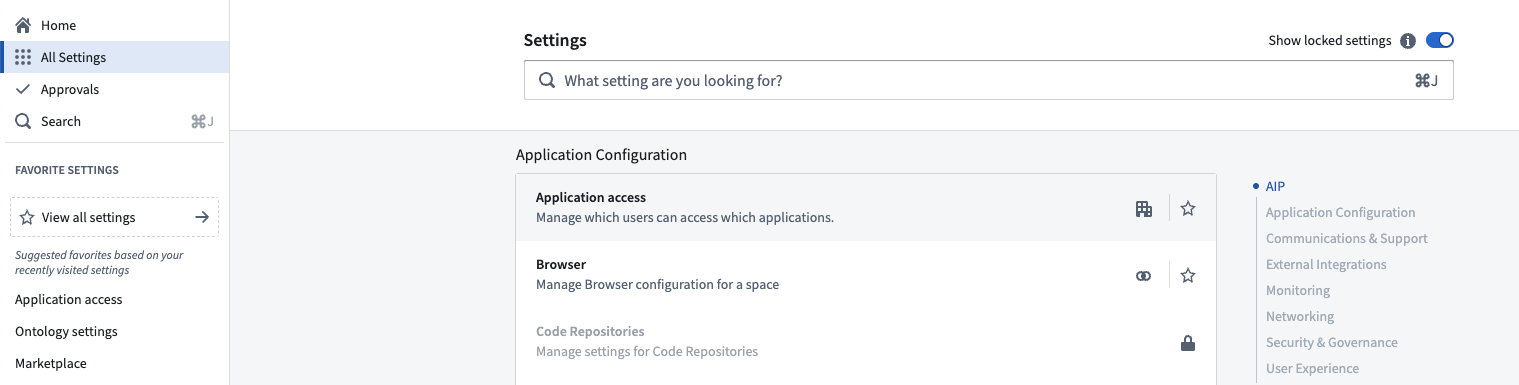
On the Application settings tab of Application access, navigate to the Ontology section. Select Manage to the right of the Workflow Lineage entry.

Select Manage to open up a window where you can configure your enrollment's preferences.