- Capabilities
- Getting started
- Architecture center
- Platform updates
Kanban board view
The Kanban board view displays your automation workflow as a state machine, where each column represents a state and each card represents an individual object in that state. This view helps you understand the current distribution of objects across your workflow and quickly identify bottlenecks or objects requiring attention.
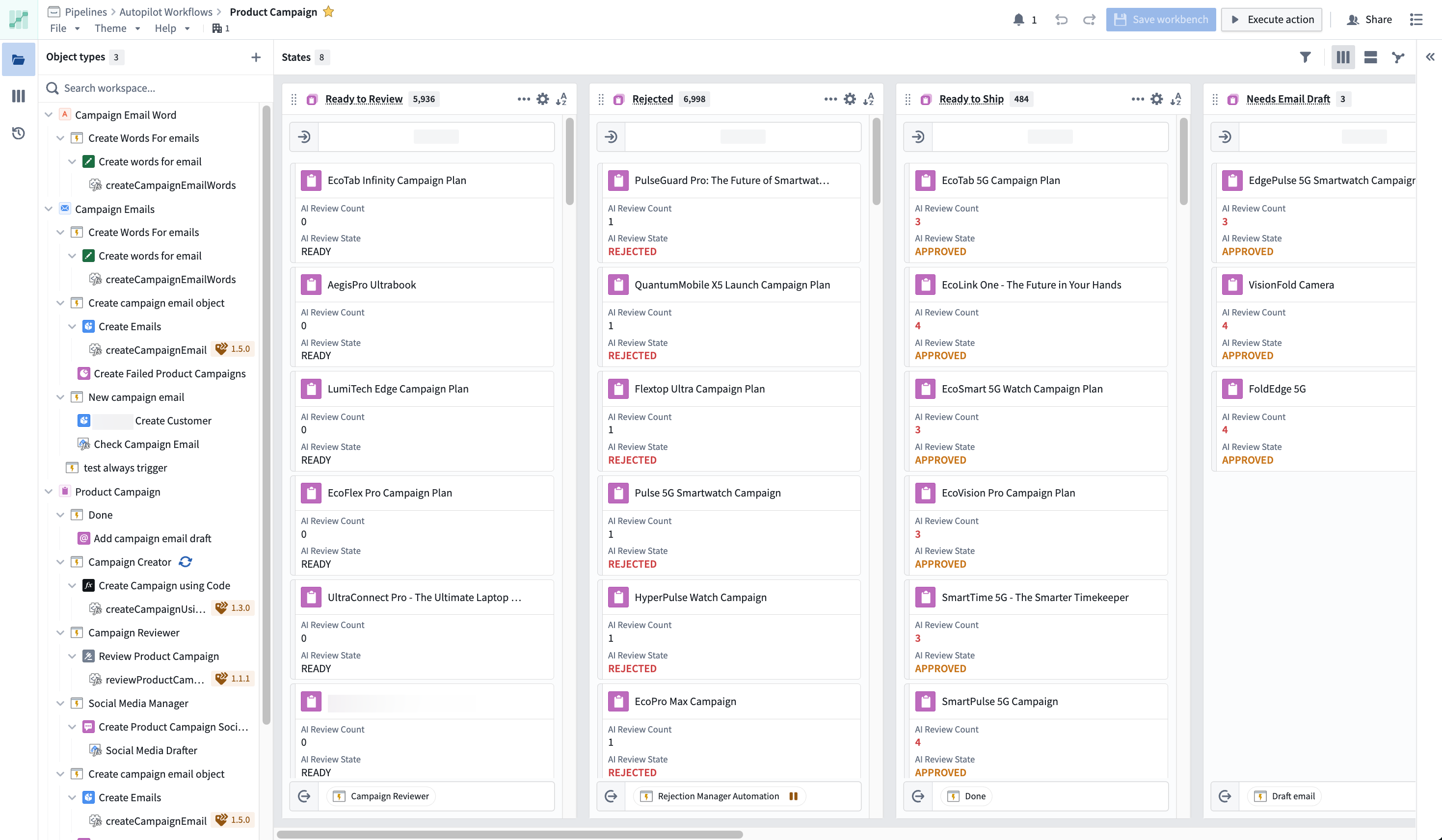
States and columns
Each column in the Kanban board represents a state in your workflow. States are automatically inferred from your automations or can be manually defined. In the States sidebar, you can add, delete, configure, and reorder states. To add a state directly from the board, scroll to the far right side and select + Add state.
Configure states
Choose a state in the States sidebar or select the cog button in the top right corner of a column. Learn more about configuring states.
Object views
Each card in a Kanban column represents a single object and displays its title, configurable properties (defined in Ontology Manager), and visual indicators for status and activity. You can configure which properties appear on cards and set conditional formatting in Ontology Manager. Autopilot renders the panel object view for an object in the sidebar when available.
Inspect objects in the side panel
Select any object in the workbench to open a rich detail view in the right side panel:
-
History: View the complete edit history for the object, including:
- Current state(s)
- Properties changed over time
- Who or what made changes (an automation, Workshop application, or user action), including the object that triggered the action
- Links to object executions for automation-driven changes
-
Object preview: Full object preview and metadata.
Take action on objects
From the Kanban board, you can:
- Filter to linked objects: Right-click an object and select to filter the workbench to display only objects linked to the selected object.
- Retry automations: Manually trigger automation retries on specific objects.
- Copy values: Quickly copy the object title or other prominent properties.
Liveness indicators
When automations are actively processing, the Kanban board shows real-time indicators: a spinning icon appears in the column header next to the executing automation, and an animated indicator appears on the left edge of any card currently being processed.