- Capabilities
- Getting started
- Architecture center
- Platform updates
Provide context and attachments
Pilot produces better results when you provide relevant context alongside your prompts. This page describes the types of context you can attach and best practices for effective prompting.
Ontology context
You can attach existing ontology entities to your prompt, allowing Pilot to use an existing data model instead of creating duplicate entities. This is especially useful when building an application that extends or integrates with data already in your ontology.
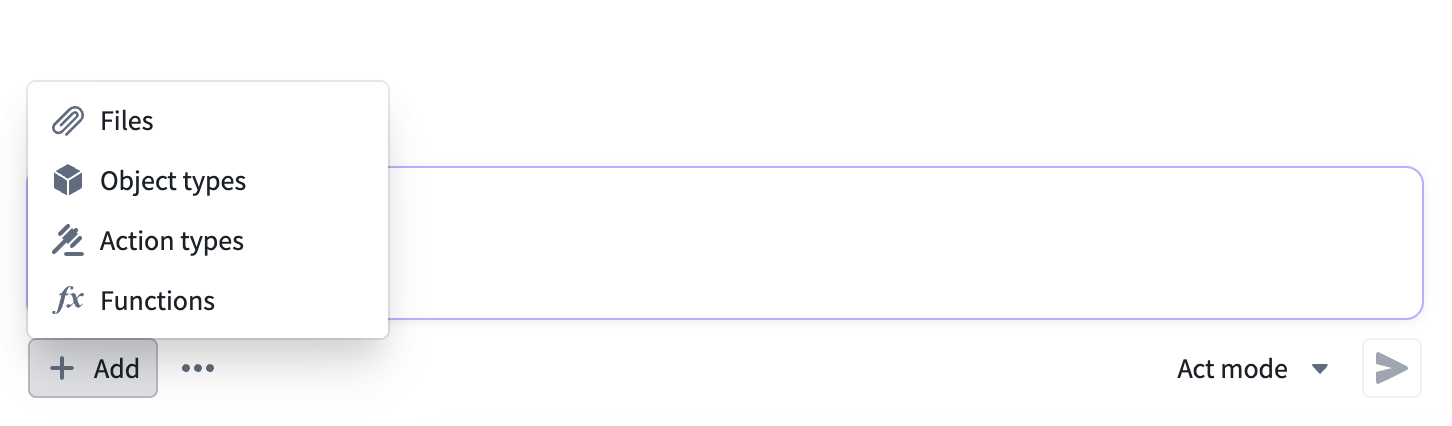
Attach ontology context using the steps below:
- Select Add in the chat panel.
- Choose the type of entity to attach:
- Object types: Existing object types from your ontology
- Action types: Existing action types from your ontology
- Functions: Existing Foundry functions (when available)
- Search for and select the entities you want to include.
On the welcome screen, use Add context > Add object types or Add context > Add action types. Open an entity to inspect its details, choose Select, and then choose Confirm selection to attach it. In the action selector, filter by the affected object type to find its actions.
Selected entities appear as tags in the context area below the prompt input. Each tag displays the entity name and an indicator for edit permissions.
Document uploads
You can upload documents to provide additional context for your application. Supported formats include:
- PDF: Requirements documents, specifications, data dictionaries
- Markdown: Technical documentation, API references
- Plain text: Notes, requirements, or any text-based reference material
To upload a document, select Add in the chat panel and choose Files. You can also drag and drop files into the chat panel or paste content from your clipboard.
Pilot reads the uploaded documents and uses them to inform your application's design and implementation.
Image uploads
You can upload images to guide Pilot's design and layout decisions. Common use cases include:
- Screenshots of existing applications you want to replicate or improve
- Wireframes and mockups showing desired layouts
- Design system references showing color palettes and component styles
Pilot interprets uploaded images and incorporates visual elements into front end generation. To upload an image, select Add and choose Files, or paste an image directly from your clipboard.
Notepad documents
When Notepad documents is available in Add, select an existing document and include it with your prompt. State how Pilot should use it, such as following the requirements in a particular section.
If this option is unavailable, use a supported file attachment for the relevant content.
Select an element from the preview
When element selection is supported:
- Load the application preview.
- Select the element-selection control beside the prompt input.
- Select the element you want to change.
- Add a comment or describe the change in your prompt.
- Review the attached element context, then send the prompt.
For example: Align this filter with the table header and shorten its label to Status.
Element selection depends on the repository's preview capabilities. If the control is unavailable, describe the element or attach a screenshot instead.
Dictate a prompt
When transcription is available, select Record audio, speak your request, then select Stop recording. Review and edit the transcription before sending it.
Recording requires microphone access. Finish recording and transcription before submitting the prompt.
Effective prompting tips
The quality of your prompt directly affects the quality of the generated application. Consider these guidelines:
- Be specific about the data model: Describe the entities, properties, and relationships your application needs. For example, instead of
Build a project tracker, tryBuild a project tracker with projects that have a name, description, status (Active, Completed, On Hold), and a list of tasks with priorities and due dates. - Describe user workflows, not just screens: Explain what users should be able to do, not just what the interface should look like. For example:
Users should be able to filter tasks by status and assignee, drag tasks between status columns, and receive a notification when a task is overdue. - Reference uploaded context: When you attach documents or images, describe what they contain and how Pilot should use them. For example:
Use the attached wireframe as the layout for the main dashboard. The sidebar should match the navigation structure shown in the image. - Iterate incrementally: Start with core functionality and add features through follow-up prompts rather than trying to describe everything at once.