Bundle chunking
Bundle chunking allows Bundles to be split into multiple files that can be imported individually — and out of order — into a Target Hub. Once you have imported all chunks of a Bundle to the Target Hub, the Bundle will then be processed.
Bundle chunking is helpful when you have a physical limit on the transfer medium, such as 4GB DVDs, or have reliability issues related to downloading and uploading large Bundles, for example, 10 GB+. This guide will walk through how to set up Bundle chunking.
Prerequisites
You must have an Export Pipeline to set up Bundle chunking. Learn more about creating Export Pipelines.
Set up Bundle chunking
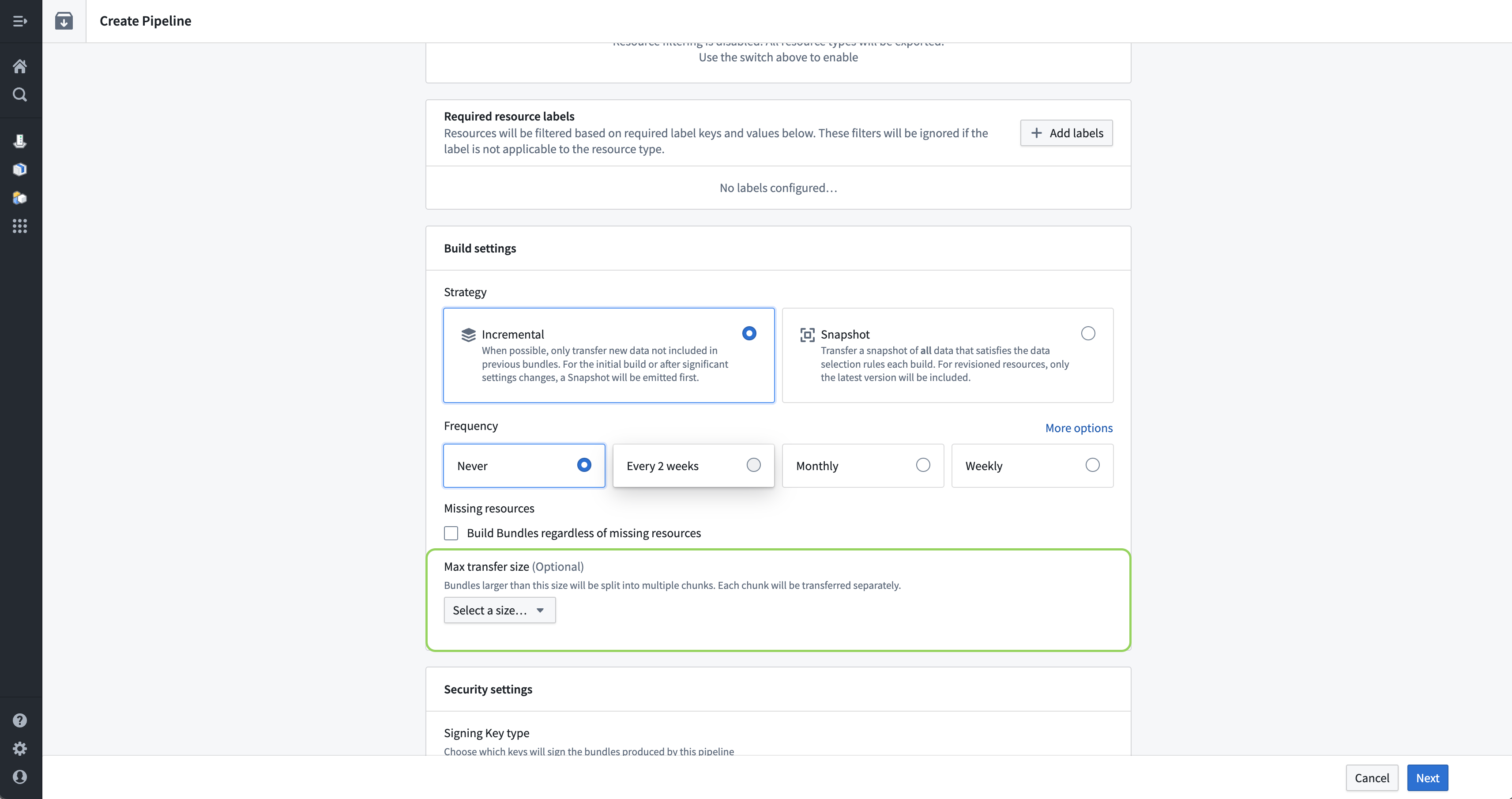
- Navigate to the Export application and select an Export Pipeline. In the Build settings section of the Pipeline settings, input a Max transfer size between 4 to 16 GB. Note that if the size limit is changed in the future, the updated maximum transfer size will only apply to Bundles created after the setting is changed. As such, it is best to set a good initial value that works, for example, 4 GB is the typical size of a DVD.
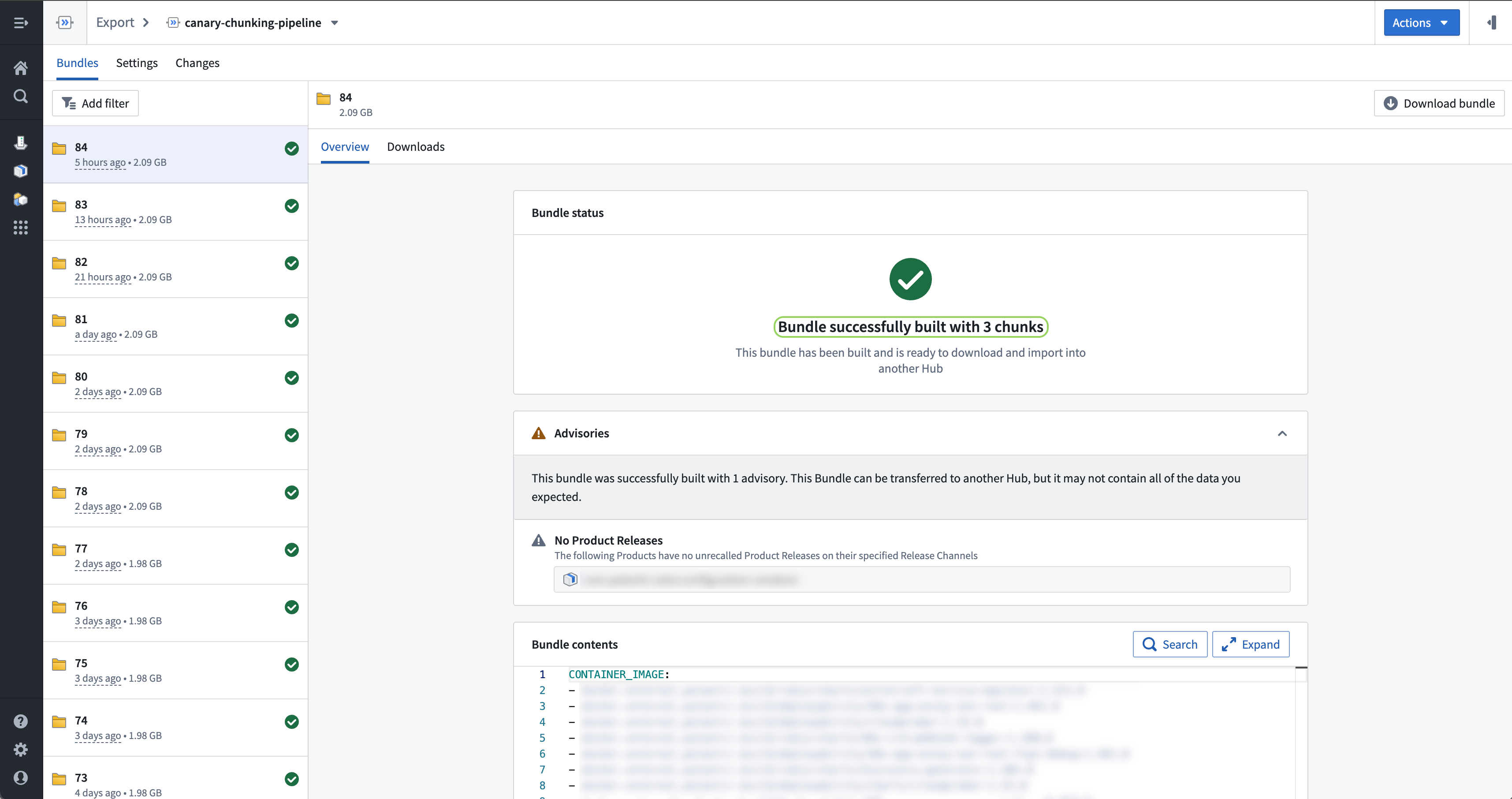
- Navigate to the Export Pipeline and build a Bundle. If the total Bundle size is larger than the max transfer size specified in the previous step, the Bundle will be chunked.
- Navigate to the Downloads tab of the Bundle. You can view the size of each chunk, download chunks individually, or bulk download chunks in the Bundle chunks section.
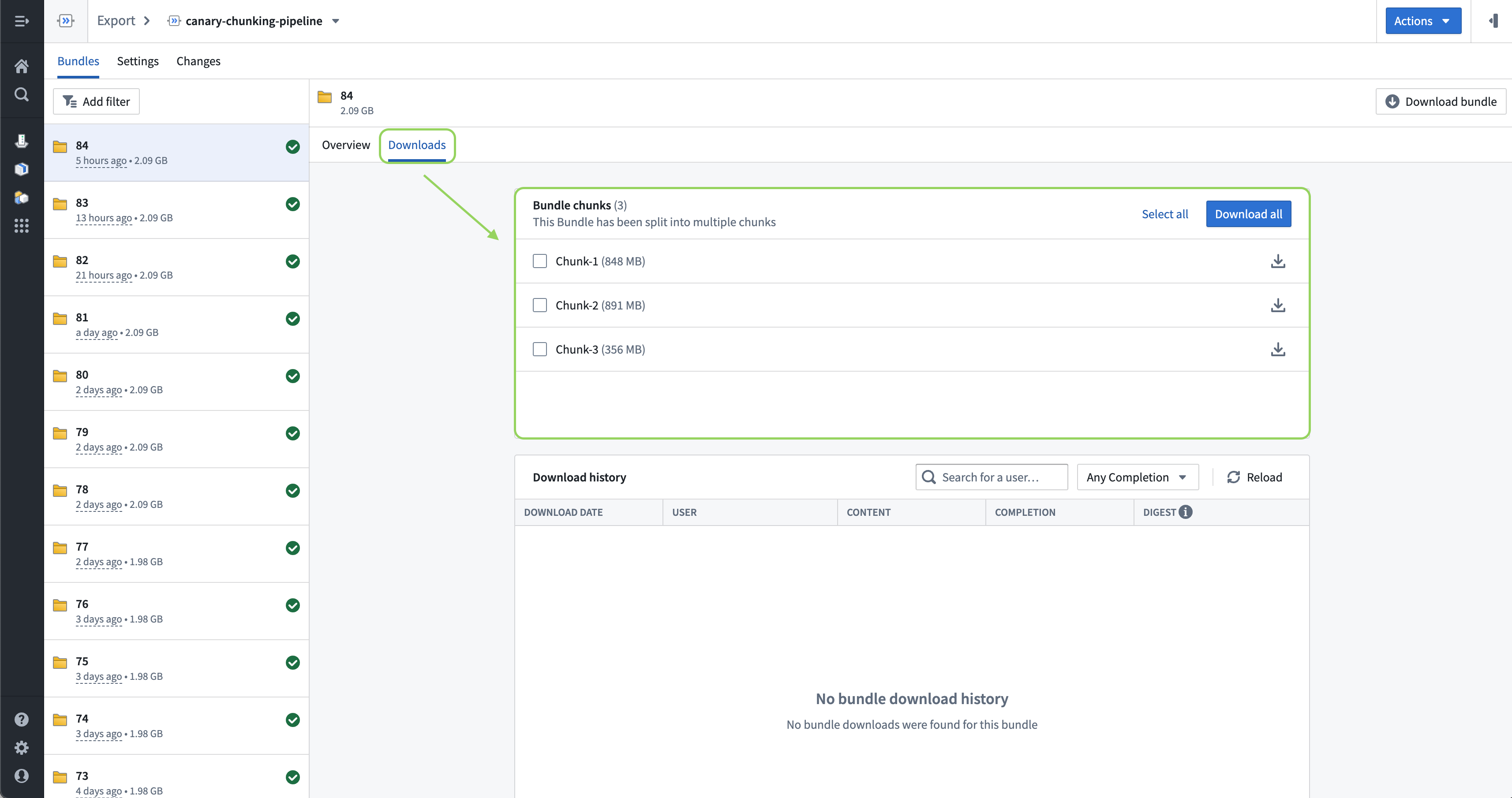
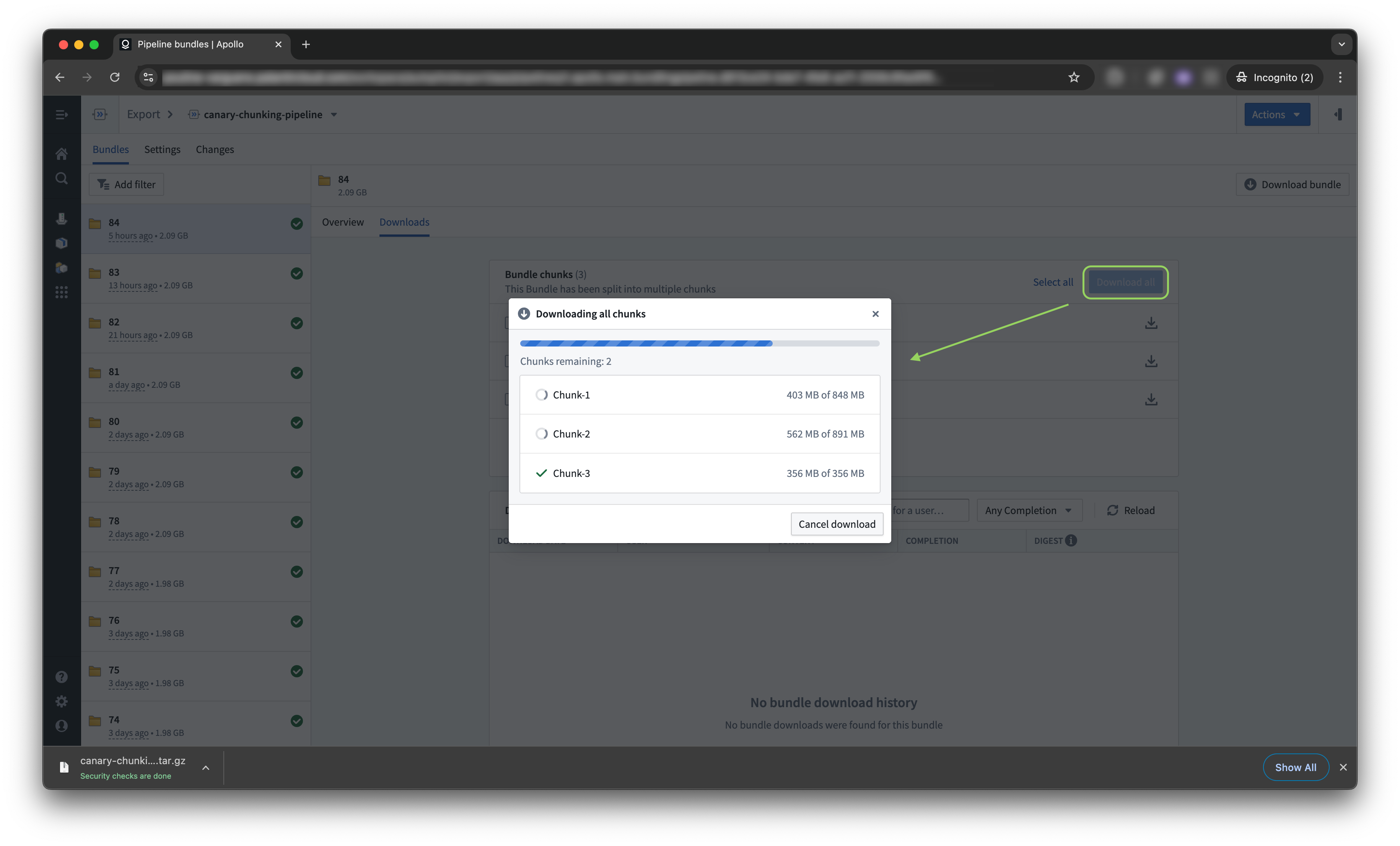
- Download and import the chunks into another Target Hub.
Import chunks into a Target Hub
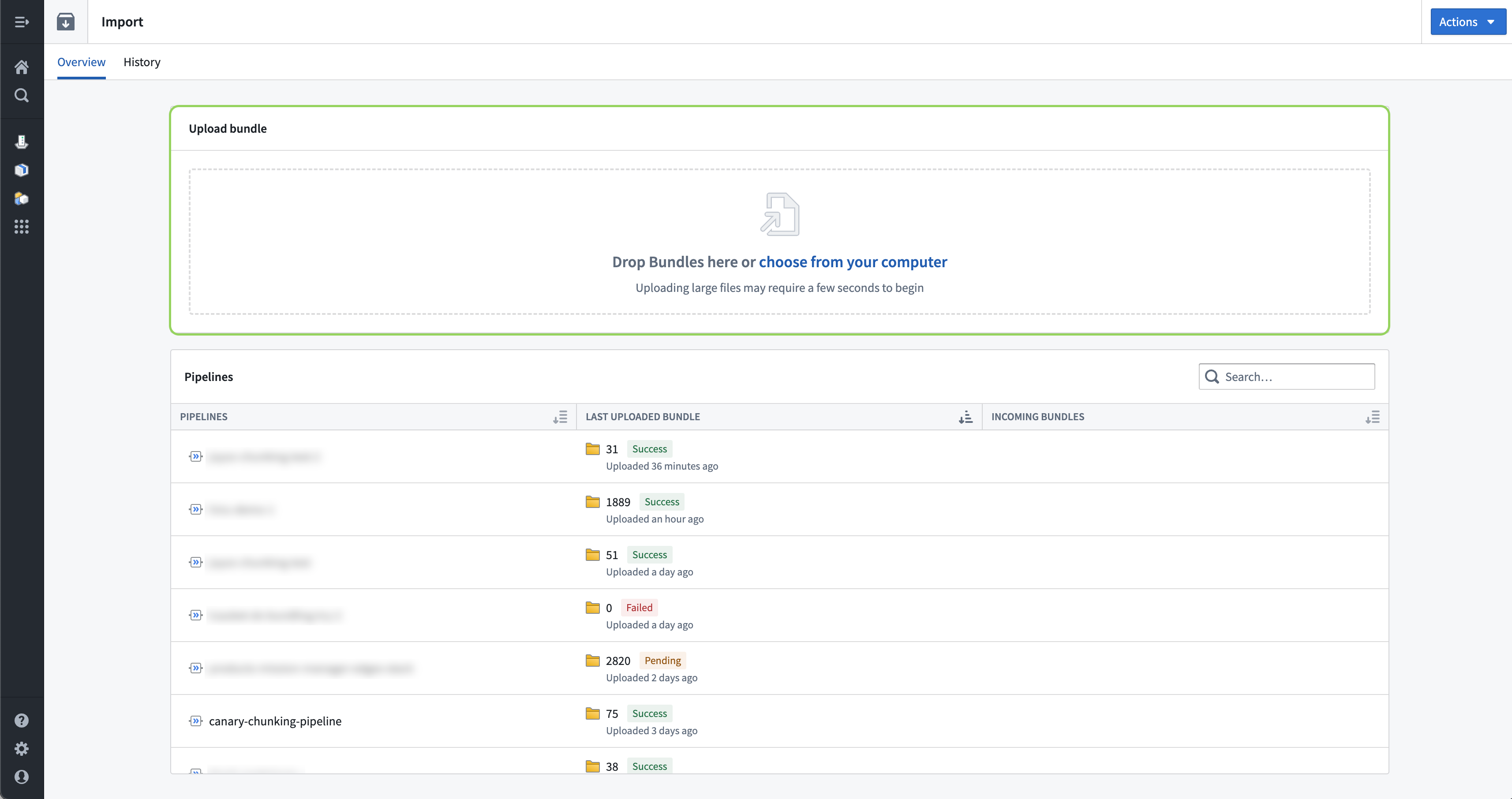
- Navigate to the Import application in the Target Hub. Drag-and-drop or choose the chunks you want to upload.
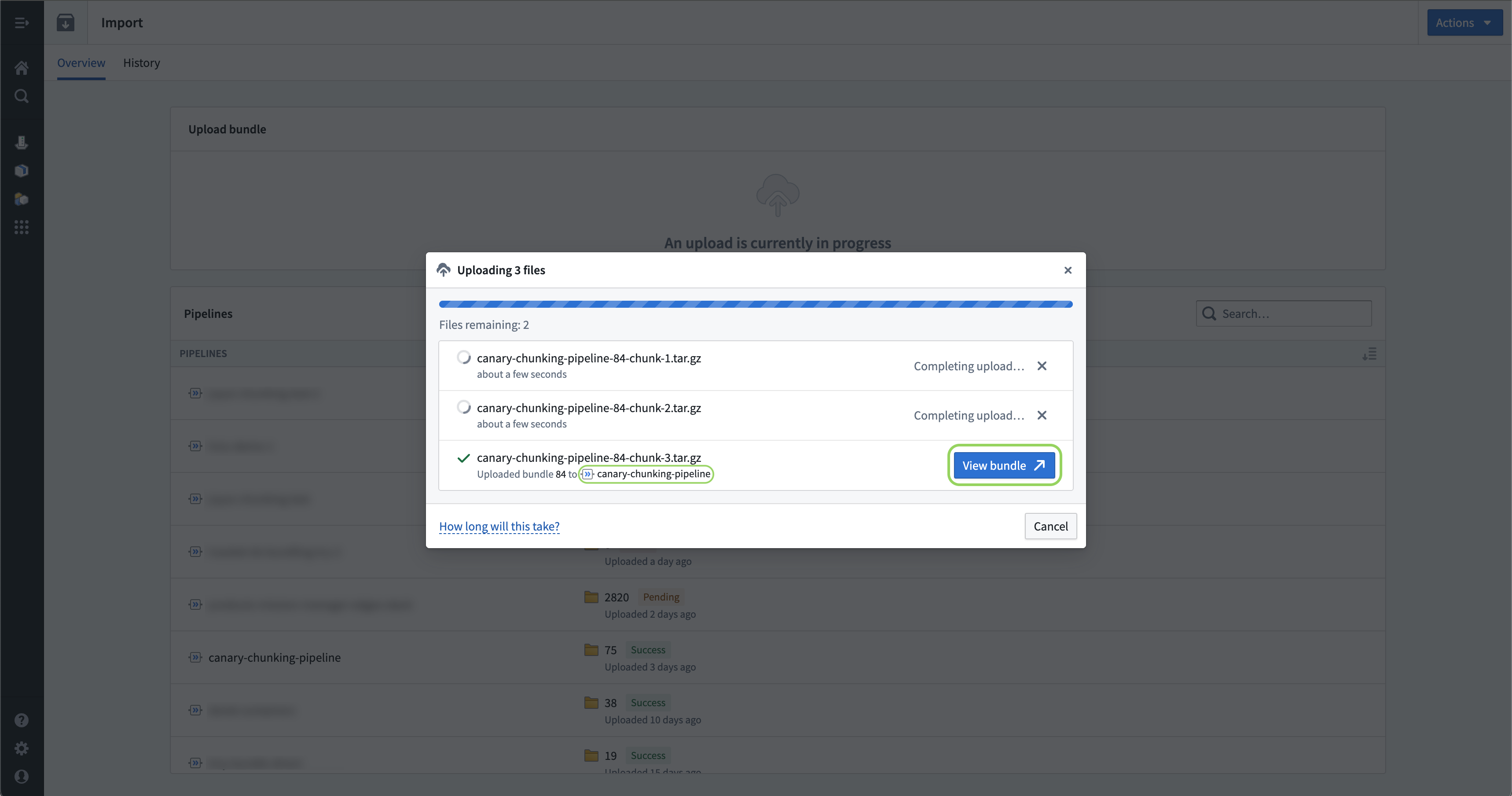
- Once the upload is finished, navigate to the Export Pipeline in the Import application. You can select either View Bundle or the Pipeline link from the successful upload. You can view the new chunked Bundle in the Pipeline's Import inbox.
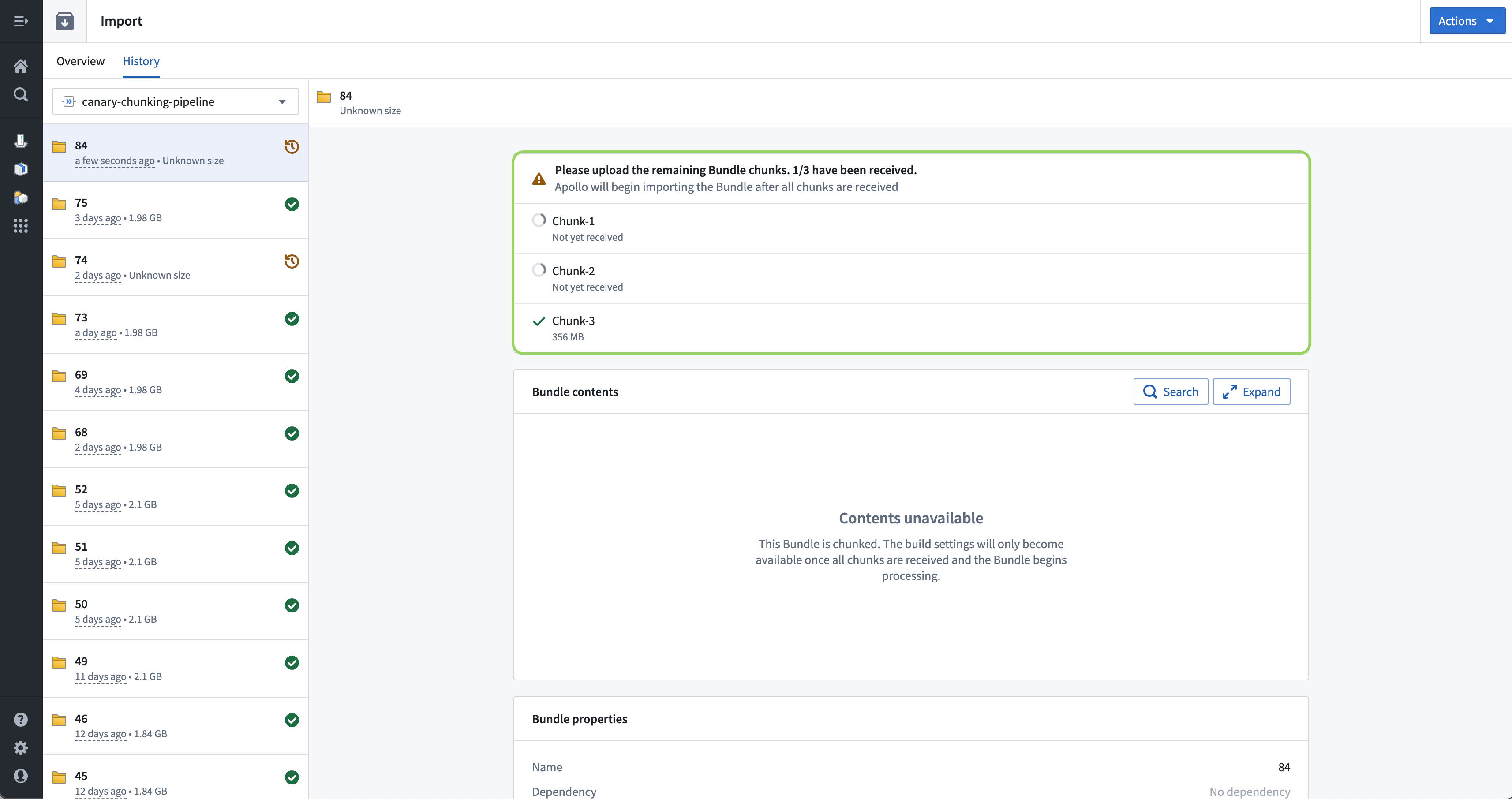
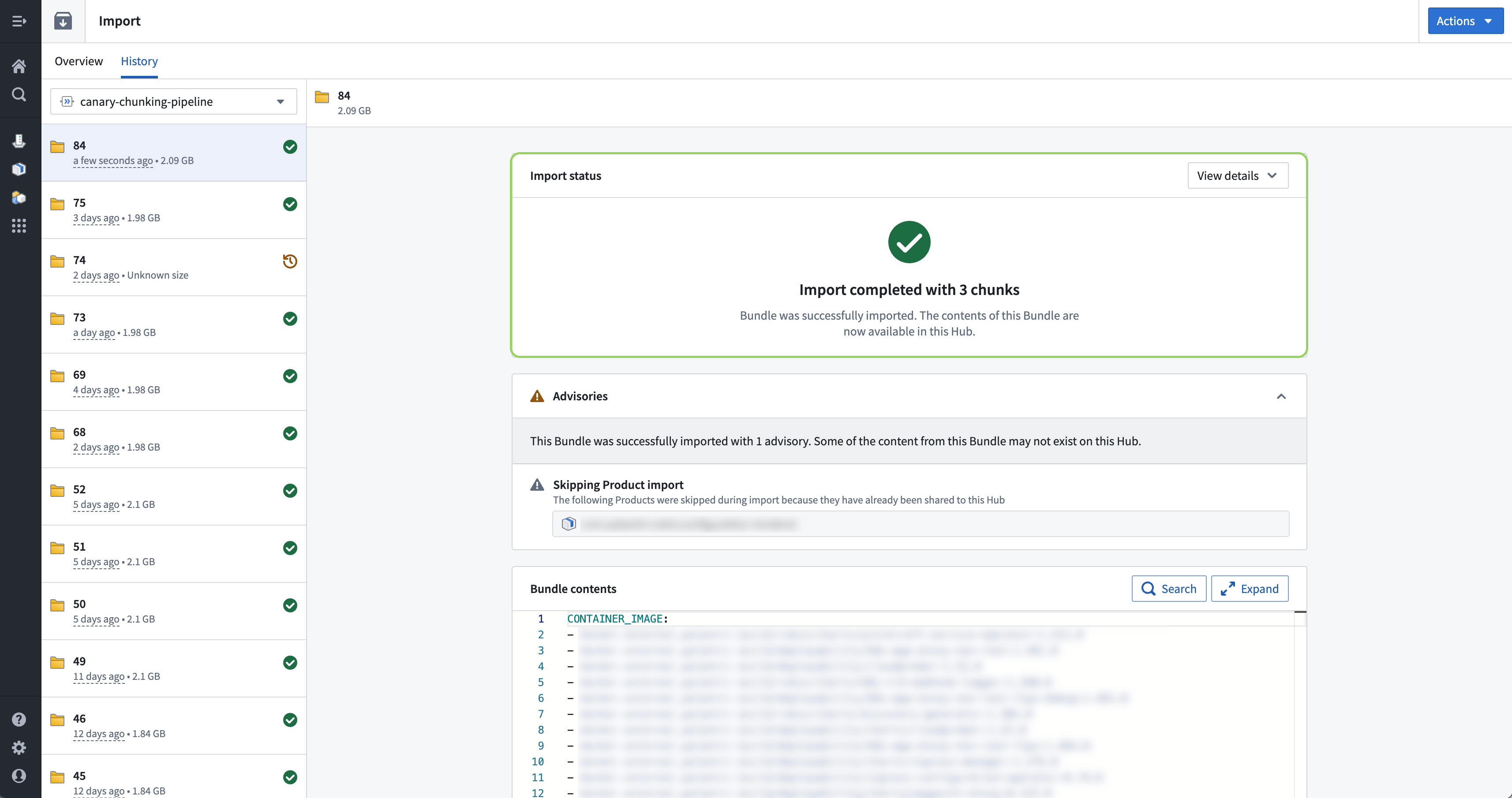
- Until all chunks have been uploaded, the Bundle status will display which chunks still need to be uploaded. Once all chunks are received, the Bundle import will be processed. After the Bundle has been processed, it is successfully imported into the Target Hub for use.