Bundle security
Apollo's Bundle security functionality enables you to restrict export of Product Releases with vulnerabilities. The Bundle security tab in the Export application provides instant access to security reports to view the vulnerabilities and viruses detected in Bundle artifacts through automated scanning, enabling quick risk evaluation and reducing manual scanning.
Configure your Pipeline to avoid viruses, vulnerabilities, and unscanned artifacts
To avoid exporting artifacts that have not been scanned or have a failing scan, you can enable the Require exported Product Releases to pass vulnerability security checks pipeline setting:
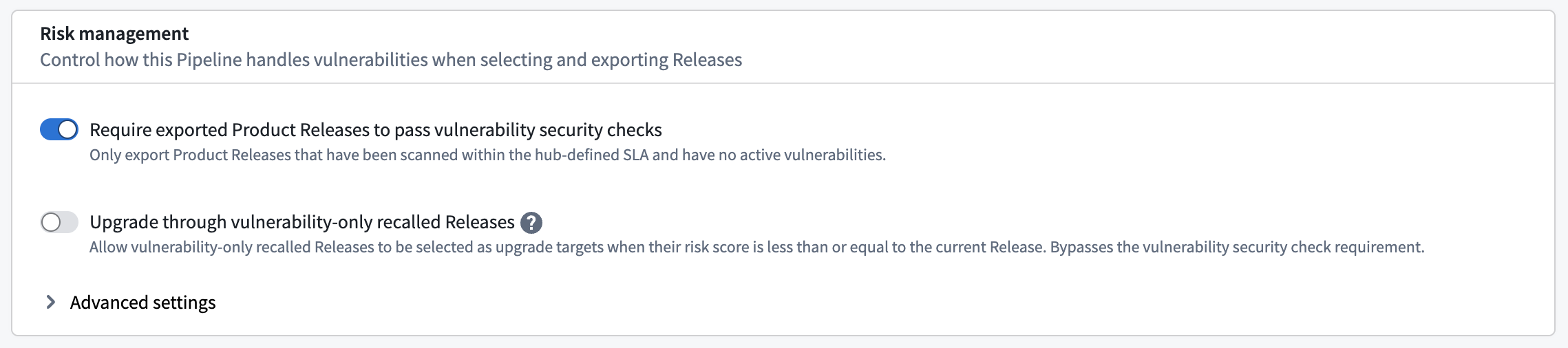
This will ensure that only Product Releases and their artifacts that have been scanned within the hub-defined SLA and have no active vulnerabilities are exported.
Optionally, enable the Upgrade through vulnerability-only recalled Releases setting to export Product Releases that Apollo determines will help improve the security posture of an Environment. Learn more about upgrading Entities to Releases with vulnerabilities.
Set up Bundle security reports
To include security reports in your Pipeline's Bundles, ensure that you have Vulnerability Scan Report included in your Pipeline's Resource selection settings. Under this setting, if you have selected one of the preset options then this should be included by default. If you have selected the Custom option, make sure that Vulnerability Scan Report is selected.
Security reports are evaluated at a per Bundle basis and included in a Bundle during build time. This means that only Bundles that were built with a security report included will have a valid security report. All other Bundles will not contain accurate information about a Bundle's scan results.
To see if a Bundle contains a Vulnerability Scan Report:
- Go to the Overview tab in the Bundle's inbox panel.
- Scroll down to the Build settings section.
- Find the
resourceTypeOptionssection of the YAML contents. - If the
typeisexclusionList, make sure thatVULNERABILITY_SCAN_REPORTis NOT included in the list underresourceTypes:.
If thetypeisinclusionList, make sure thatVULNERABILITY_SCAN_REPORTis included in the list underresourceTypes:.
Access security reports
To access the security report for a Bundle, navigate to the Export inbox page for that Bundle. Then select the Security tab. Here you can view the scan report and scan results.
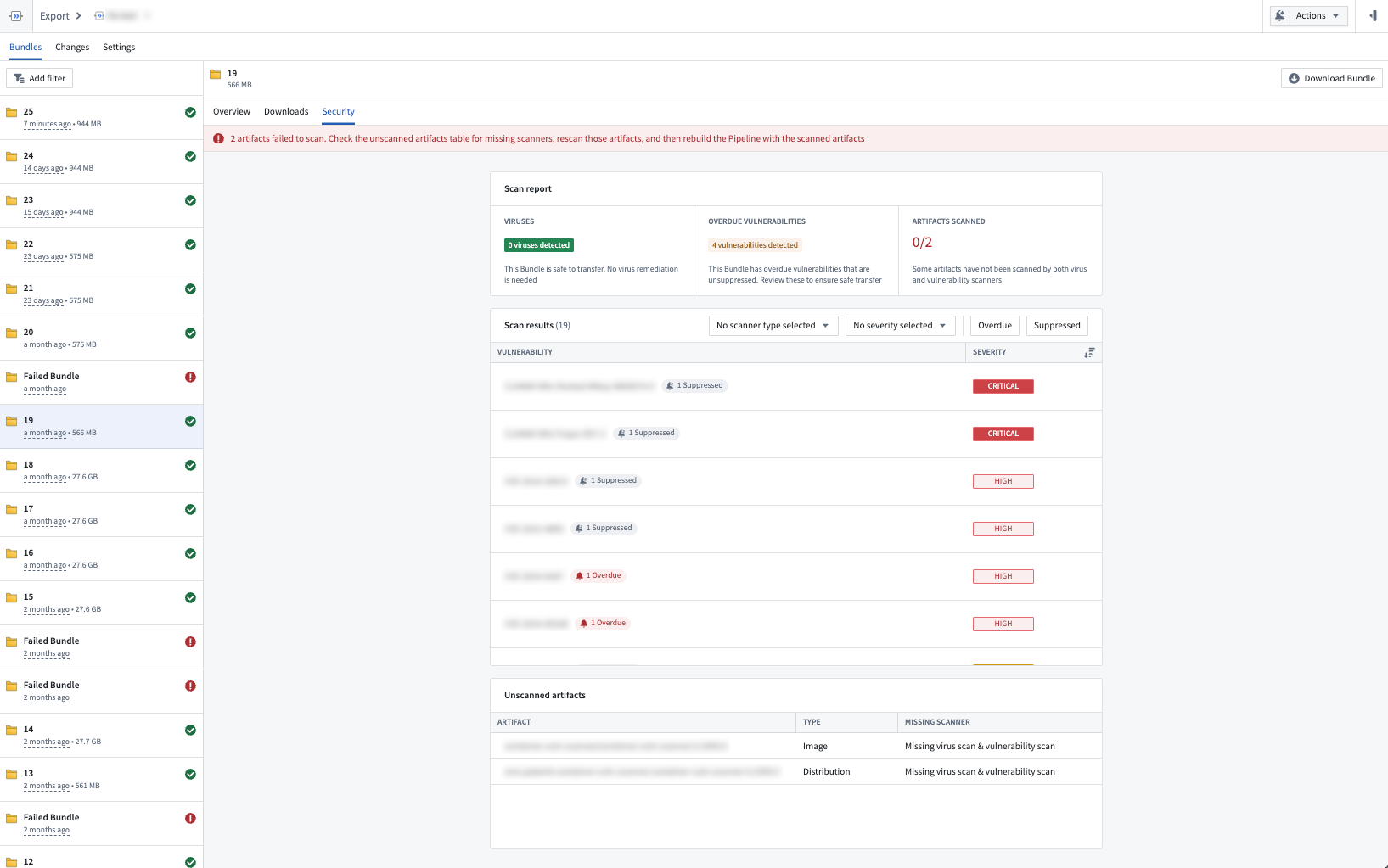
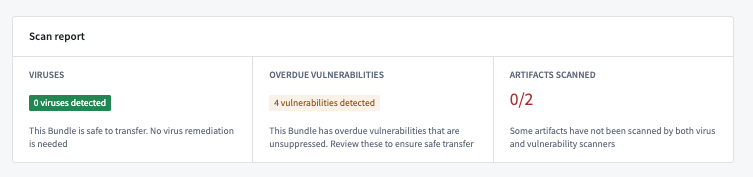
The Scan report section provides a high-level overview of a Bundle's security that will inform you if Bundle is safe to transfer.
- The left-most card displays whether the Bundle contains a virus.
- The middle card shows whether the Bundle contains overdue vulnerabilities that are unsuppressed.
- The right-most card shows the number of artifacts in the Bundle that are missing a virus scan, a vulnerability scan, or both.
Below the Scan report section is the Scan results table. This table displays the specific viruses and vulnerabilities found by the scanners. You can filter the scan results for specific findings, such as virus findings only.
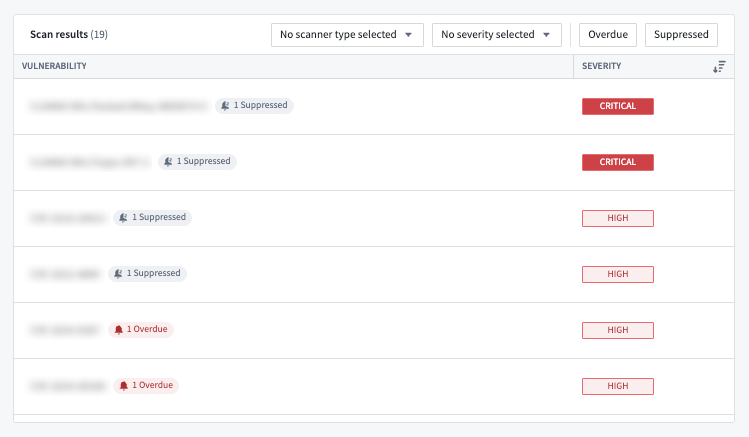
For more information about a specific virus or vulnerability, select that row in the table to open a dialog with more details. There, you can access in-depth information about the security issue, such as why the scan failed and what issue was found. You can also take actions to remediate or suppress the issue.
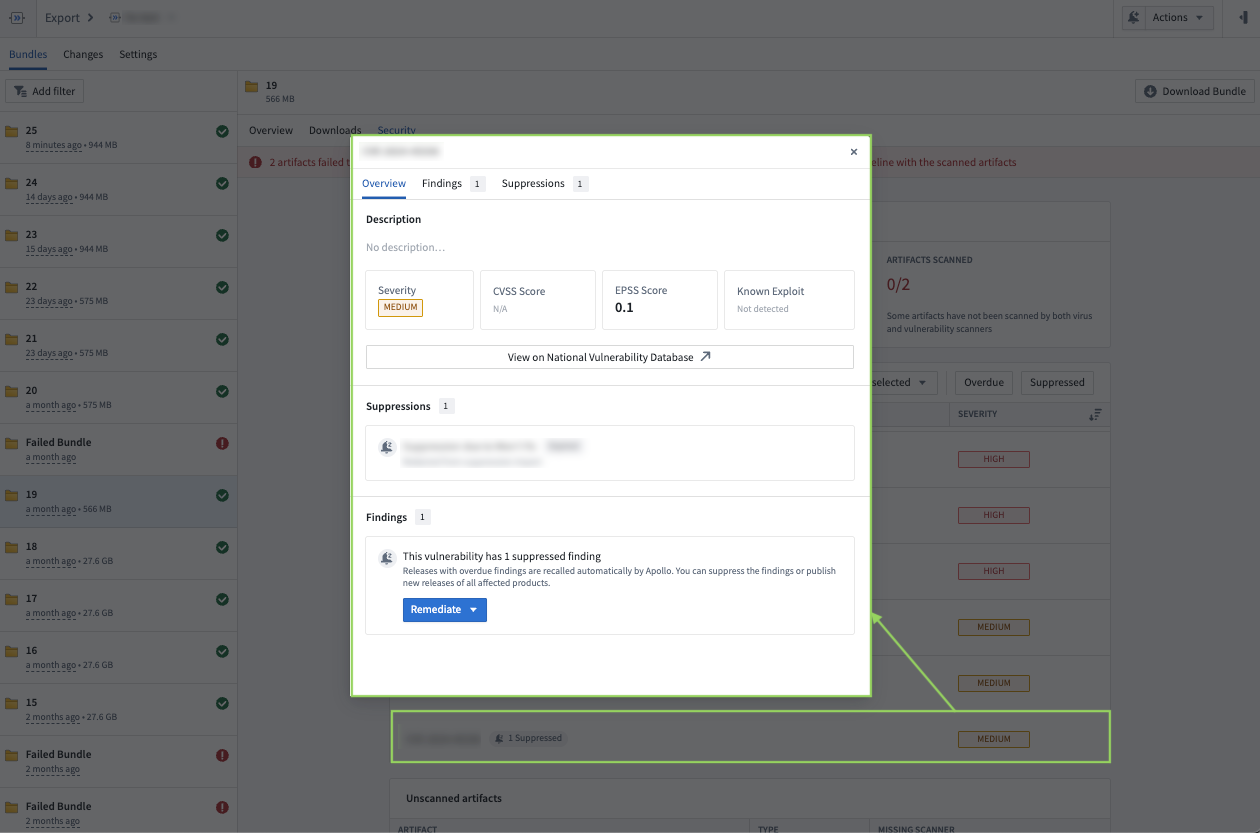
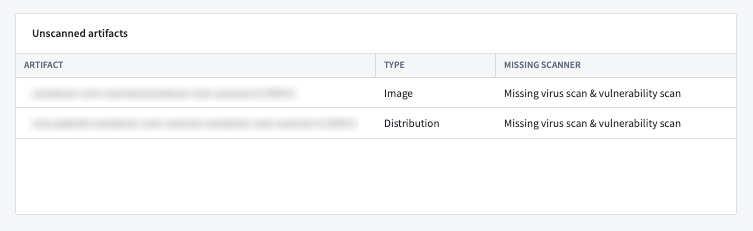
If an artifact is missing a scan or has an errored or incomplete scan, you can view a red banner at the top of the Security tab and the Unscanned artifacts table at the bottom. This table allows you to view the type of scan missing for the affected artifacts, which can be a virus scan, vulnerability scan, or both. You must solve the issue and rerun the scanner.

If your Bundle contains any security issues, you must remediate these issues before you can export the Bundle.
Remediate security issues
For viruses, vulnerabilities, or unscanned artifacts, you will need to find out the Product Release that artifact belongs to, remediate the issue, and get the artifact scanned properly. Then, you will need to rebuild the Pipeline to include either:
- The same Product Release, if all findings could be suppressed.
- A newly published Product Release, if you had to fix an issue.
You must rebuild the Pipeline because the security report for a Bundle is embedded directly within the Bundle during the build process. As such, the report is static and will not reflect real-time updates, such as when vulnerabilities or viruses have been suppressed. To obtain an updated report that includes your remediation efforts, you will need to rebuild the Pipeline to generate a new Bundle with a new Bundle report.
For incremental Pipelines, the next Bundle built will not include everything you could not send in your current Bundle that was safe to send. Following remediation of security issues in the current Bundle, the subsequent Bundle will typically contain only the updated or new Product Releases that resulted from these corrective measures. To address this, you have a couple of options:
-
Send the missed Releases using an emergency Pipeline: If you need to have the missed data exported to your Target Hub, you can export the missing resources using an emergency Pipeline. To do so, navigate to the emergency Pipeline’s settings and include the missing data using the data selection rules. Then, rebuild the Pipeline and export the Bundle that is built.
-
Skip the Bundle and all of the new Releases contained in the Bundle: If you do not need to export the missed data in the Bundle right away, you can skip it and wait for a future Bundle to be built that includes these updates. Only choose this option if you are certain that you do not need the information included in the previous Bundle.
-
Send the Bundle with the security issue anyways: If the security issue was a false alarm or does not disobey compliance requirements, you can send the Bundle anyways. Only choose this option if you are certain that security requirements are met by the Bundle regardless of the report.
Remediation strategies
Virus remediation
If your Bundle contains a virus, you should not export the Bundle unless the finding was a false positive. In case of a false positive, you can:
- Suppress the finding for the specific image.
- Rerun the vulnerability scan of the relevant Product Release to confirm that the finding is now suppressed.
- Rebuild the Bundle.
If the virus finding is a true positive, you must remediate the virus finding and publish a new Release that includes the remediation. Make sure the previous affected Release is recalled if it is not automatically recalled by container-vuln-scanner. You can then rebuild the Bundle to include your newly published Release.
Vulnerability remediation
If your transfer has strict vulnerability requirements, you need to ensure that vulnerabilities detected in bundled artifacts are suppressed. If necessary, you can remediate overdue vulnerabilities the same as virus findings. Either by suppressing if there is no fix available or the risk is acceptable, or by releasing a new version of the relevant Product Release that contains a fix for the vulnerability.
Unscanned artifact remediation
Identify the Product Release that the artifact belongs to and verify that the Product Release is scanned. Note that only artifacts belonging to a Product Release are scanned. If selecting individual artifacts manually, ensure that they still belong to a Product Release to get scanned.