Create and modify an export pipeline
This guide will walk through how to create, edit, and remove an Export Pipeline that defines what resources Apollo will include in Bundles that you can export and send to a Target Hub.
Create an export pipeline
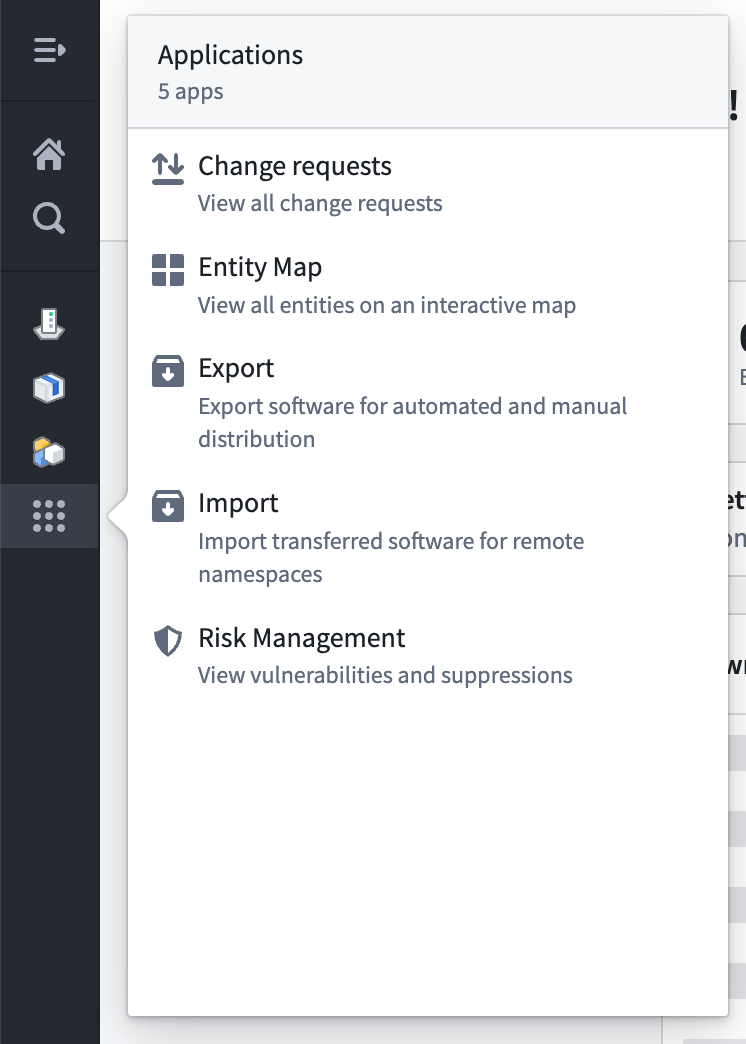
To create an Export Pipeline, select Export from the Applications menu in the left sidebar.
Then select Create Pipeline from the Actions dropdown.

This will open the Export Pipeline creation form.
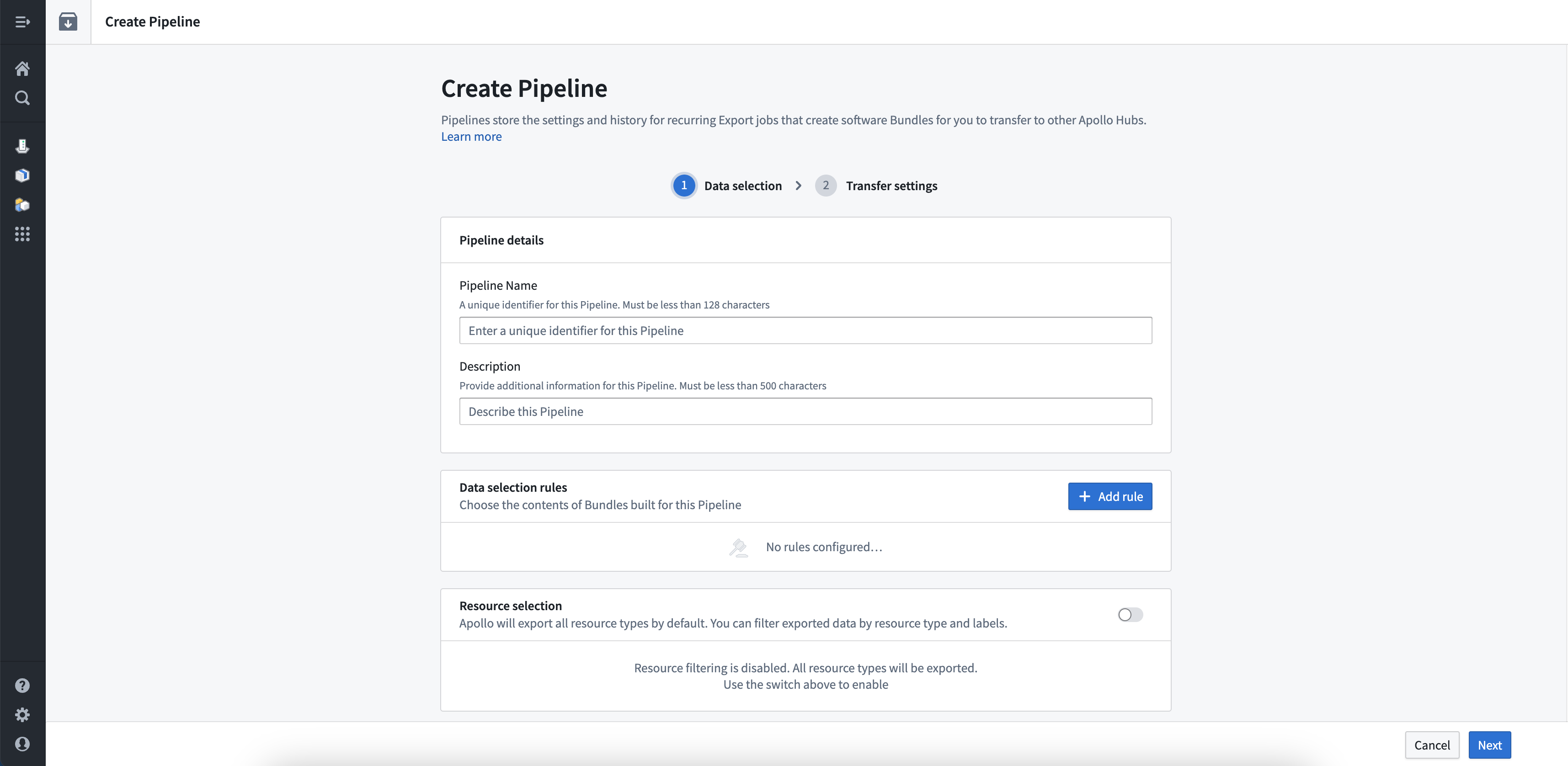
First you should enter a name and description for your Export Pipeline. Do not include sensitive or personally identifiable information in the name of your Export Pipeline.
Build settings
Next, you should configure the Export Pipeline's build settings.
There are two build strategies:
- Incremental: With this strategy, only information that has not been shipped by previous Bundles in the Export Pipeline will be included in the new Bundle. For example, if you use the Select Product strategy and create a Bundle, any subsequent Bundle builds will not include any previously exported Product Release. This strategy reduces Bundle size and transfer times, but requires that all Bundles must be processed in order.
- Snapshot: With this strategy, the selector rules will be fully re-evaluated with each build. All Bundle data, including Product Releases, metadata, and Module information, will be included the Bundle regardless of whether the information has been shipped by a previous Bundle in the Export Pipeline.
Generally, you should always use the Incremental build strategy. The Snapshot strategy is only recommended for one-time transfers.
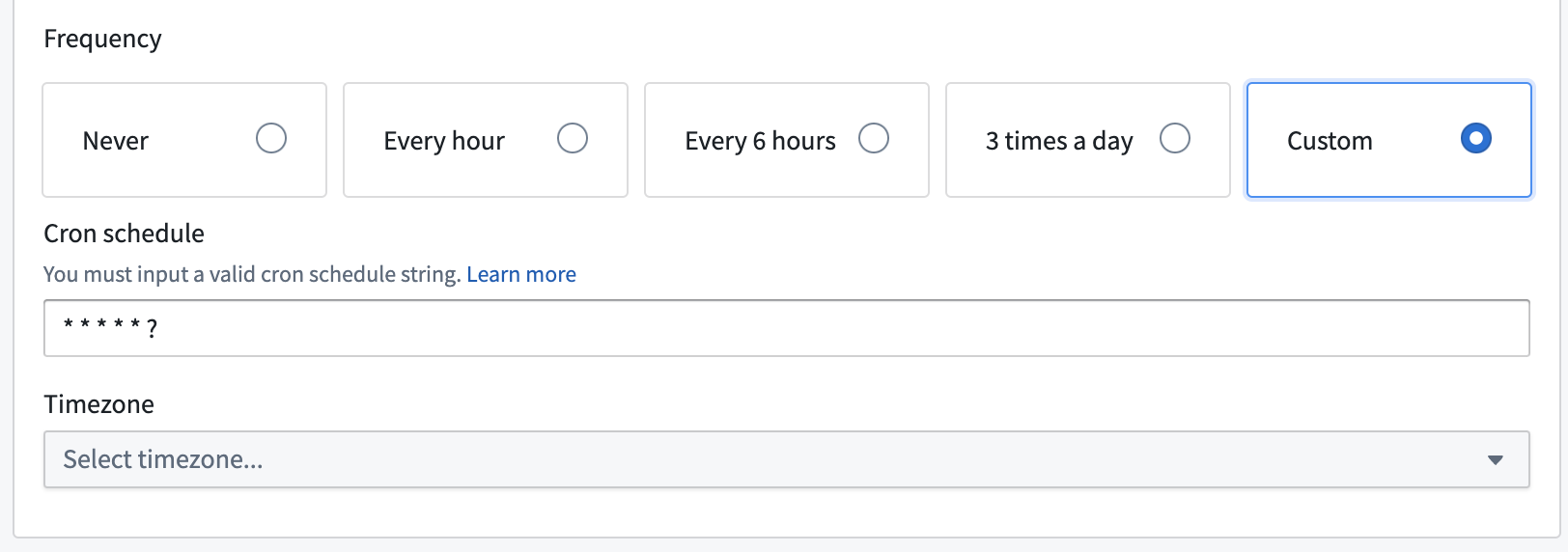
Next, choose how frequently Apollo should build and export Bundles for this Export Pipeline. You can choose one of the default build frequencies, or define a custom frequency using a Cron schedule.
Next, configure Bundle chunking settings as required, and the frequency at which to create checkpoint Bundles.
Finally, you can optionally disable Bundle previews for this Export Pipeline. By default, Bundle previews are enabled. Bundle previews allow you to view the contents of a Bundle before building it.
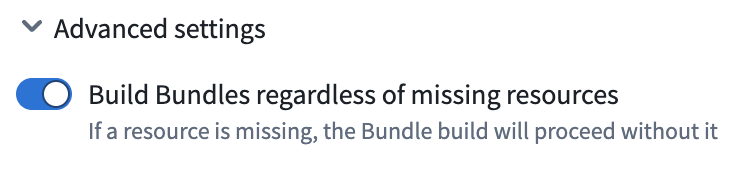
Advanced settings
You can configure whether a Bundle should be built regardless of missing resources. If enabled and a resource is missing, the Bundle build will proceed without it. For example a Product Release may reference a container image that is not available in the registry. If this setting is disabled, the Bundle build will fail since the resource cannot be found. If this setting is enabled, the Bundle build will succeed, and the container image will be omitted from the Bundle.
Data selection rules
Next you will configure one or more data selection rules. These rules define the contents of the Bundles that are build for the Export Pipeline. To add a new rule, select Add rule. You can select resources directly or select resources by label.
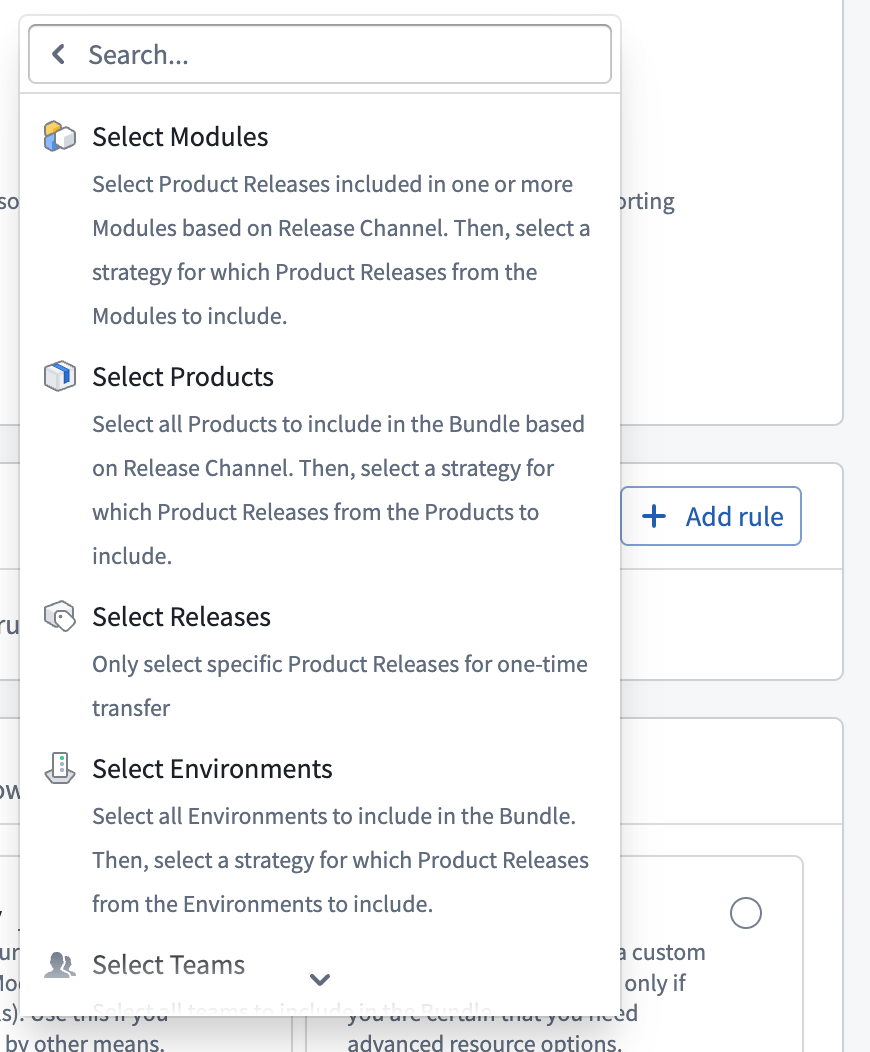
Learn more about data selection rules.
Resource selection
After you define data selection rule(s), you can further customize what resources are exported. Select one of the predefined presets or create a custom selection.
Learn more about resource selection.
Required resource labels
You can also add label requirements that must be satisfied for a resource to be exported.
Learn more about label requirements.
Risk Management
You can configure the Pipeline risk management policy.
Learn more about Bundle security.
Submission
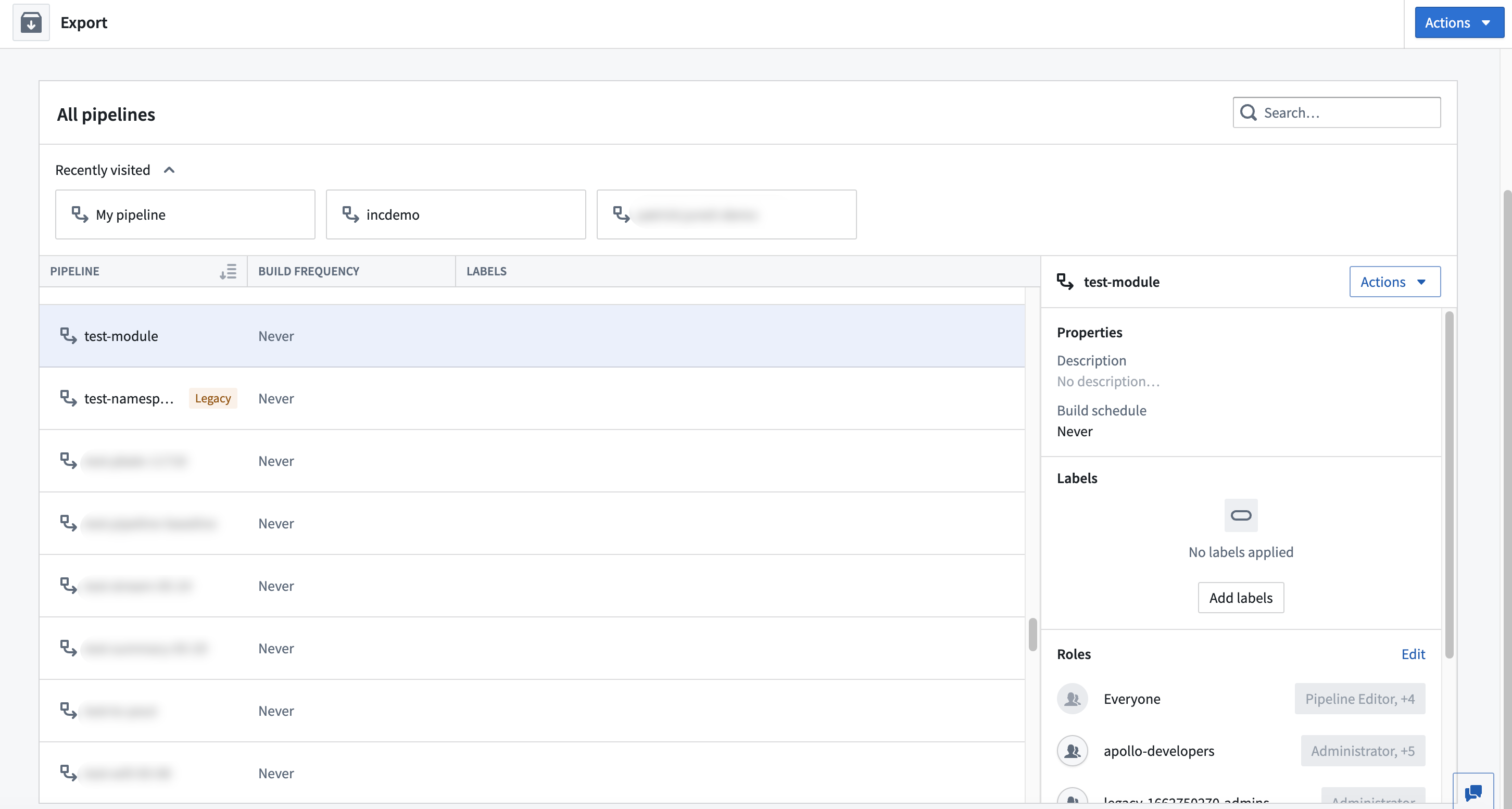
Select Submit when you are finished editing to create a change request. Once the change request is approved, your changes will take effect. You can view your new Export Pipeline by navigating to the All Pipelines table in Export.
Modify an Export Pipeline
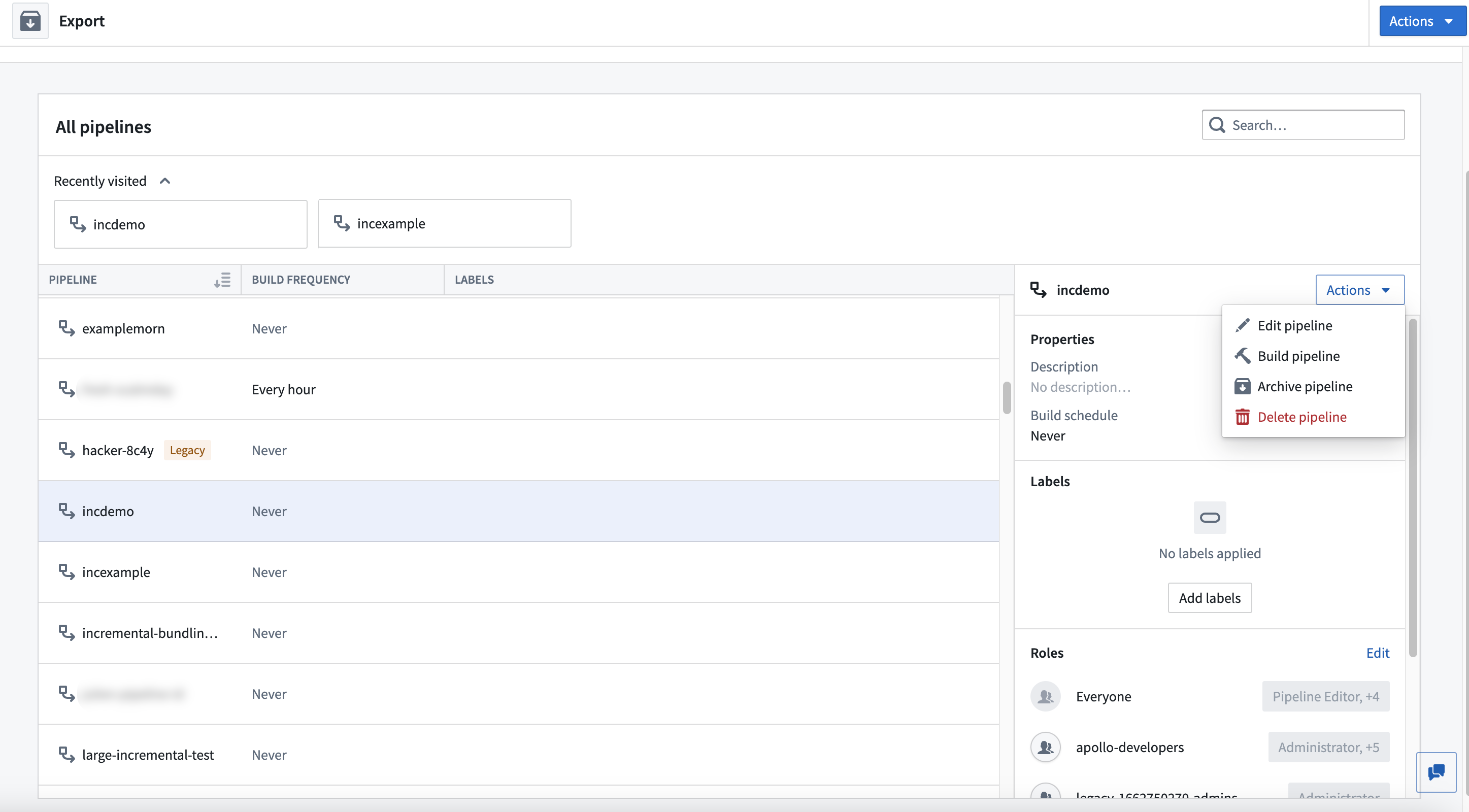
You can edit, archive, and delete Export Pipelines in Apollo. To do this, navigate to the All Pipelines table in Export. Select an Export Pipeline, then select the desired action.
If your Export Pipeline state becomes out-of-sync with the actual state your Target Hub, update your Target Hub versions to reflect those disparities.
Remove an Export Pipeline
When you archive an Export Pipeline, you can no longer modify the Export Pipeline settings. Apollo will no longer create Bundles for the Export Pipeline, and you will not be able to manually create Bundles. After archiving an Export Pipeline, you can unarchive it to be able to modify settings and build Bundles for the Export Pipeline.
When you delete an Export Pipeline, you are removing the Bundle history and historical settings for the Export Pipeline. You cannot undo this action.
To fully remove an Export Pipeline from Apollo, you must archive and then delete it.