Import a bundle
This section will walk through how to import a Bundle to a Target Hub.
Before following this guide, you should create and export a Bundle from your Source Hub. You should also transfer the Bundle to the Target Hub environment using the appropriate transfer process.
Import the bundle
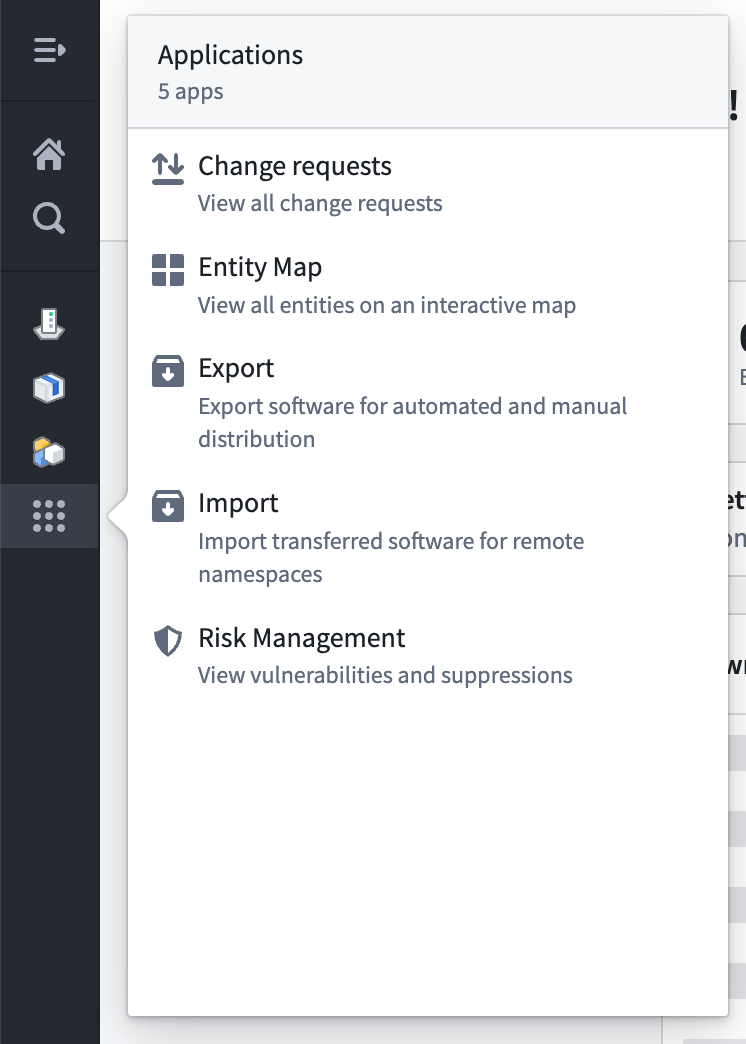
To import a Bundle, hover over the Applications icon in the left sidebar and select Import.
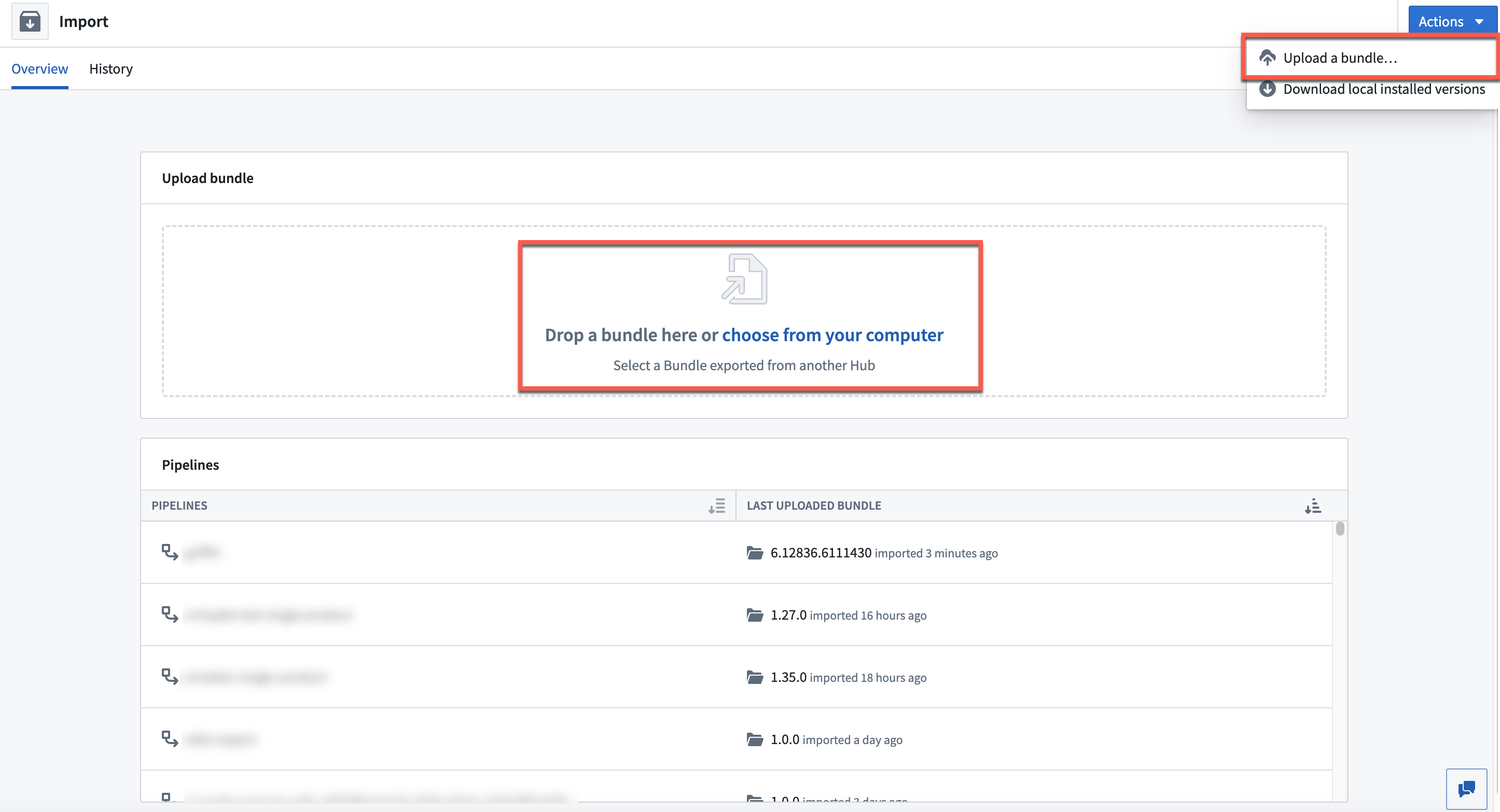
If there is no Bundle transfer in progress, you can import a new Bundle by selecting Upload a Bundle from the Actions dropdown. You can also drag and drop a Bundle or select choose from your computer.
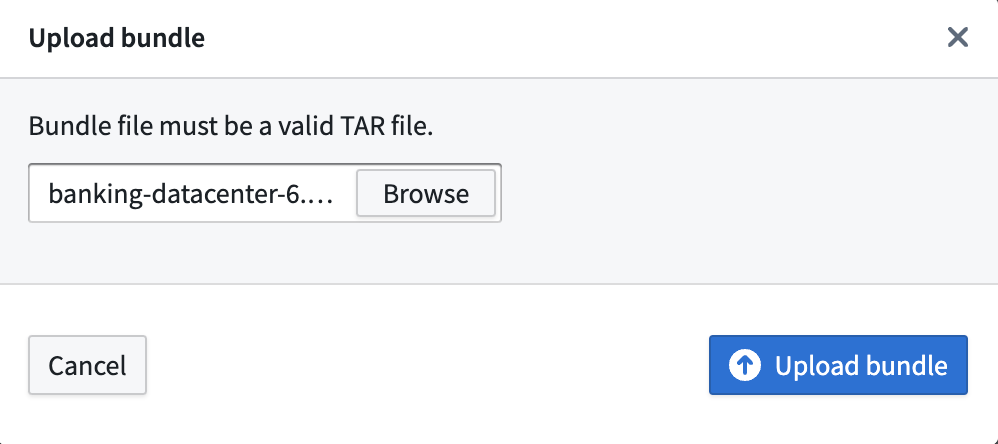
Choose the Bundle file, then select Upload Bundle. Bundles are processed asynchronously, and their contents will be made available over time in the Target Hub.
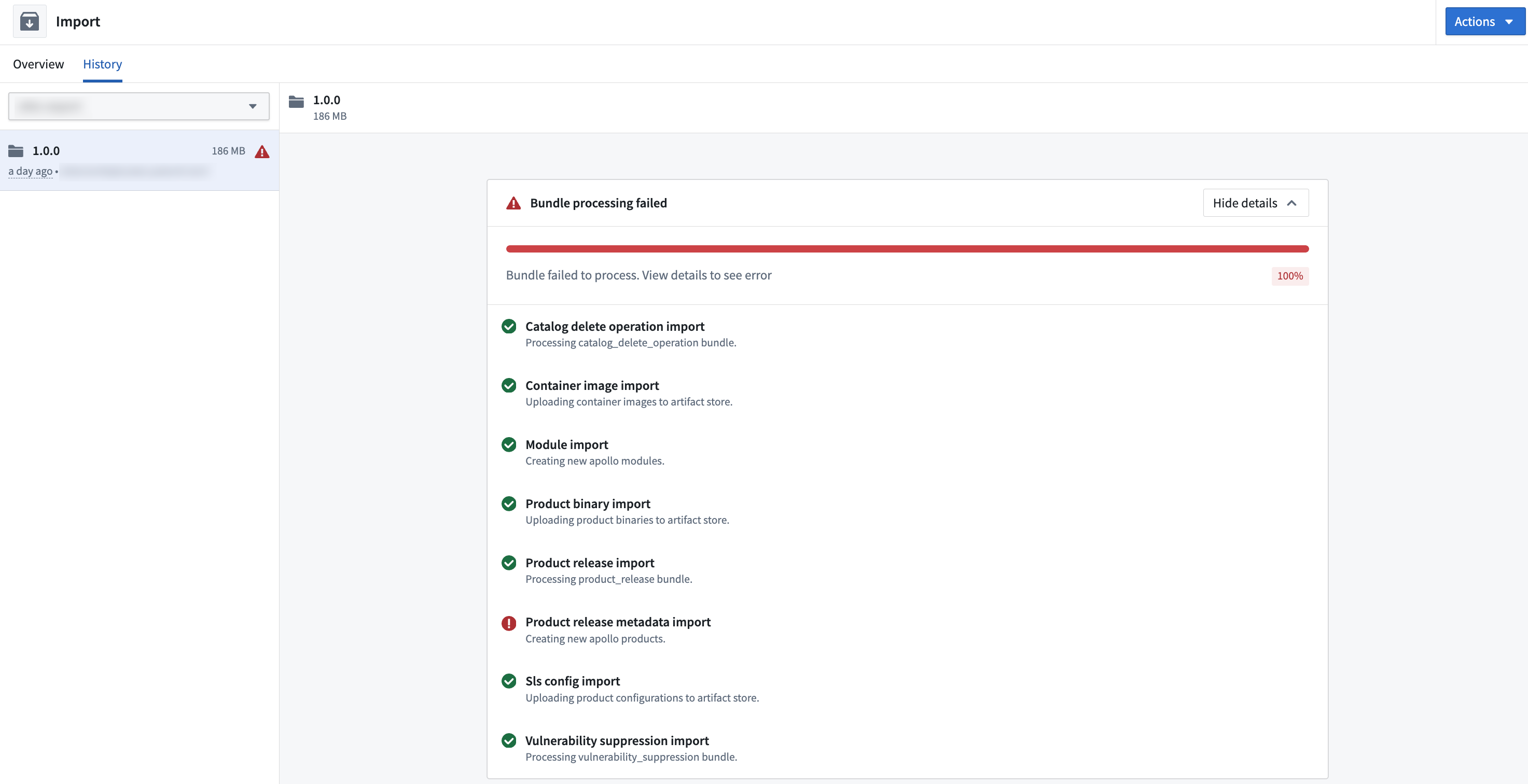
You can view the import history for the Export Pipeline by navigating to the History tab and choosing the Pipeline from the dropdown.
Select a Bundle version to view the import progress.
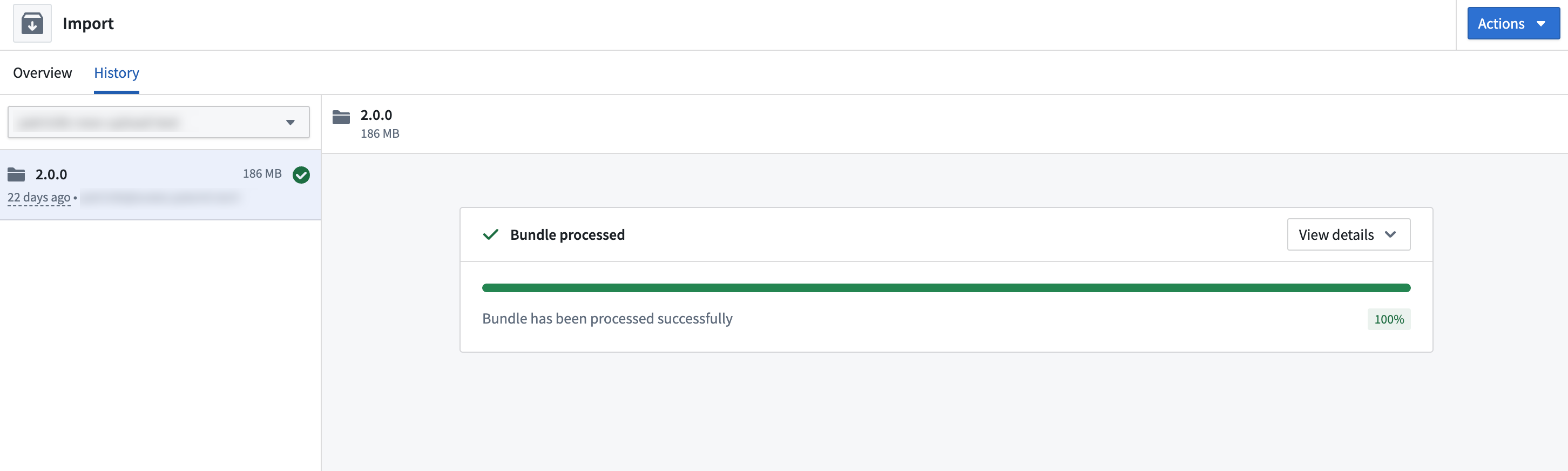
If a Bundle import was not successful, you can select View details to view the import stage that failed.
Change requests on Environment import
When a Bundle contains Environment changes, Apollo creates a change request to review the changes before they are applied. Some changes, such as modifications to network security rules, require manual approval. You can view the approval status of each Bundle from the import history.