Bundle layer deduplication (Experimental)
Bundle layer deduplication is an Experimental feature and may change over time. It serves as an optimization tool, but there is a risk of malfunction, which could lead to failed exports or imports. You should disable the feature if you encounter any issues. Doing so will result in larger Bundles.
Bundle layer deduplication is an Apollo Export feature that decreases the amount of data that is transferred to a specific destination. This feature works by tracking the data that has already been sent to a destination, and ensures that future Bundles sent to that destination do not include data that has already been transferred. Bundle layer deduplication reduces Bundle sizes by only sending a specific resource in one Bundle.
Prerequisites
You must have an Export Pipeline to set up Bundle layer deduplication. Learn more about creating Export Pipelines.
How to use Bundle layer deduplication
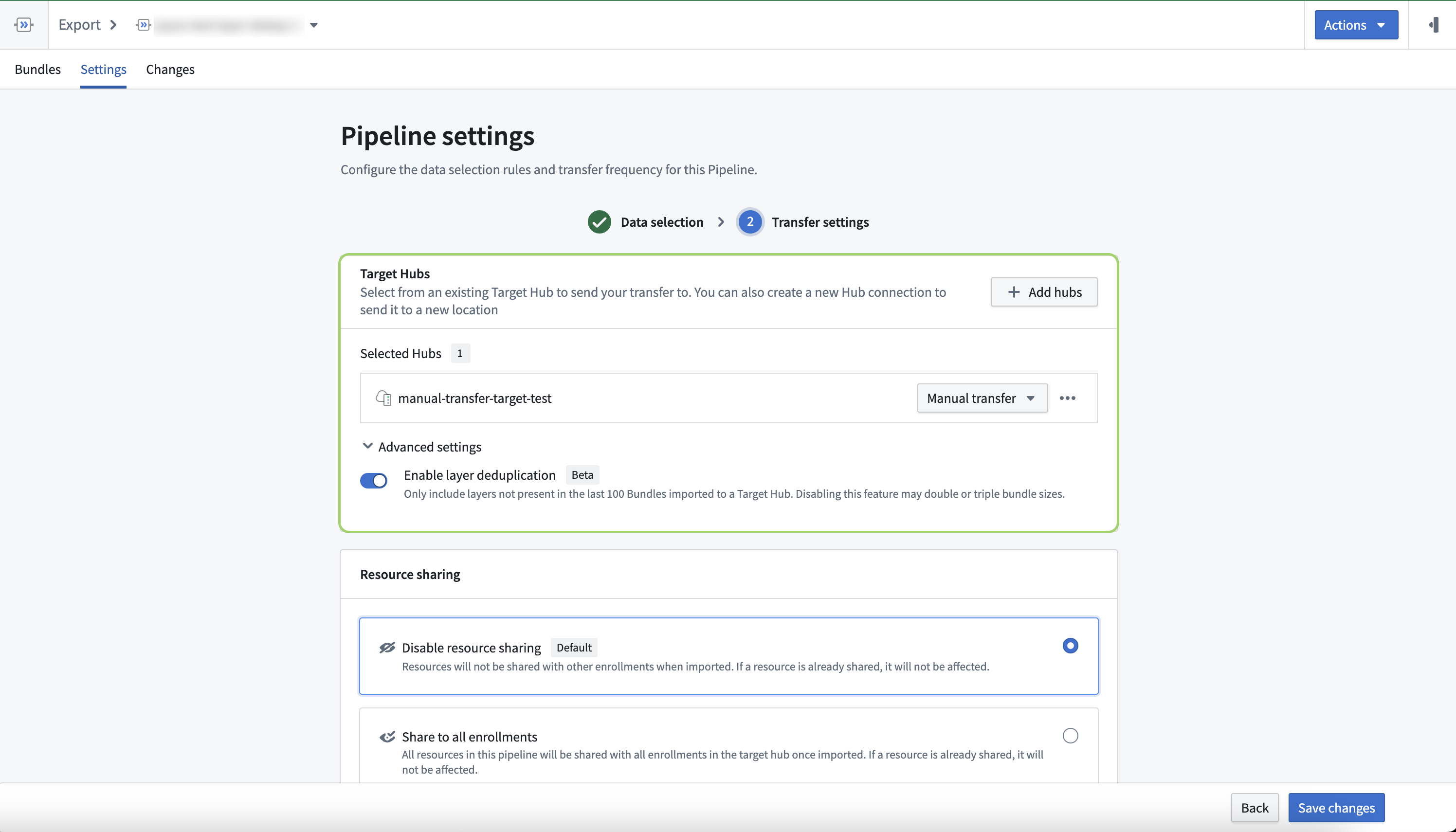
- Navigate to the Export application and select an Export Pipeline. In the Target Hubs section of the Pipeline settings (on the Transfer settings page), add the Target Hubs that you want to transfer Bundles to and the transfer mechanism to use for each Hub. Then, ensure that Enable layer deduplication is switched on under the Advanced settings toggle.
To enable layer deduplication across multiple Pipelines that share the same Target Hubs, enable the option Do not resend layers that have already been sent by other Pipelines to the same Target Hub.
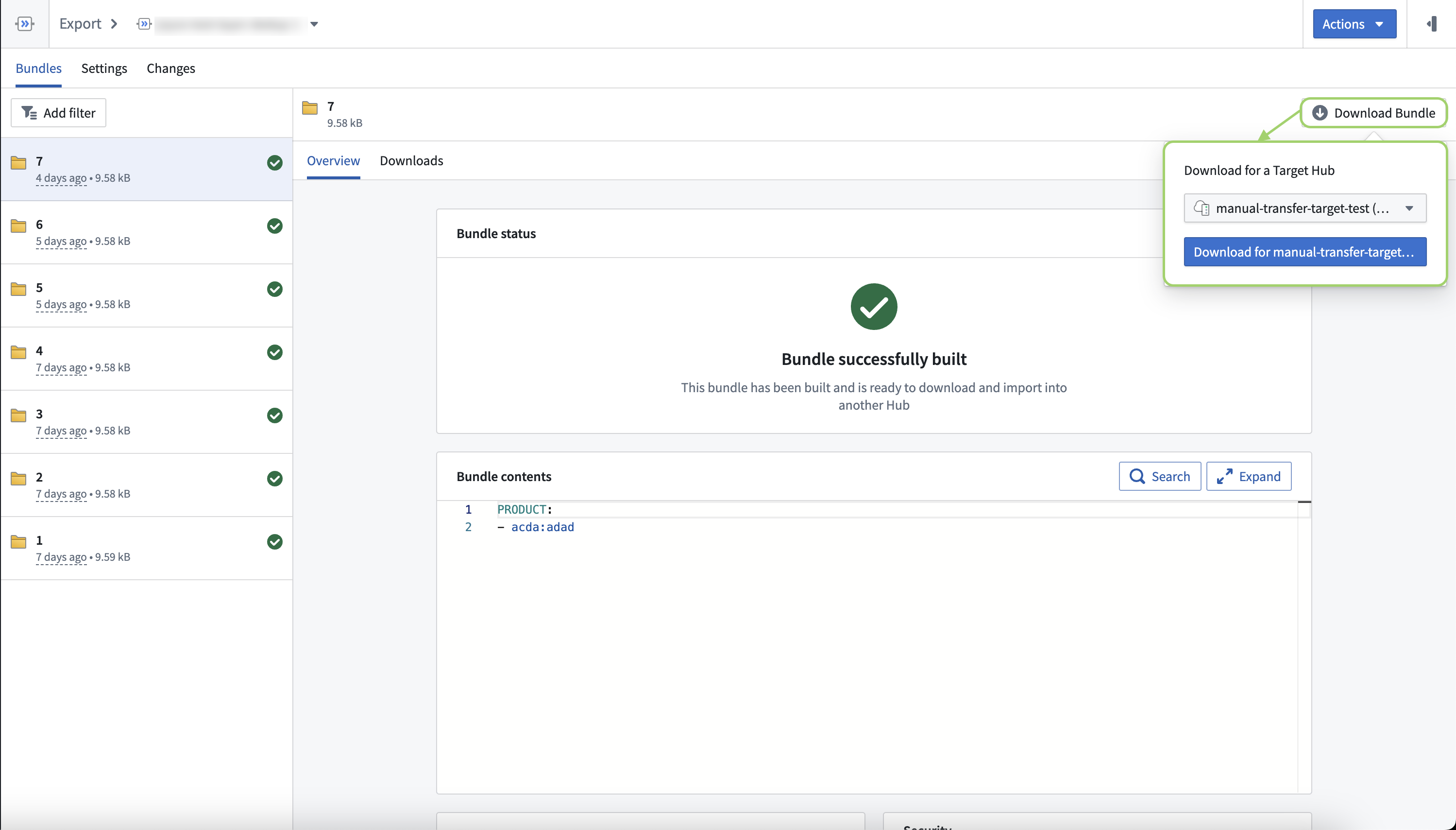
- Navigate to the Export Pipeline and build a Bundle. Once the Bundle is finished building, download the Bundle that contains deduplication for transfer by selecting Download Bundle and choosing a specific Target Hub in the dropdown. You must select a desired Target Hub, as each Target Hub has a different deduplicated Bundle and the Any Hub option does not contain deduplication. If your Pipeline uses Bundle chunking, you can go to the Downloads tab to download all chunks for a desired Target Hub.
You can still download the entire Any Hub Bundle without deduplication, but as a result, future Bundles will not benefit from the size reduction of layer deduplication.
- Navigate to the Import application in the Target Hub and upload the file(s) you have downloaded in the previous step.
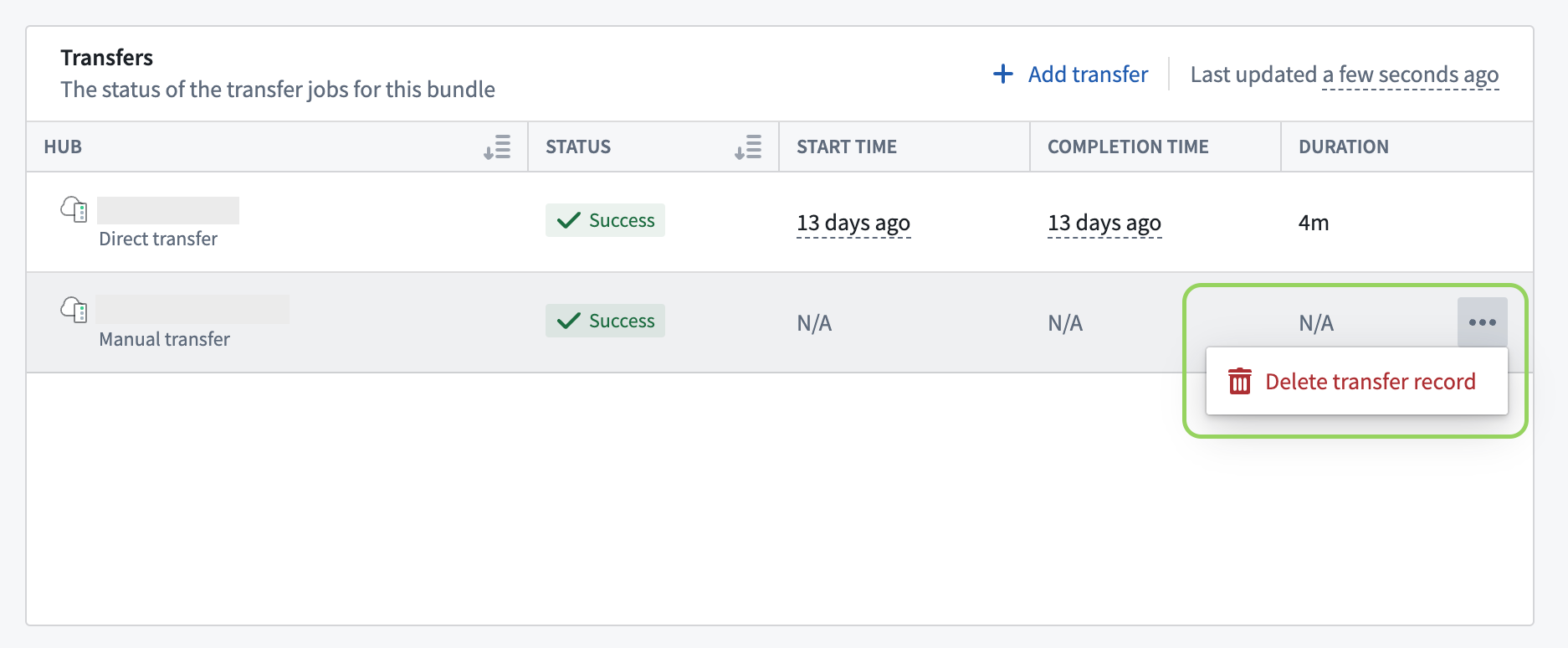
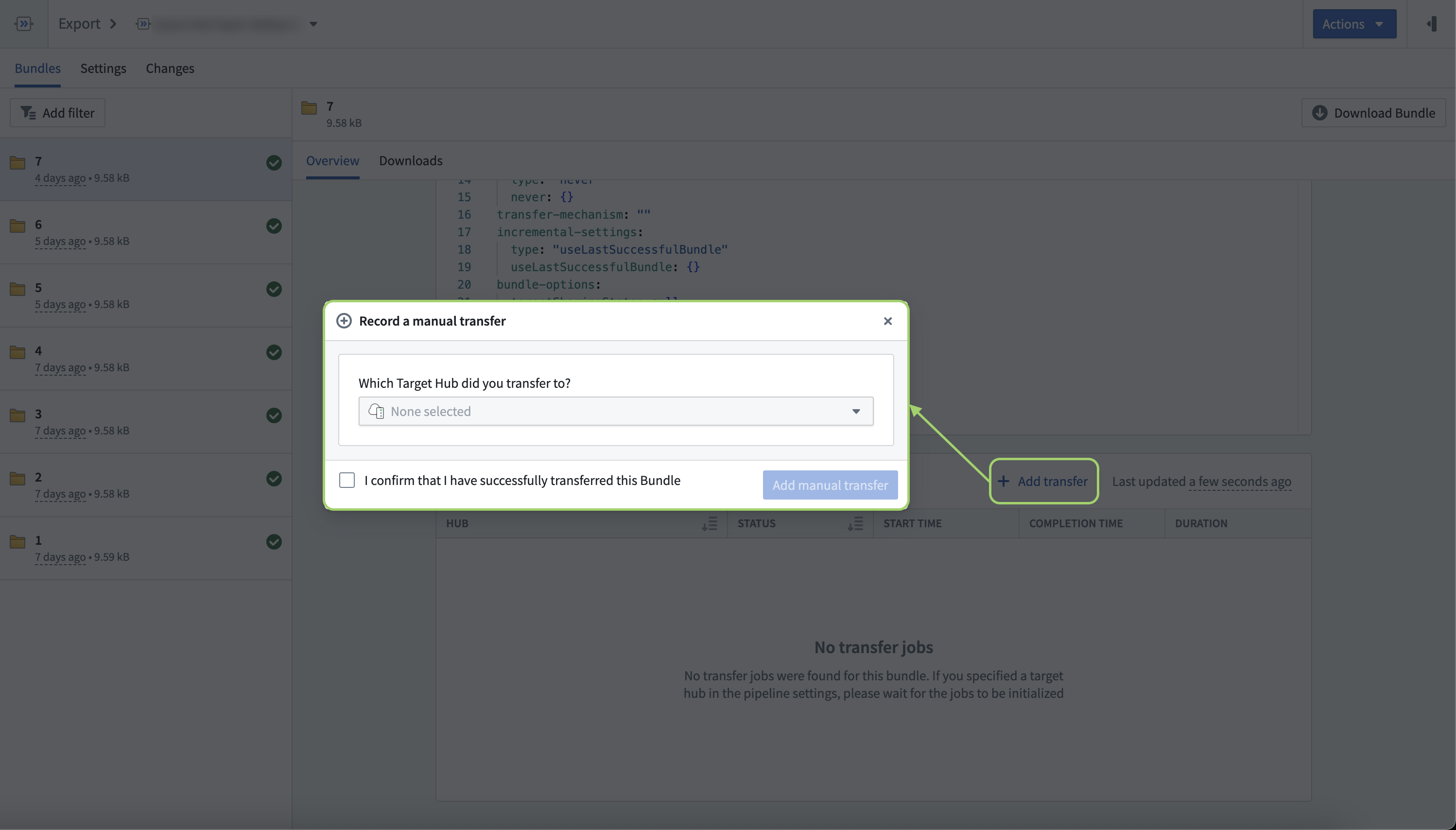
- Once the upload is finished, go back to the Export application in the source Hub to manually confirm the transfer. This is necessary for the Pipeline to benefit from the Bundle size reductions that the Bundle layer deduplication feature offers.
Do not confirm the transfer until the upload is finished and the Bundle is present on the Target Hub. Confirming that transfer is successfully without waiting for success on the Target Hub will mostly likely result in future failures for the Pipeline.
Layer deduplication will not be applied even if you confirm manual transfer for Bundles that were either not downloaded for the specific Target Hub, were downloaded more than seven days ago, or were part of a Pipeline where layer deduplication is not enabled.
Apollo CLI commands for downloading layer deduplicated Bundles
To download a layer deduplicated Bundle with the apollo-cli, you will need to add the flag --transfer-target $TARGET_HUB to the download CLI command as follows:
Copied!1 2 3 4$ ./apollo-cli bundle download [bundle-rid] \ --apollo-token "$APOLLO_TOKEN" \ --apollo-url "$APOLLO_URL" \ --transfer-target-rid $TARGET_HUB
You can search for your desired Target Hub by navigating to the Export application and going to the Target Hubs tab.
To get a pre-filled version of the command above:
- Navigate to the Bundle in the Export Pipeline.
- Select Download Bundle to open the download menu.
- Select your desired Target Hub from the dropdown.
- Select Copy CLI command to copy the complete command with all parameters automatically populated.
- Paste the command in your terminal where your apollo-cli executable is located to download the Bundle.
FAQ
Why do I need to confirm a manual transfer?
Confirming a Bundle communicates to other Apollo users that the Bundle has been successfully uploaded and is visible in the Import Application on the destination Hub.
What happens when I confirm my Bundle has been transferred to its destination?
When a Bundle is confirmed, the Export Application inspects the contents of the Bundle to determine what data is present at the destination Hub. It uses this information to decrease the size of future Bundles sent to that destination by removing duplicate information that has already been sent. This computation is done for all Pipeline and Transfer Target combinations. This means the amount of data that needs to be transferred is different for each destination.
Confirming that a Bundle has been transferred maintains a record for other users to where the Bundle was transferred.
What if my Bundle was not sent to the destination hub?
If you previously declared that a Bundle was transferred to a certain destination, you are able to rescind that confirmation. You can do this if the Bundle was not transferred to its destination successfully or if the Bundle was deleted from the destination Hub. When a Bundle confirmation is rescinded, the Export Application will assume that the Bundle was never sent to the destination.
To rescind a Bundle confirmation, go to the Export application in the source Hub where you previously confirmed the transfer.