- Capabilities
- Getting started
- Architecture center
- Platform updates
Indexing on a branch
When working on a branch, you may need to index object types or many-to-many link types to test actions, validate object data, or verify link configurations. Indexing on a branch does not affect the main branch.
Indexing an object type or link type on a branch counts as a modification. If a project policy protects the resource, you must obtain policy approval to merge your branch.
For general information about indexing, refer to the indexing documentation.
Indexing an object type
To index an object type on a branch, navigate to the object type in Ontology Manager while on your branch. If the object type is not yet indexed on the branch, a banner prompts you to index it. Select Index object type to view your indexing options:
- Index and import edits (recommended): Indexes the object type and imports user edits from the main branch onto your branch.
- Index object type: Indexes the object type without importing user edits.
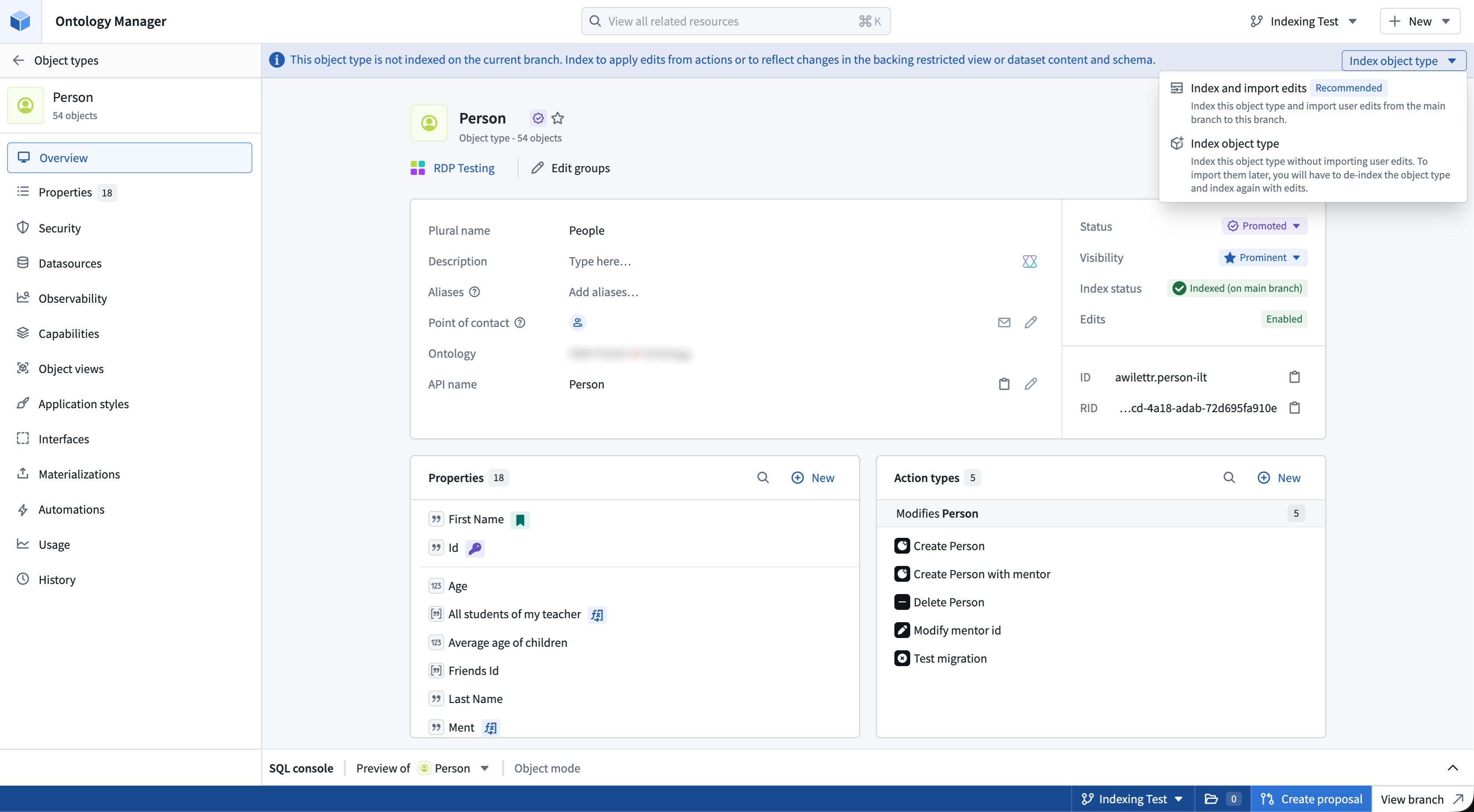
Importing edits from the main branch is a one-time action available only during initial indexing. To import edits after initial indexing of an object type, remove the object type from your branch, then index it again with Index and import edits. Removing the object type also reverts any other changes you made to it on the branch.
You must index an object type on a branch to run actions that edit that object type. If an action modifies an object type that is not indexed on the branch, the action does not apply its edits.
Indexing a many-to-many link type
To index a many-to-many link type on a branch, navigate to the link type in Ontology Manager while on your branch. If the link type is not yet indexed on the branch, a banner prompts you to index it. Select Index link type to view your indexing options, then choose Index and import edits or Index link type to open the Review resources to index dialog.
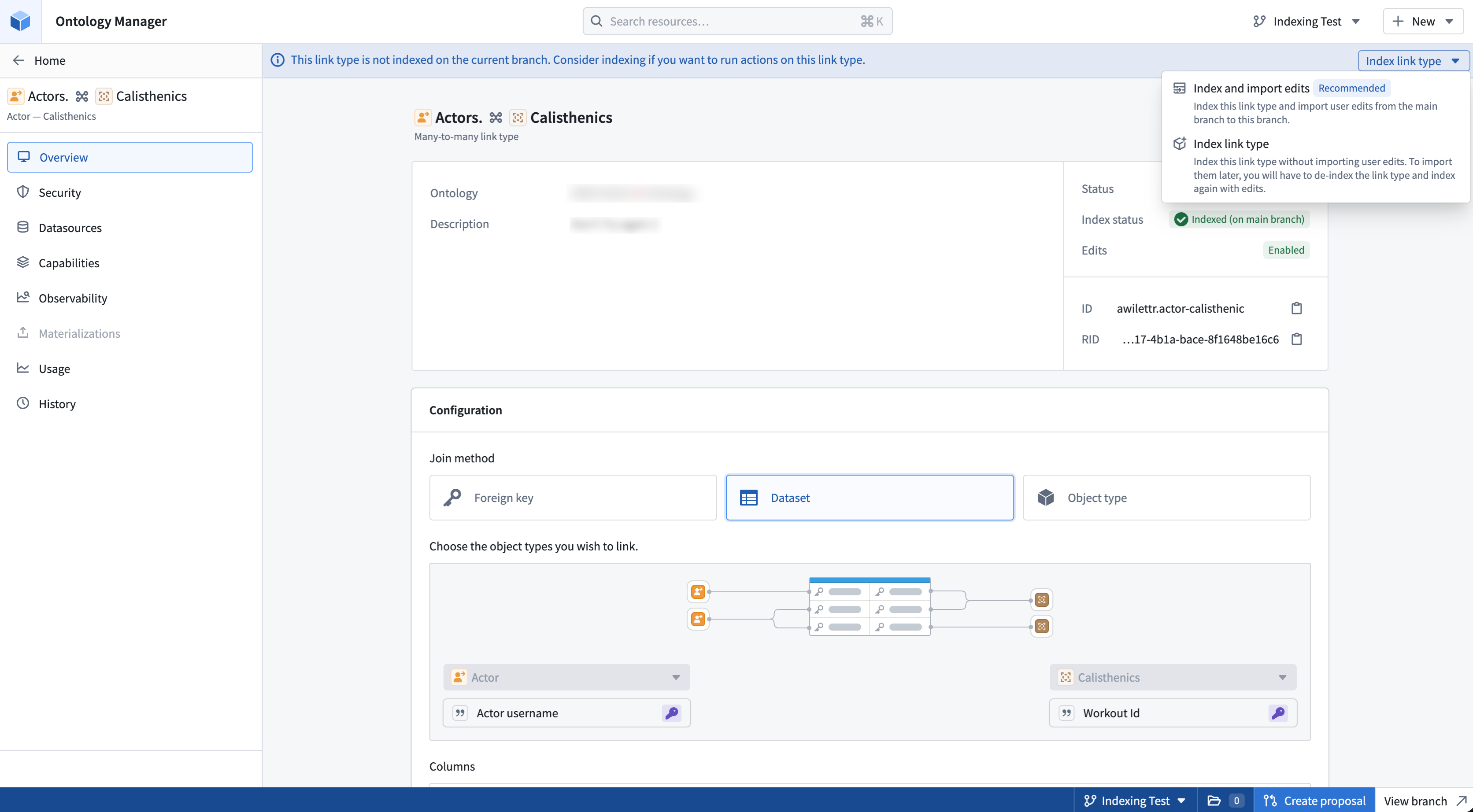
When you index a link type, its related object types are also indexed. The dialog lists the link type and any related object types that are not yet indexed on the branch, each with an Import user edits toggle. If you import user edits for the link type, you must also import them for its related object types. Otherwise, you can choose whether to import user edits for each object type individually.
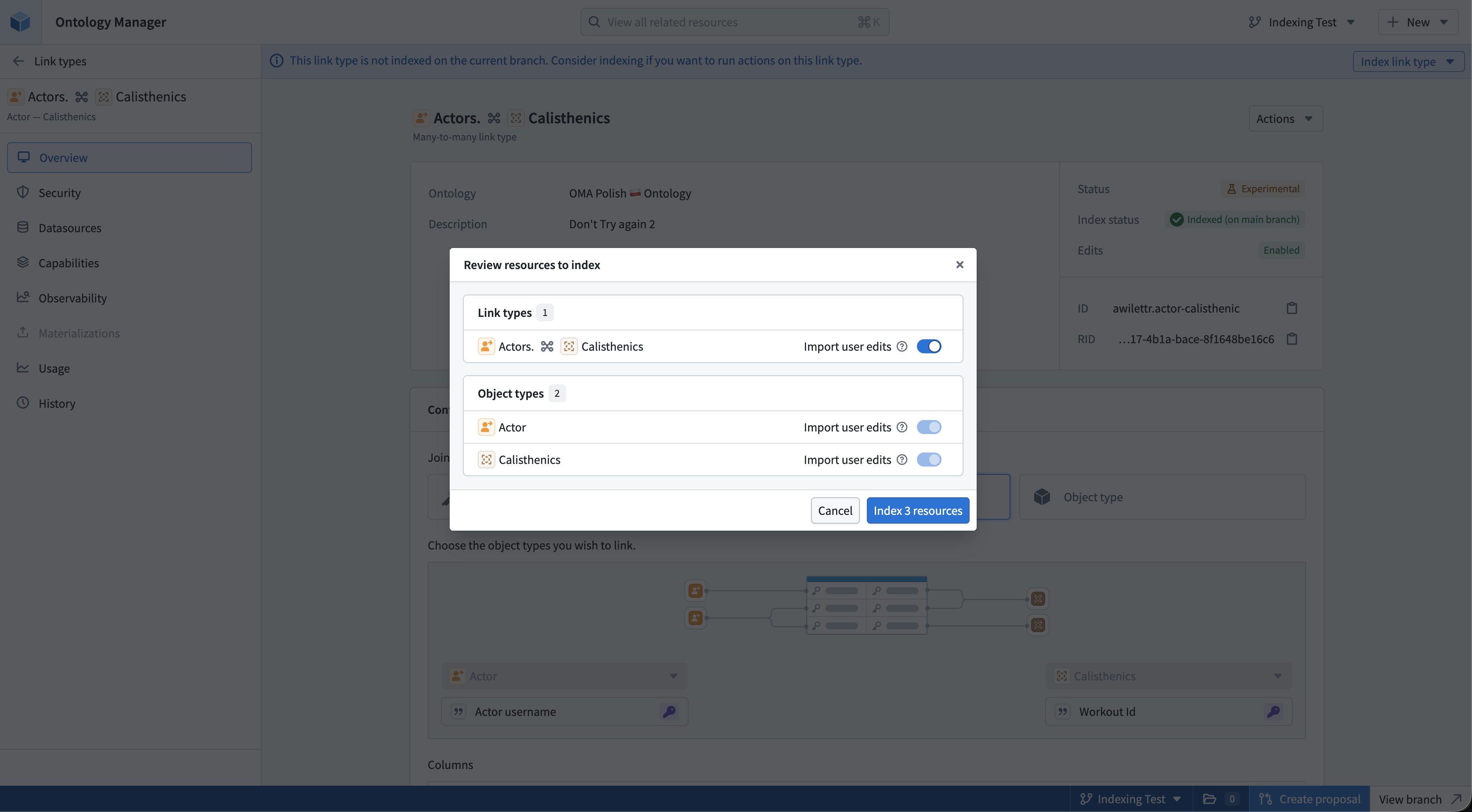
Select Index [number of] resources to begin indexing the link type and its related object types with your chosen import settings.
Indexing resources modified by an action type
When you open an action type in Ontology Manager on a branch, a banner appears if the action type modifies object types or link types that are not indexed on the branch. You can index the required resources directly from the action type page without navigating to each resource individually. Select Index entities… to open the indexing dialog. Choose the resources to index and whether to import user edits for each, then select Index [number of] resources.
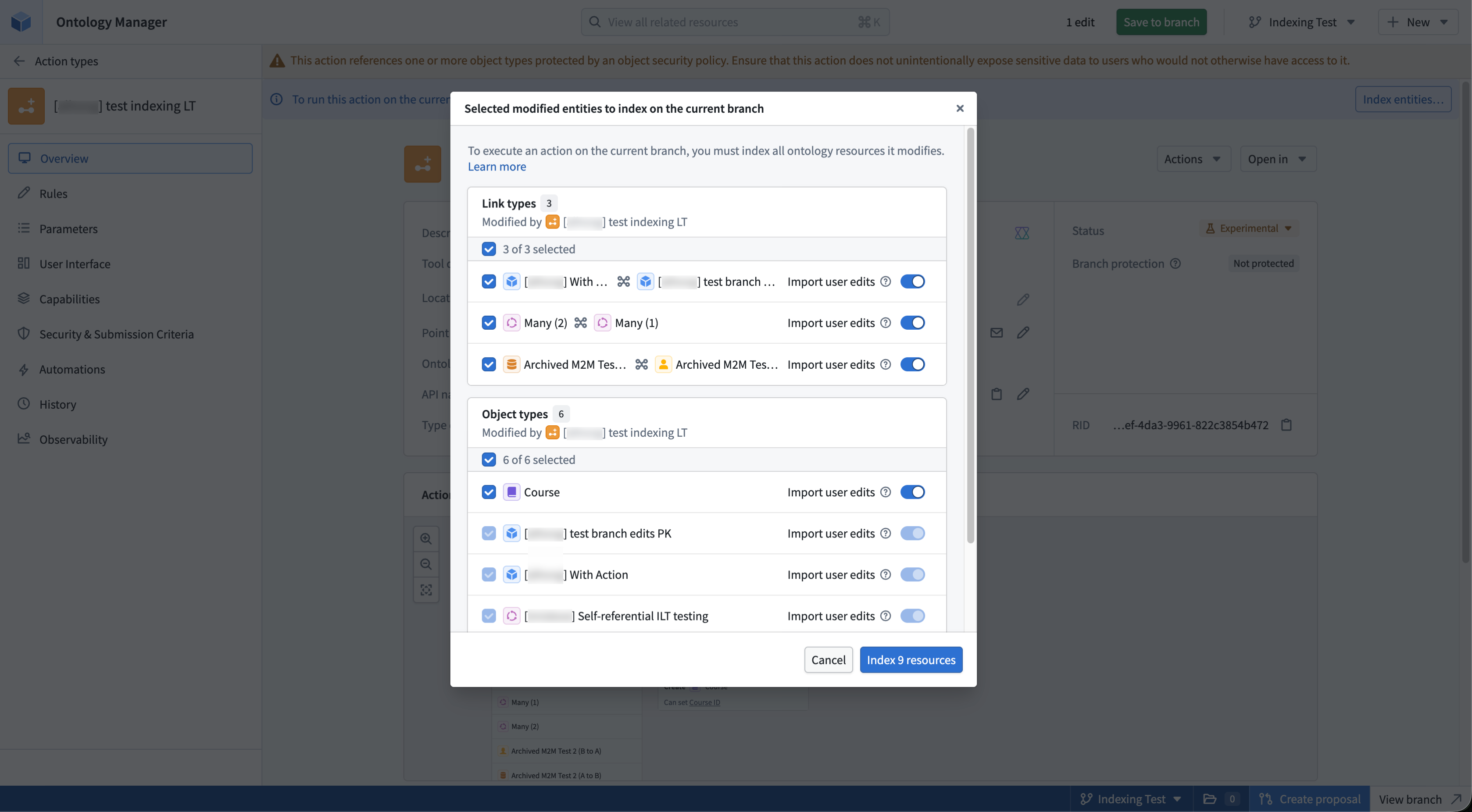
For more information about running actions on a branch, refer to the branching action types documentation.
Indexing modified resources from the save page
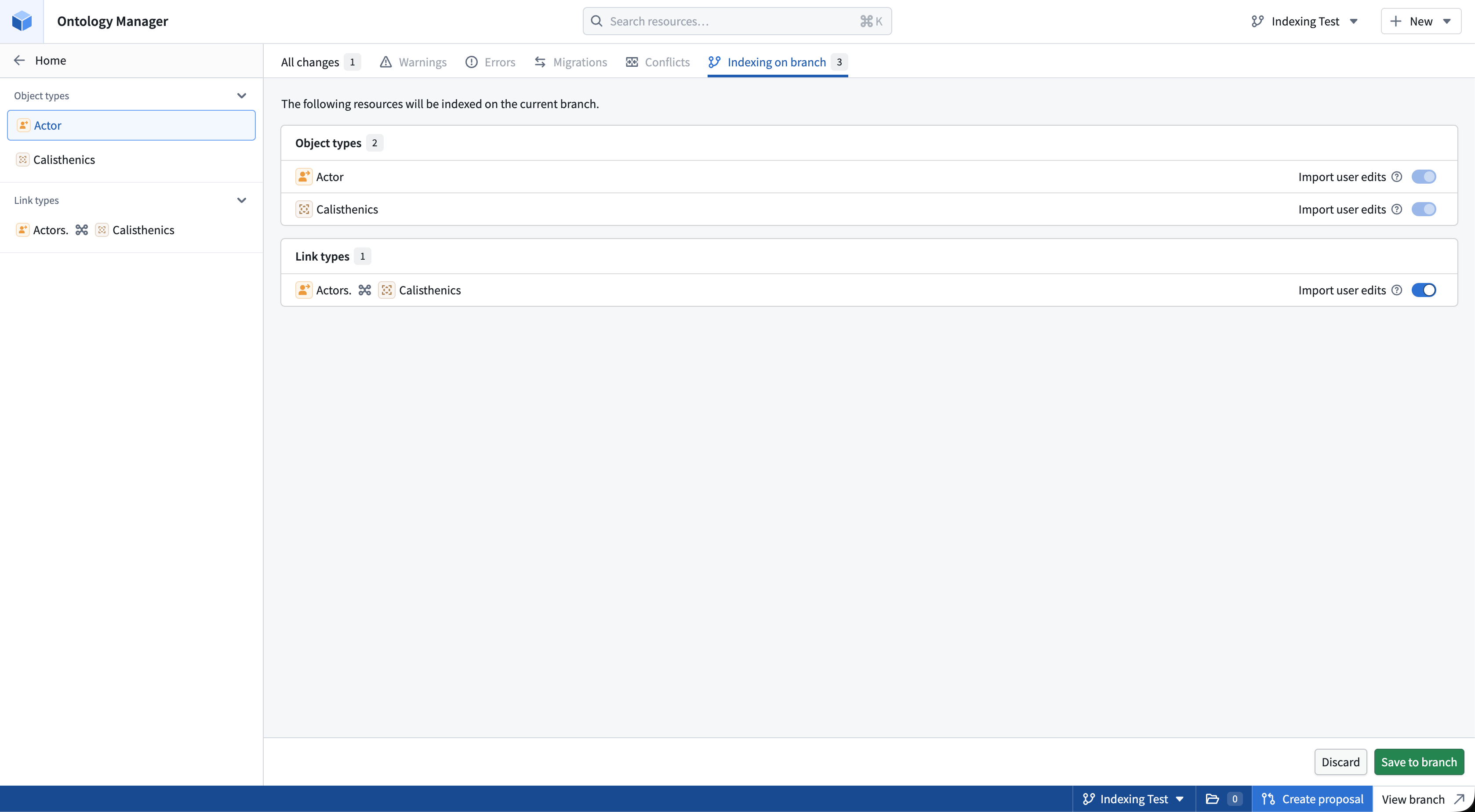
Modifying an object type or a many-to-many link type on a branch triggers indexing of that resource. Modifying any link type also triggers indexing of its related object types. When you first modify a resource that is not yet indexed on the branch, you can choose whether to import user edits as part of indexing.
The Indexing on branch tab on the save page in Ontology Manager lists all resources that require indexing. Each resource includes an Import user edits toggle. Choose whether to import edits from the main branch for each resource, then save to begin indexing alongside your other changes.
Indexing status
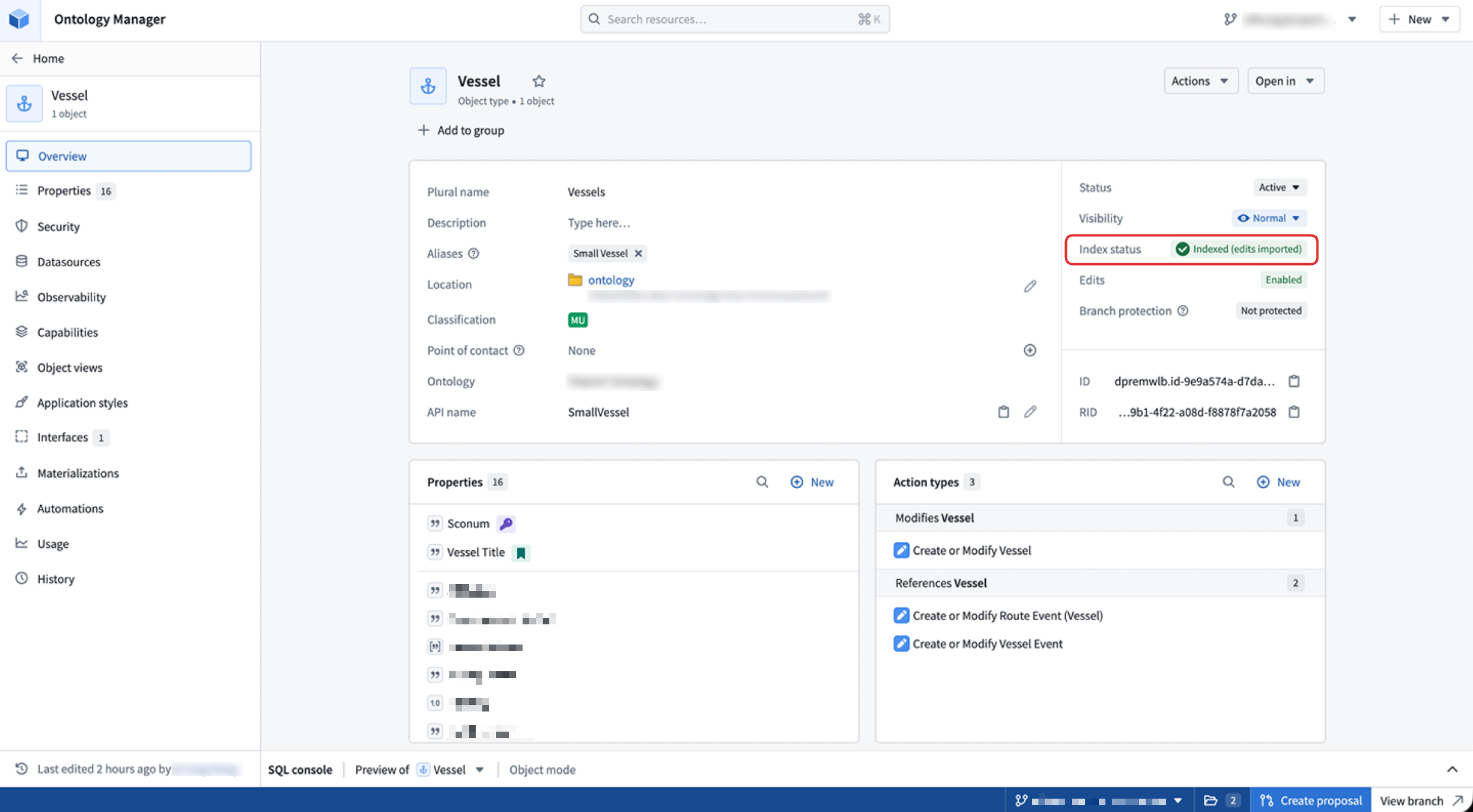
To check the indexing status of an object type or link type, open its Overview tab in Ontology Manager. The Index status field indicates whether and how the resource is indexed:
Indexed (edits imported): The resource is indexed on the branch with user edits imported from the main branch.Indexed: The resource is indexed on the branch without user edits from the main branch.Indexed (on main branch): The resource is not indexed on the branch but is indexed onmainbranch.
FAQ
Find answers to common questions about indexing resources and importing user edits on a branch.
Is it possible to modify an object type or link type on a branch without indexing it?
No. When you modify an object type on a branch, it is indexed automatically. When you modify a link type on a branch, its related object types are indexed automatically. If it is a many-to-many link type, the link type itself is also indexed.
I accidentally indexed without importing edits. How do I re-index with edits?
Remove the resource from your branch, then index it again by selecting Index and import edits. Removing the resource also reverts any other changes you made to it on the branch. You cannot import edits into a resource that is already indexed on the branch.
If I import edits during initial indexing, do later edits from the main branch synchronize to my branch?
No. Importing edits from the main branch is a one-time action. Only edits present at the time of initial indexing are imported to your branch. To import edits added to the main branch after initial indexing, remove the resource from your branch and index it again with Index and import edits.
I have not modified an object type on a branch, but its status indicates it is indexed. Why?
The object type may have been indexed automatically due to modifications to a related resource. This can occur when you modify a link type associated with the object type, a shared property type used on the object type, or an interface implemented by the object type.
If I submit user edits through actions on a branch, will those edits transfer to the main branch on merge?
No. User edits made on a branch are for testing purposes only. They are not merged into the main branch when you merge the branch.
Can I index a subset of data?
No. Indexing on a branch indexes all data for the selected object type or link type. You cannot select a subset of data to index.
Why is the option to import user edits unavailable?
You cannot import user edits for a resource in the following cases:
- The resource was created on your branch and does not exist on the main branch.
- User edits are disabled for the resource on the main branch.
- Your branch is not up to date with the main branch. To import user edits, rebase your branch first.