- Capabilities
- Getting started
- Architecture center
- Platform updates
Build a custom widget
Pilot can build custom widgets as well as full applications. A custom widget is a sandboxed frontend component that embeds inside a Workshop application, rather than a standalone hosted application. Building a widget uses the same conversational workflow as building an application, with the differences described on this page. To create a new project, see Getting started.
Start building a widget
On the Pilot welcome screen, choose Custom widget set instead of OSDK application, then describe the widget you want to build and select Create widget set. Pilot provisions an isolated container and generates the widget from your prompt.
As when building an application, you chat with Pilot in the chat panel. You can switch between act and plan modes, attach context, and choose a model.
What Pilot generates
Pilot generates a widget that renders inside a Workshop application. A single project can include multiple widgets, which Pilot publishes together as one widget set. Pilot connects each widget to its host application through two mechanisms:
- Parameters: Typed inputs the widget receives from Workshop, such as an object set, a string, or a number.
- Events: Outputs the widget emits back to Workshop to update variables in response to user interaction.
Pilot defines these parameters and events as it builds. For background on how widgets communicate with their host application, see Parameters and events.
Widgets run in a restricted sandbox. Keep the following in mind when prompting Pilot:
- Widgets adapt to the Workshop theme, including dark theme.
- Widget dimensions follow auto-sizing rules.
- Access to browser features and external network requests is restricted. To request additional browser capabilities, see Enable additional iframe attributes.
Preview your widget
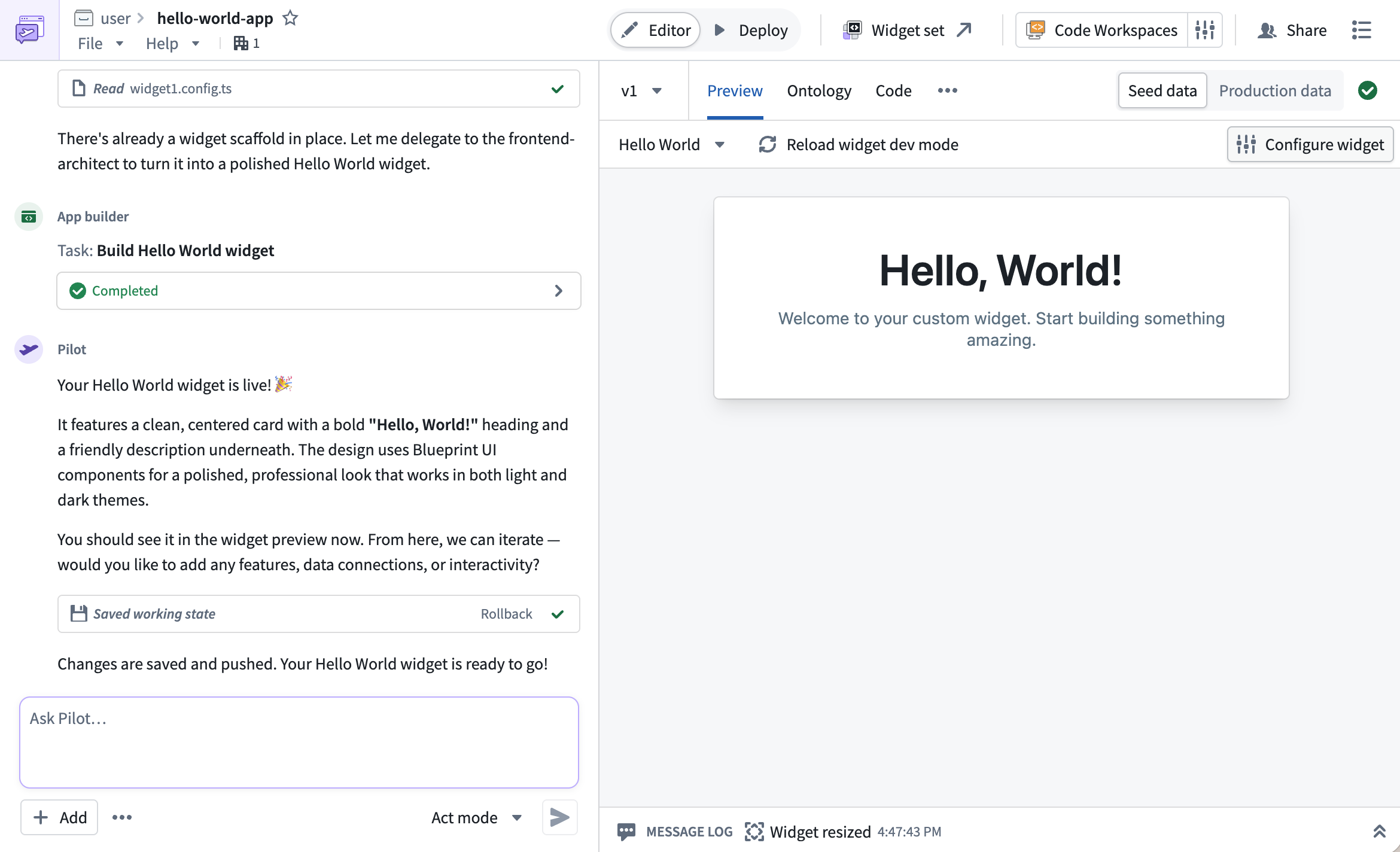
The Preview tab renders your widget in the Workshop widget sandbox, letting you test it in the same sandbox used when embedded. Its dimensions and parameters depend on the Workshop layout. In editor view, the preview uses locally generated seed data by default. To preview against real ontology data, switch to production data using the Notional data / Production data toggle.
Select Configure widget to enter representative parameter values and verify their effect in the preview.
If you change a widget's parameters or events, select Reload widget dev mode in the widget preview to apply the change to the running preview.
Work with the ontology
A widget reads from and writes to your ontology through the OSDK, using the permissions of the person viewing it in Workshop. In the Ontology tab, you can reference existing entities or, when modifications are allowed, have Pilot propose new ones. You control what Pilot is allowed to change from the Ontology tab.
Previewing production data does not by itself share those records with the agents building the application. Where enabled, a separate production-data viewer can analyze real data, with a review step before sharing its analysis. Production preview actions can change real records. For details, see Work with data.
Widget environments can restrict Ontology modifications independently of these settings. These schema-edit permissions do not grant access to real records.
Next steps
- Deploy a custom widget: Publish your widget to the Widget Registry and embed it in a Workshop application.
- Build an application: Build a standalone hosted application.
- Branches, changes, and proposals: Review widget code before release.