- Capabilities
- Getting started
- Architecture center
- Platform updates
Advanced media set settings
Beyond configuring the permitted file formats for a media set, you can also configure advanced settings, such as how to write media to the media set, and how long to keep media items.
Transaction policies
The transaction policy of a media set determines how media items are added to a media set. A media set can have one of two transaction policies; transactionless or transactional.
The following details are true for a media set with transactionless policies:
- Items uploaded to the media set are immediately readable and cannot be rolled back.
- If a build writing to a transactionless media set fails, then all items that were successfully written during the build before failure will remain in the media set.
- Multiple clients can simultaneously write to a transactionless media set.
- Transactionless media set branches cannot be reset to an empty view.
The following details are true for a media set with transactional policies:
- All media items must be added to the media set from within a transaction.
- Only one transaction can be open on the branch of a media set.
- Upon committing a transaction, all items written in the transaction become readable.
- Upon aborting a transaction, all items in the transaction will be deleted.
- If a build writing to a transactional media set fails at any point, then no updates will be made to the media set.
- A maximum of 10,000 items can be written in a single transaction.
The semantics of transactional media sets are most similar to Foundry datasets. When writing incremental transforms, transactional media sets support the replace and modify write modes. Transactionless media sets only support the modify write mode.
Retention policies
You can configure retention policies to permanently delete media items. This is a helpful option to minimize storage costs. To configure retention policies, open the media set and select the Details tab, then configure the options in the Retention policy section.
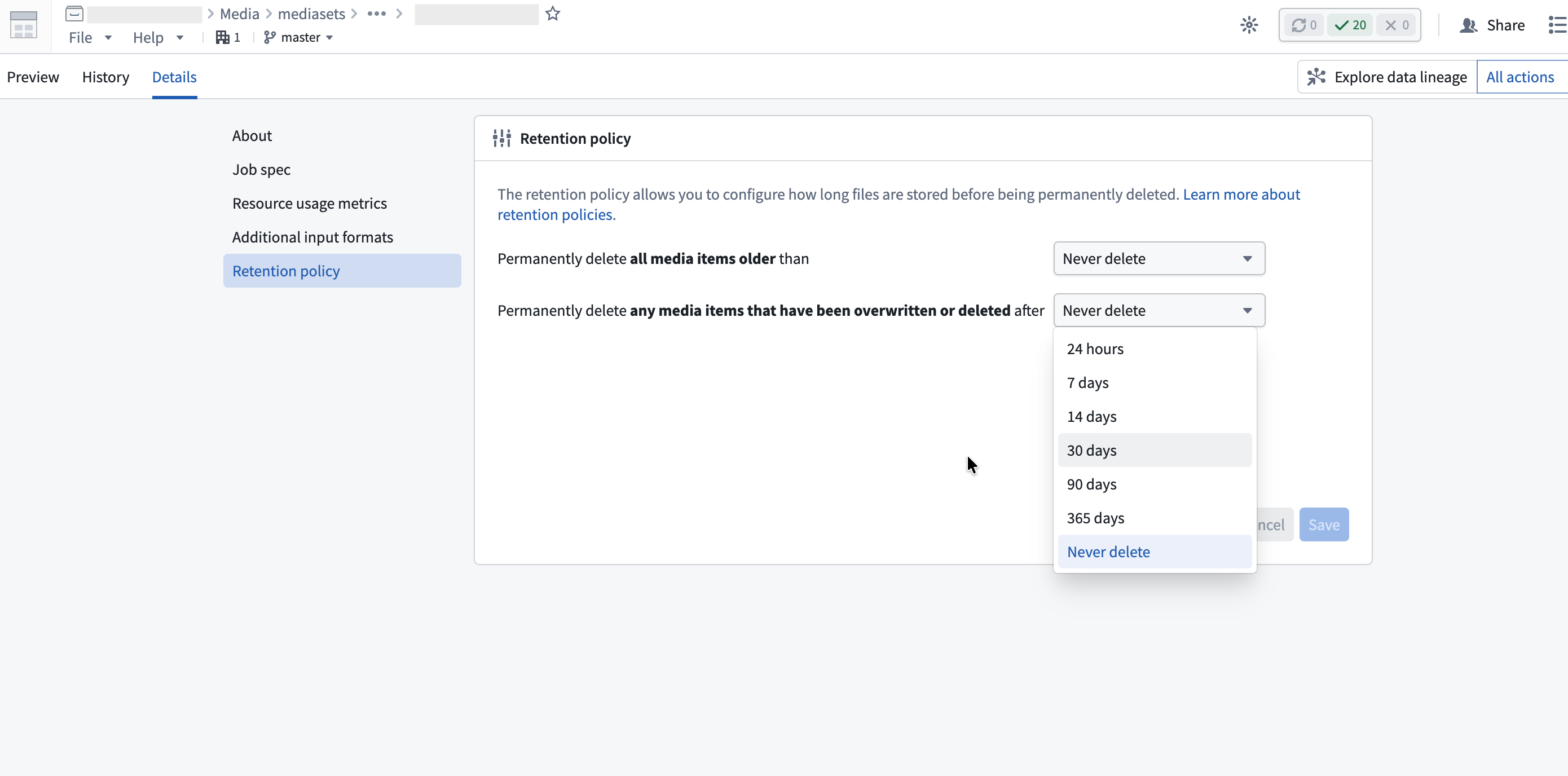
Permanently delete all media items older than
This policy permanently deletes media items after a fixed period from when they were uploaded. For example, if you configure a 14-day retention period, each media item will be permanently deleted 14 days after it was uploaded.
Permanently delete any media items that have been overwritten or deleted after
This policy permanently deletes overwritten media items after a fixed period from when they were overwritten. An overwritten item is a media item that has been replaced by a newer upload at the same path or has been soft deleted. You can view overwritten items in the media item version history.
For example, if you configure a 7-day retention period for this policy and upload five images to the path example.png over time, the four older versions will be deleted 7 days after they were each overwritten. The most recent upload remains accessible indefinitely until it is overwritten.
Retention policy behavior
You can configure both retention policies on the same media set. A media item will be permanently deleted when either policy's conditions are met, whichever comes first.
Once a media item's retention window expires, it will be permanently deleted and no longer accessible. For example:
- When a retention window is reduced, such as from 30 days to 7 days, all media items that are older than the new window (7 days) will immediately become inaccessible.
- When a retention window is expanded, such as from 7 days to 30 days, media items that previously expired (7 days and 1 second) will not be accessible. The same is true if retention is changed to "Never delete".