- Capabilities
- Getting started
- Architecture center
- Platform updates
Add time series properties and configure geospatial capabilities with Ontology Manager
This guidance references the documentation for setting up a time series property on a time series object type. While you can add as many time series properties to the object type as necessary, this tutorial guides you through the process of adding two to your object type based on the latitude and longitude columns on the Ship object type's backing dataset created in Pipeline Builder.
At the end of this guide, your Ship object type will have two time series properties (Latitude Series and Longitude Series) and geospatial track capabilities configured to visualize ship movement on a Foundry map.
Part I: Create a Ship object type in Ontology Manager
Follow the instructions below to create a new Ship object type in your Ontology with your transformed data as the backing dataset:
- Navigate to Ontology Manager and select New > Object type from the top right corner of your screen.
- Select Use existing datasource in the Create a new object type pop-up window and choose your transformed dataset.
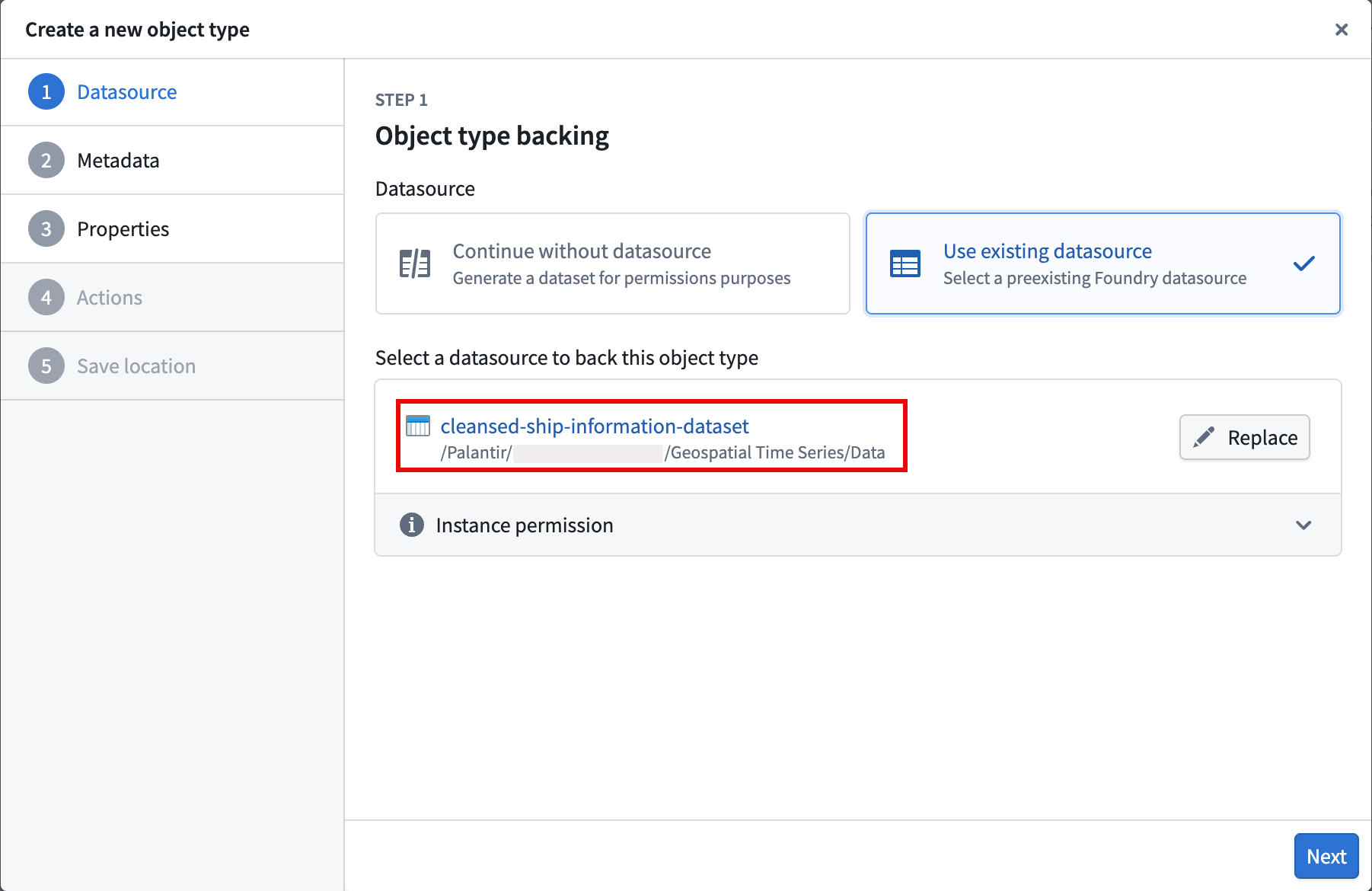
- Select Next and set
Shipas the object type's Name before optionally entering a Description. After providing a name and description, choose Next. - Set the
Ship Idproperty as the Primary key and Title for the object type. - Select your action types to generate, and optionally restrict who can submit the actions.
- Select a project to save the object type and generate action types to before you choose Create.
After you select Create, Foundry closes the Create a new object type window and directs you to your object type's overview page in Ontology Manager, where you can configure its time series properties.
Part II: Configure the time series properties on the Ship object type
- Select the Capabilities tab on the left side of your screen beneath Observability.
- Select the Time series panel before choosing Get started to launch the Time series property setup pop-up window.
- Choose
Longitude Series Idfrom the Object type property dropdown menu and select Next. - Select Choose file... to locate the time series sync you created in Pipeline Builder before choosing Next.
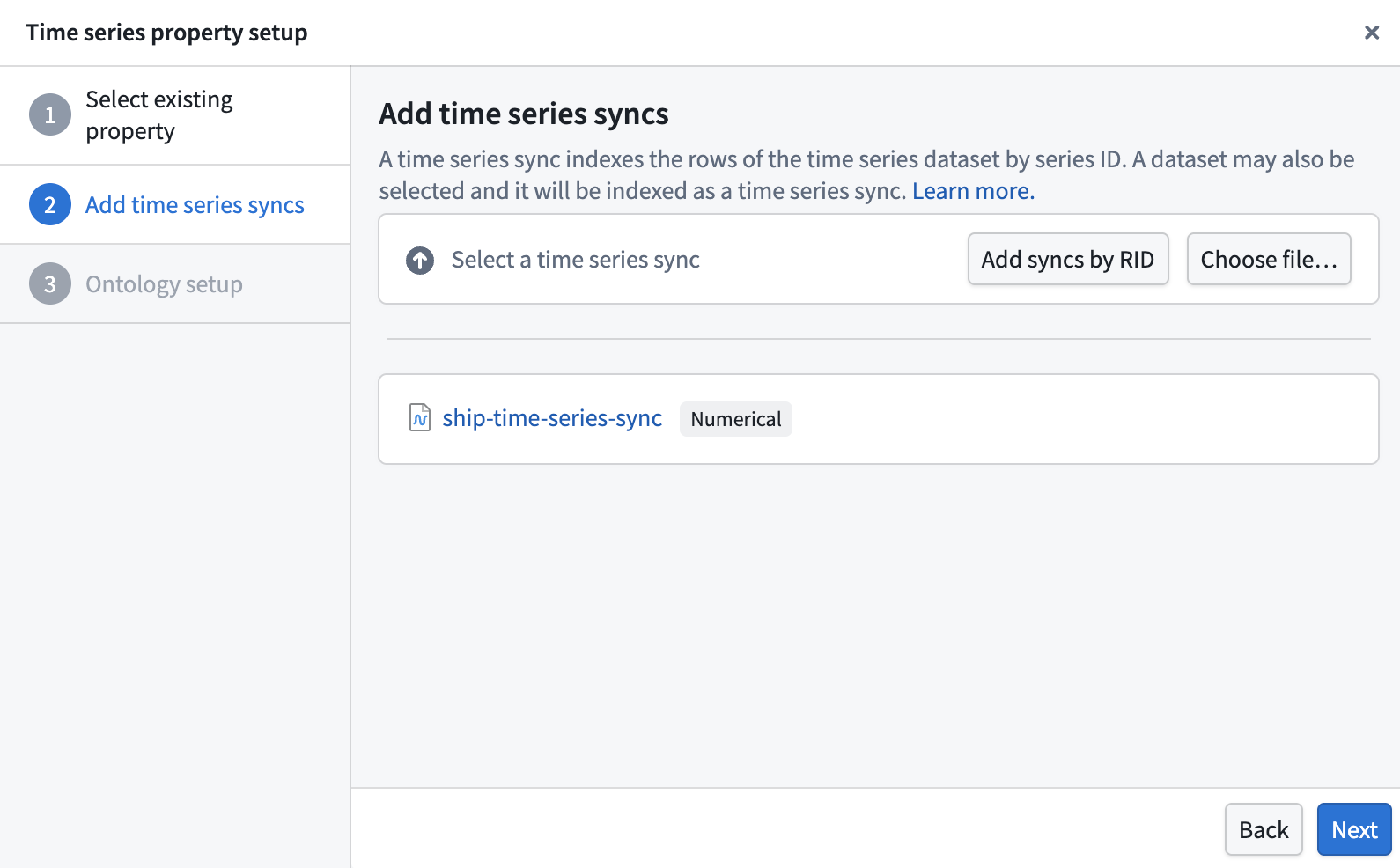
- Choose Standard time series property in the Ontology setup section of the pop-up window before selecting Add property.
After you select Add property, Foundry closes the Time series property setup pop-up window and directs you back to the Time series section of the Capabilities panel. Next, select Add property and repeat steps 2–5 above for the Latitude Series Id property.
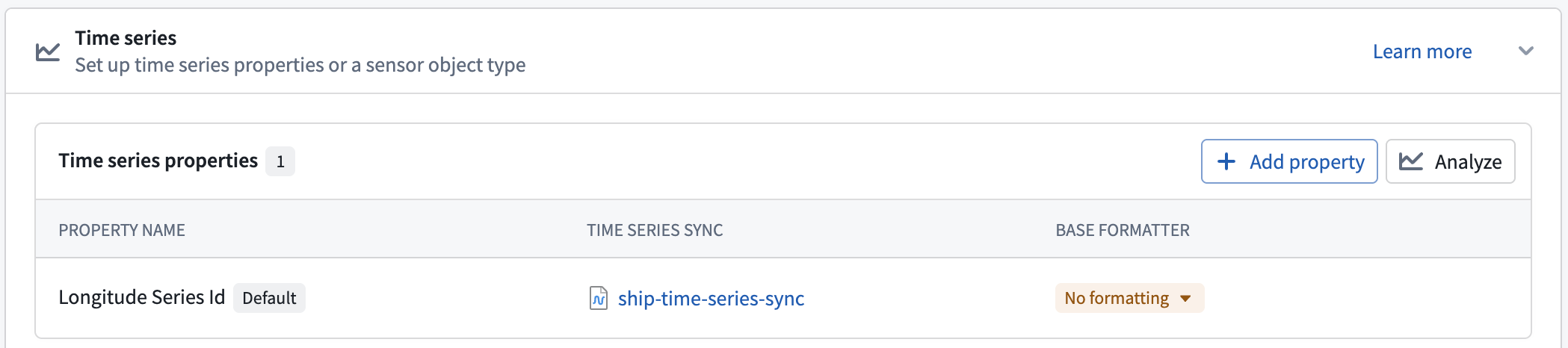
Once you finish setting up the Latitude Series Id property, Save your changes to the Ontology.
Part III: Ensure each time series property represents a geospatial feature
In the Capabilities tab, scroll down to and select the Geospatial panel. Next, set your Latitude Series Id and Longitude Series Id properties as the Track Latitude and Track Longitude properties, respectively, before saving your changes to the Ontology.
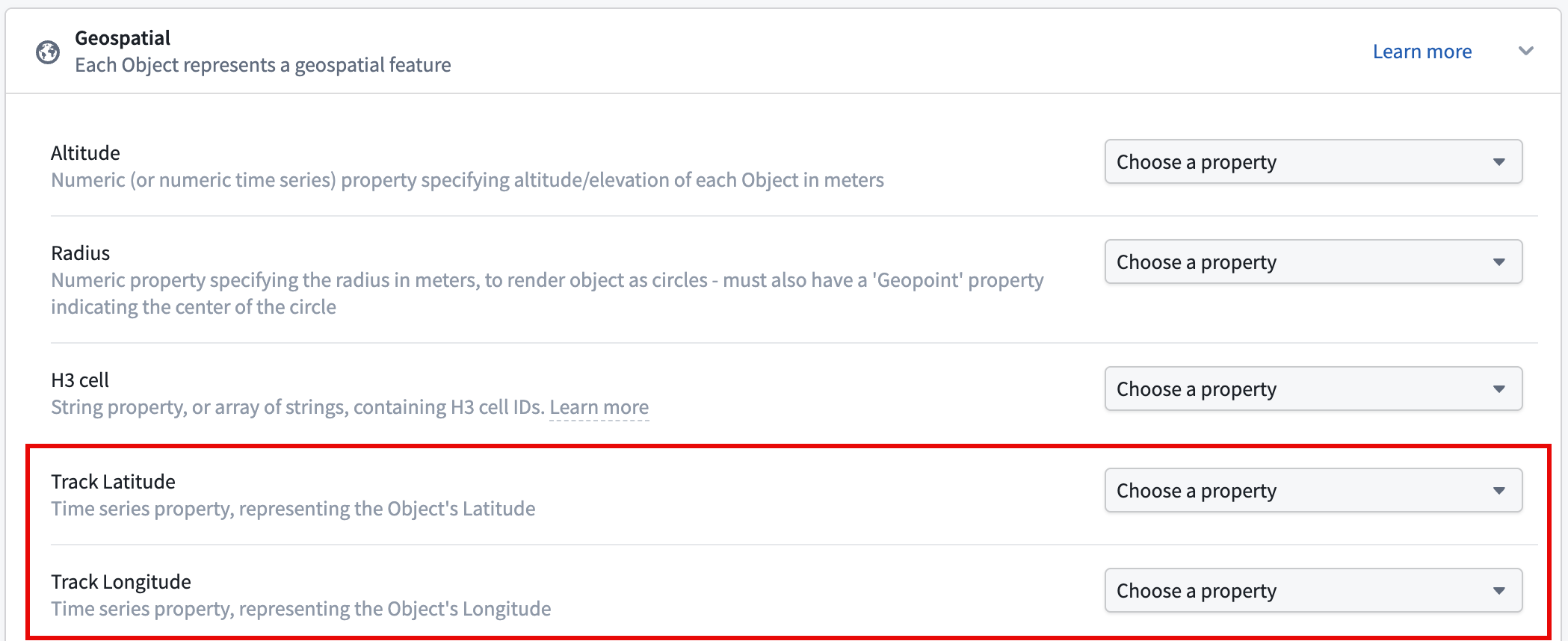
Now that the time series properties and geospatial capabilities are configured, you will next visualize ship tracks on a map.