- Capabilities
- Getting started
- Architecture center
- Platform updates
Create geospatial time series properties with Pipeline Builder
The pipeline you create in Pipeline Builder with this guide will generate time series data from raw location updates and prepare the object backing dataset with series ID references. This data will back a time series sync to associate with time series properties on the Ship object type.
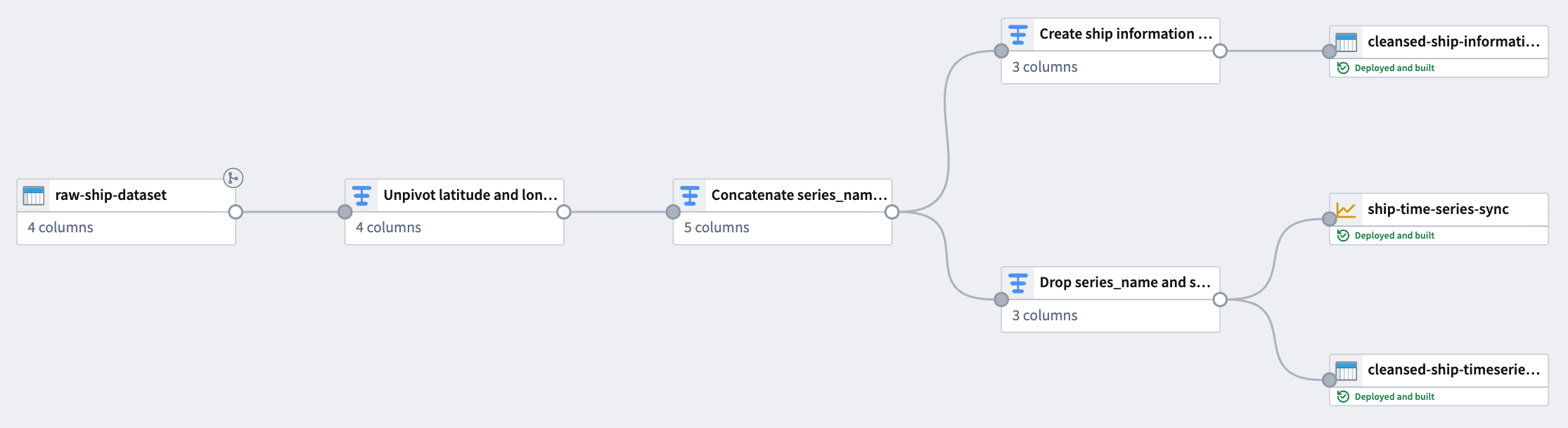
The notional raw location dataset used in this example includes the following columns:
- ship_id:
string| A unique identifier for each ship. - timestamp:
timestamp| The time at which the location was recorded. - longitude:
double| The longitude of the ship at the recorded time. - latitude:
double| The latitude of the ship at the recorded time.
You can copy the raw data below and import it as a dataset in Foundry before adding it to a new pipeline in Pipeline Builder:
| ship_id | timestamp | longitude | latitude |
|---|---|---|---|
| ship-001 | 2025-01-01 08:00:00 | 139.7492 | 35.7607 |
| ship-001 | 2025-01-01 14:00:00 | 140.0097 | 35.2652 |
| ship-001 | 2025-01-01 20:00:00 | 139.5932 | 35.7231 |
| ship-002 | 2025-01-02 08:00:00 | 135.7609 | 35.1223 |
| ship-002 | 2025-01-02 14:00:00 | 135.9821 | 35.3055 |
| ship-002 | 2025-01-02 20:00:00 | 136.2015 | 35.4878 |
Part I: Transform time series data
Using the raw location dataset, apply the following transforms in Pipeline Builder to create a time series sync-compatible dataset.
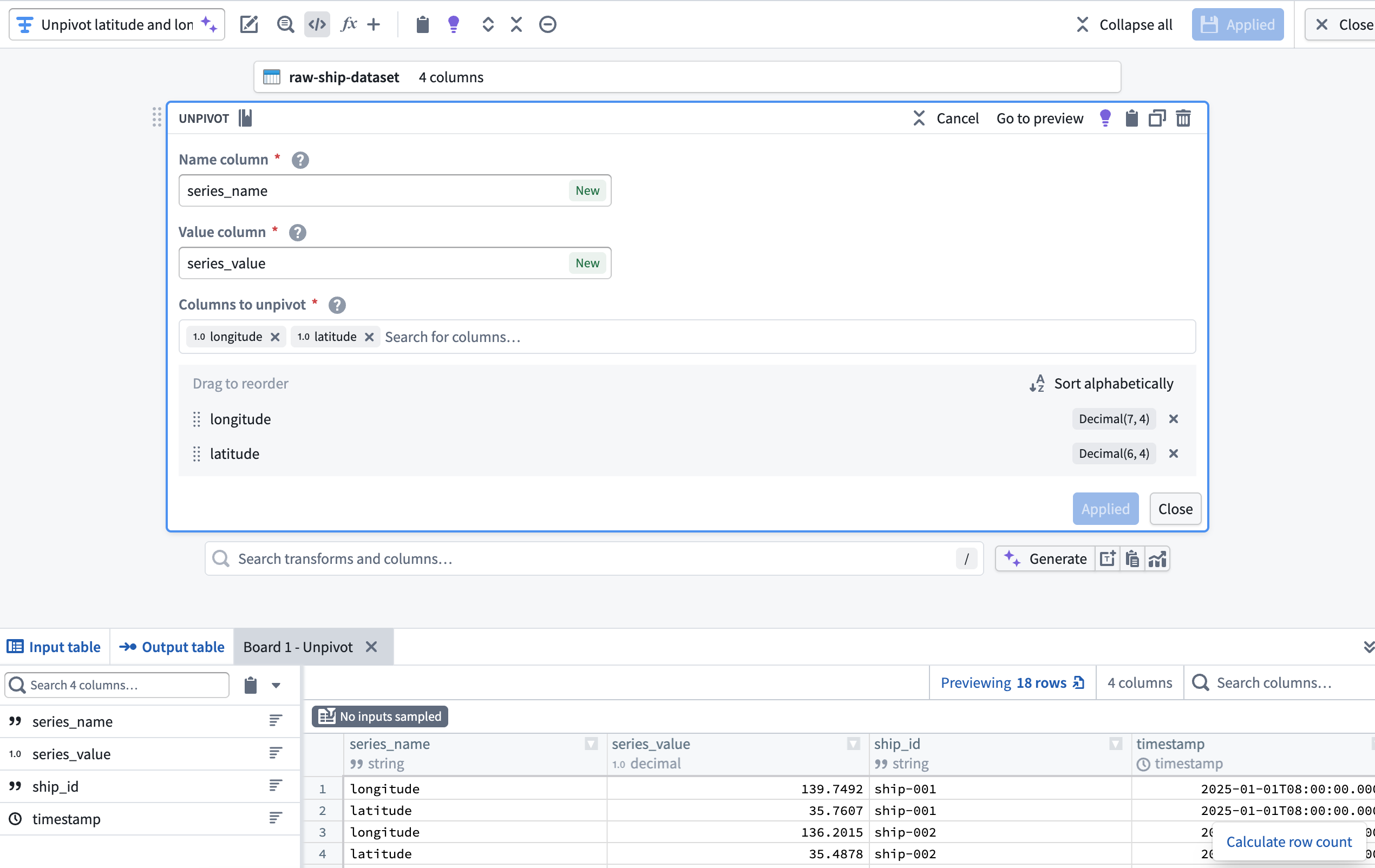
1. Unpivot latitude and longitude columns
Since the dataset contains both latitude and longitude as separate columns, use an Unpivot transform to merge them into a single value column. This is necessary to match the required schema for a time series sync. With the dataset added to your pipeline, add a transform node to Unpivot the latitude and longitude columns into a new series_name Name column and series_value Value column.
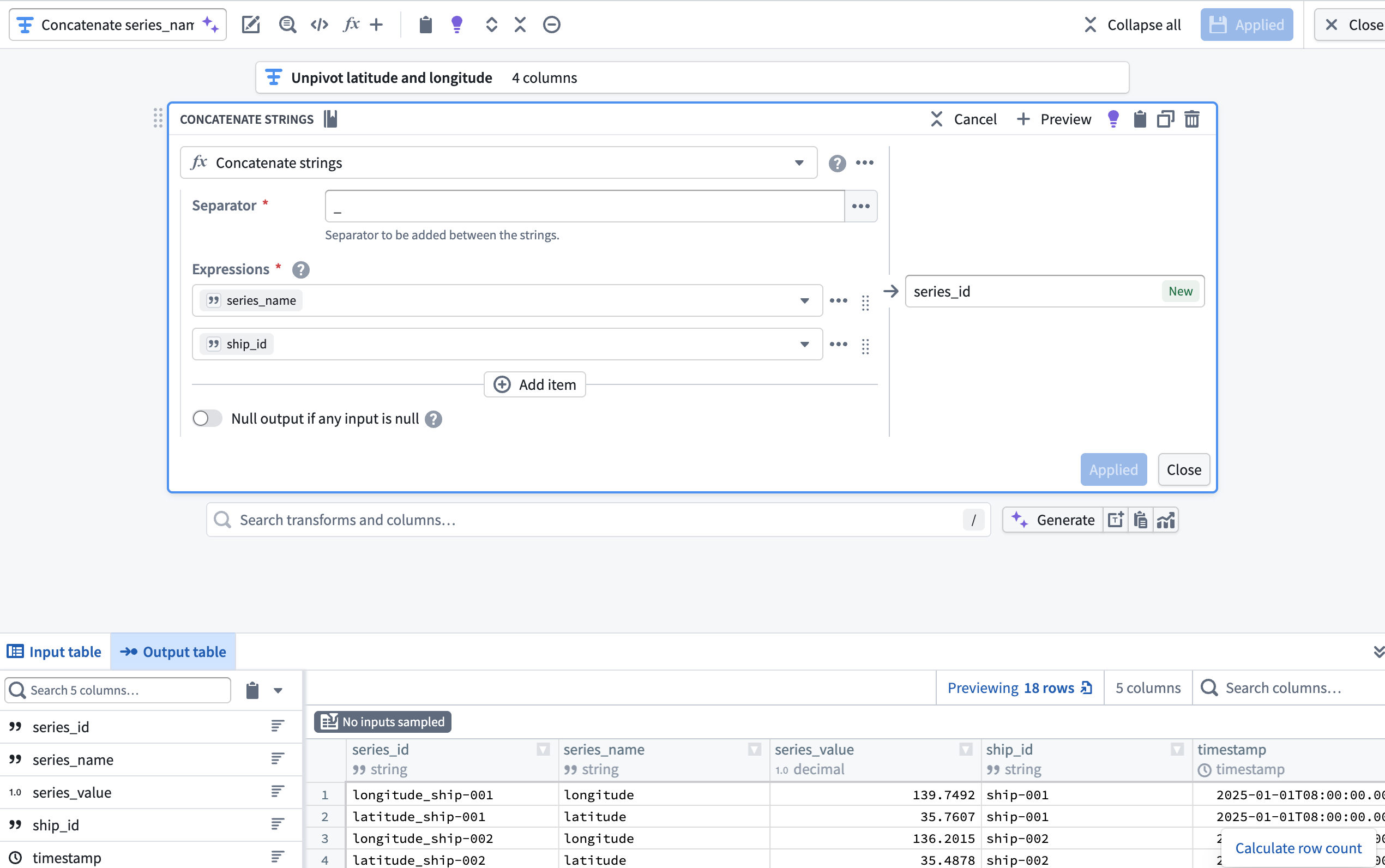
2. Create a series_id column using the Concatenate strings transform
Next, add a transform node to concatenate the series_name and ship_id columns to create a new series_id column using the Concatenate strings transform.
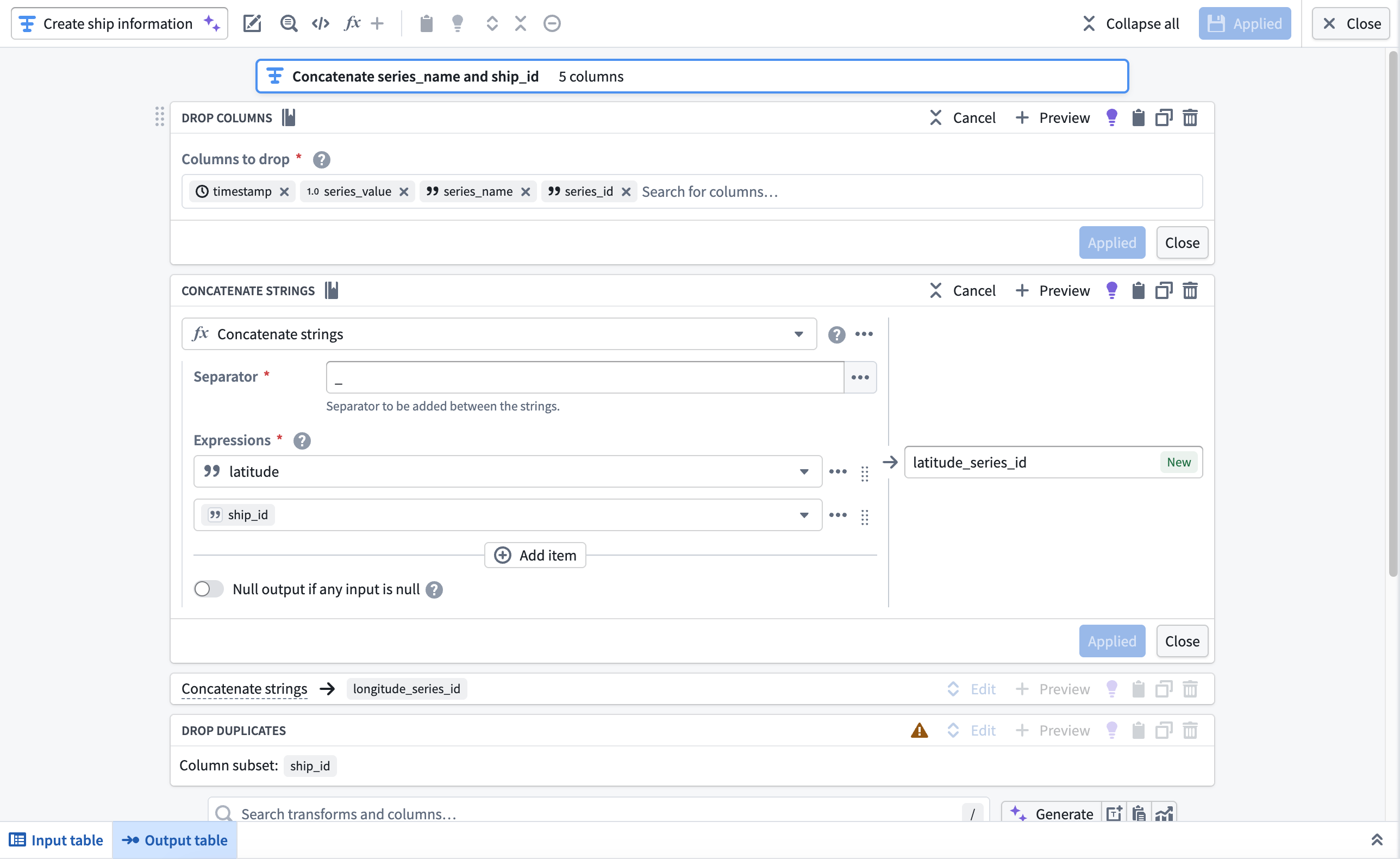
3. Create the object backing dataset
Next, you will use the Drop columns, Concatenate strings, and Drop duplicates transforms to create the Ship object type's backing dataset. After you complete these transformations in your pipeline, your dataset will contain the following schema and values:
| longitude_series_id | latitude_series_id | ship_id |
|---|---|---|
| longitude_ship-001 | latitude_ship-001 | ship-001 |
| longitude_ship-002 | latitude_ship-002 | ship-002 |
Add a transform node and apply the transforms listed above.
- Drop columns: Drop the
timestamp,series_value,series_name, andseries_idcolumns. - Concatenate strings: Use an underscore as the Separator to concatenate the
latitudeandlongitudecolumns withship_idin separate transform blocks. - Drop duplicates: Drop the
ship_idcolumn after it is used in the concatenation withlatitudeandlongitude.
After you configure the transforms, navigate back to your pipeline's canvas and choose Add output > New dataset from the newly created transform node to output a dataset to back the object type.
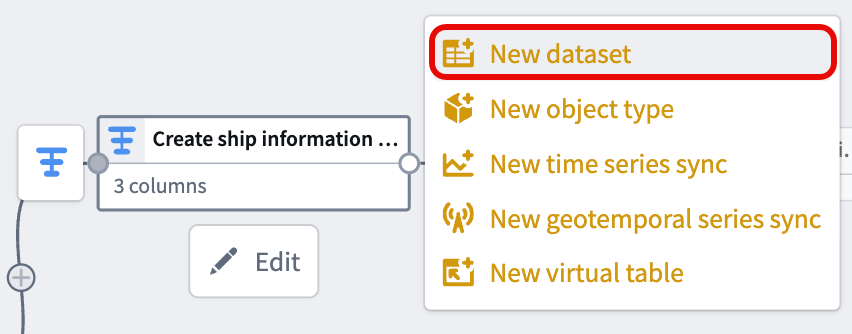
Give your dataset a descriptive name, such as cleansed-ship-information-dataset. Select Save in the top ribbon and Deploy your pipeline to create the dataset.
4. Drop ship_id and series_name before casting series_value to Double
With your object type's backing dataset created, navigate back to the transform node you created in step two to create your time series sync.
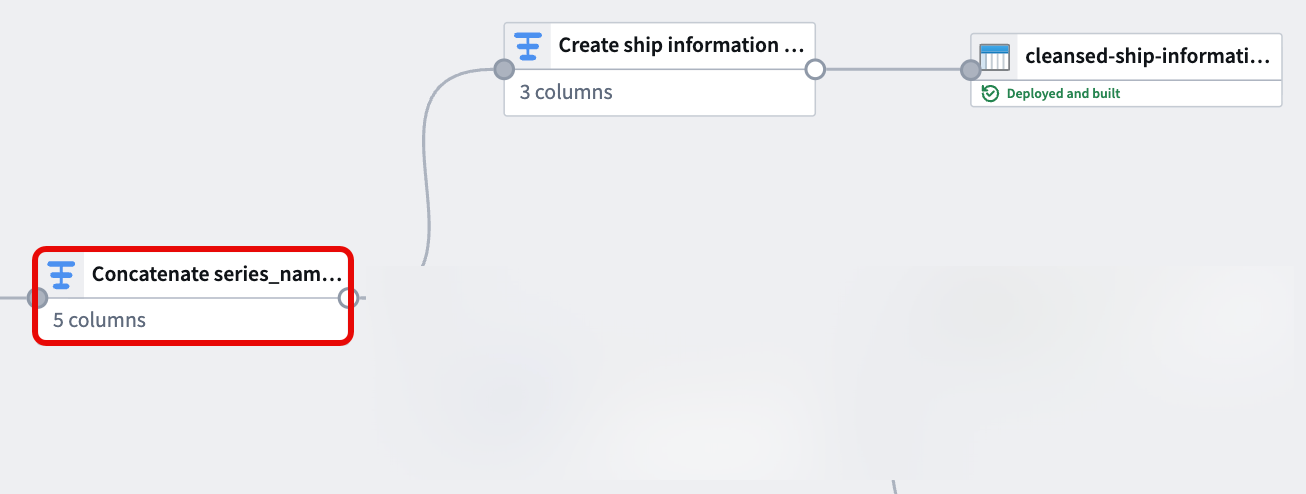
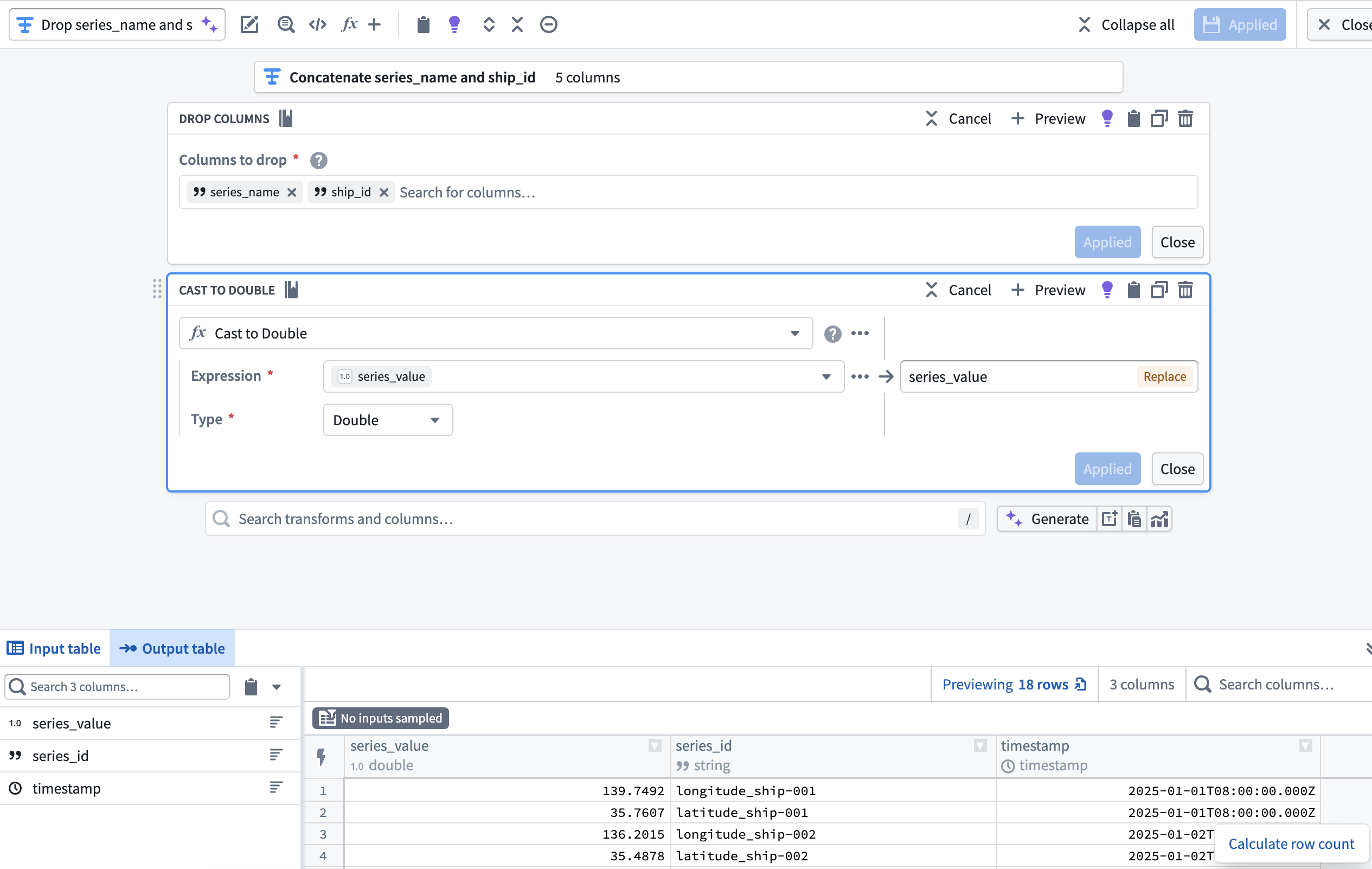
Now that the series_id and series_value columns are derived from and supersede the ship_id and series_name, add a transform node to drop ship_id and series_name then cast series_value to type Double. This enables you to output a time series sync from your cleansed dataset which will back Track Latitude and Track Longitude properties on a track object.
Part II: Create the time series sync
You can reference similar instructions in the time series properties use case tutorial. However, the instructions below provide guidance specific to this Ship geospatial object type example.
You can choose to output a new dataset instead of a time series sync. However, outputting a time series sync in Pipeline Builder will save you a step during the Ontology configuration phase.
To output a time series sync from your cleansed dataset, select the final transform node on your pipeline's canvas and choose Add output > New time series sync. Next, populate the Series ID, Time, and Value options in the Pipeline Outputs drawer that renders on the right side of your pipeline with your cleansed dataset's series_id, timestamp, and series_value columns. Save and deploy your pipeline to create a time series sync.
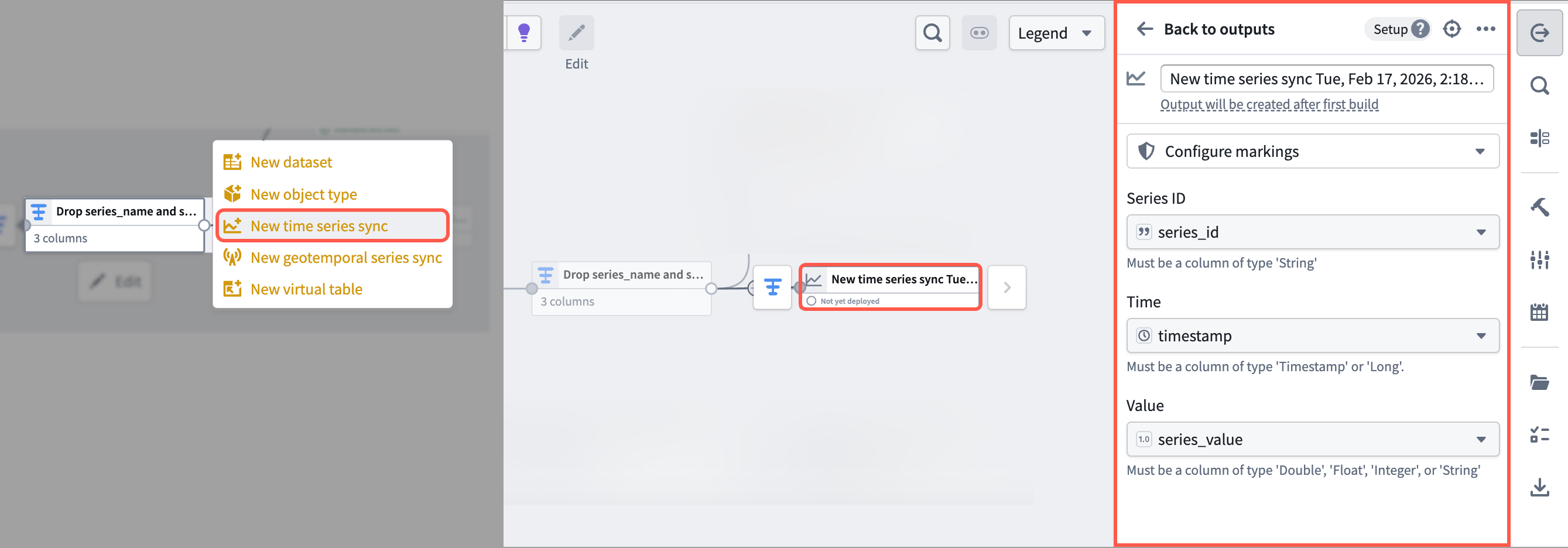
Foundry saves your newly created time series sync in the same Compass folder as your pipeline.
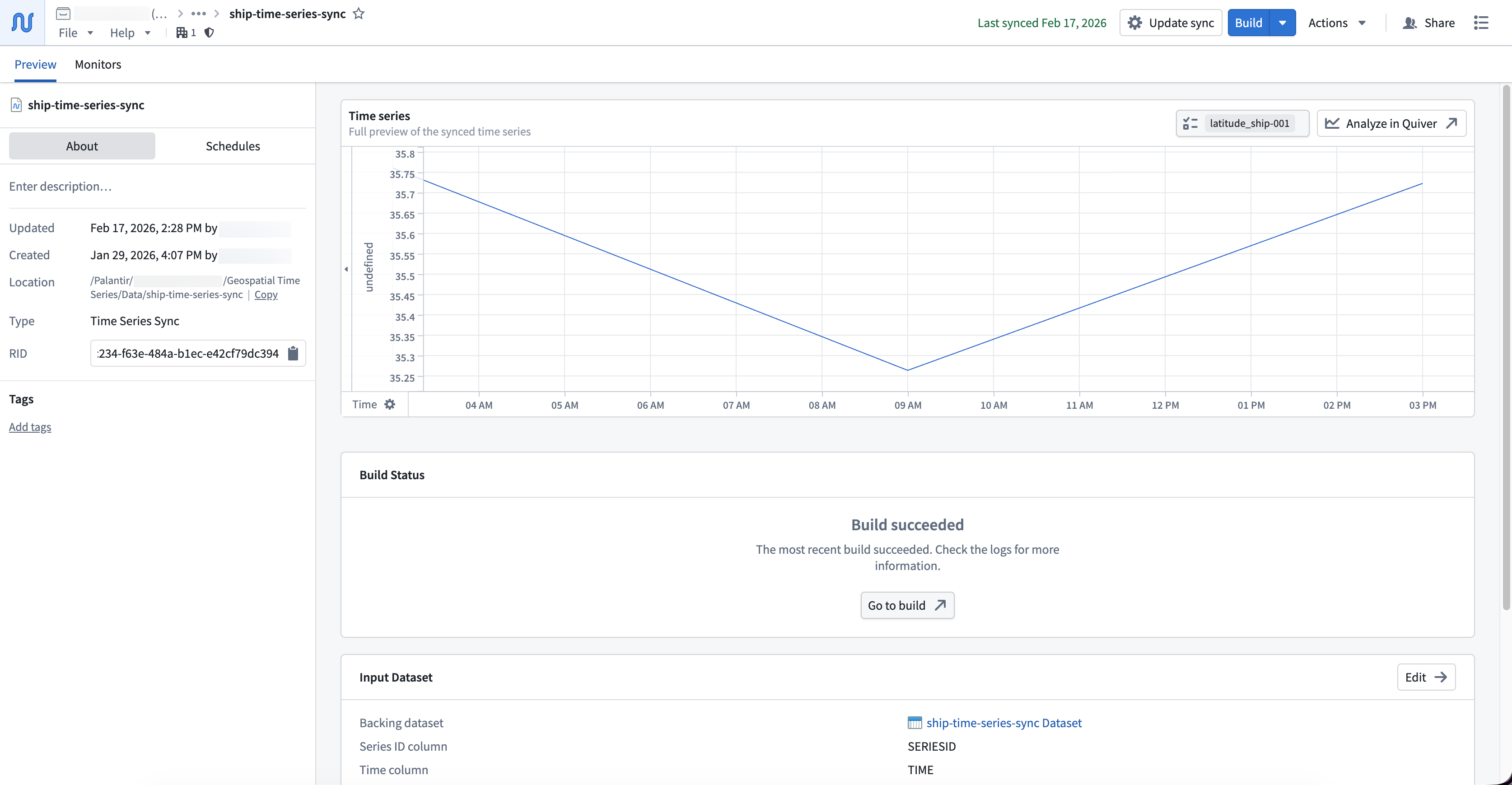
With your time series sync created, you can now create and configure an object type in your Ontology that contains the time series sync as time series properties.