- Capabilities
- Getting started
- Architecture center
- Platform updates
SAP ERP
The SAP ERP connector allows you to connect Foundry to SAP's on-premise ERP Central Component (ECC) and S/4 HANA (on-premise and Cloud Private Edition ↗). The SAP ERP connector enables Foundry to interact with various types of SAP data, including:
- SAP Application Tables
- SAP CDS Views
- SAP HANA Information Views
- SAP BW Content Extractors (remote connections only)
- SAP Transaction Codes and ABAP Reports
- SAP Function Modules
- SAP Media (DMS documents)
Using the SAP ERP source requires the installation of the Palantir Foundry Connector 2.0 for SAP Applications add-on on the target SAP application layer.
On this page
| Section | What it covers |
|---|---|
| Setup | Creating the source and configuring the connection type. |
| Authentication | Supported authentication methods. |
| Networking and connectivity | Egress policies and certificates. |
| Batch syncs | SAP object types, incremental syncs, and sync parameters. |
| Media sets | Ingesting media files from SAP's Document Management System. |
| Webhooks | Writing data back to SAP via BAPIs. |
| Use in code repositories | Calling the SAP add-on REST API directly from external transforms or functions. |
Supported capabilities
| Capability | Status |
|---|---|
| Exploration | 🟢 Generally available |
| Batch syncs | 🟢 Generally available |
| Incremental | 🟢 Generally available |
| Media sets | 🟡 Beta |
| Webhooks | 🟢 Generally available |
| Bulk writeback | 🟢 Generally available |
| Use in code repositories | 🟢 Generally available |
Setup
- Open the Data Connection application and select + New Source in the upper right corner of the screen.
- Select SAP ERP from the available connector types.
- Follow the additional configuration prompts to continue the setup of your connector using the information in the sections below.
Learn more about setting up a connector in Foundry.
Connection type
The SAP ERP connector supports two connection types:
| Connection type | Description |
|---|---|
| Direct | Connects directly to the SAP system. This is the default. |
| Remote (via Gateway) | Connects to a remote SAP system through a gateway. Enable the Connect via Gateway toggle and provide a Context value to identify the remote system. |
The connection type determines which SAP object types are available. Learn more about remote connections and remote agent configuration.
Authentication
The SAP ERP connector supports the following authentication methods:
| Authentication method | Description |
|---|---|
| Basic Auth | Provide the username and password of the technical user created when installing the Connector. |
| Authentication token | Provide a token to authenticate. |
| Custom authentication header | Provide a custom authentication header. |
| No authentication | Use this option if authentication is set up on the agent machine via certificates. |
Networking and connectivity
Make sure to properly configure egress policies to allow Foundry to reach the SAP system. For on-premises SAP environments, agent proxy policies are typically required to route traffic correctly.
Many SAP systems use custom-signed certificates, which can cause SSL handshake exceptions when configuring the connection for the first time. Make sure you have the correct custom certificates from your system and add them to the source.
SAP Data Accelerator
The Foundry integration with SAP Data Accelerator is in the beta phase of development and may not be available on your enrollment. Functionality may change during active development.
To reach this SAP system through SAP Data Accelerator (SAP's managed connectivity service for systems exposed through an SAP Cloud Connector), set the source's host and port to your Cloud Connector virtual host and port. Then, assign the client certificate provided by Palantir, allow egress to the SAP Data Accelerator control plane and data plane, and add the SAP Data Accelerator property with your control plane URL. This path requires using a Foundry worker.
Batch syncs
Create a sync
- From the source overview page, select + New next to batch sync.
- Configure the standard settings: name, target dataset, and schedule.
- Set Transaction type to one of the following:
- APPEND — for incremental updates. See Incremental syncs for details.
- SNAPSHOT — for a full load.
- Select an SAP object type from the dropdown (see SAP object types below).
- Enter the Object name. As you type, the field suggests matching objects based on the selected object type.
- Optionally, configure additional parameters in the Extras tab.
SAP object types
The available object types depend on the connection type configured on the source.
| Object type | Direct | Remote (via Gateway) | Description |
|---|---|---|---|
| ERP Table | ✓ | ✓ | Extracts data from any ERP table or view in the SAP ABAP data dictionary, including cluster, pool, and custom Z* tables. |
| CDS View | ✓ | Extracts data from ABAP CDS (Core Data Services) Views, including views declared with WITH PARAMETERS. See CDS view parameters below. | |
| HANA View | ✓ | Extracts data from HANA Views enabled in the SAP application layer. See Ingest HANA views from SAP for prerequisites. | |
| BW Content Extractor | ✓ | Runs an ERP Business Content extractor. Only appears in the object type dropdown when Connect via Gateway is enabled and a Context value is set on the source. Use APPEND for extractors that support delta extraction. See Configure extractors. | |
| Transaction Code | ✓ | ✓ | Runs an SAP transaction code or ABAP report and ingests the rendered output. See Transaction Code parameters below. |
| Function Module | ✓ | ✓ | Calls an SAP function module (such as a BAPI) and ingests the structured response. See Function module parameters below. |
Incremental syncs
Incremental syncs enable append-style transactions from the same table. To enable incremental syncs, set Transaction type to APPEND.
The available incremental modes depend on the object type:
| Incremental mode | ERP Table | CDS View | HANA View | BW Content Extractor |
|---|---|---|---|---|
| Multiple fields | ✓ | ✓ | ✓ | |
| Concatenate fields | ✓ | ✓ | ✓ | |
| Change document table | ✓ | |||
| Twin table | ✓ | |||
| SAP built-in delta | ✓ |
- Multiple fields: Import rows where any of the specified fields is greater than or equal to the largest value already imported. Separate fields with a comma.
- Concatenate fields: Same as multiple fields, but concatenates field values together rather than combining with OR.
- Change document table: Import rows based on updates in SAP's change document tables. Two sub-modes are available: CDPOS only or CDHDR and CDPOS.
- Twin table: Import rows from the target table when a field in a separate "twin" table meets the incremental condition.
- SAP built-in delta: Uses the extractor's native change data capture mechanism.
The incremental field should ideally be a monotonically increasing value. The system uses a "greater than or equal to" comparison to avoid missing data if a sync runs midway through a given date. Duplicate values may appear in the Foundry dataset and should be removed as a first step in the transformation pipeline.
The Transaction Code and Function Module object types do not support incremental syncs; they always run as snapshots.
For table-type incremental syncs, the Max rows per sync setting bounds the approximate number of rows returned per run. Use it to split the initial sync of a large table into a series of smaller, more resilient runs if intermittent issues (such as network failures) disrupt long-running syncs.
Twin table configuration
When using Twin table as the incremental mode, the Incremental Twin Table setting names the twin table and the Incremental Twin Mapping setting defines the join conditions between the primary and twin tables. Mapping entries use the form:
{PRIMARY_TABLE_NAME}-{FIELD_NAME}={TWIN_TABLE_NAME}-{FIELD_NAME}
Combine multiple join conditions with a semicolon (AND operator).
Reset incremental state
To force a full reload and re-initialize incremental ingest, enable the Reset incremental state toggle on the sync. This performs a full snapshot of the data from SAP, replacing all files in the dataset. After the sync completes, disable the toggle so that subsequent syncs resume incremental appends.
Reset incremental state is supported for ERP Table, CDS View, HANA View, and BW Content Extractor object types.
Sync parameters
The following parameters are available when configuring a sync.
General parameters
| Parameter | Applicable to | Description |
|---|---|---|
| Filter | ERP Table, CDS View, HANA View, BW Content Extractor | Refines the data extracted from SAP using a condition builder. |
| Drop columns | ERP Table, CDS View, HANA View, BW Content Extractor | Excludes selected columns before extraction. Improves performance and prevents ingestion of sensitive or unnecessary fields. |
| Timestamp | All | Adds /PALANTIR/TIMESTAMP (sync run time) and /PALANTIR/ROWNO (record order) columns. Useful for removing duplicate records downstream. |
| Fetch option | BW Content Extractor | Controls the data fetch method. |
| Allow schema changes | All | Controls whether the output schema is allowed to change between sync runs. |
Filters
Add condition groups, then configure field, operator, and value rows within each group. All field names must match the SAP data dictionary.
- For date columns, use the format
YYYYMMDD(for example,20210101for January 1, 2021). - The
is likeandis not likeoperators support the*wildcard (for example,A*12*matches any string starting withAand containing12). - Filter values can also use dynamic filter keywords and date calculation functions.
Dynamic filters
Dynamic filter values use special keywords and date calculation functions for more flexible filter expressions. Available from add-on version SP26 and later. Use them anywhere a filter value is accepted.
Fixed keywords
| Keyword | Description |
|---|---|
[CURRENTYEAR] | Current year in YYYY format. |
[TODAY] | Today's date in YYYYMMDD format. |
[LASTDAYOFMONTH] | Last day of the current month in YYYYMMDD format. |
[LASTDAYOFLASTMONTH] | Last day of the previous month in YYYYMMDD format. |
[FIRSTDAYOFMONTH] | First day of the current month in YYYYMMDD format. |
[FIRSTDAYOFLASTMONTH] | First day of the previous month in YYYYMMDD format. |
Date calculation functions
| Function | Description |
|---|---|
[ADDDAY] | Adds days to the selected date. Example: [ADDDAY(22102022,1)] → 23102022. |
[ADDMONTH] | Adds months to the selected date. |
[ADDYEAR] | Adds years to the selected date. |
[GETMONTH] | Returns the month of the selected date as a 2-digit value (01–12). |
[GETDAY] | Returns the day of the month as a 2-digit value. |
[GETYEAR] | Returns the year of the selected date. |
Functions can be used directly with fixed keywords or nested. For example, [ADDDAY([TODAY], 1)] or [GETDAY([ADDDAY([FIRSTDAYOFMONTH], -1)])].
Transaction Code parameters
When the object type is Transaction Code, the object name refers to either an SAP transaction code or an Advanced Business Application Programming (ABAP) report, and the following additional fields are available:
| Parameter | Description |
|---|---|
| Program type | Specifies whether the object name refers to a transaction code or an ABAP report. Required. |
| Selection variant | Name of an SAP selection variant to apply before running the transaction or report. |
| Output variant | Name of an SAP output variant (layout) to control the structure of the result list. |
| Use spool ingestion | When enabled, captures the report output from the SAP spool system rather than from runtime memory. Required when the report output exceeds 2 GB. |
| Hide subtotal and summary rows | When enabled, drops aggregate subtotal and summary rows from the ingested data. |
CDS view parameters
Core Data Services (CDS) views declared with the WITH PARAMETERS clause require their parameters to be supplied at sync time. When the object type is CDS View, the CDS view parameters optional property accepts rows of parameter name and parameter value pairs. Parameter names must match the names declared on the CDS view; unknown or missing parameters cause the sync to fail. Empty rows are discarded on save.
Function module parameters
When the object type is Function Module, the object name refers to a function module, typically a Business Application Programming Interface (BAPI). The following additional fields are available:
| Parameter | Description |
|---|---|
| Function input parameters | Rows of parameter name and parameter value pairs that are passed as the function module's IMPORTING parameters. Required for most BAPIs. |
| Commit after function call | When enabled, issues a COMMIT WORK statement after the function call. Required for standard BAPIs that rely on a commit to persist their changes. Off by default. |
Advanced settings
The following settings appear under Advanced settings on each sync. Some are also configurable at the source level.
| Setting | Description |
|---|---|
| Max file size | Maximum size of each output Parquet file. Defaults to 50,000 rows per file. |
| Clean field names for Avro | Sanitizes field names so they conform to the Avro ↗ schema rules used by Foundry streams. Required if the dataset will be used in a streaming pipeline. |
| Ignore unexpected values | When enabled, date or number values that fail to parse are written as null and a summary of parse exceptions is logged at the end of the sync. |
| Convert dates to strings | Ingests date fields as strings. Useful when SAP date fields contain unparseable values that hold a special meaning and need to be handled downstream. |
| Page size | Rows returned per page when retrieving data from SAP. Defaults to 50,000. Minimum 5,000. |
| Parallel paging threads | Number of SAP work processes used to generate page data. |
| Plugin worker threads | Number of Data Connection agent threads used to retrieve page data. |
| Serialization engine | Serialization method used for data transfer. |
| Retries and timeouts | Retry count, retry delay, and request timeouts. |
| Resource checks | Memory and CPU checks during extraction. Disabling can put excess load on the SAP system. |
| Debug settings | Trace logging and debug logging. Debug logging starts a background process in SAP — use with caution. |
Media sets
The SAP ERP connector supports media sets for ingesting media files and documents stored in SAP's Document Management System (DMS).
To create a new media ingest:
- Navigate to the source overview page.
- Select + New next to Media set syncs.
- Define your media set format. Providing a specific format will enable you to use transformation steps specific to that format in downstream data transformation. Read more about media set formats.
- Use the source exploration tool, which organizes files per document types, to select the files you want to ingest, or define your own filters directly in the Filters section.
Exploration
When you select Subfolder or media file, you can either select a specific Document Type (like CPD) to ingest all associated documents, or select a single document to ingest only that specific file.
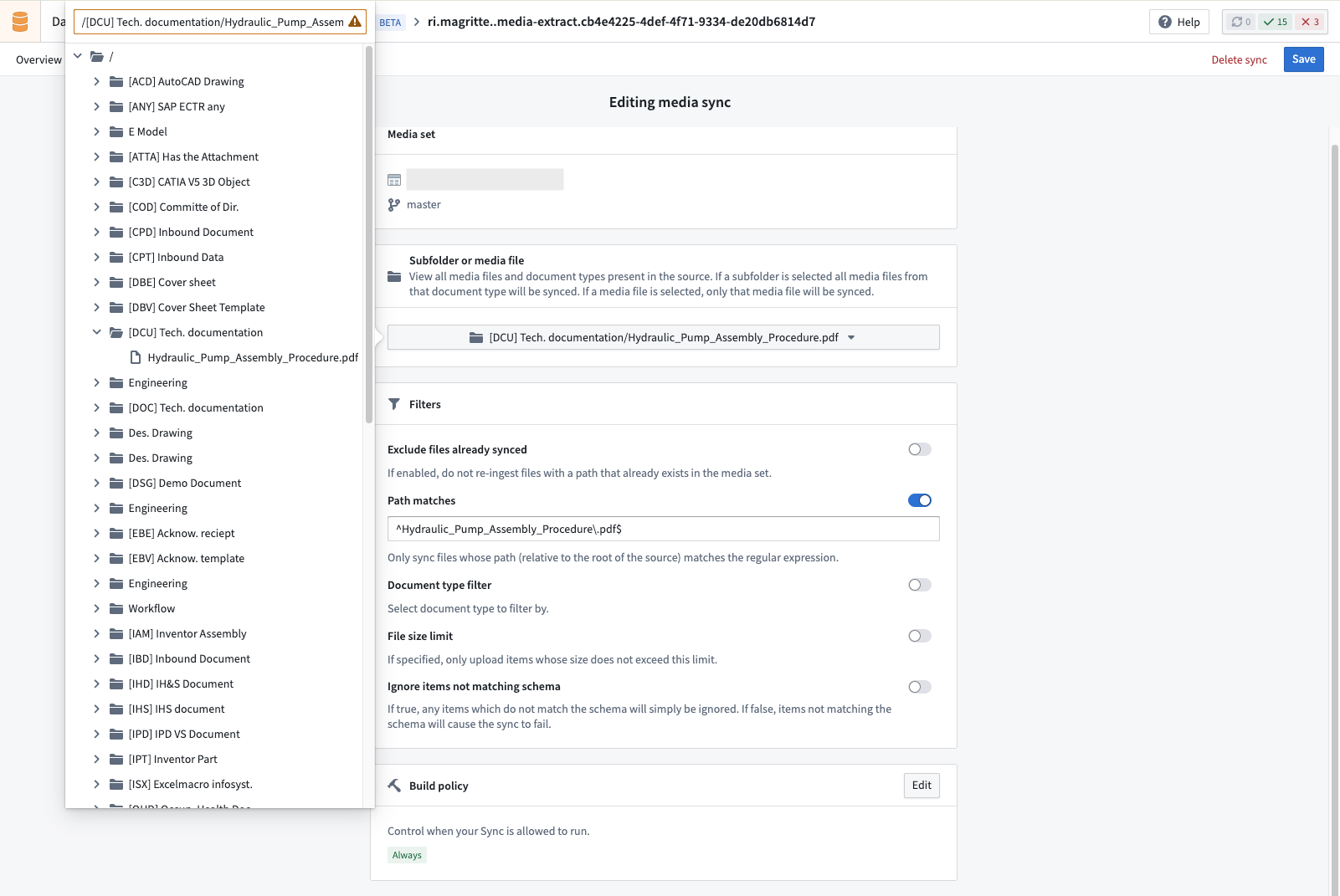
Media filters
The following filters can be applied to media set syncs:
| Filter | Description |
|---|---|
| Exclude files already synced | Skips files whose path already exists in the media set. |
| Path matches | Only syncs files matching a regular expression pattern. Defaults to .pdf. |
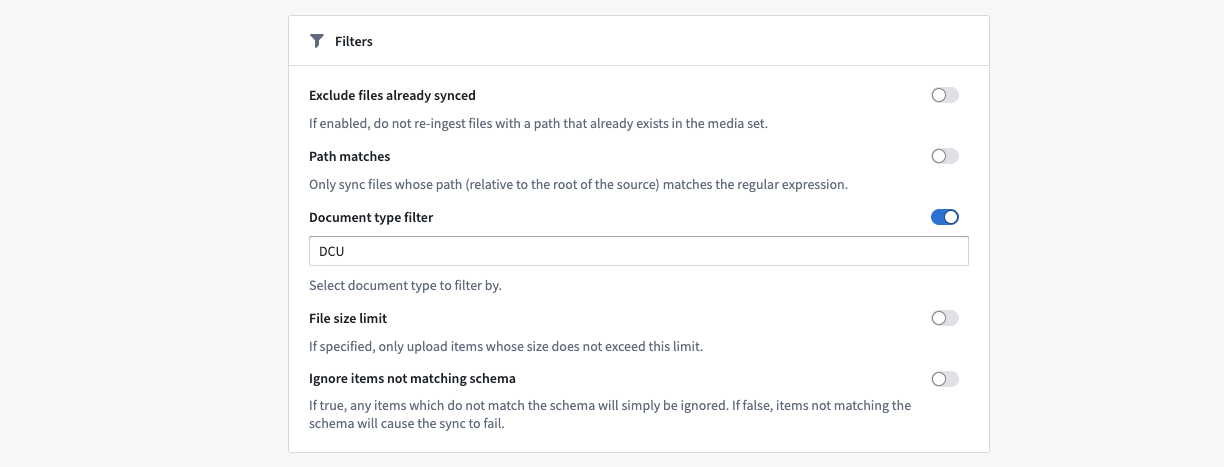
| Document type | Filters by SAP document type. |
| File size limit | Only syncs files within the specified size limit (in bytes). |
Example: Select a Document Type
SAP Media Document Types are designated by an acronym and a plain English description of their purpose. When filtering by Document Type, you can use the acronym representation to narrow the scope of the media ingest.
Webhooks
SAP webhooks allow you to write data back to SAP by invoking function modules — typically BAPIs (Business Application Programming Interfaces) — from Foundry. See Webhooks for an overview of how to set up a webhook.
SAP webhooks support Foundry worker connections in Foundry-managed cloud compute. We recommend this runtime for SAP webhooks instead of executing them through a data connection agent. Existing SAP sources configured on a Foundry worker automatically benefit from cloud execution with no migration required; SAP sources running on a data connection agent should be switched to a Foundry worker to take advantage of cloud-executed webhooks.
To invoke a BAPI, select the sap-erp-run-function-webhook-task-v0 task type.
The webhook Task body is a JSON document, authored using Handlebars ↗ syntax, that names the SAP function module to call, provides its inputs, and selects the output to return.
Task body fields
| Field | Required | Type | Description |
|---|---|---|---|
function-name | Yes | String | The SAP function module or BAPI to call, for example BAPI_SALESORDER_CHANGE. |
inputs | No | Object, or array of objects | The function's input parameters. Provide one object to write back a single record, or an array of objects to write back several records in one call. Omit if the function does not require inputs. |
output | No | String, or array of strings | The output variable to return. Provide one variable name, or an array of names to return several. |
commit | No | Boolean | Whether to commit the change. Omit to commit (the default); set to false to suppress the commit. Standard BAPIs require a commit to persist their changes. |
parallel | No | Object | Selects parallel writeback and optionally tunes its execution. See Write back multiple records. |
api-version | No | Integer | The SAP add-on API version. Defaults to 1; set to 2 to use the version 2 features. See SAP add-on compatibility. |
For remote SAP systems, set the source connection type to Remote (via Gateway) and provide a Context on the source.
Write back a single record
The following example invokes BAPI_SALESORDER_CHANGE to modify the purchase date on a sales document and returns the SAP RETURN table:
Copied!1 2 3 4 5 6 7 8 9 10{ "function-name": "BAPI_SALESORDER_CHANGE", "inputs": { "SALESDOCUMENT": {{json sales-doc-id}}, "ORDER_HEADER_IN": { "PURCH_DATE": {{json purchase-date}} }, "ORDER_HEADER_INX": { "UPDATEFLAG": "U", "PURCH_DATE": "X" } }, "output": "RETURN", "api-version": 2 }
Write back multiple records
Bulk and parallel writeback do not support OAuth 2.0 authentication.
To write back several records in one call, pass an array of objects in inputs and list the variables you want in output. Use the optional parallel block to tune execution. The following example creates two purchase requisitions with BAPI_PR_CREATE and returns two output variables:
Copied!1 2 3 4 5 6 7 8 9 10 11{ "function-name": "BAPI_PR_CREATE", "commit": true, "parallel": { "max-jobs": 2, "max-calls-per-job": 4 }, "inputs": [ { "PRHEADER": { "PR_TYPE": "NB" }, "PRITEM": [ { "MATERIAL": "100-100", "PLANT": "1100", "QUANTITY": "1" } ] }, { "PRHEADER": { "PR_TYPE": "NB" }, "PRITEM": [ { "MATERIAL": "100-200", "PLANT": "1100", "QUANTITY": "2" } ] } ], "output": ["NUMBER", "PRHEADEREXP"], "api-version": 2 }
Webhook execution can be parallelized on the SAP side. This happens automatically when inputs is an array with more than one object, or when you explicitly supply a parallel block, even an empty one. Use the optional parallel block to tune execution:
max-jobs— the maximum number of jobs that run at the same time.max-calls-per-job— the maximum number of records each job handles.
Omitted settings use values defined in the SAP add-on, which default to 3 jobs and 4 calls per job.
Setting max-jobs higher than the number of records is harmless: the surplus jobs go unused, and no resources are wasted.
Response
For a single record without a parallel block, the response depends on how many output variables you requested.
A single record with one output variable returns a list of that variable's rows:
Copied!1 2 3[ { "NUMBER": "0010048439" } ]
A single record with multiple output variables returns an object keyed by variable name. Index into it by name, for example output["NUMBER"]:
Copied!1 2 3 4{ "NUMBER": [ { "NUMBER": "0010048439" } ], "PRHEADEREXP": [ { "PREQ_NO": "0010048439", "PR_TYPE": "NB" } ] }
A parallel writeback returns an array with one element per input record, even if there is only one input. For example:
Copied!1 2 3 4 5 6 7[ { "OUTPUT": { "NUMBER": [ { "NUMBER": "0010048439" } ], "PRHEADEREXP": [ { "PREQ_NO": "0010048439" } ] }, "ROWNO": 1, "MSG": [ { "MSGTYP": "S", "MSGTXT": "Purchase requisition 0010048439 created" } ] } ]
OUTPUTis that record's result, in the same form as a single-record response.ROWNOis the position (starting at 1) of the matching entry in yourinputsarray, so you can map each result back to its input.MSGis the SAP message log for that record. Each message has a type (MSGTYP:Sfor success,Efor error,Wfor warning,Ifor information, orAfor abort) and text (MSGTXT). Because each record reports its own messages, you can see which records succeeded and which failed.
An unsuccessful HTTP response causes the webhook to return an error. A successful webhook response can still contain SAP business errors. Request and inspect the SAP RETURN output where available, and check per-record MSG entries to determine whether the requested changes succeeded.
SAP add-on compatibility
Set api-version to 2 to use multiple output variables and bulk and parallel writeback. Version 2 requires SAP add-on 2.29.0 or later. If you omit api-version, the webhook uses version 1, which supports a single input and a single output variable, without a parallel block.
When switching to version 2, remove any retries-per-request setting greater than 0.
User-attributed writeback
For user-attributed writeback through SAP Data Accelerator, use sap-erp-oauth2-token-webhook-task and sap-erp-oauth2-refresh-webhook-task to configure an outbound application. See User-attributed SAP writeback with SAP Data Accelerator for setup instructions.
Use in code repositories
SAP ERP sources can be imported into Python external transforms or functions, giving your code direct access to the SAP add-on's REST API. Use this when batch syncs, media set syncs, or webhooks do not provide enough control. For example, to invoke a BAPI synchronously from a Workshop action, loop over a large input dataset and call a BAPI per row, fetch specific DMS documents based on Foundry-side data, or chain multiple SAP calls in a single build.
The examples below use the following endpoints, all relative to the source URL (https://<host>:<port>/sap/palantir):
| Endpoint | Purpose |
|---|---|
POST /v2/function/{functionName}/writeback | Synchronously invoke a single function module (BAPI). |
POST /v2/function/{functionName}/parallel_writeback | Synchronously invoke a function module with bulk input, parallelized server-side. |
GET /v2/get_documents | List DMS documents, optionally filtered by document type, file format, file name, or object link. |
GET /v2/get_document | Download a single DMS document by ID. |
Before using these examples, import the SAP ERP source into your repository:
- For transforms, follow Set up external transforms and use the
external_systemsdecorator. - For functions, follow Make API calls from functions and declare the source in the
@function(sources=[...])decorator.
Example: Writeback to SAP via BAPI (transform)
The following external transform invokes BAPI_SALESORDER_CHANGE once per row of an input dataset to update the purchase date on each sales document, and records the SAP RETURN table in an output dataset for review.
Copied!1 2 3 4 5 6 7 8 9 10 11 12 13 14 15 16 17 18 19 20 21 22 23 24 25 26 27 28 29 30 31 32 33 34 35 36 37 38from transforms.api import Input, Output, transform from transforms.external.systems import external_systems, Source, ResolvedSource @external_systems( sap_source=Source("<source_rid>"), ) @transform( sales_order_updates=Input("<input_dataset_rid>"), # columns: sales_doc_id, purchase_date (YYYYMMDD) writeback_results=Output("<output_dataset_rid>"), ) def update_purchase_dates(ctx, sap_source: ResolvedSource, sales_order_updates, writeback_results): base_url = sap_source.get_https_connection().url client = sap_source.get_https_connection().get_client() results = [] for row in sales_order_updates.dataframe().collect(): response = client.post( f"{base_url}/v2/function/BAPI_SALESORDER_CHANGE/writeback", json={ "commit": True, "input": { "SALESDOCUMENT": row.sales_doc_id, "ORDER_HEADER_IN": {"PURCH_DATE": row.purchase_date}, "ORDER_HEADER_INX": {"UPDATEFLAG": "U", "PURCH_DATE": "X"}, }, "output": ["RETURN"], }, ) response.raise_for_status() results.append({ "sales_doc_id": row.sales_doc_id, "purchase_date": row.purchase_date, "status_code": response.status_code, "sap_return": str(response.json()), }) writeback_results.write_dataframe(ctx.spark_session.createDataFrame(results))
Set "commit": true for standard BAPIs that require a commit statement to persist their changes. Use the metadata endpoint (GET /v2/function/{functionName}/metadata) to discover the expected input and output structure of a function before calling it.
Example: Writeback to SAP via BAPI (function)
To invoke a BAPI synchronously from a Workshop action, an Ontology action backend, or any other caller of a Foundry function, expose the writeback as a Python function with a source. The function takes typed inputs and returns the SAP RETURN structure to the caller.
Copied!1 2 3 4 5 6 7 8 9 10 11 12 13 14 15 16 17 18 19 20 21 22 23 24 25 26 27 28 29 30 31 32 33 34 35from functions.api import function from functions.sources import get_source @function(sources=["sap_source"]) def update_sales_order_purchase_date(sales_doc_id: str, purchase_date: str) -> str: """Updates the purchase date on a sales order via BAPI_SALESORDER_CHANGE. Args: sales_doc_id: SAP sales document number. purchase_date: New purchase date in YYYYMMDD format. Returns: A string representation of the SAP RETURN table, useful for surfacing any error or warning messages back to the caller. """ source = get_source("sap_source") base_url = source.get_https_connection().url client = source.get_https_connection().get_client() response = client.post( f"{base_url}/v2/function/BAPI_SALESORDER_CHANGE/writeback", json={ "commit": True, "input": { "SALESDOCUMENT": sales_doc_id, "ORDER_HEADER_IN": {"PURCH_DATE": purchase_date}, "ORDER_HEADER_INX": {"UPDATEFLAG": "U", "PURCH_DATE": "X"}, }, "output": ["RETURN"], }, timeout=30, ) response.raise_for_status() return str(response.json())
The source must have code import enabled and exports enabled for functions to use it. Surface SAP RETURN messages with a non-zero severity as user-facing errors so callers can react to them.
Example: Parallel writeback (transform)
Use the parallel_writeback endpoint from an external transform to send many BAPI calls in a single request. The SAP system spawns multiple background jobs and distributes the calls across them, which is significantly faster than sequential writeback calls for large batches.
Copied!1 2 3 4 5 6 7 8 9 10 11 12 13 14 15 16 17 18 19 20 21 22 23 24 25 26 27 28 29 30 31 32 33 34 35 36 37 38 39 40 41 42 43from transforms.api import Input, Output, transform from transforms.external.systems import external_systems, Source, ResolvedSource @external_systems( sap_source=Source("<source_rid>"), ) @transform( sales_order_updates=Input("<input_dataset_rid>"), writeback_results=Output("<output_dataset_rid>"), ) def update_purchase_dates_parallel( ctx, sap_source: ResolvedSource, sales_order_updates, writeback_results ): base_url = sap_source.get_https_connection().url client = sap_source.get_https_connection().get_client() bulkinput = [ { "SALESDOCUMENT": row.sales_doc_id, "ORDER_HEADER_IN": {"PURCH_DATE": row.purchase_date}, "ORDER_HEADER_INX": {"UPDATEFLAG": "U", "PURCH_DATE": "X"}, } for row in sales_order_updates.dataframe().collect() ] response = client.post( f"{base_url}/v2/function/BAPI_SALESORDER_CHANGE/parallel_writeback", json={ "commit": True, "output": ["RETURN"], "bulkinput": bulkinput, "parallel": True, "paralleljobs": 5, "functioncallperjob": 10, }, ) response.raise_for_status() results = [ {"index": i, "result": str(r)} for i, r in enumerate(response.json()) ] writeback_results.write_dataframe(ctx.spark_session.createDataFrame(results))
Tune paralleljobs (background jobs spawned in SAP) and functioncallperjob (calls handled per job) based on the workload and the available capacity on the SAP system. Set "parallel": false to fall back to sequential execution while still using a single bulk request.
Example: Fetch DMS documents to a media set (transform)
The following external transform combines the DMS list and download endpoints to fetch documents from SAP's Document Management System and write them to a media set. Use this pattern when the built-in media set sync does not provide enough control, for example, when document selection depends on Foundry-side data, or when you need to combine multiple filters before downloading.
Copied!1 2 3 4 5 6 7 8 9 10 11 12 13 14 15 16 17 18 19 20 21 22 23 24 25 26 27 28 29 30 31 32 33 34import io from transforms.api import transform from transforms.external.systems import external_systems, Source, ResolvedSource from transforms.mediasets import MediaSetOutput @external_systems( sap_source=Source("<source_rid>"), ) @transform( documents=MediaSetOutput("<media_set_rid>"), ) def fetch_dms_documents(ctx, sap_source: ResolvedSource, documents): base_url = sap_source.get_https_connection().url client = sap_source.get_https_connection().get_client() # List documents in DMS, filtered by document type and file format. list_response = client.get( f"{base_url}/v2/get_documents", params={"DOCUMENTTYPE": "CPT", "FILEFORMAT": "pdf"}, ) list_response.raise_for_status() for doc in list_response.json(): document_id = doc["DOCUMENT_ID"] document_name = doc["DOCUMENT_NAME"] download_response = client.get( f"{base_url}/v2/get_document", params={"DOCUMENT_ID": document_id}, ) download_response.raise_for_status() documents.put_media_item(io.BytesIO(download_response.content), document_name)
To drive ingestion from a Foundry input dataset, for example, fetching only the documents referenced by a list of EBELN (purchase order) values, call /v2/get_documents with an OBJECTLINK filter, or pass each DOCUMENT_ID directly to /v2/get_document from the input rows.
Related how-to guides
The following guides cover workflows that involve both SAP-side and Foundry-side configuration:
- Extract long text from SAP: Decompress and ingest long texts from the
STXLtable. - Configure custom authorizations and role management: Set up custom authorization roles for the SAP add-on.
- Configure extractors: Configure SAP BW Business Content extractors.
- Ingest HANA views from SAP: Publish and ingest HANA external views.
- User-attributed SAP writeback with OAuth 2.0: Configure OAuth 2.0 for named-user writeback to SAP.