- Capabilities
- Getting started
- Architecture center
- Platform updates
Getting started
Create an agent in Agent Builder, test it in Preview, and publish it.
Create an agent
- Open Agent Builder at
/workspace/agent-builder/in your Foundry enrollment. - Select New agent, enter a name, and choose a folder.
- Select Save to create the agent and open the editor.
Configure the agent
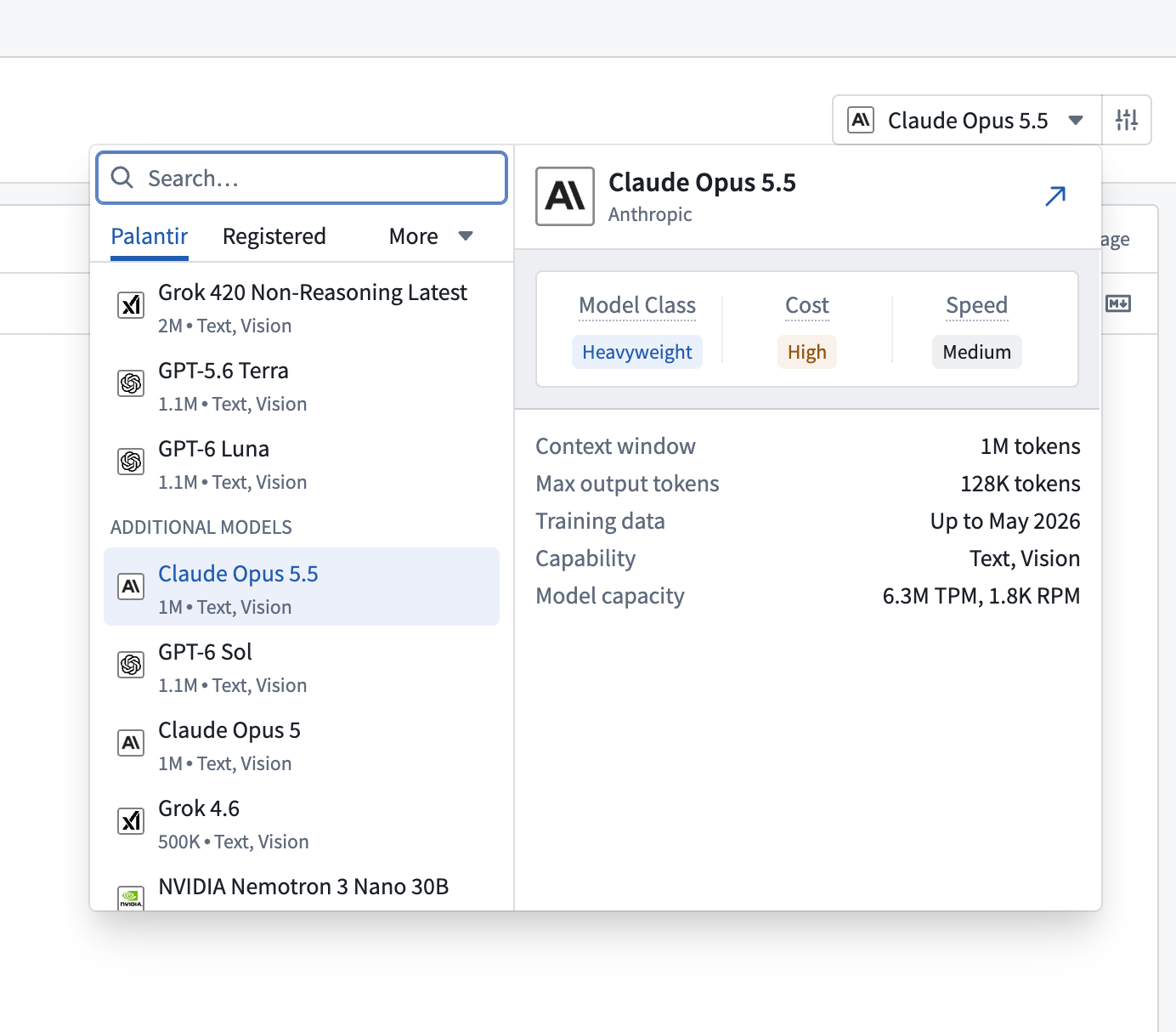
Select a language model, then write a System prompt describing what the agent should do. To give the agent a task when a session starts, add an Initial user message.
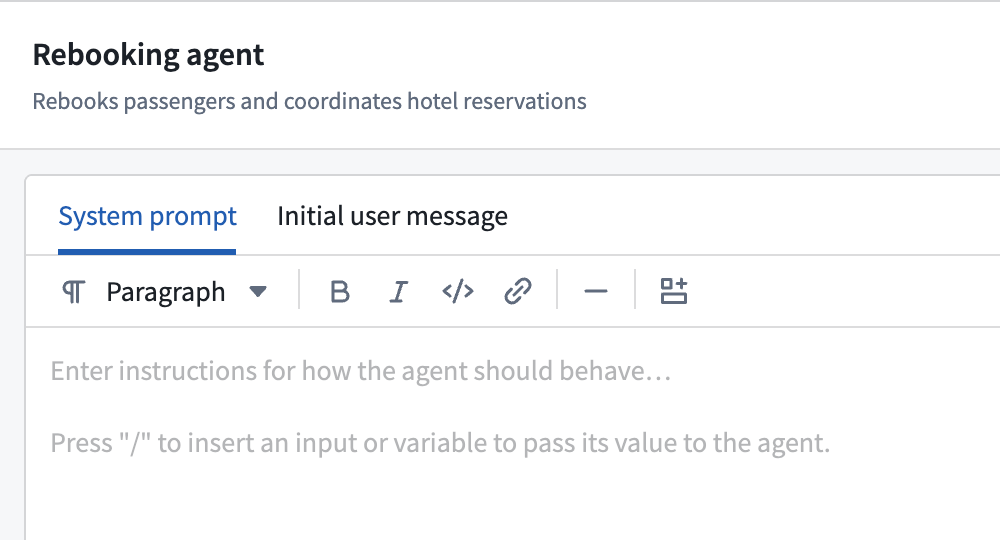
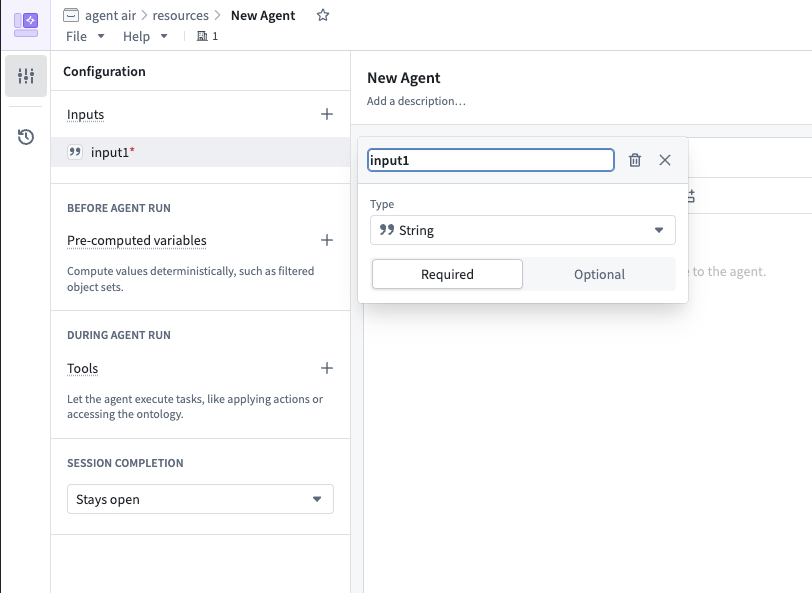
Add inputs, pre-computed variables, and tools as needed for your task.
Inputs
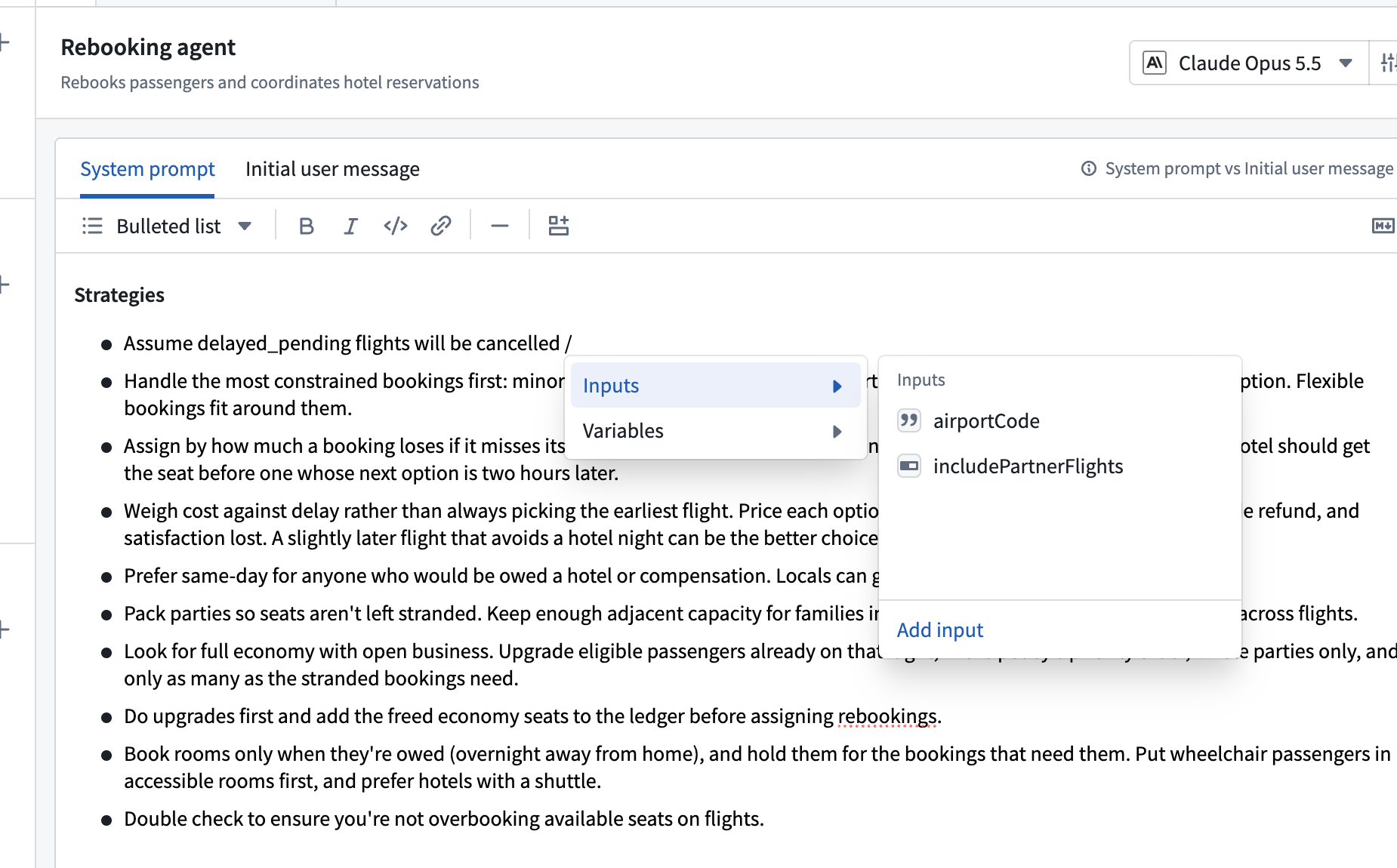
Select Add input to provide data when an agent session starts. Enter / in a prompt to insert an input or variable value and make it available to the agent.
Pre-computed variables
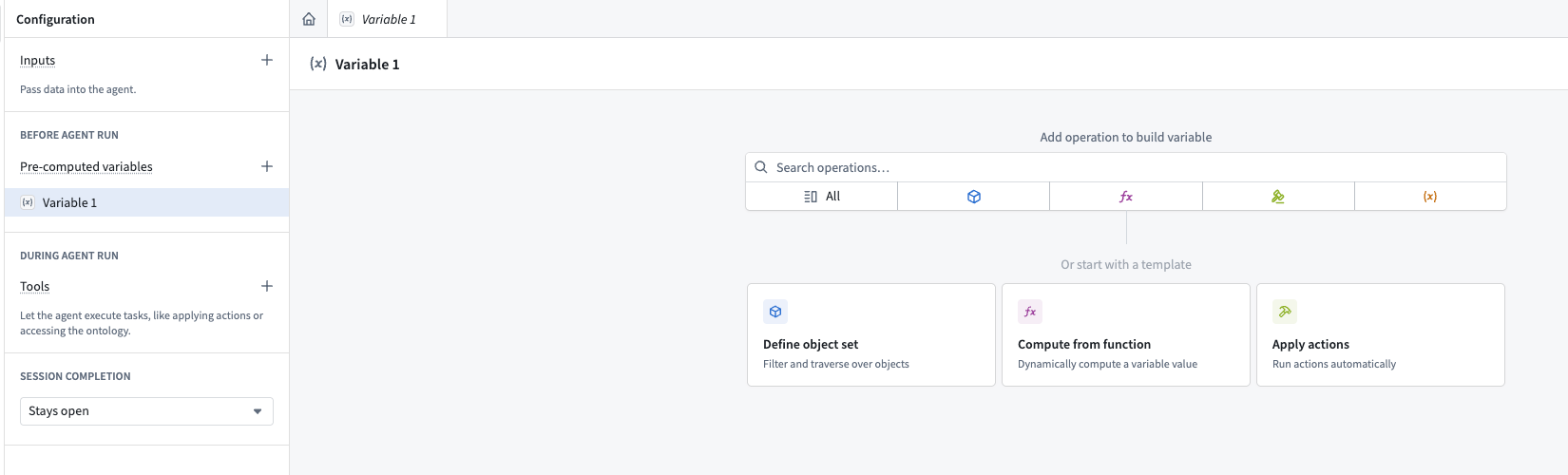
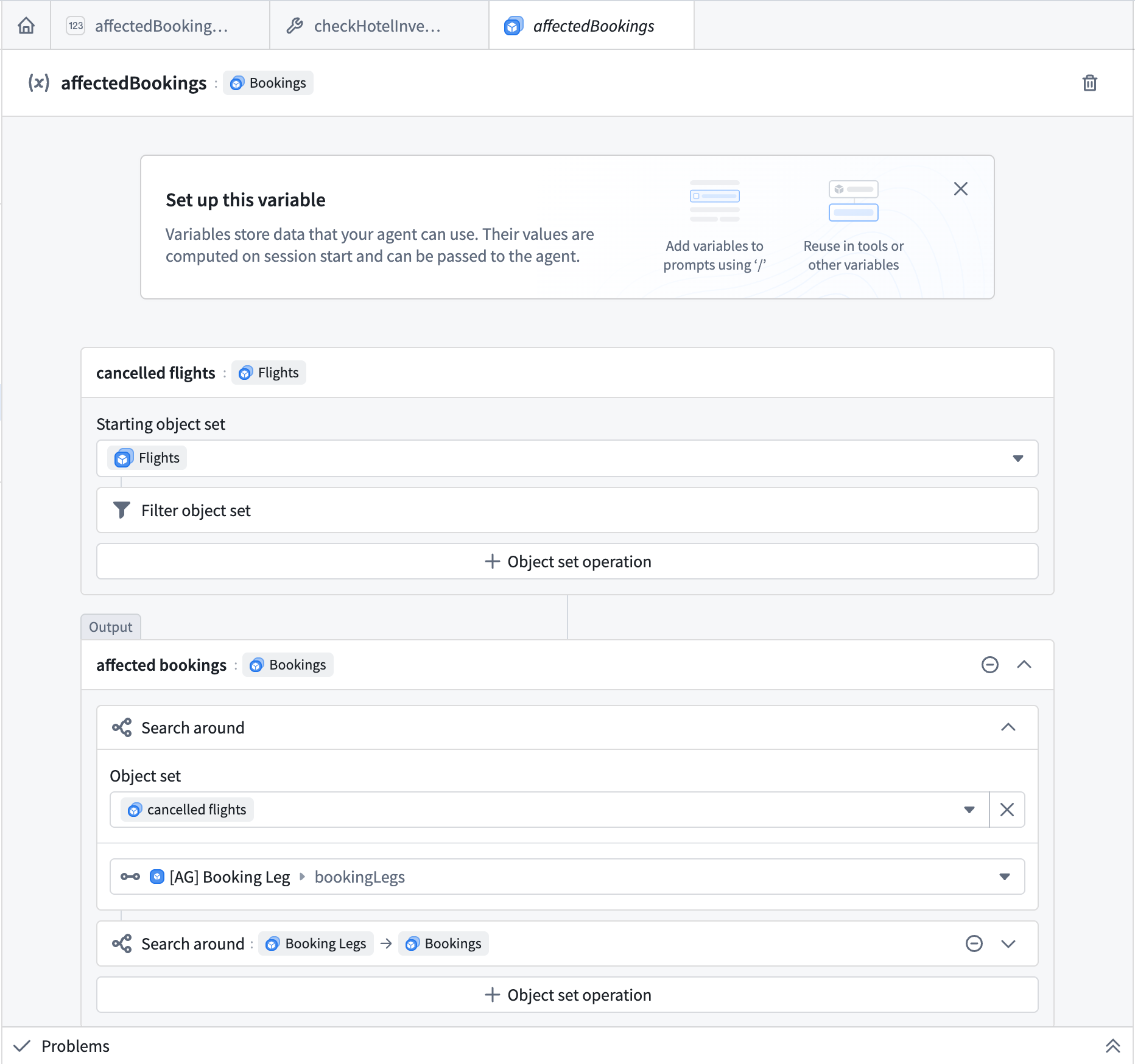
Select Add variable to calculate a value before the agent runs. Within a chain, each operation after the first uses the previous operation's result. In the example below, one chain filters flights. You select those flights as the input to a second chain, which finds related booking legs and then bookings. The chain marked Output determines the variable's value.
Tools
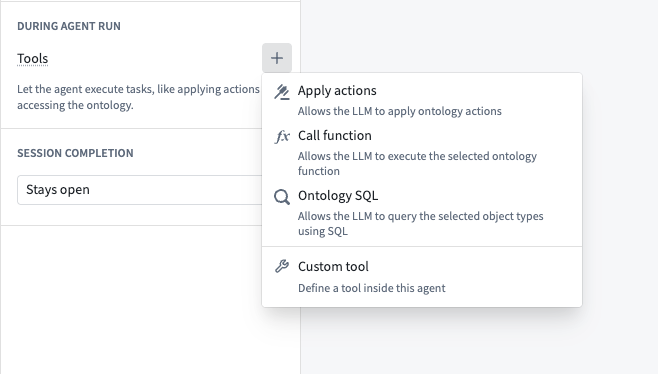
Select Add tool to let the agent call a function, apply an action, query Ontology data, or use a custom tool.
Session completion
Under Session completion, choose Stays open for a conversational agent. To have the agent return a structured result and end the session, choose Ends after first valid output, configure the Agent output type, and provide an initial user message.
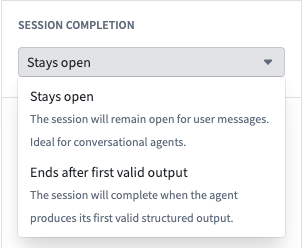
Core concepts explains how each setting affects the session.
Test in preview
-
Open the Preview panel on the right side of the editor.
-
Provide values for any configured inputs, then select Start session.
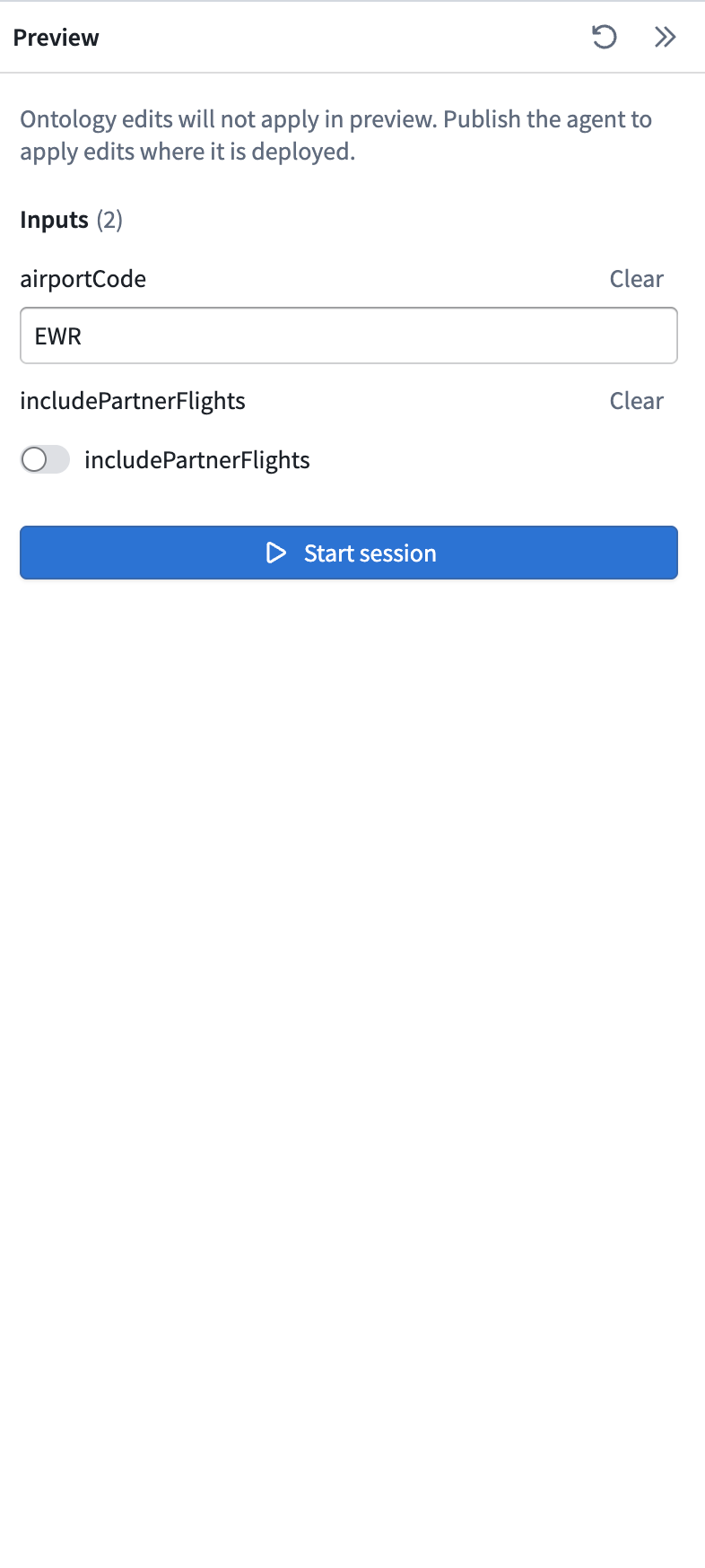
-
Review the agent's response in Preview and inspect the run in Debug. If you change the configuration, start a new session to test the changes.
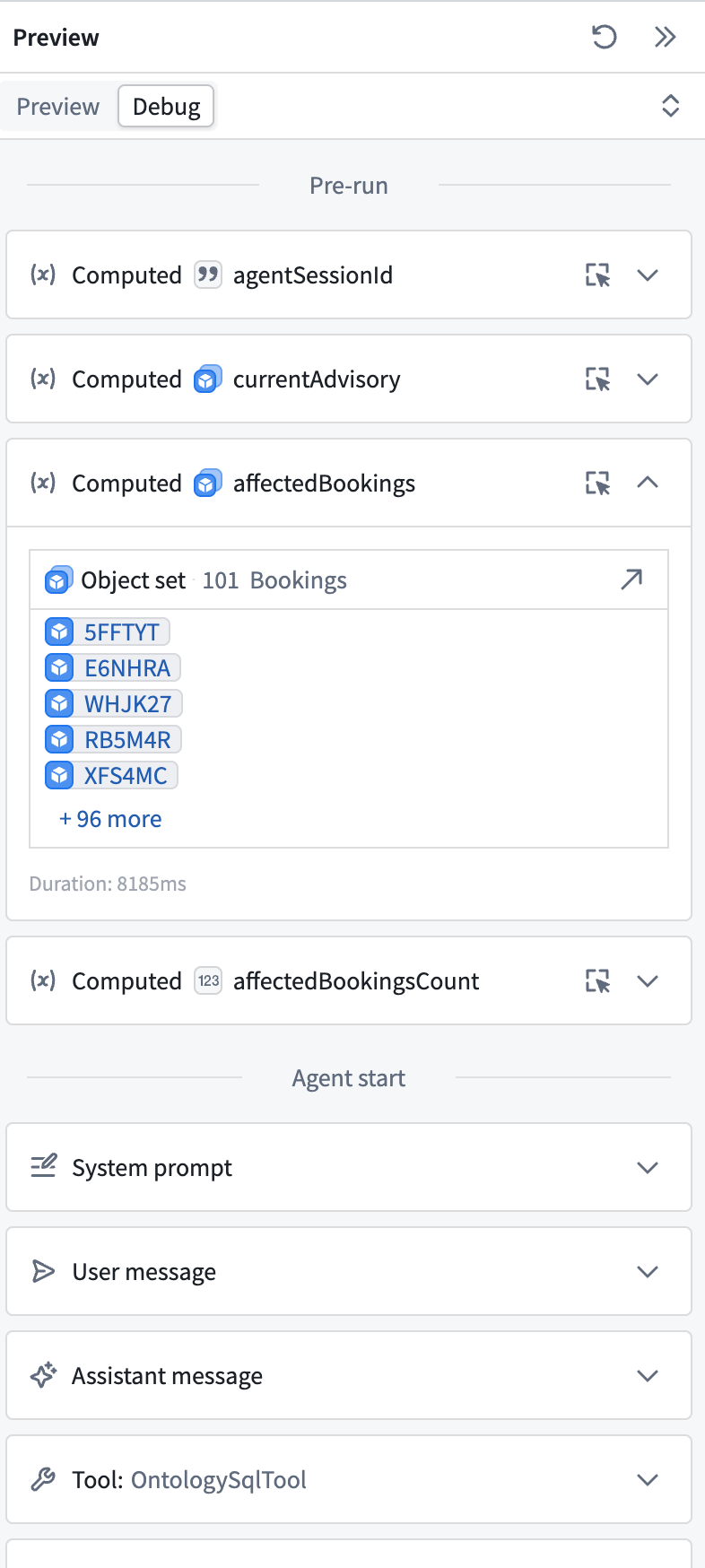
Preview never applies real Ontology edits, including edits from tools and actions in pre-computed variables. Actions still run during Preview, but their Ontology edits are not applied. These edits take effect when the published agent runs outside Preview.
Publish the agent
- Select Save in the editor to save any configuration changes.
- Select Publish to open the Publish as an agent dialog.
- Under Agent configuration, enter a File name and choose a Location for the published agent. Use Browse to select a different folder if needed.
- Select Publish in the dialog. The published agent is saved as a Compass resource in the selected folder and can be used in applications such as Workshop and Automate.
After publishing, open Agent Manager to start sessions, provide inputs, and inspect the agent's context items, event history, and state updates.