- Capabilities
- Getting started
- Architecture center
- Platform updates
Get started with the Agent SDK
This guide describes how to create a TypeScript agent in a Code Repository, publish the agent, and run a session with the agent in Agent Manager.
Create an agent repository
Navigate to a project of your choice and create a new agent by selecting + New > Agent > Build in code.
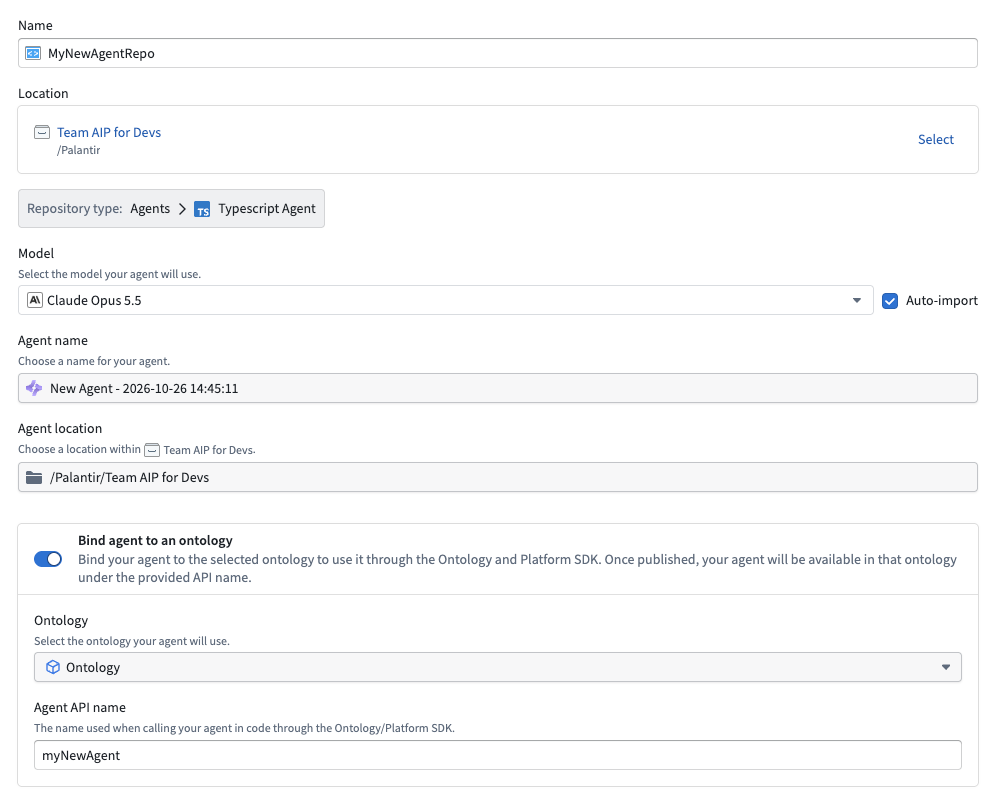
You must provide names for both the code repository where the agent definition lives and the published agent itself.
Binding your agent to an Ontology is optional but allows you to use your agent in code through the Ontology and Platform SDK. Agent API names must be unique within an Ontology.
Write an agent
The code repository comes bootstrapped with a sample agent that is a good place to get started. For an Anthropic model, its definition under typescript-functions/src/agents/myAgent.ts looks like this excerpt:
Copied!1 2 3 4 5 6 7 8 9 10 11 12 13 14 15 16export default defineAgent({ // publishing metadata locator: Aliases.custom("myAgent"), apiName: "myNewAgent", // Present when the agent is bound to an Ontology. // basic configuration model: anthropic({ modelRid: Aliases.model("model").rid, modelSettings: { max_tokens: 4096 }, }), tools: () => [WeatherTool], // advanced configuration agentStateSchema: AgentStateSchema, createSessionArgsSchema: z.object({}), createSession: () => ({ agentState: {} }), contextItemDefinitions: [WeatherResult], });
The generated file imports the APIs and defines AgentStateSchema, WeatherResult, and WeatherTool above this definition. The model constructor and alias reflect the model selected during setup.
You should also see a new Agent resource created in the selected Compass folder that corresponds to this agent. It currently has no versions published.
Commit and publish
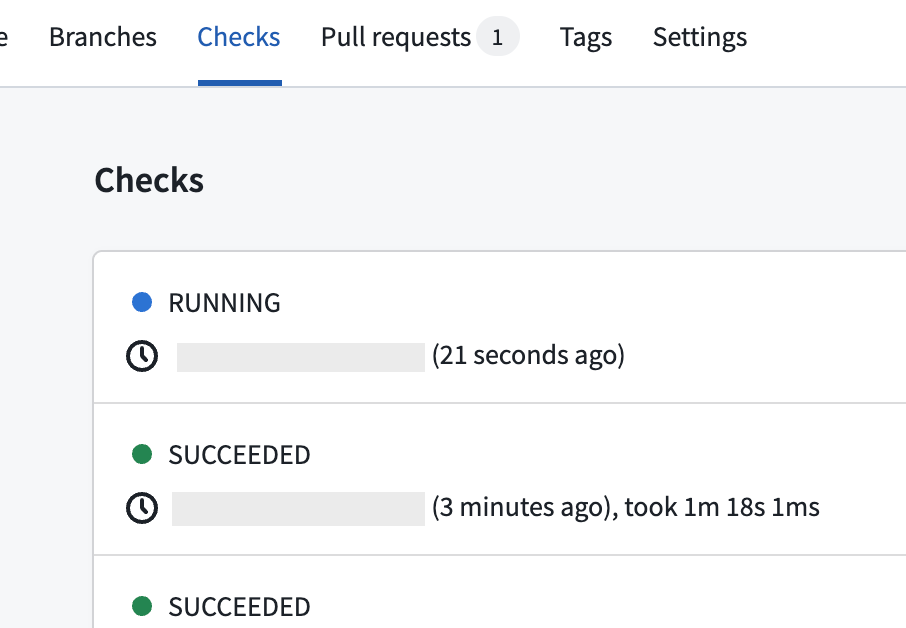
Commit your changes in your code repository. To view your agent's checks, open the Checks tab at the top of the page. Here, after making a commit, you should see a running check.
After committing your work, go to the Tags tab to publish your agent. Here, you can select a semantic version that your agent will be published as.
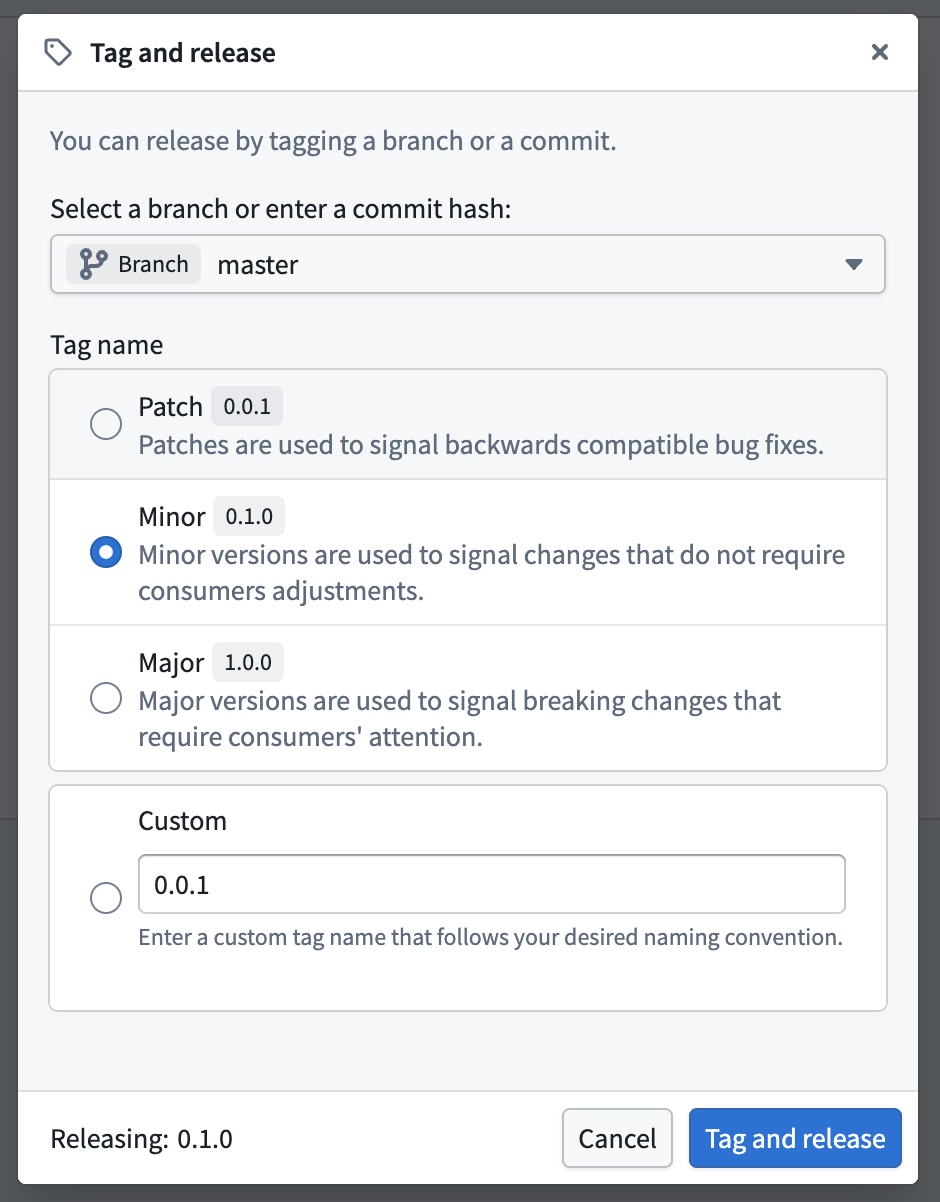
Once your agent has successfully been published, you can open it in Agent Manager.
Run a session
Open the published agent in Agent Manager, start a session, and send a question. Inspect the response and the session's messages, events, and context items.
Next steps
- You can learn how to customize an agent to enable your agent to do useful work.
- Read advanced customization to dive deeper into how the Agent SDK allows you to deeply customize your agent.