- Capabilities
- Getting started
- Architecture center
- Platform updates
Admin configuration
Use the AIP Analyst extension in Control Panel to configure enrollment-level capabilities, default group skills, organization-level defaults, and required export settings. Select the enrollment or organization you want to configure, then open AIP Analyst. You need the appropriate Control Panel permissions to edit settings at each level.
Enrollment-level configuration
Enrollment-level settings apply to users whose primary organization belongs to the selected enrollment.
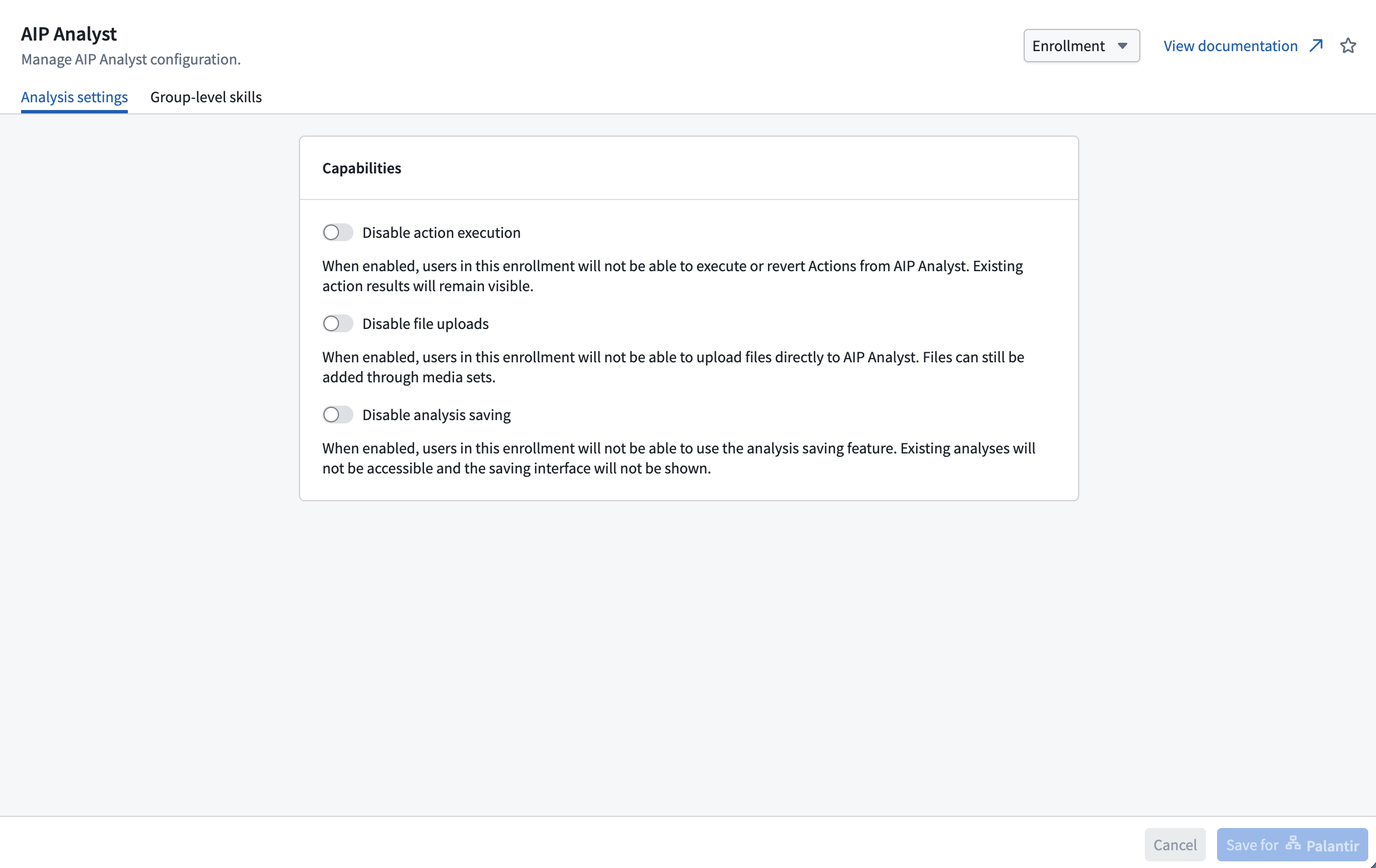
In the Analysis settings tab, configure the following controls under Capabilities, then save your changes:
| Control | Effect when enabled |
|---|---|
| Disable analysis saving | Users cannot create or open analysis resources. AIP Analyst hides the analysis sidebar and resource header. |
| Disable action execution | Users cannot execute or revert actions from AIP Analyst unless they belong to an allowed group. Existing action results remain visible. |
| Disable file uploads | Users cannot upload files directly to AIP Analyst, including by pasting or dragging files into the chat. Files can still be added through media sets. |
When Disable action execution is enabled, use Allowed groups to choose groups whose members can still execute and revert actions. Membership in any selected group, including through nested groups, grants this exception. Leave Allowed groups empty to disable action execution for everyone in the enrollment.
Group-level skills
Use the Group-level skills tab to assign skills to user groups. Assigned skills appear automatically in group members' Skills settings, where users can choose whether AIP Analyst can use them.
The tab lists the groups that have skills configured. You can search for a group by name or select Manage to edit its assigned skills.
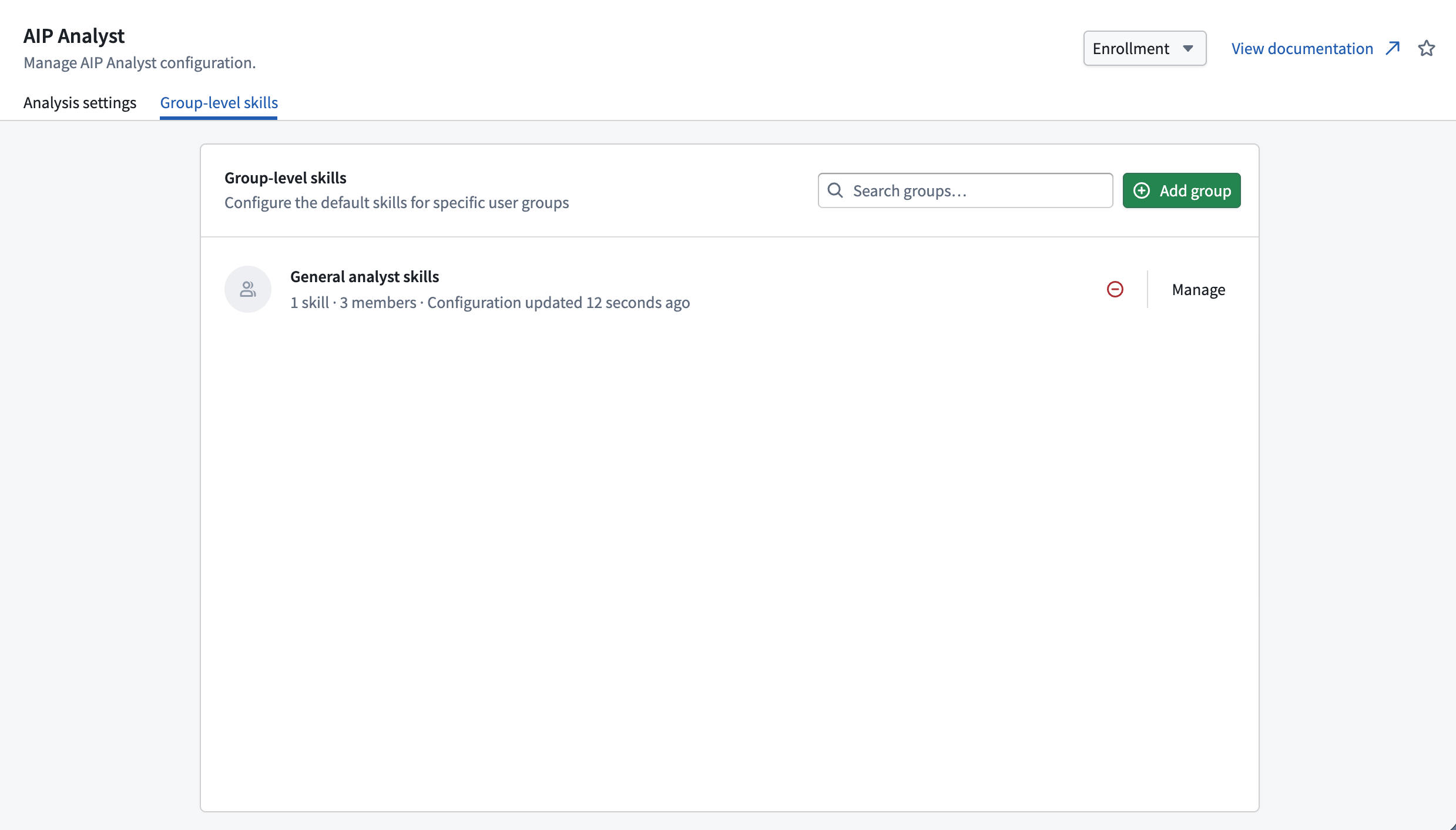
To configure skills for a group:
- Select Add group and choose a group or select Manage for an existing group.
- Select Add skills and choose the skills to assign.
- Use the Enabled toggle for each skill to set whether it is enabled by default for group members.
- Save your changes.
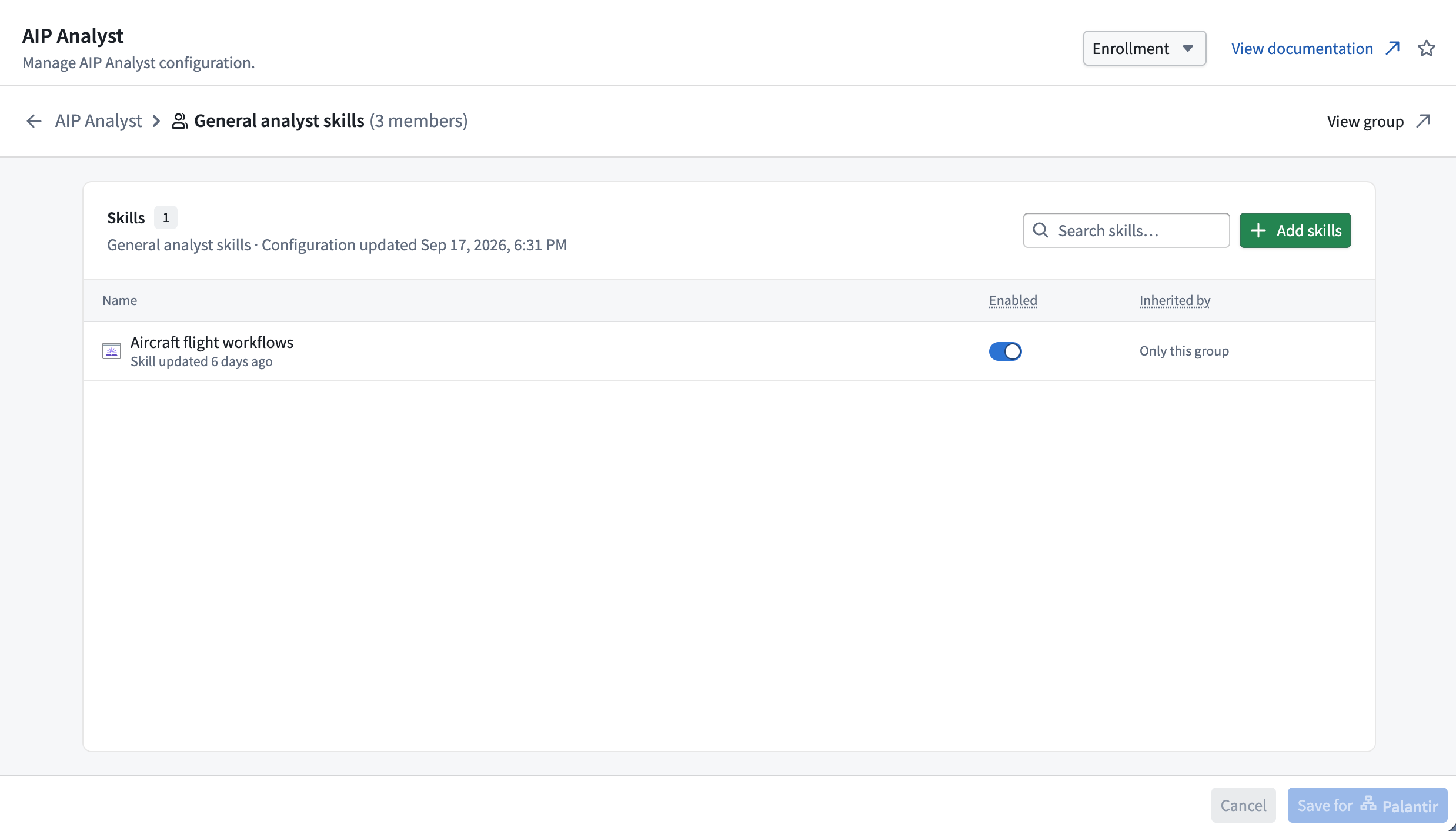
Newly assigned skills are enabled by default. Disabling a skill keeps it assigned and visible in members' Skills settings.
If a user belongs to multiple groups that assign the same skill, the skill appears once and is enabled by default if any of those groups enables it. The user's own enabled or disabled setting takes precedence over group defaults. Users can disable inherited skills, but those skills remain listed while assigned by a group.
Organization-level configuration
Organization-level settings apply to users whose primary organization is the selected organization. You can configure the default search scope and model category and require a watermark on PDF exports.
Default analysis search scope
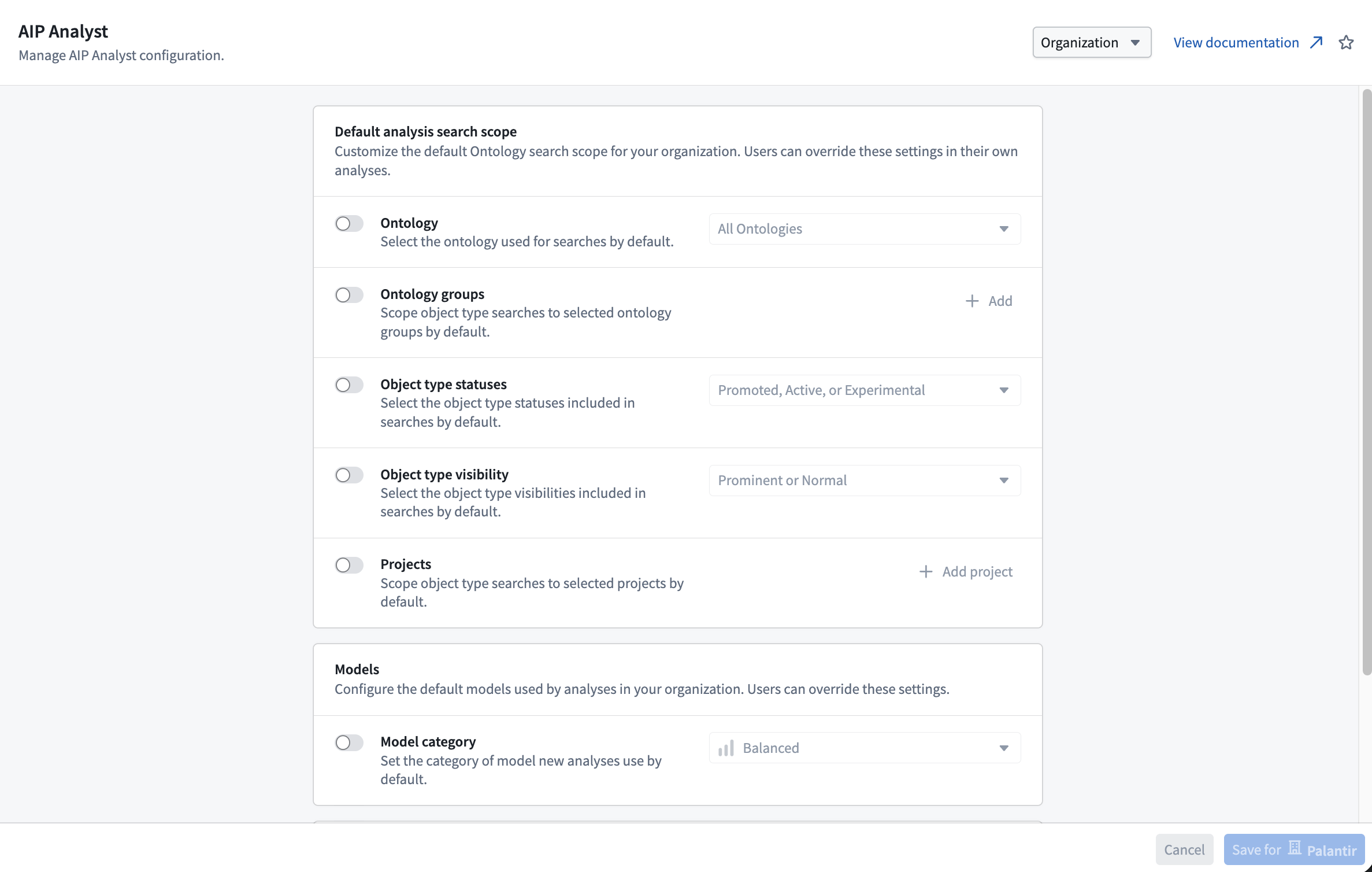
Under Default analysis search scope, enable the settings you want to provide as defaults, choose their values, and save your changes:
- Ontology: Limit searches to the selected Ontology by default.
- Ontology groups: Limit searches to the selected object type groups by default.
- Object type statuses: Limit searches to object types with the selected statuses by default.
- Object type visibility: Limit searches to object types with the selected visibility levels by default.
- Projects: Limit searches to Ontology entities in the selected projects by default.
Organization defaults apply when a user starts a new, unsaved analysis directly in AIP Analyst. For each search scope setting without a user preference, AIP Analyst uses the default from the user's primary organization, if one is configured. Users can always override these defaults in their analysis settings.
Saved analyses and Workshop widgets use their own search scope configuration, including settings left unconfigured. User and organization defaults do not fill in unconfigured settings in either context:
- Saved analyses: Restore the stored search scope so changes to defaults do not alter the scope of a historical analysis.
- Workshop widgets: Use the widget's search scope configuration to preserve the workflow intended by its builder.
See Limit search scope for details on how each setting affects searches.
Default model category
Under Models, enable Model category, choose Fast, Balanced, or Smart, and save your changes. This sets the category for new analyses when a user has not configured a personal default. Users can override it in their Models settings.
The setting chooses a category; the model used for that category follows AIP Analyst's defaults or the user's custom override. Existing saved analyses retain their selected category.
Required export controls
Under Export, enable Watermark, enter the required text, and save your changes. AIP Analyst includes this text as a watermark on every PDF export by users whose primary organization is the selected organization.
The watermark is required: users cannot disable it or edit its text in the PDF export dialog. This setting applies specifically to PDF exports.