- Capabilities
- Getting started
- Architecture center
- Platform updates
SAP (Custom source)
The SAP (Custom source) connector allows you to connect Foundry to SAP systems using a manually configured source with the magritte-sap-source connector type. This connector uses a custom YAML-based setup rather than the guided configuration available in newer SAP connectors.
New SAP integrations should use the SAP ERP or SAP SLT connectors. These connectors use a newer, more performant API to read data from SAP and provide a guided setup experience. The SAP (Custom source) connector is intended for existing integrations set up before those connector types were available.
Using the SAP (Custom source) connector requires the installation of the Palantir Foundry Connector 2.0 for SAP Applications add-on on the target SAP application layer.
Supported capabilities
| Capability | Status |
|---|---|
| Exploration | 🟢 Generally available |
| Batch syncs | 🟢 Generally available |
| Incremental | 🟢 Generally available |
| Streaming syncs | 🟡 Beta |
| Webhooks | 🟢 Generally available |
| Bulk writeback | 🟢 Generally available |
Setup
-
Open the Data Connection application and select + New Source in the upper right corner of the screen.
-
Select Add Custom Source.
-
Give the source a name and location.
-
In the custom YAML section, enter the source definition:
Copied!1 2 3type: magritte-sap-source url: https://<host>:<port>/sap/palantir usernamePassword: <username>:{{password}}<host>is the hostname of the SAP application server.<port>is the HTTPS (or HTTP) port for the Internet Communication Manager (ICM).- The username and password are those of the technical user created for Foundry when installing the Connector.
Enter
{{password}}exactly as shown. After saving, enter the password value under Encrypted values on the right side of the dialog. -
Select Save.
Learn more about setting up a connector in Foundry.
Enable streaming syncs (SLT only)
To support streaming syncs, the source must be configured with an explicit SLT connection type. Add the connectionType parameter to the source YAML:
Copied!1 2 3 4 5 6 7type: magritte-sap-source url: https://<host>:<port>/sap/palantir usernamePassword: <username>:{{password}} connectionType: type: slt slt: context: <context>
The context value is the unique identifier of the RFC connection between the SLT Replication Server and the source ERP system. Learn more about configuring SLT.
Source configuration
The following parameters can be configured on the source.
| Parameter | Required | Default | Description |
|---|---|---|---|
url | Yes | Base URL of the SAP add-on service endpoint. | |
usernamePassword | Yes | Username and password of the technical user created for Foundry. | |
useKernelJsonSerialization | No | false | Use kernel JSON serialization for paginated data. Incompatible with useTsvFormat: true. |
useTsvFormat | No | false | Use TSV format for paginated data instead of JSON. |
output | No | 50,000 rows | Maximum Parquet file size (rows or bytes) per request. Can also be overridden per sync. |
convertDatesToStrings | No | false | Ingest all dates as strings for all syncs under this source. |
proxy | No | None | Proxy configuration for connecting to SAP. |
cacheConfigurations | No | None | Cache timeout configuration per SAP object type. |
Networking and connectivity
Make sure to properly configure egress policies to allow Foundry to reach the SAP system. For on-premises SAP environments, agent proxy policies are typically required to route traffic correctly.
Many SAP systems use custom-signed certificates, which can cause SSL handshake exceptions when configuring the connection for the first time. Make sure you have the correct custom certificates from your system and add them to the source.
Source exploration
Once the source has been created, use the SAP Source Explorer for interactive exploration.
-
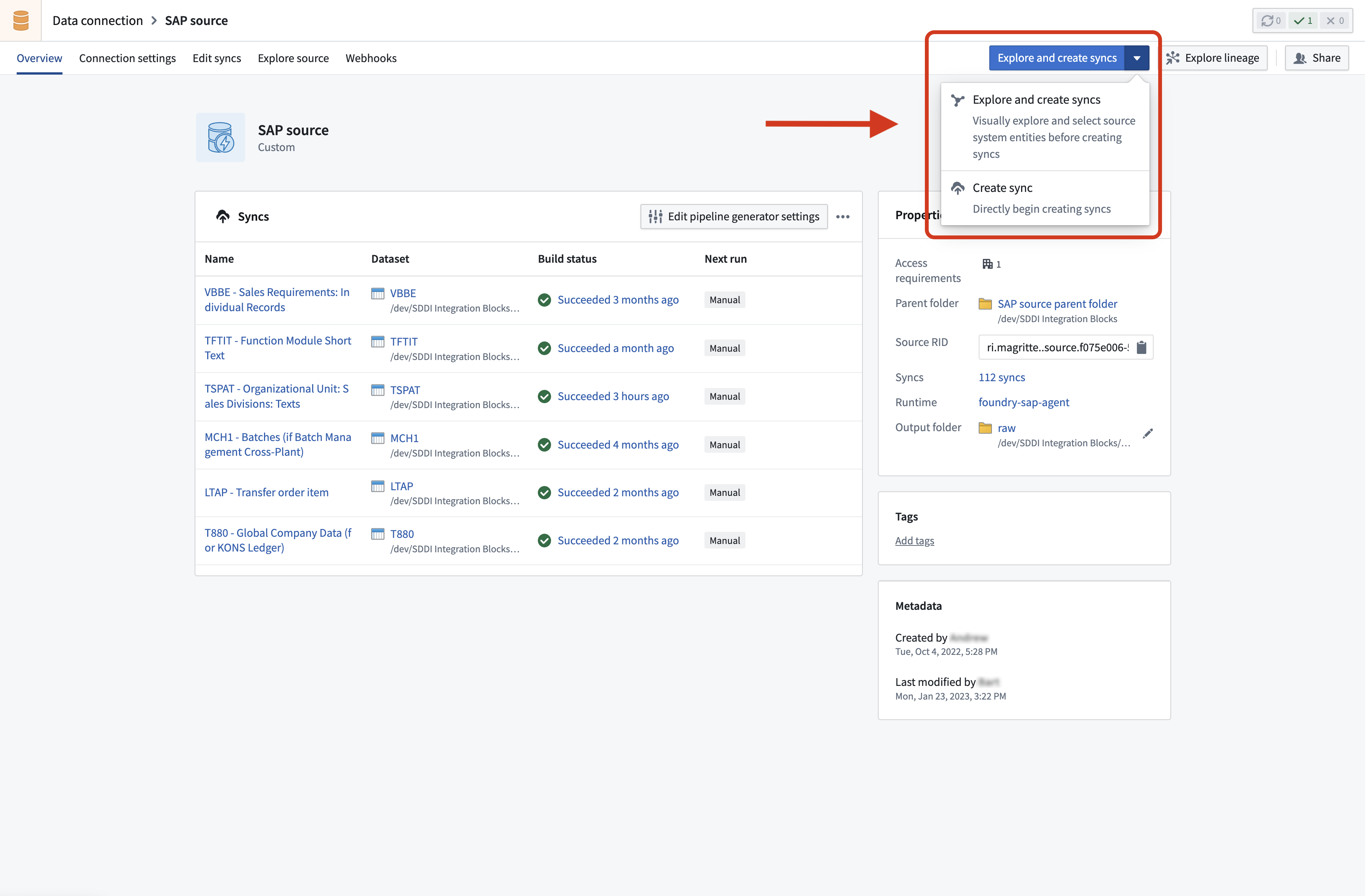
Navigate to the source and select Explore and create syncs.
-
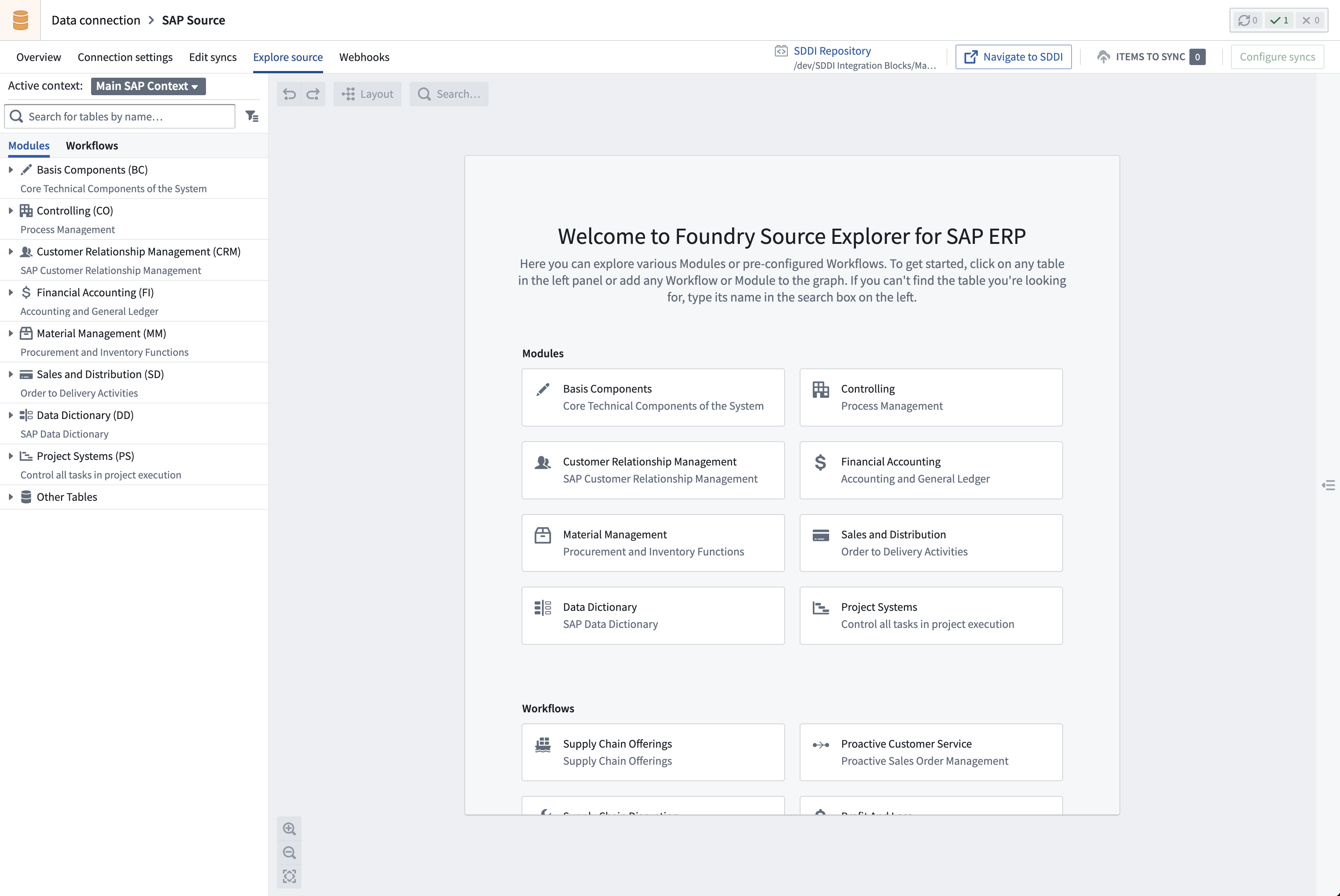
For remote and SLT connections, select the appropriate context.
-
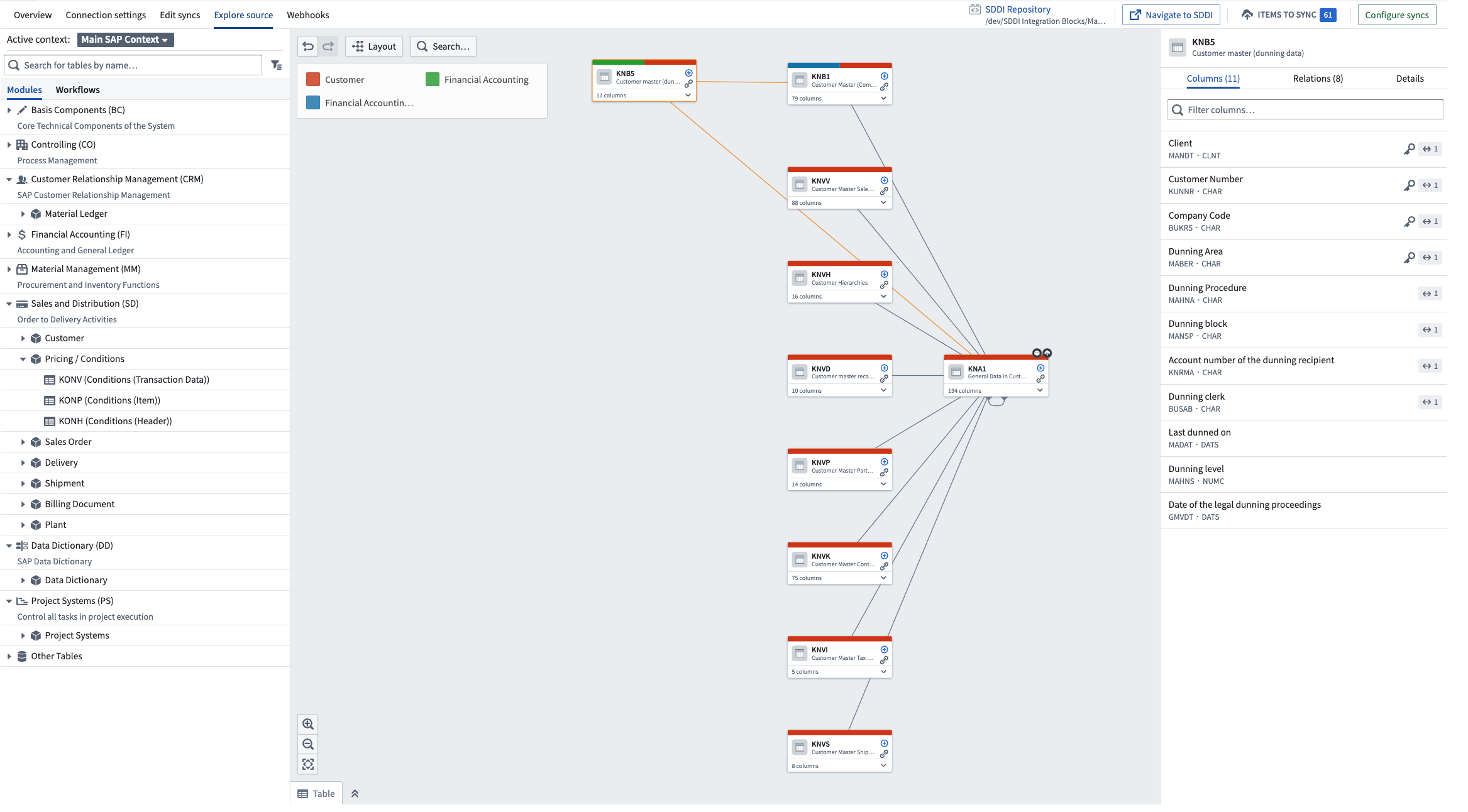
Select the tables or modules of interest and add them to the graph.
Batch syncs
Create a sync
Create a sync for each SAP object you want to extract to Foundry.
The sync configuration UI has two modes: Basic and Advanced. The Advanced tab exposes the full sync definition as YAML and is required for some object types and configuration parameters documented below. You can switch back to the Basic view, but any YAML properties that have no UI equivalent will not be displayed and will be lost.
- From the source overview page, select + New next to batch sync.
- Configure the standard settings: name, target dataset, and schedule.
- Set Transaction type to one of the following options:
- APPEND — for incremental updates. See Incremental syncs for details.
- SNAPSHOT — for a full load.
- Select an SAP object type (see SAP object types below).
- If using SLT or connecting to a remote system, select a Context. See Install a remote agent for details on contexts.
- Enter the Object name. As you type, the field suggests matching objects based on the selected SAP object type.
- If configuring an incremental sync, provide an Incremental field.
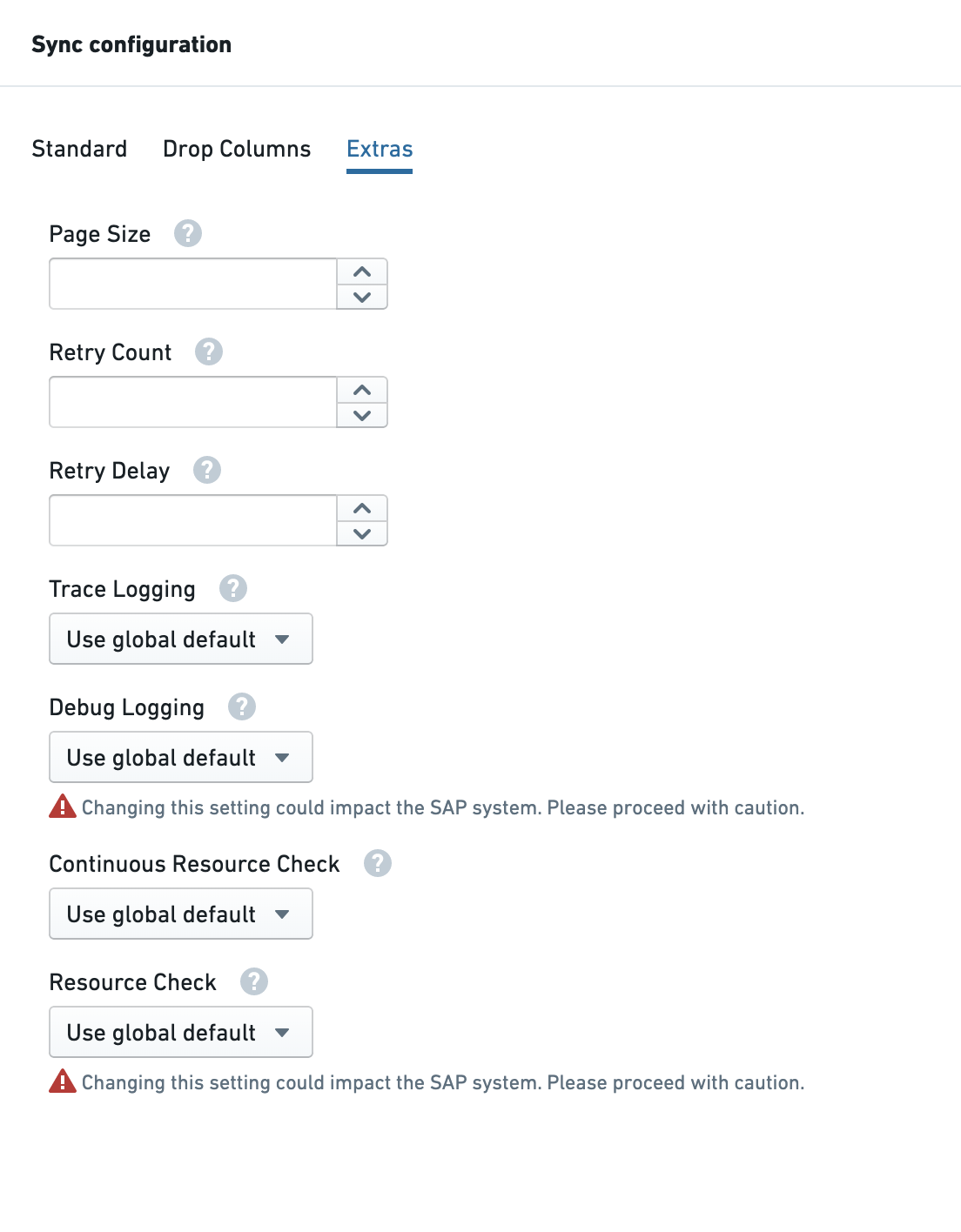
- Optionally, configure additional parameters in the Extras tab.
SAP object types
The following object types are available from the SAP object type dropdown in the sync configuration UI.
| Object type | Description |
|---|---|
| ERP Table | Extracts data from any ERP table or view in the SAP ABAP data dictionary, including custom Z* tables. |
| BW InfoProvider | Extracts data from a BW InfoProvider (InfoCube, DataStore object, or MultiProvider). All SAP BW authorization concepts are inherited. |
| BW BEx Query | Runs a BEx query in a BW system. See BEx query configuration below. |
| SLT | Extracts data from an SLT Operational Delta Queue (ODQ). SLT is a trigger-based replication tool with a built-in CDC mechanism. Requires a Context. |
| BW Content Extractor | Runs an ERP Business Content extractor — ready-to-use structures with built-in business logic and CDC mechanisms. Use APPEND for extractors that support delta extraction. See Configure extractors. |
| Function | Runs a remote-enabled function or BAPI in an ERP or BW system. See Function configuration below. |
| ERP Table Data Model | Reads the relationships between ERP tables based on a primary key/foreign key model. Use the depth parameter to control how many levels of relationships to follow. |
| Remote ERP Table | Extracts data from an ERP table in a remote ERP system. Requires a Context to identify the remote system. |
| Remote BW InfoProvider | Extracts data from a BW InfoProvider in a remote BW system. Requires a Context. |
| Remote BW BEx Query | Runs a BEx query in a remote BW system. Requires a Context. |
| Remote Function | Runs a remote-enabled function in a remote ERP or BW system. Requires a Context. |
| Transaction codes | Extracts data from SAP reports using ABAP List Viewer (ALV). Advanced tab only. |
| HANA views | Extracts data from HANA Views enabled in the SAP application layer. Advanced tab only. |
| CDS views | Extracts data from ABAP CDS (Core Data Services) Views. Advanced tab only. |
Remote object types require a Context value that identifies the remote system. Learn more about remote connections.
BEx query configuration
BEx is a multidimensional query framework built on SAP BW InfoProviders. BEx queries use standard SAP BW access methods and inherit all SAP BW authorization concepts. They represent business logic applied to InfoProvider views.
If the BEx query has dynamic columns (a characteristic on columns with key figures such that every key figure is repeated along with the characteristic value), this creates a dynamic output. Dynamic columns are not supported by Foundry — adjust your query accordingly.
When you select BW BEx Query as the object type, the sync editor shows a dedicated BEx query builder with the following options:
| Option | Description |
|---|---|
| Use Technical Names | Toggles between technical and human-readable (language-dependent) column names. |
| Drop columns | Removes key characteristics from the output. |
| Free characteristics | Adds free characteristics (as defined in the BEx query) to the output. |
| Filter | Filters data after the query is run (post-query filter). |
| BEx Query Input Variables | Provides filter values for BEx query input variables. |
For BEx paging configuration, see Advanced YAML parameters in the sync parameters section.
Function configuration
SAP function modules can both extract data from and write data back to an SAP system. The Connector can only extract data from functions that have at least one tabular output parameter.
The Foundry technical user requires the following authorization roles to extract function results:
/PALANTIR/SERVICE_USER/PALANTIR/CONTENT_FUNCTION_ALL- Any authorization role or object required to run the specific function
If a function returns more than one output parameter, use the paramName parameter to specify which output to write to the Foundry dataset:
Copied!1 2 3 4type: magritte-sap-source-adapter sapType: function obj: BAPI_USER_GETLIST paramName: USERLIST
Input parameters can be configured using inputParams. Three value types are supported:
| Type | YAML syntax |
|---|---|
| Single value | PARAM_NAME: 'value' |
| Structure (dictionary) | PARAM_NAME: '{"FIELD1": "value1", "FIELD2": "value2"}' |
| Table (list of dictionaries) | PARAM_NAME: '[{"FIELD1": "value1"}, {"FIELD1": "value2"}]' |
Example with a table-type input parameter:
Copied!1 2 3 4 5 6type: magritte-sap-source-adapter sapType: function obj: EM_GET_NUMBER_OF_ENTRIES inputParams: IT_TABLES: '[{"TABNAME":"TSTC"}]' paramName: IT_TABLES
Advanced-only object types
The following object types are not available from the dropdown and must be configured from the Advanced tab.
Transaction codes
Extracts data generated by SAP reports. Only reports using ABAP List Viewer (ALV) are supported.
By transaction code name:
Copied!1 2 3type: magritte-sap-source-adapter sapType: tcode obj: ZTEST_ALV
By program name:
Copied!1 2 3 4type: magritte-sap-source-adapter sapType: tcode obj: RSUSR200 programType: program
The following optional parameters can be added to the sync YAML:
| Parameter | Description |
|---|---|
filter | Passes user inputs for selection screen variables. Does not filter output fields arbitrarily. |
selectionVariant | Passes a predefined selection screen variant. If combined with filter, the filter values overwrite matching variant values. |
outputVariant | Passes the layout name of the program. Only supported for programs with a layout parameter defined on SAP's selection screen. |
ingestionType: spool | Sends the report output to a printer queue before ingesting. Recommended for large reports that exceed SAP's internal table limits. When set, all columns are ingested as type String. |
HANA views
Extracts data from HANA Views enabled in the SAP application layer. See Ingest HANA views from SAP for prerequisites.
For new integrations, use the SAP ERP connector where HANA View is available as a selectable object type in the sync configuration UI.
Copied!1 2 3type: magritte-sap-source-adapter sapType: hanaview obj: ZEXT_SBOOK
CDS views
Extracts data from ABAP CDS (Core Data Services) Views. ABAP CDS defines semantic data models on the central database of the application server.
Extracting data from parametrized CDS views is not currently supported.
Incremental syncs
Incremental syncs are stateful syncs that enable append-style transactions from the same table. To enable incremental syncs, set Transaction type to APPEND.
The following incremental types are available:
| Incremental type | Description |
|---|---|
| Single field | Imports rows where a single field is greater than or equal to the largest value already imported. |
| Multiple fields | Same as single field but combines multiple fields with an OR operator. Useful when both "created" and "last updated" timestamp fields exist. Separate fields with a comma. |
| Concatenate fields | Same as multiple fields but concatenates fields together rather than combining with OR. Useful when separate "last updated date" and "last updated time" fields exist. |
| Use change document table | Imports rows based on updates in SAP's change document tables (CDHDR and CDPOS). Useful when the target table lacks a monotonically increasing field. Inserts may not be captured for some objects. |
| Use twin or twinjoin table | Imports rows from the target table when a field in a separate "twin" table meets the incremental condition. A twinjoin table allows the target to be a join of multiple tables. |
The table below shows which incremental types are supported per object type:
| Object type | Single field | Multiple fields | Concatenate fields | Change document table | Twin table | SAP built-in | Replication | Request based |
|---|---|---|---|---|---|---|---|---|
| Table | ✓ | ✓ | ✓ | ✓ | ✓ | ✓ | ||
| Remote Table | ✓ | ✓ | ✓ | ✓ | ✓ | ✓ | ||
| InfoProvider | ✓ | ✓ | ✓ | |||||
| Remote InfoProvider | ✓ | ✓ | ✓ | |||||
| SLT | ✓ | |||||||
| Extractor | ✓ |
Incremental updates are not supported for BEx queries or Functions. All syncs for these object types are full extracts.
The incremental field should ideally be a monotonically increasing value. The system uses a "greater than or equal to" comparison to avoid missing data if a sync runs midway through a given date. As a result, duplicate values may appear in the Foundry dataset and should be removed as a first step in the transformation pipeline.
For table-type incremental syncs, use the maxRowsPerSync setting (configured via the Advanced tab) to bound the approximate number of rows returned per run. This is useful for splitting the initial sync of a large table into a series of smaller, more resilient runs when intermittent issues such as network failures may disrupt long-running syncs. See Advanced YAML parameters for configuration details.
Twin table configuration
The Incremental Twin Table setting specifies the twin table. The Incremental Twin Mapping setting defines the join conditions between the primary and twin tables.
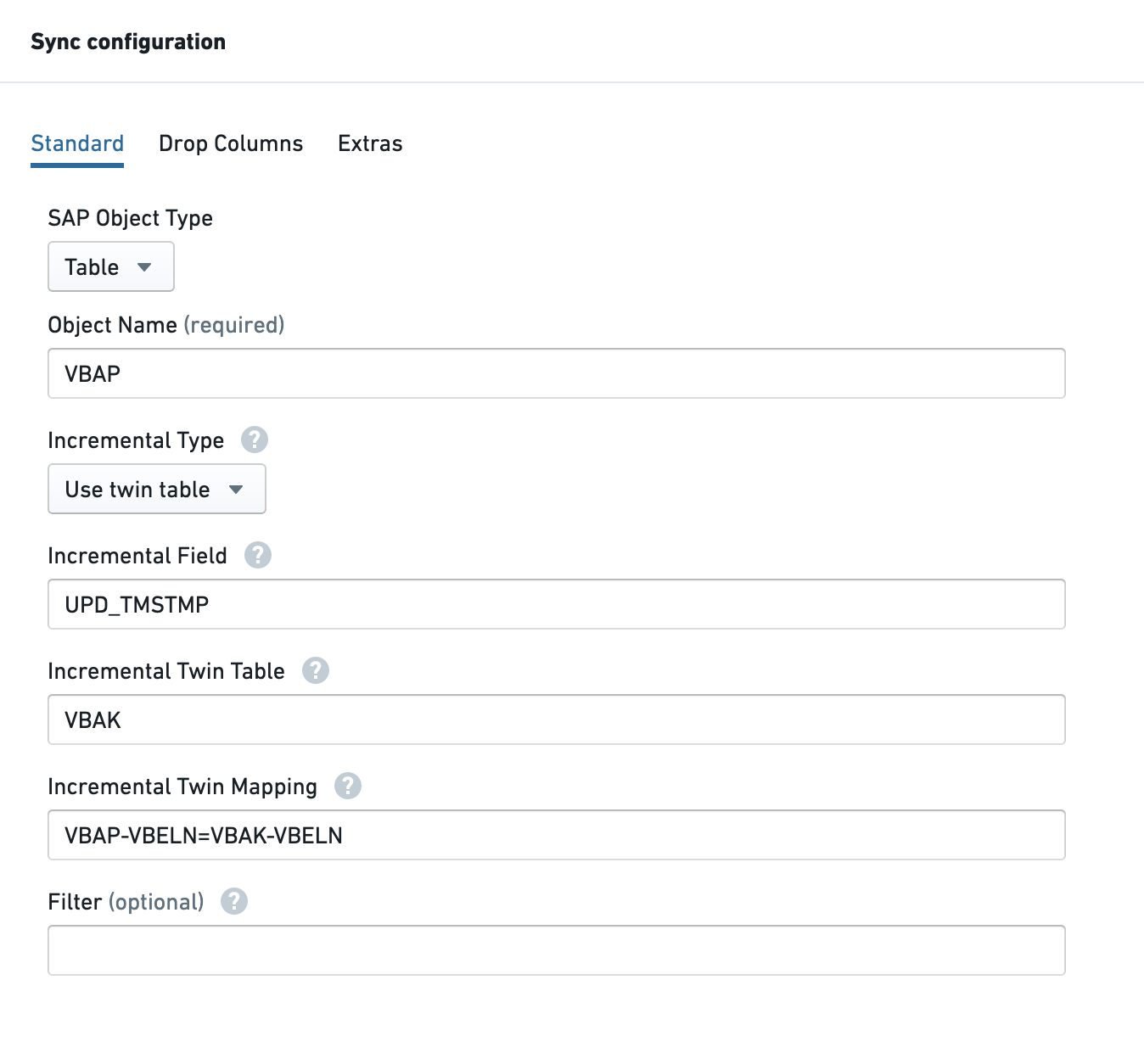
Mapping syntax:
{PRIMARY_TABLE_NAME}-{FIELD_NAME}={TWIN_TABLE_NAME}-{FIELD_NAME}
Multiple join conditions can be combined with a semicolon (AND operator).
Request-based incremental for InfoProviders
In SAP BW, DSOs and InfoCubes are loaded using Data Transfer Processes (DTPs). Each DTP creates a loading request, and the Connector uses these requests to capture changed data.
This feature is only supported for non-compressed requests. Requests must not be compressed before loading to Foundry. If a request is compressed before loading, the sync will fail and the initial load must be repeated.
Configure via the Advanced tab:
Copied!1 2 3 4type: magritte-sap-source-adapter sapType: infoprovider obj: <technical-name-of-infoprovider> incrementalType: REQUEST
Reset incremental state
To force a full reload and re-initialize incremental ingest:
- Switch to the Advanced tab in the sync configuration.
- Add
resetIncrementalState: trueto the YAML. - Set the transaction type to SNAPSHOT (keep any
incremental*parameters in place). - Run the sync. This performs a full snapshot, replacing all files in the dataset.
- Remove
resetIncrementalState: truefrom the YAML. - Set the transaction type back to APPEND.
Subsequent syncs will resume incremental appends as normal.
Sync parameters
The following parameters are available in the Extras tab or via the Advanced YAML view.
General parameters
| Parameter | Applicable to | Description |
|---|---|---|
| Drop columns | ERP Table, Remote ERP Table | Excludes selected columns before extraction. Improves performance and prevents ingestion of sensitive or unnecessary fields. |
| Timestamp | All | Adds /PALANTIR/TIMESTAMP (sync run time) and /PALANTIR/ROWNO (record order within a sync) columns. Useful for deduplicating records downstream. /PALANTIR/ROWNO is only meaningful when using SLT or CDPOS/CDHDR incremental mode — a higher value indicates a more recent change. |
| Page size | All | Rows returned per page. Default is 50,000. Values below the default have no effect; reducing the default requires a system call to the SAP add-on. |
| Retry count | All | Number of retries when a request fails due to a resource shortage. |
| Retry delay | All | Delay in seconds between retry attempts. |
| Param name | Function | Selects which output table to write to the Foundry dataset when a function returns multiple output parameters. |
| Depth | ERP Table Data Model | Number of relationship levels to follow. Use 1 for first-order, 2 for second-order, and so on. |
| Trace logging | All | Set to On to enable trace logging for this sync. |
| Fetch option | SLT | XML fetches using zipped data (faster). Direct fetches as a string. Use Direct if you encounter data content errors with XML. |
| Debug logging | All | Enables debug logging. Starts a background process in SAP for the sync duration — can drain resources. Use with caution. |
| Continuous resource check | All | Controls whether all paging requests or only the initial request are subject to a resource check. |
| Resource check | All | Disabling removes all resource checks. Can put excess load on SAP. Use with caution. |
| Filter | All | Filters extracted data using SAP field values and operators. Supports dynamic filter keywords. |
| Advanced YAML parameters | Varies | maxRowsPerSync, bexSettings, ignoreUnexpectedValues, outputSettingsOverride. |
Debug logging
Debug logging starts a background process in the SAP system that runs during the sync. This can drain resources and impact other users. Use with caution.
Set to On to enable debug logging for this sync.
Continuous resource check
When On, all paging requests are subject to a resource check (memory, CPU). When Off, only the initial page request is checked. See performance parameters for details.
Resource check
Disabling the resource check causes syncs to run regardless of available memory, CPU, and processes. This can put excess load on the SAP system. Use with caution.
Set to Off to disable all resource checks for this sync.
Filter
Filters the data extracted from SAP. All field names must match the data dictionary.
| Operator | Meaning |
|---|---|
, | OR |
; | AND |
: | Between |
= | Equals |
!= | Not equals |
>, >=, <, <= | Comparison |
* | Wildcard |
Examples:
- Price between 500 and 650:
PRICE=500:650 - Customer A, B, or C:
CUSTOMER=A,B,C - Price between 500 and 650 AND customer A, B, or C:
PRICE=500:650;CUSTOMER=A,B,C - Material starting with PAL, DIS, or SAP:
MATERIAL=PAL*,DIS*,SAP* - Date on or after 9 August 2019 (format YYYYMMDD):
DATE>=20190809
Dynamic filters
Dynamic filters use special keywords and functions to create more flexible filter expressions. Available from add-on version SP26 and later.
Fixed keywords
| Keyword | Description |
|---|---|
[CURRENTYEAR] | Current year in YYYY format. |
[TODAY] | Today's date in YYYYMMDD format. |
[LASTDAYOFMONTH] | Last day of the current month in YYYYMMDD format. |
[LASTDAYOFLASTMONTH] | Last day of the previous month in YYYYMMDD format. |
[FIRSTDAYOFMONTH] | First day of the current month in YYYYMMDD format. |
[FIRSTDAYOFLASTMONTH] | First day of the previous month in YYYYMMDD format. |
Date calculation functions
| Function | Description |
|---|---|
[ADDDAY] | Adds days to the selected date. Example: [ADDDAY(22102022,1)] → 23102022. |
[ADDMONTH] | Adds months to the selected date. |
[ADDYEAR] | Adds years to the selected date. |
[GETMONTH] | Returns the month of the selected date as a 2-digit value (01–12). |
[GETDAY] | Returns the day of the month as a 2-digit value. |
[GETYEAR] | Returns the year of the selected date. |
Functions can be used directly with fixed keywords or nested:
- Single function:
[ADDDAY([TODAY], 1)] - Nested:
[GETDAY([ADDDAY([FIRSTDAYOFMONTH], -1)])]
Examples:
- Records after today:
BUDAT>[TODAY] - Records after the last day of the previous month:
BUDAT>[ADDDAY([FIRSTDAYOFMONTH], -1)]
Advanced YAML parameters
The following parameters require the Advanced tab and have no Basic view equivalent.
maxRowsPerSync(SLT and table-type incremental syncs): Limits the number of rows returned per sync run (approximate). Useful for splitting the initial sync of a very large table into smaller runs:
Copied!1maxRowsPerSync: 500000
bexSettings(BEx only): Configures BEx query paging. Available from Connector version SP22 onward:
Copied!1 2 3bexSettings: bexPaging: true bexMemberLimit: 10
bexPaging: Enables paging using automatically generated filters. Default isfalse.bexMemberLimit: Threshold for filter candidate selection. InfoObjects with more members than this value are excluded from filter generation. Default is200. Minimum is2.
-ignoreUnexpectedValues: If a sync fails with Unexpected value encountered in SAP data Failed to parse value XXX in field YYY, a date or number value cannot be parsed. To continue syncing and set unparsable values to null:
Copied!1ignoreUnexpectedValues: true
A warning is logged at the end of the sync with a summary of parse exceptions.
This setting has no Basic view equivalent. If you switch back to the Basic view, this setting will be lost.
-outputSettingsOverride: Overrides the source-level Parquet file size setting for a specific sync:
Copied!1 2 3 4 5outputSettingsOverride: maxFileSize: type: rows rows: max: 10000
Copied!1 2 3 4 5outputSettingsOverride: maxFileSize: type: bytes bytes: approximateMax: 400MB
Specifying a maximum size in bytes is approximate — the resulting file sizes may be slightly smaller or larger. The byte value must be at least twice the in-memory buffer size of the Parquet writer, which defaults to 128 MB.
Streaming syncs
Streaming syncs from SAP are in the beta phase of development and may not be available on your enrollment. Functionality may change during active development.
Streaming syncs are only supported for connections via an SAP SLT Replication Server and require a source configured with an explicit SLT connection type (see Enable streaming syncs above).
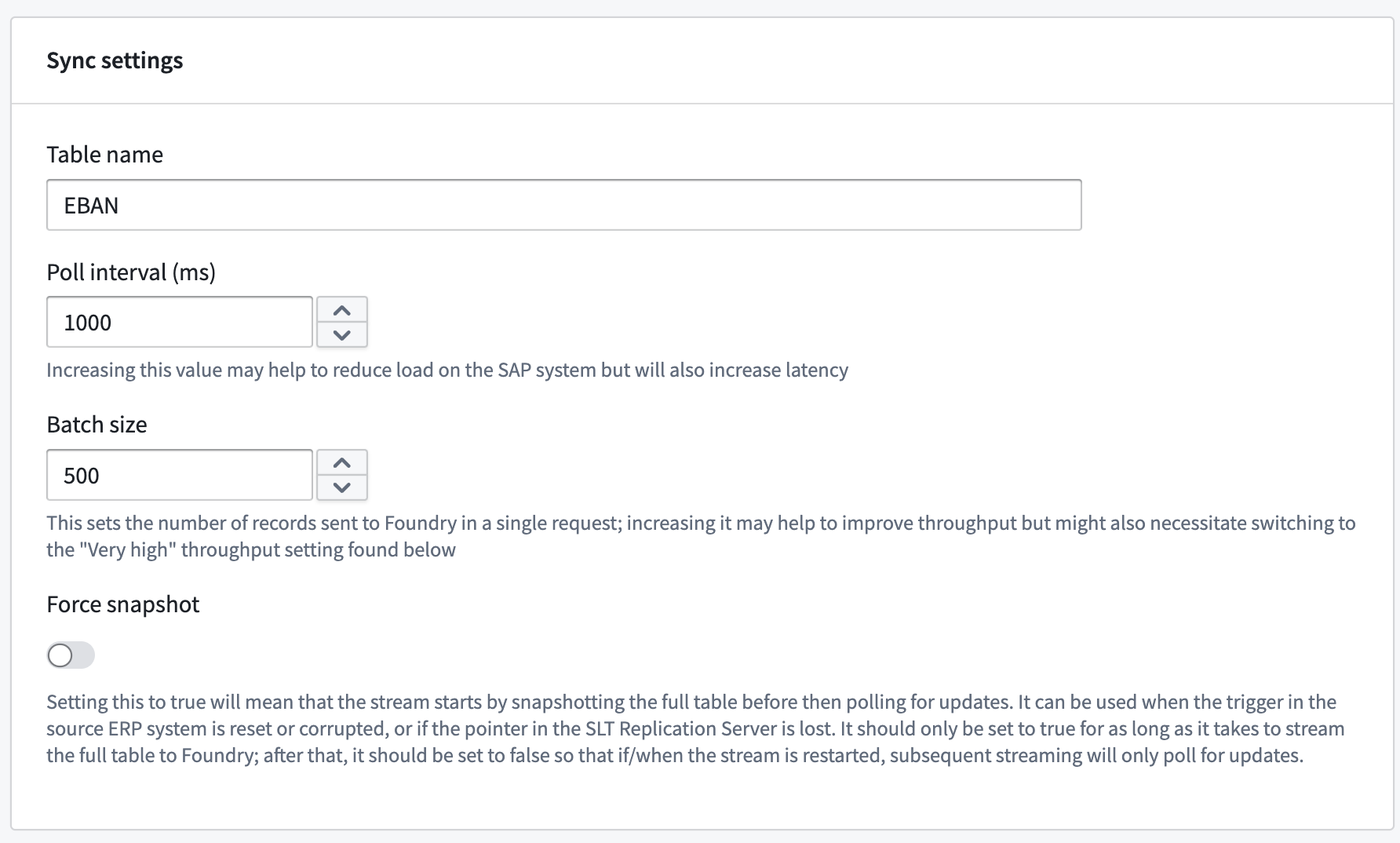
Each streaming sync creates and subscribes to its own Operational Delta Queue (ODQ) in the SLT Replication Server. Foundry polls the queue periodically (default interval: 1 second):
- If the queue is empty, no further requests are made until the next poll.
- If there are 50,000 records or fewer on the queue, they are consumed synchronously.
- If there are more than 50,000 records, consumption is paginated.
For lowest latency, the SLT Replication Server should have at least as many available dialog work processes as there are active streaming syncs.
Create a streaming sync
-
Open the SAP source. On the Overview page, scroll down to the streaming syncs table and select + Create streaming sync.

-
Enter the name of the SAP table to stream.
-
Choose a location for the output streaming dataset.
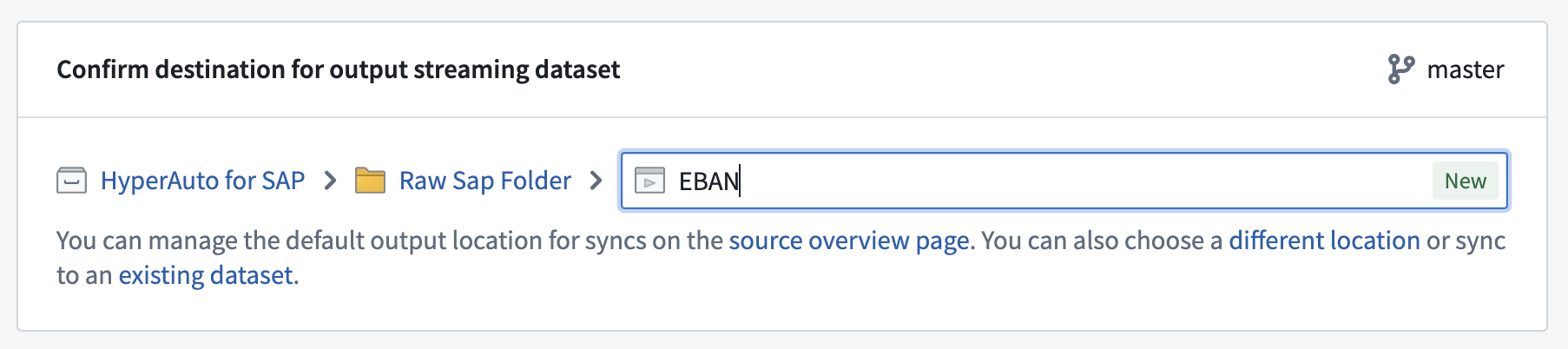
Before proceeding, ensure the preview pane at the bottom of the screen has finished loading. The schema for the streaming dataset is derived from this preview. In some cases, the preview may only display the schema without data — this is sufficient.
-
Select Create streaming sync. You can choose to start the stream immediately or start it manually after creation.
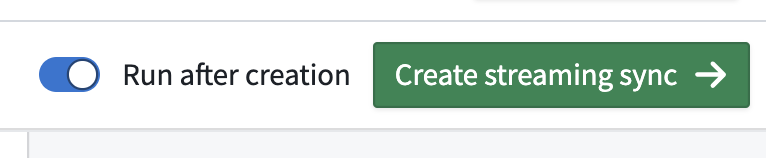
To ensure a stream automatically restarts after Data Connection agent or SAP system downtime, set a schedule on the streaming dataset with a 1-minute time trigger.
Throughput and partition keys
Switching the throughput setting from Normal to Very high may improve performance but increases the number of partitions used. When more than one partition is used, partition keys must be set to guarantee ordering between unique records from SAP. These keys should correspond to the primary key of the table in SAP.
Webhooks
SAP webhooks allow you to write data back to SAP by invoking function modules — typically BAPIs (Business Application Programming Interfaces) — from Foundry. See Webhooks for an overview of how to set up a webhook.
SAP webhooks support Foundry worker connections in Foundry-managed cloud compute. We recommend this runtime for SAP webhooks instead of executing them through a data connection agent. Existing SAP sources configured on a Foundry worker automatically benefit from cloud execution with no migration required; SAP sources running on a data connection agent should be switched to a Foundry worker to take advantage of cloud-executed webhooks.
The webhook Task body is a JSON document, authored using Handlebars ↗ syntax, that names the SAP function module to call, provides its inputs, and selects the output to return.
Task body fields
| Field | Required | Type | Description |
|---|---|---|---|
function-name | Yes | String | The SAP function module or BAPI to call, for example BAPI_SALESORDER_CHANGE. |
inputs | No | Object, or array of objects | The function's input parameters. Provide one object to write back a single record, or an array of objects to write back several records in one call. Omit if the function does not require inputs. |
output | No | String, or array of strings | The output variable to return. Provide one variable name, or an array of names to return several. |
commit | No | Boolean | Whether to commit the change. Omit to commit (the default); set to false to suppress the commit. Standard BAPIs require a commit to persist their changes. |
parallel | No | Object | Selects parallel writeback and optionally tunes its execution. See Write back multiple records. |
remote | No | Object | Targets a remote SAP system. Contains a context string that identifies the system, for example { "context": "<SAP_CONTEXT_NAME>" }. |
api-version | No | Integer | The SAP add-on API version. Defaults to 1; set to 2 to use the version 2 features. See SAP add-on compatibility. |
Write back a single record
The following example invokes BAPI_SALESORDER_CHANGE to modify the purchase date on a sales document and returns the SAP RETURN table. To target a remote SAP system, add a remote block naming the system context:
Copied!1 2 3 4 5 6 7 8 9 10 11{ "function-name": "BAPI_SALESORDER_CHANGE", "inputs": { "SALESDOCUMENT": {{json sales-doc-id}}, "ORDER_HEADER_IN": { "PURCH_DATE": {{json purchase-date}} }, "ORDER_HEADER_INX": { "UPDATEFLAG": "U", "PURCH_DATE": "X" } }, "output": "RETURN", "remote": { "context": "<SAP_CONTEXT_NAME>" }, "api-version": 2 }
Write back multiple records
Bulk and parallel writeback do not support OAuth 2.0 authentication.
To write back several records in one call, pass an array of objects in inputs and list the variables you want in output. Use the optional parallel block to tune execution. The following example creates two purchase requisitions with BAPI_PR_CREATE and returns two output variables:
Copied!1 2 3 4 5 6 7 8 9 10 11{ "function-name": "BAPI_PR_CREATE", "commit": true, "parallel": { "max-jobs": 2, "max-calls-per-job": 4 }, "inputs": [ { "PRHEADER": { "PR_TYPE": "NB" }, "PRITEM": [ { "MATERIAL": "100-100", "PLANT": "1100", "QUANTITY": "1" } ] }, { "PRHEADER": { "PR_TYPE": "NB" }, "PRITEM": [ { "MATERIAL": "100-200", "PLANT": "1100", "QUANTITY": "2" } ] } ], "output": ["NUMBER", "PRHEADEREXP"], "api-version": 2 }
Webhook execution can be parallelized on the SAP side. This happens automatically when inputs is an array with more than one object, or when you explicitly supply a parallel block, even an empty one. Use the optional parallel block to tune execution:
max-jobs— the maximum number of jobs that run at the same time.max-calls-per-job— the maximum number of records each job handles.
Omitted settings use values defined in the SAP add-on, which default to 3 jobs and 4 calls per job.
Setting max-jobs higher than the number of records is harmless: the surplus jobs go unused, and no resources are wasted.
Response
For a single record without a parallel block, the response depends on how many output variables you requested.
A single record with one output variable returns a list of that variable's rows:
Copied!1 2 3[ { "NUMBER": "0010048439" } ]
A single record with multiple output variables returns an object keyed by variable name. Index into it by name, for example output["NUMBER"]:
Copied!1 2 3 4{ "NUMBER": [ { "NUMBER": "0010048439" } ], "PRHEADEREXP": [ { "PREQ_NO": "0010048439", "PR_TYPE": "NB" } ] }
A parallel writeback returns an array with one element per input record, even if there is only one input. For example:
Copied!1 2 3 4 5 6 7[ { "OUTPUT": { "NUMBER": [ { "NUMBER": "0010048439" } ], "PRHEADEREXP": [ { "PREQ_NO": "0010048439" } ] }, "ROWNO": 1, "MSG": [ { "MSGTYP": "S", "MSGTXT": "Purchase requisition 0010048439 created" } ] } ]
OUTPUTis that record's result, in the same form as a single-record response.ROWNOis the position (starting at 1) of the matching entry in yourinputsarray, so you can map each result back to its input.MSGis the SAP message log for that record. Each message has a type (MSGTYP:Sfor success,Efor error,Wfor warning,Ifor information, orAfor abort) and text (MSGTXT). Because each record reports its own messages, you can see which records succeeded and which failed.
An unsuccessful HTTP response causes the webhook to return an error. A successful webhook response can still contain SAP business errors. Request and inspect the SAP RETURN output where available, and check per-record MSG entries to determine whether the requested changes succeeded.
SAP add-on compatibility
Set api-version to 2 to use multiple output variables and bulk and parallel writeback. Version 2 requires SAP add-on 2.29.0 or later. If you omit api-version, the webhook uses version 1, which supports a single input and a single output variable, without a parallel block.
When switching to version 2, remove any retries-per-request setting greater than 0.
Related documentation
The following guides cover workflows that involve both SAP-side and Foundry-side configuration:
- Extract long text from SAP: Decompress and ingest long texts from the
STXLtable. - Configure custom authorizations and role management: Set up custom authorization roles for the SAP add-on.
- Configure extractors: Configure SAP BW Business Content extractors.
- Ingest HANA views from SAP: Publish and ingest HANA external views.
- User-attributed SAP writeback with OAuth 2.0: Configure OAuth 2.0 for named-user writeback to SAP.