- Capabilities
- Getting started
- Architecture center
- Platform updates
Branches, changes, and proposals
Use Pilot's code branches to develop changes independently, inspect differences, and merge through proposals.
Code branches contain repository changes. They are separate from the Foundry branches used to deploy Ontology definitions. See Work with data.
Create and switch code branches
The code branch selector is in the content header, to the left of the version selector.
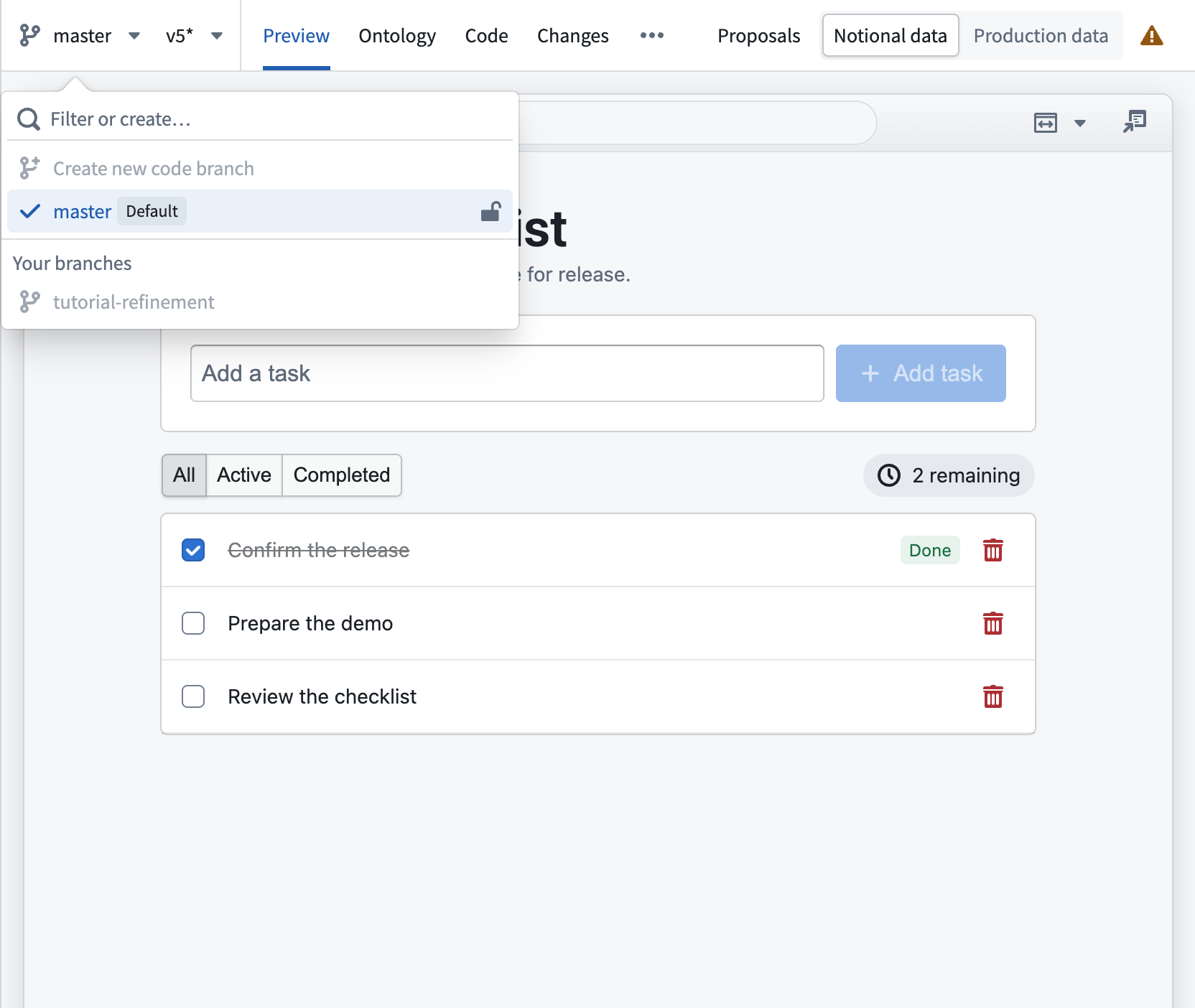
To create a branch from the repository's default code branch:
- If Pilot is processing a prompt, wait for it to finish or select Stop beside the chat input.
- Save changes you want to keep. Resolve unsaved changes before switching branches.
- Select the default code branch in the branch selector.
- Open the branch selector and choose Create new code branch.
- Enter a branch name and select Create code branch.
Pilot switches to the new branch. Submit prompts or edit code there.
Use the branch selector to return to an existing branch. If a branch has been deleted, switch to an existing branch to continue editing.
Save changes and inspect versions
The version selector is to the right of the code branch selector and to the left of Preview. Select its version label, such as v4, to open the saved versions. An asterisk (*), as in v5*, indicates a state that has not been saved as a Pilot version, including unsaved changes.
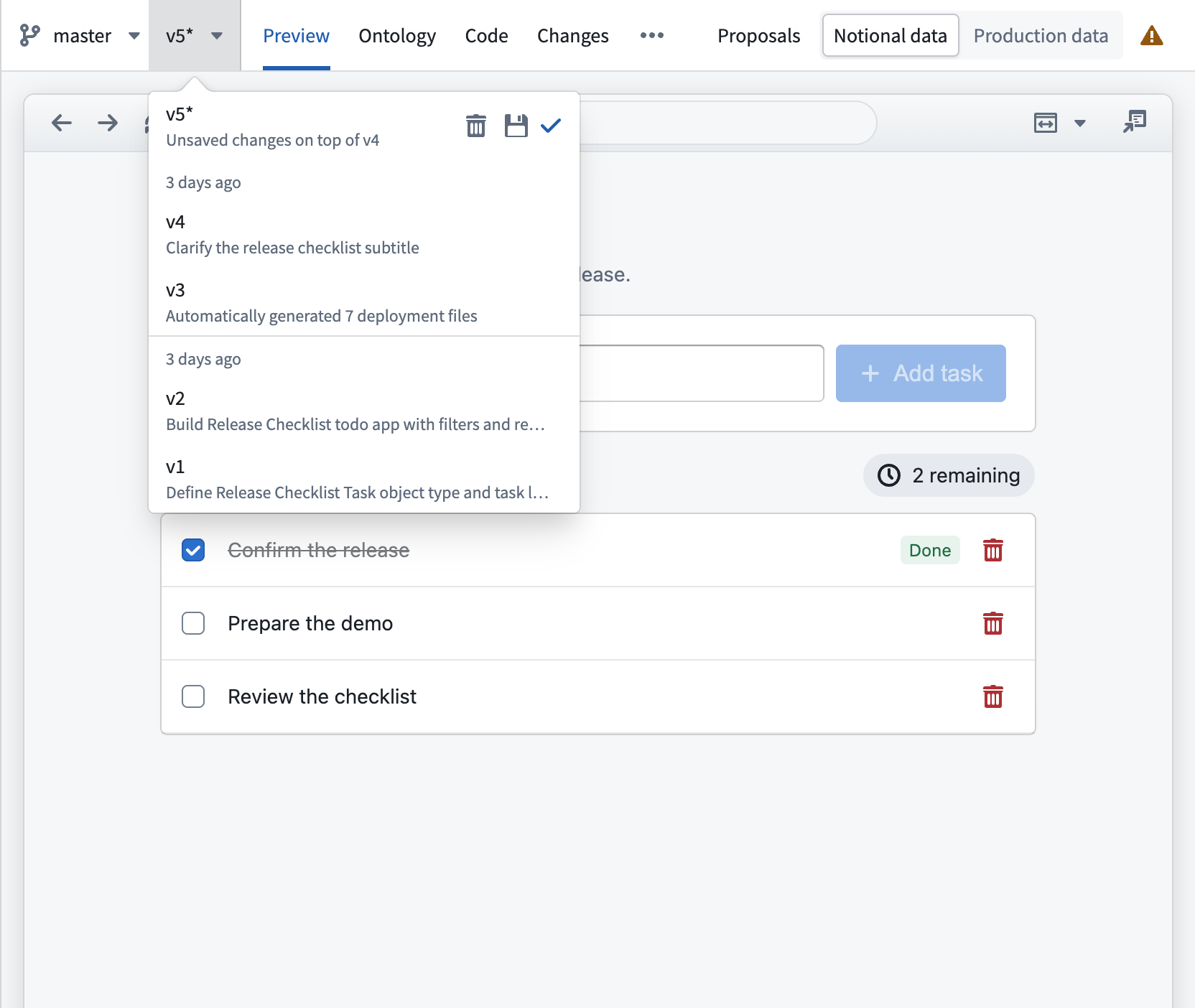
Hover over a saved version to reveal its rollback control. Hover over an icon to read its action label.
| Control or indicator | Meaning |
|---|---|
* after the version | The current state has not been saved as a Pilot version. The menu describes the unsaved changes or commit. |
| Check mark | The current version or unsaved state. |
| Save changes (disk icon) | Save pending changes. If the current commit has no Pilot version, save it as a version. |
| Discard unsaved changes (trash icon) | Remove pending changes after confirmation. |
| Rollback (curved arrow) | Restore the selected saved version on the current branch. |
| Rollback on branch (curved arrow on a protected branch) | Create a branch from the selected saved version. |
Controls can be disabled while Pilot is working or when branch restrictions apply.
Discarding changes or rolling back can remove unsaved work. Save any work you need before continuing.
A saved Pilot version is not a published application or widget release. Publishing requires the deployment workflow and a release tag.
Create a proposal
Once your branch has saved changes:
- Open Changes to inspect differences from the base branch.
- Review the source and destination branches, generated source, and supporting configuration.
- Select Create proposal.
- Enter a Title and Description explaining the change.
- Select Create.
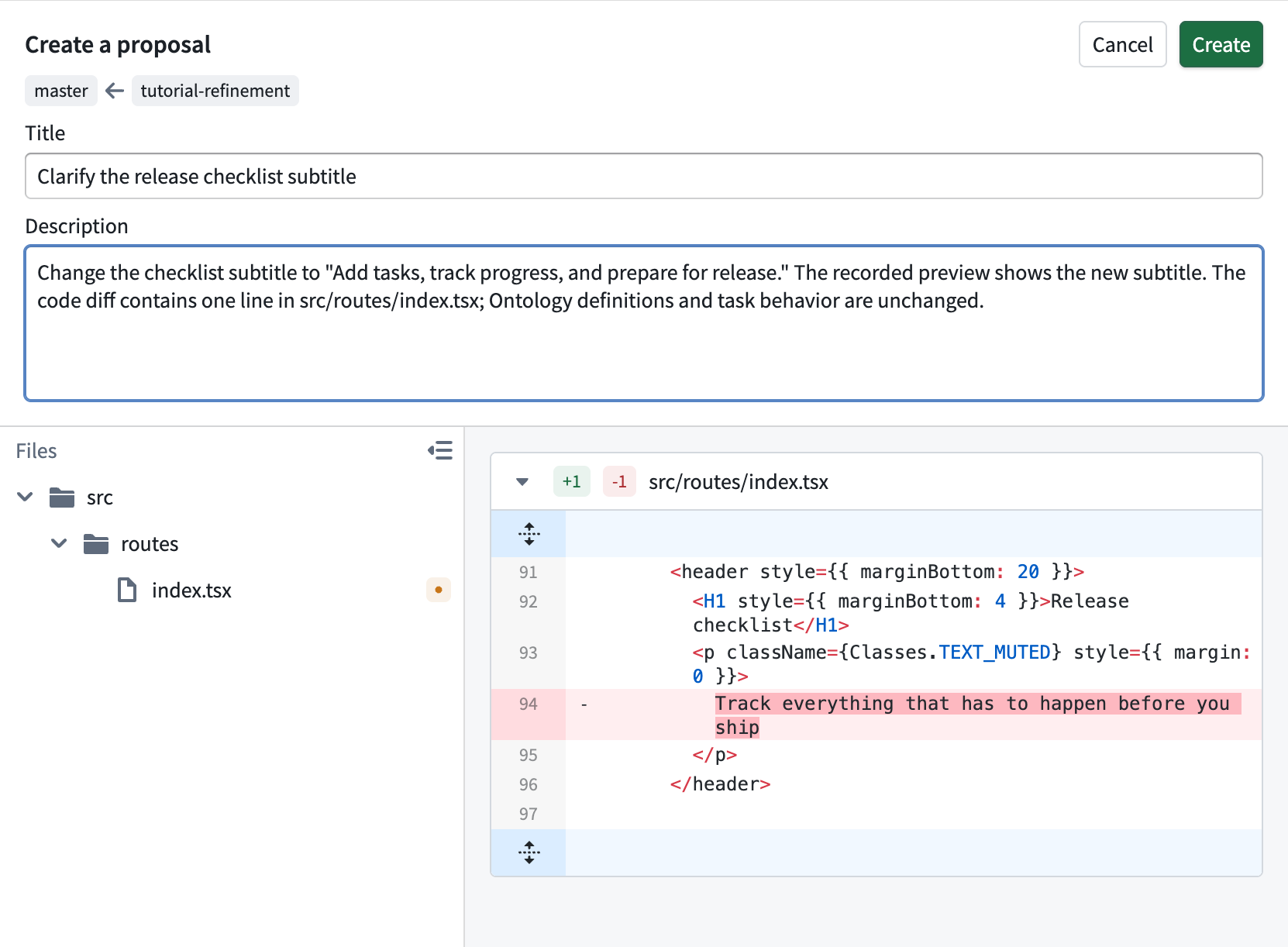
If proposal creation is disabled, resolve the indicated issue first. Common causes include unsaved changes, branch differences that need synchronization, or no changes compared with the base branch.
Review a proposal
To review a teammate's proposal or revisit your own, select Proposals beside the workspace tabs. The drawer lists Open and Closed proposals and provides a filter.
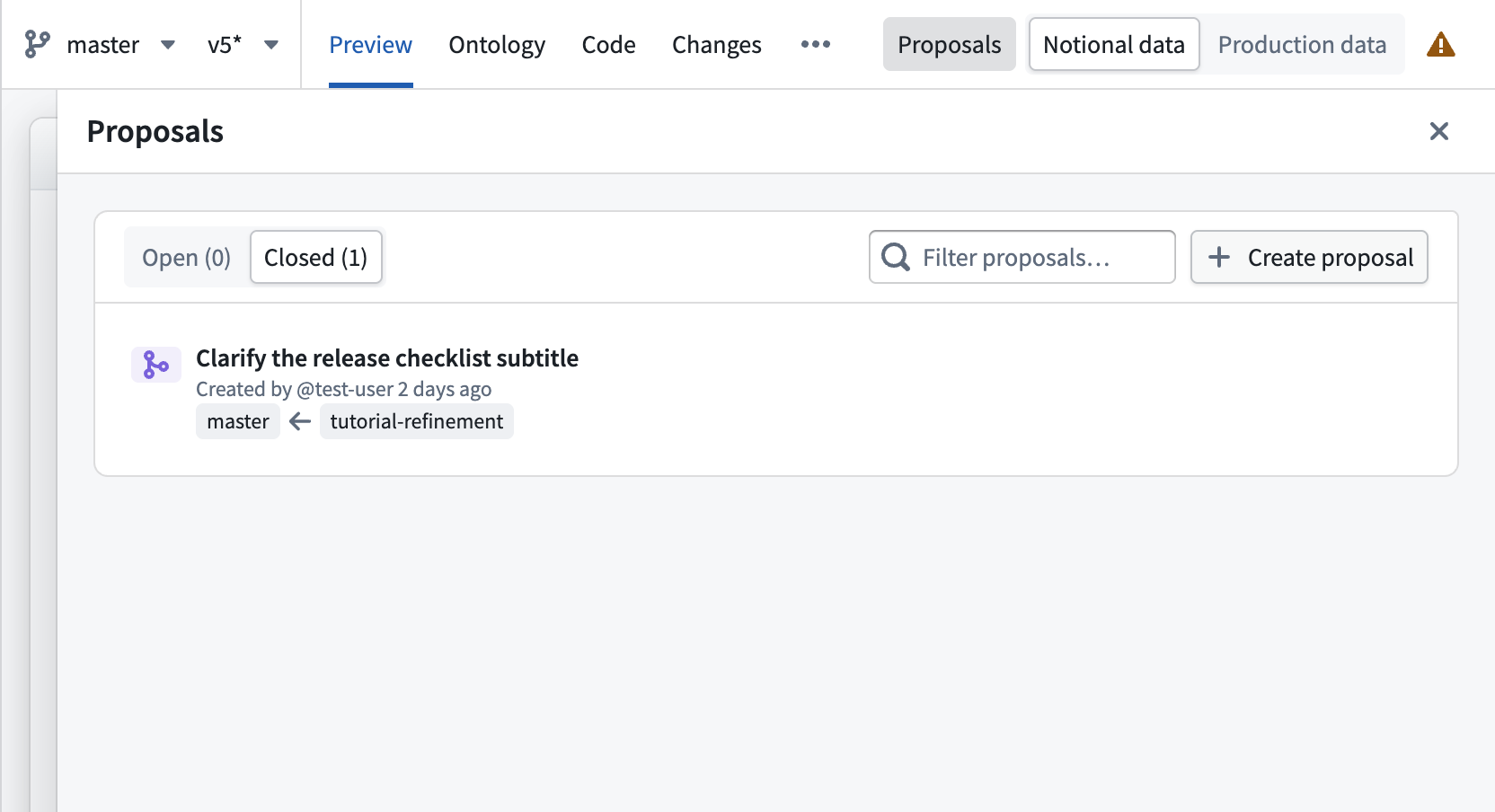
Select Open to find proposals awaiting review, then select a proposal. Pilot displays proposals for the current code branch. If View proposal on a different branch appears, save any changes you want to keep before switching to the proposal's source branch.
Review the title, description, source and destination branches, and the file differences under Changes.
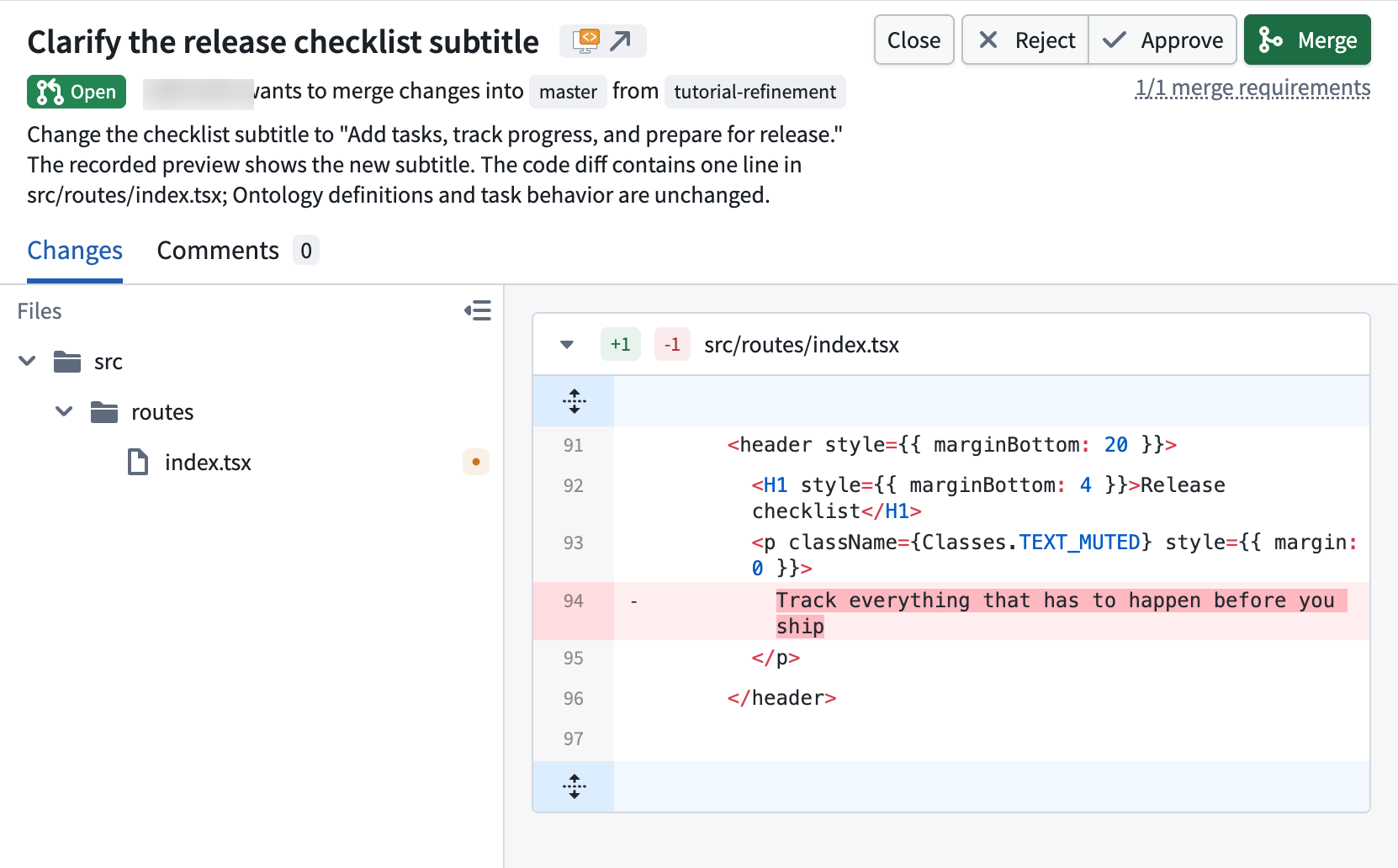
Use Comments to discuss the change. Comments can refer to the proposal, a file, or lines in a file. Where available, use Address all comments with Pilot or the corresponding selected-comment action to ask Pilot to implement review feedback. Review the resulting changes before merging.
Update and merge a proposal
Review the proposal's changes, comments, checks, and Merge requirements.
If the branch is out of date, Update branch with Pilot can update it and help resolve conflicts. Inspect the result and let required checks run again.
Use Approve or Reject to record a review when appropriate. Select Merge once the required checks and approval policy are satisfied. Review the source and destination branches in the confirmation dialog, then confirm Merge and wait for the proposal to show Merged. A policy can require an approval, prohibit merging with rejected reviews, or invalidate approvals after new commits.
After merging, return to the repository's default code branch. Use the deployment workflow to release the merged changes.
For proposals that Pilot cannot display, use View in Code Workspaces.
Protected branches
A protected branch requires changes to arrive through a proposal. Pilot restricts direct editing and Ontology-permission changes on that branch.
You can plan a change while on a protected branch. Use Implement on a branch to execute the plan on a new code branch. Similarly, fixes and generated deployment files may require a new branch and a proposal.
Where permitted, use the branch protection controls to inspect the policy. Follow your team's review requirements when changing it.
Deployment and branch types
Before deploying, merge code changes into the repository's default code branch. If the application also needs new or modified Ontology entities, complete the separate Global Branching proposal for those definitions.
Deploying requires the appropriate default branch for both workflows. Creating or merging a code proposal alone does not publish the application, deploy the Ontology, or change the preview's data source.
Continue with Deploy an application or Deploy a custom widget.