- Capabilities
- Getting started
- Architecture center
- Platform updates
Use the Platform SDK (PSDK) in Slate
The Platform Software Development Kit (PSDK) lets you call Foundry APIs from Slate functions. You can use it to retrieve dataset metadata, work with Ontology objects, and access other supported platform APIs.
You must use Slate's configured client from @slate/psdk. Import operations from @osdk/foundry and pass the client as the first argument. You do not need to create a client or provide an authentication token. Requests use the permissions of the user running the Slate application. Operations and arguments follow the standard Foundry SDK API, subject to Slate's supported operations.
Unlike the Ontology SDK (OSDK), the PSDK does not require you to select Ontology entities or generate a library before using it.
Enable the Platform SDK
To enable the PSDK in your application:
- Open your Slate application in edit mode.
- Open the Functions panel and find the Libraries section.
- Select Enable next to Foundry SDK and wait for the SDK version to appear.
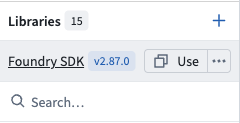
Select Use to copy a starter example, then paste it into a Slate function.
Slate also enables the PSDK automatically when you add an import from @slate/psdk or @osdk/foundry to a Slate function. Save your application to persist the SDK configuration.
The PSDK requires authenticated access and is not supported in public applications.
Platform SDK versions
Slate automatically loads the latest SDK version available on your Foundry instance that matches the application's configured major version and meets its minimum minor version. Compatible minor and patch updates require no manual package updates.
For example, an application configured for version 2.66 can use a newer compatible 2.x release. Slate does not automatically upgrade applications to a new major SDK version, and manual major-version upgrades are not yet available. When they are, review the SDK release notes ↗ for breaking changes that might require updates to your functions, and test your application before upgrading.
Display a dataset name
In this example, you have a dataset named Sales. A Slate variable holds its resource identifier (RID), a function retrieves its name using the Get Dataset API, and a Text widget displays Sales. Each user of the application must have permission to access the dataset.
-
In the Variables panel, create a variable named
v_dataset_ridwith your dataset RID as its default string value. For example, enter"ri.foundry.main.dataset.00000000-0000-0000-0000-000000000001", replacing the sample RID with your own. -
In the Functions panel, create a function named
f_dataset_nameand enter the following JavaScript:Copied!1 2 3 4 5import { client } from "@slate/psdk"; import { Datasets } from "@osdk/foundry"; const dataset = await Datasets.Datasets.get(client, {{v_dataset_rid}}); return dataset.name; -
Select Test to run the function and verify that its result is
Sales. -
Add a Text widget and set its content to
{{f_dataset_name}}. The widget displaysSales. -
Save your application.
The {{v_dataset_rid}} expression passes the current variable value into the function. You can use the same pattern to pass other Slate variables, widget properties, or function results into PSDK operations.
Adapt public API examples for Slate
The Foundry API reference describes operations and their parameters. When adapting its TypeScript examples for Slate:
- Keep the operation imports from
@osdk/foundry. - Import
clientfrom@slate/psdkinstead of creating a client or supplying an authentication token. Slate handles the connection and authentication. - Use JavaScript without TypeScript type annotations.
You do not need to install npm packages or generate an SDK library. Examples might use operations that are not available in your SDK version, so check the version displayed beside Foundry SDK before adapting one. For more background, see the Platform SDK overview.
Supported operations
Slate currently allows API requests under the following path prefixes:
- Ontology resources:
/api/v2/ontologies/ - Datasets:
/api/v2/datasets/ - Attachments:
/api/v2/attachments/ - Models:
/api/v2/models/ - Operations:
/api/v2/operations/
The same resource paths are also allowed under /api/v1/. An operation must be available in your SDK version and Foundry instance, and you must have the required permissions.
Requests to other endpoints, such as Admin APIs, are blocked even if those operations appear in code completion.
Request errors
A blocked request reports Fetch is restricted for <URL>., where <URL> is the requested URL. This means Slate rejected the request before contacting the endpoint.

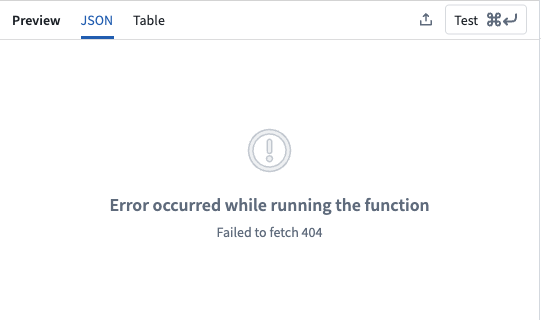
Failed HTTP requests throw errors. Structured API errors include statusCode and, when provided by the server, errorName, errorCode, errorInstanceId, and parameters. For example, selected fields from a dataset request returning HTTP 404 can look like:
Copied!1 2 3 4 5 6 7 8 9{ "message": "Failed to fetch 404 Not Found", "statusCode": 404, "errorName": "DatasetNotFound", "errorCode": "NOT_FOUND", "parameters": { "datasetRid": "ri.foundry.main.dataset.00000000-0000-0000-0000-000000000001" } }
Network failures and locally blocked requests may not have an HTTP status or structured API error fields. You can handle request errors with try/catch in your function. Unhandled errors appear as function failures.
Troubleshooting
- Platform SDK loading errors: If an error icon appears beside Foundry SDK in the Libraries section, hover over it to view the error message. If Enable appears again after a failed attempt, select it to retry.
- Blocked endpoints: Check that the operation's URL in the API reference matches one of the allowed path prefixes. An operation appearing in code completion does not mean Slate permits it.
- Permission errors: Verify that the user running the Slate application can access the resource and perform the requested operation. Your own access as the application author does not give other users access.
To inspect a failed function, select Test in the Functions panel. You can also find failed functions in the health check dialog.