- Capabilities
- Getting started
- Architecture center
- Platform updates
LLM evaluation suites in Pipeline Builder
The large language model (LLM) evaluation suite in Pipeline Builder lets you test LLM transforms and logic before you deploy them in your pipeline. You can configure multiple evaluations in an evaluation suite and run them in an isolated test environment to observe their behavior.
The evaluation suite is designed to work with the Use LLM node. Each evaluation runs a Use LLM node against testing data and one or more evaluators, then reports how the model output compares to your expected results.
This guide covers:
- Navigating to the evaluation suite
- Creating a new evaluation
- Configuring your evaluation
- Running your evaluation and checking the results
- Supported evaluators
Navigate to the evaluation suite
Open the evaluation suite by selecting its icon at the bottom of the toolbar on the right side of your screen.
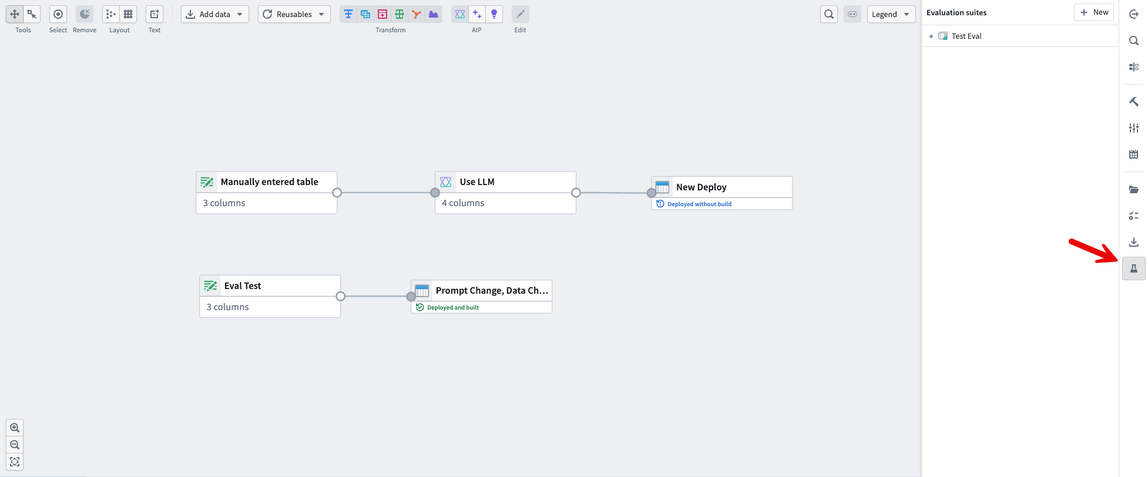
In the Evaluation suites panel, you can either select an existing evaluation or create a new one. To create a new evaluation, select + New in the top right of the panel.
Create a new evaluation
Select the Use LLM node you want to evaluate on the graph, then select Start.
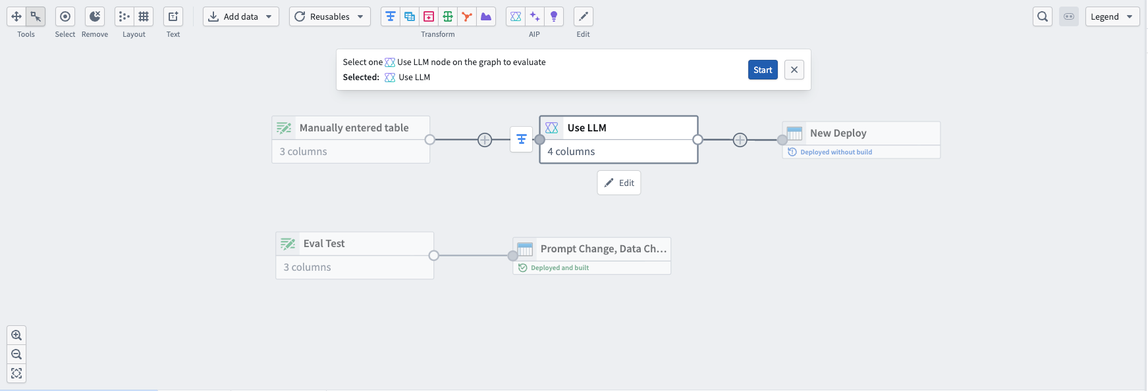
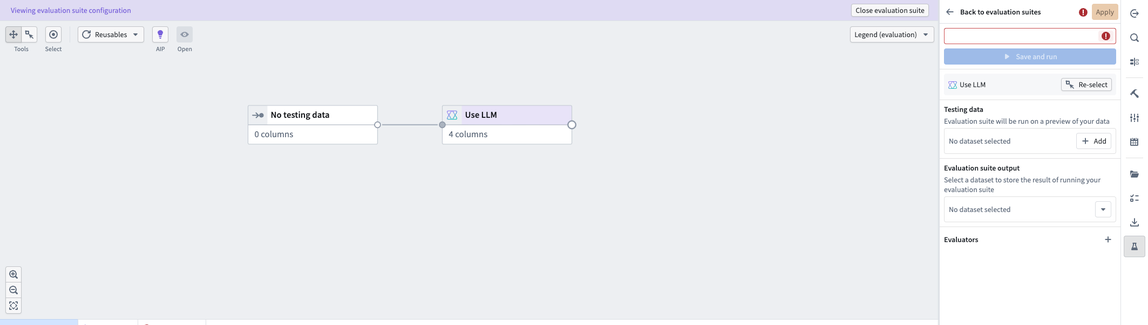
After you start a new evaluation, Pipeline Builder opens the evaluation suite configuration view.
Configure your evaluation
Configure your evaluation by adding testing data, naming the evaluation, adding evaluators, and selecting an output dataset.
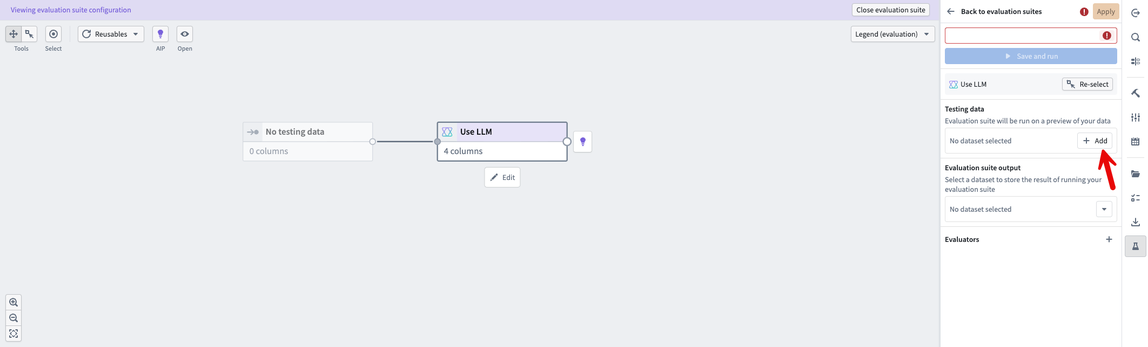
Add testing data
Your testing data should include all the columns you want to evaluate as inputs for your Use LLM node. It should also include a column that contains the expected LLM outputs when using evaluators where that is required.
To import an existing Foundry dataset, choose + Add in the Testing data field or select the input node and choose Select. To enter input data manually, select the input node and choose Enter.
Name the evaluation and add evaluators
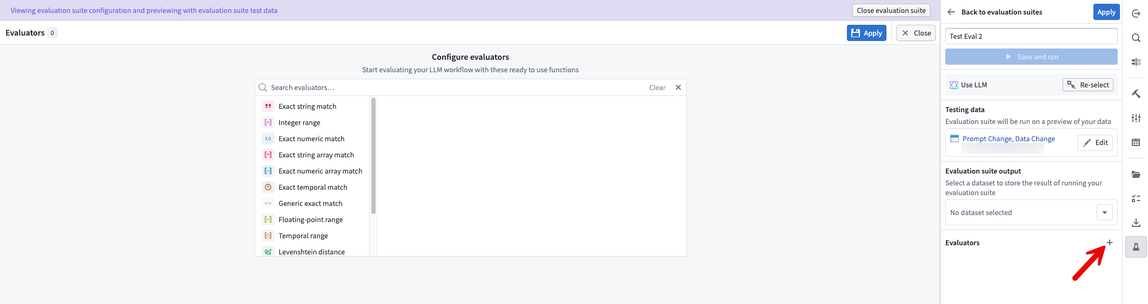
Name your evaluation in the text box at the top right of the panel. Then, add your evaluators by selecting the + icon next to the Evaluators label. A menu of available evaluators appears, from which you can select one or more evaluators.
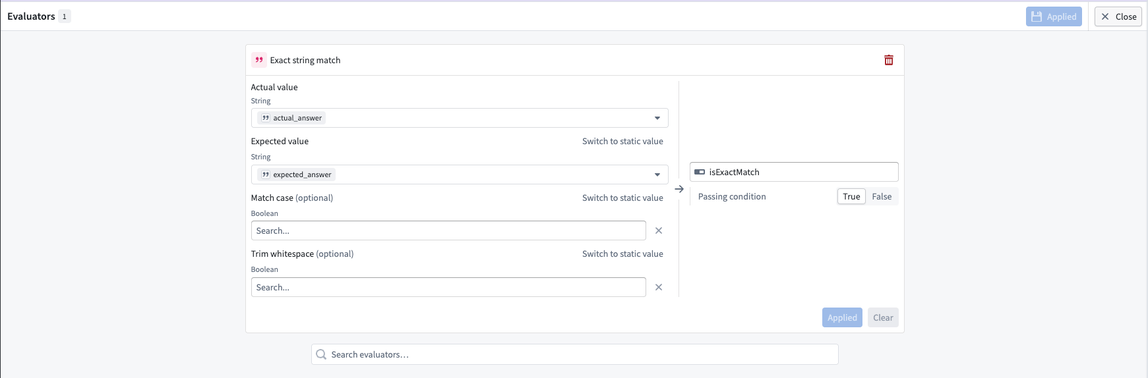
When you select an evaluator, Pipeline Builder opens a configuration page for that evaluator. The example below uses the Exact string match evaluator, which compares an Actual value column to an Expected value column and returns a Boolean result based on the Passing condition. You can also set the optional Match case and Trim whitespace parameters. After you apply your configuration, exit this view by selecting Close in the top right.
Select the output dataset
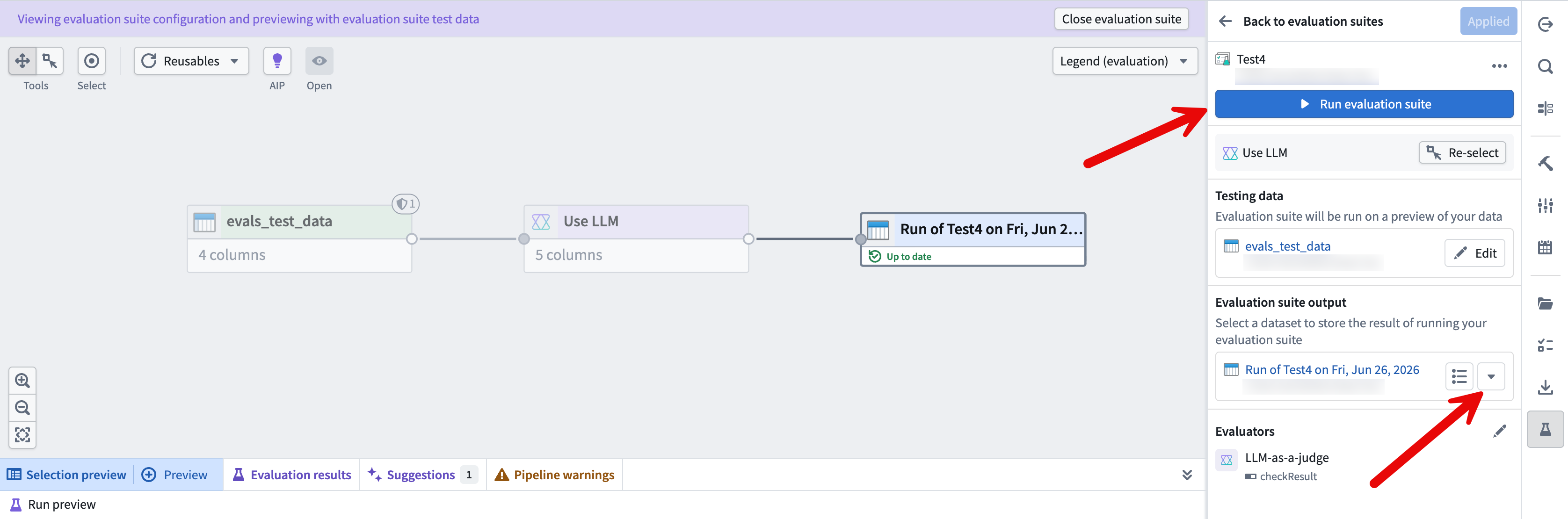
In the Evaluation suite output field, select an existing dataset or create a new one to store your evaluation output.
Run your evaluation and check the results
You must have edit permissions on the pipeline to run an evaluation suite.
After you configure your evaluation, select Run evaluation suite in the top right of your screen.
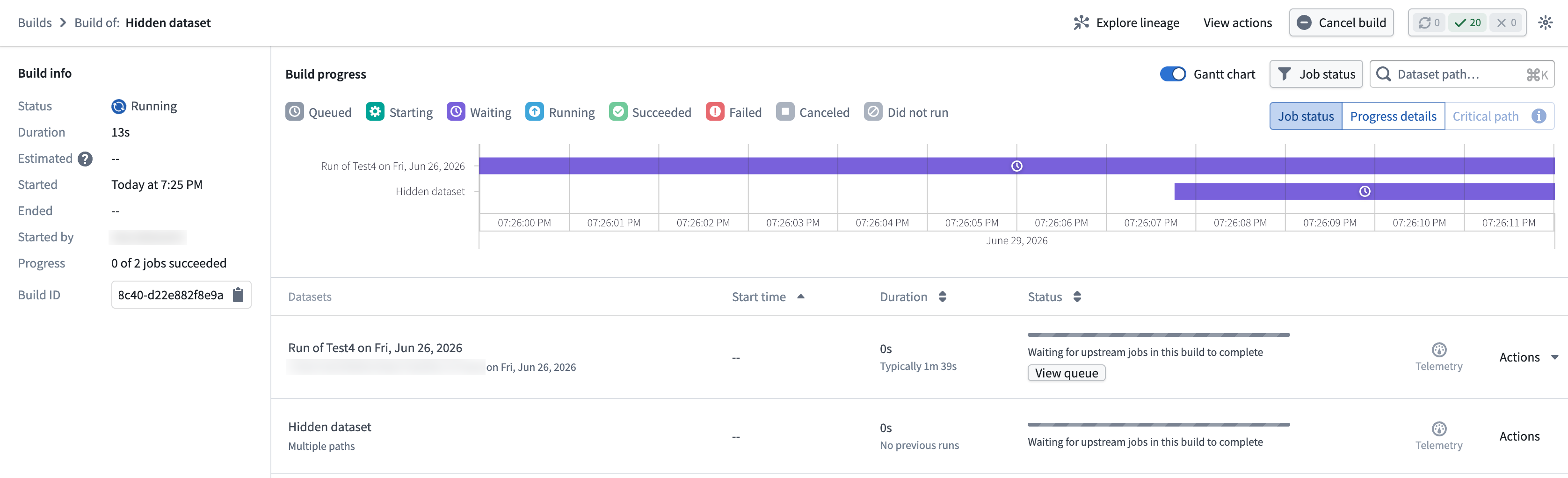
To track the progress of your evaluation, select the Open build report link in the top right of your screen.
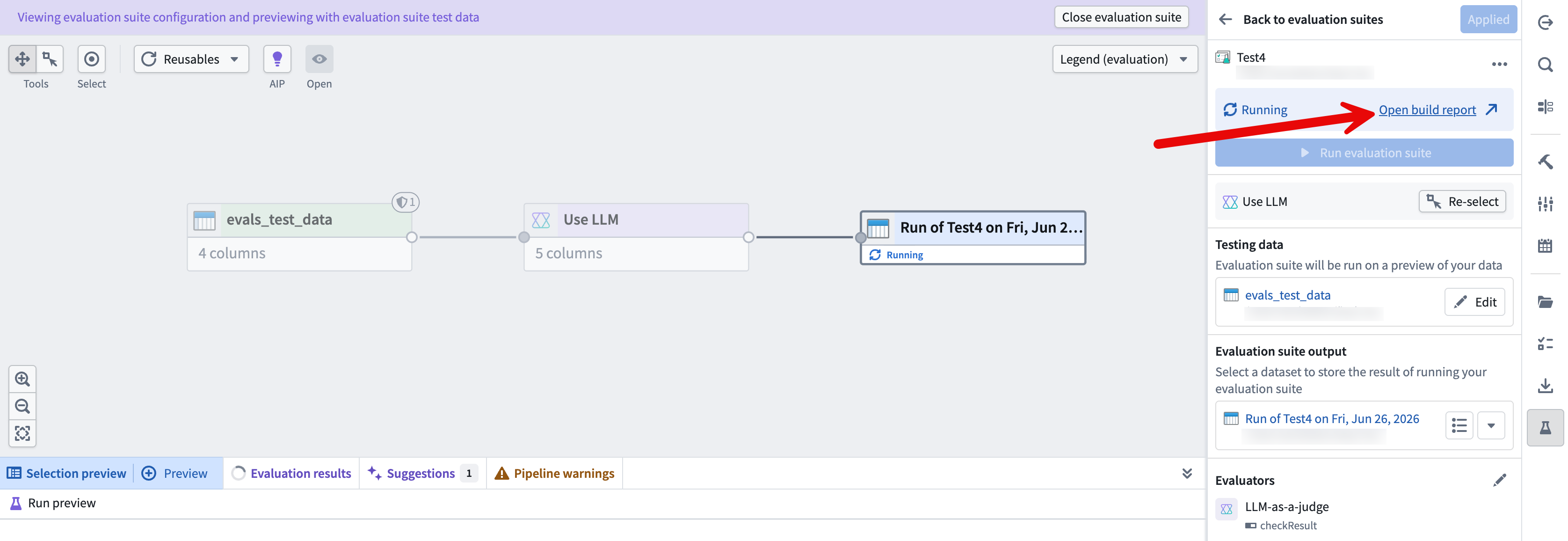
In the build report, monitor the evaluation run as it progresses.
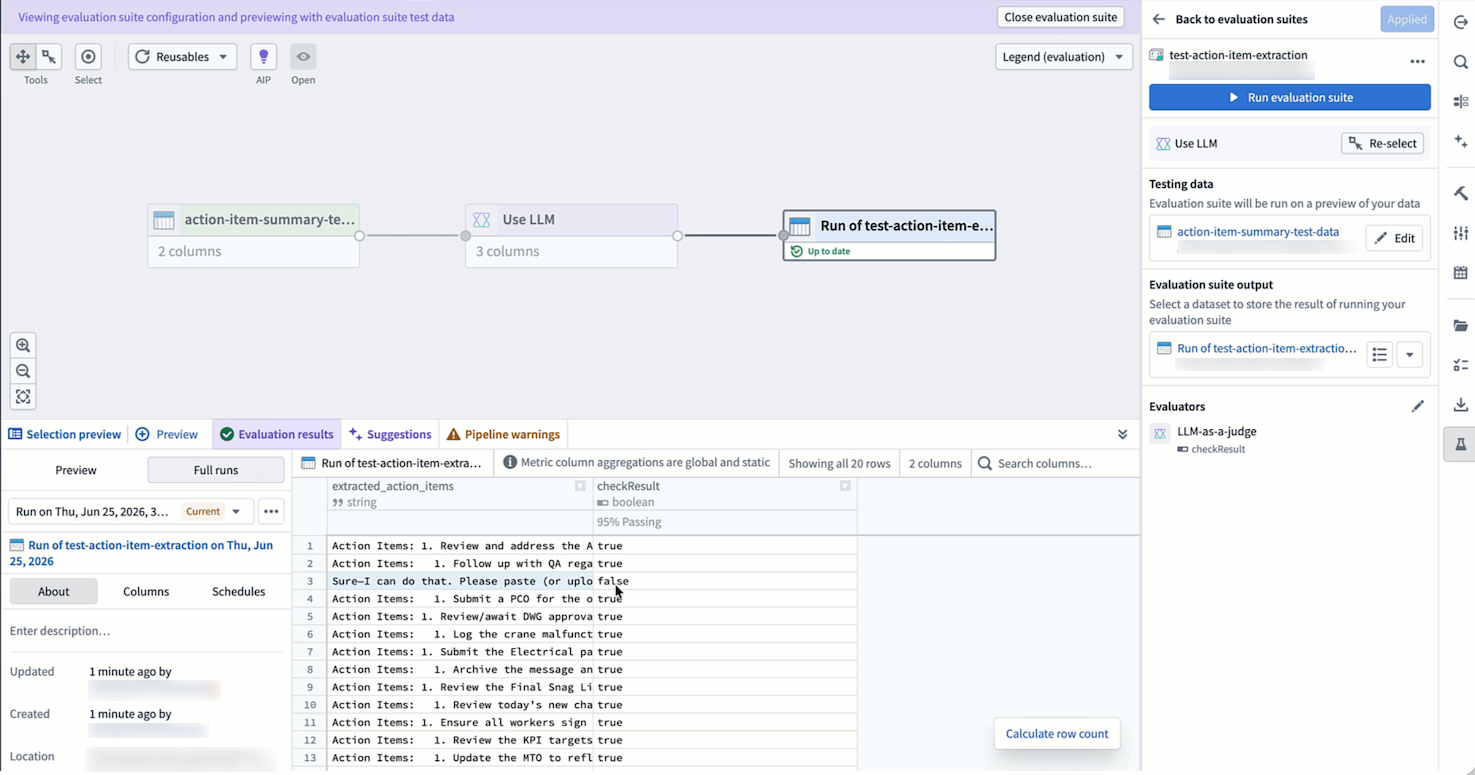
When your evaluation finishes building, view a preview of the results in the Evaluation results tab at the bottom of your screen.
Supported evaluators
Pipeline Builder evaluation suites support the following evaluators:
- Exact string match (configurable): Checks if the actual string exactly matches the expected string. Default: Matching is case-sensitive and includes whitespace.
- Integer range: Checks if the actual value lies within the range of expected values. Only integers are supported.
- Exact numeric match: Checks if two numbers are exactly equal. Supports integer, long, float, double, and short types.
- Exact string array match (configurable): Checks if two string arrays contain the same elements. Default: Comparison is order-dependent, case-sensitive, and includes whitespace.
- Exact numeric array match (configurable): Checks if two numeric arrays contain the same elements. Supports integer, long, float, double, and short types. Default: Comparison is order-dependent by default.
- Exact temporal match: Checks if two temporal values are exactly equal. Supports
DateandTimestampvalues. - Generic exact match: Checks if the actual value is identical to the expected value. Numeric types are coerced for comparison (for example, an integer can match a double of the same value), as are date and timestamp types. Objects and object sets are compared by reference, structs and maps by unordered key-value pairs, lists by ordered elements, and models by identifier and parameters. You should use a type-specific evaluator if one exists for your data type, as they provide fine-grained comparison options and better type safety.
- Floating-point range: Checks if the actual value lies within the range of expected values. All numeric types are supported as parameters.
- Temporal range: Checks if the actual value lies within the range of expected values. Only
DateandTimestampvalues are supported. - Levenshtein distance: Measures the difference between two sequences by calculating the minimum number of single-character edits (insertions, deletions, or substitutions) required to change one sequence into the other.
- String length: Checks if the length of the actual string falls within the expected range.
- Keyword checker: Checks if specific keywords are present in the actual text.
- Regex match: Checks if the actual string matches the expected regular expression.
- LLM-as-a-judge: Uses an LLM to evaluate whether a user-defined condition holds true for a given value. Returns
truewhen the condition is satisfied, otherwisefalse. Accepts any type except reference types (object locators, object RIDs, object sets, or models) as the actual value. Requires a condition parameter written as a clear, verifiable assertion and an available model for evaluation.